Moving a WordPress website to a new hosting provider can improve performance, support, scalability, or operating costs. But a poorly planned migration can also cause downtime, broken pages, missing images, lost orders, email disruption, and search engine indexing problems.
The good news is that most WordPress websites can be migrated with little or no visible interruption when the old and new hosting environments remain available during the transition.
However, moving WordPress without downtime is not simply a matter of copying files and changing DNS records. Database consistency, SSL certificates, caching, email routing, and visitor activity all require careful planning.
In this guide, you will learn how to migrate WordPress to a new host without downtime, including manual migration, migration plugins, DNS cutover, WooCommerce precautions, SEO checks, and rollback procedures.
Can You Migrate WordPress Without Downtime?
Yes. For a typical WordPress website with mostly static content, it is often possible to complete a hosting migration without visitors noticing an interruption.
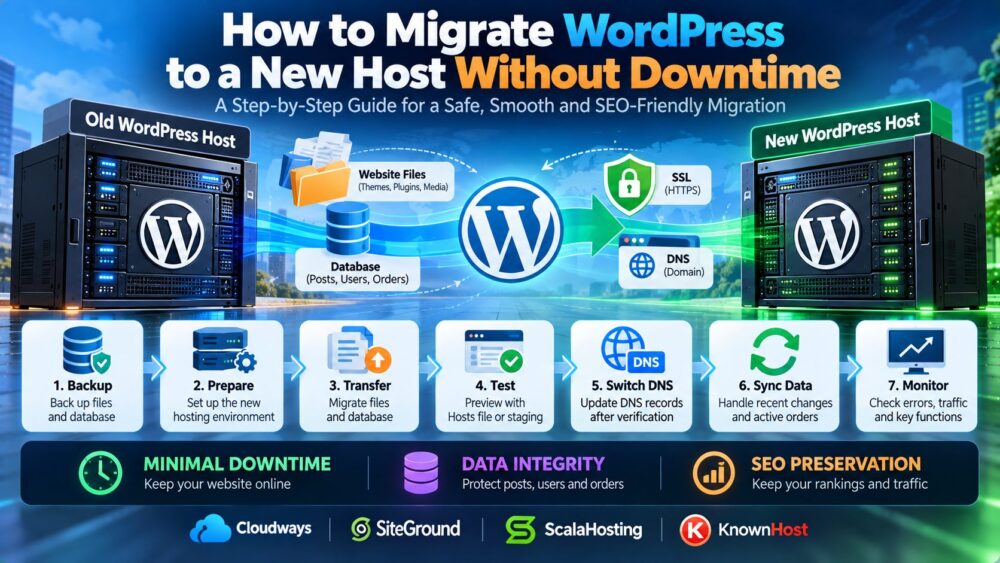
The safest general approach is to prepare the new server while the original website remains online, test the migrated website privately, and change DNS only after the new environment is ready.
There is one important limitation: zero visible downtime does not automatically mean zero data loss.
Websites that accept orders, registrations, comments, bookings, or other database writes may receive new data during DNS propagation. If the old and new servers accept independent writes, records can become inconsistent.
For these websites, plan a final synchronization, controlled write freeze, or properly configured database replication strategy.
WordPress Migration: Quick Checklist
| Migration Stage | Required Action | Why It Matters |
|---|---|---|
| 1. Preparation | Audit website, hosting, DNS, and email | Identifies dependencies |
| 2. Backup | Back up files and database | Protects against data loss |
| 3. New hosting | Prepare PHP, database, storage, and SSL | Ensures compatibility |
| 4. Migration | Copy files and import database | Recreates the website |
| 5. Testing | Preview using a Hosts override or suitable staging method | Finds problems before cutover |
| 6. Data consistency | Synchronize recent changes or freeze writes | Prevents lost records |
| 7. DNS cutover | Update the correct DNS records | Directs visitors to the new server |
| 8. Monitoring | Check errors, traffic, forms, and orders | Confirms successful operation |
| 9. Retirement | Cancel old hosting only after verification | Preserves rollback options |
Step 1: Audit Your Existing WordPress Website
Before migrating, document the current website configuration.
Check WordPress and PHP Versions
Record the WordPress version, PHP version, database engine, and important PHP extensions.
Confirm that the destination host supports the versions required by your theme and plugins.
Review Themes and Plugins
Identify caching, security, backup, membership, payment, multilingual, and page builder plugins.
Some plugins store absolute paths, generate cached assets, or depend on specific server configurations.
Measure Website Size
Check the size of your WordPress files, uploads directory, and database.
Large media libraries and databases may require command-line tools rather than browser-based migration utilities.
Identify Background Tasks
Review scheduled jobs, WP-Cron, external cron tasks, webhooks, email queues, and payment callbacks.
Document DNS and Email
Record existing A, AAAA, CNAME, MX, TXT, SPF, DKIM, and DMARC records where applicable.
A hosting migration should not accidentally interrupt email delivery.
Review Existing Hosting Limitations
If resource limits or support problems are driving the move, identify the actual bottleneck before purchasing another plan.
Our Managed vs Unmanaged Hosting Guide explains the differences in maintenance responsibility, support, and server control.
Step 2: Choose a Compatible WordPress Hosting Provider
The destination hosting environment should meet your website's technical and operational requirements.
PHP and Database Compatibility
Check supported PHP versions, MySQL or MariaDB versions, required extensions, and database import limits.
Storage and Backups
Ensure there is sufficient disk space for WordPress files, database imports, temporary backups, and future growth.
Server Performance
Evaluate CPU allocation, memory, storage performance, caching, and database resources.
SSL and DNS Support
Confirm how SSL certificates are issued before or during domain cutover.
Migration Assistance
Ask whether the provider offers migration assistance, what it covers, and whether additional fees or eligibility restrictions apply.
WordPress Hosting Providers Worth Evaluating
Cloudways may appeal to site owners who want managed cloud hosting with WordPress-oriented deployment tools.
SiteGround is another option for users evaluating managed WordPress features and hosting migration workflows.
ScalaHosting may be relevant when a growing website requires managed VPS resources and greater hosting control.
KnownHost is worth considering for websites where managed hosting support and operational assistance are important.
Do not assume every plan includes free migration, identical staging capabilities, or the same level of support. Verify the selected product's current terms.
For a direct comparison of managed WordPress deployment approaches, see our Cloudways vs SiteGround Comparison.
Step 3: Create a Complete WordPress Backup
Never begin a hosting migration without a recoverable backup.
Back Up WordPress Files
Your file backup should include:
- WordPress core files where needed
- wp-content/uploads
- Installed themes and plugins
- wp-config.php
- .htaccess or relevant web server configuration
- Custom scripts and application files
Back Up the Database
Export the complete WordPress database, including all tables used by plugins and custom applications.
WooCommerce, membership, and multilingual plugins may create additional tables or store important information in existing tables.
Store the Backup Separately
Keep at least one backup outside both the old and new hosting environments.
Verify Backup Integrity
Check that the archive is complete and that the database export can be read or restored.
Record the Backup Time
For a website with active transactions, the backup timestamp determines which later changes must be synchronized.
Step 4: Prepare the New Hosting Environment
Configure the destination server before directing public traffic to it.
Create the Website
Add the domain or website to the new hosting control panel without changing public DNS prematurely.
Configure PHP
Select a compatible PHP version and install required extensions.
Create the Database
Create a database and a database user with appropriate privileges.
Configure the Web Server
Check document roots, rewrite rules, file permissions, and required web server modules.
Prepare SSL
Determine whether the new host supports certificate issuance before DNS cutover, such as through a supported DNS-based validation workflow or another provider-supported method.
Some HTTP-based certificate validation methods require the domain to reach the destination server, so SSL preparation must be coordinated with the migration.
Check Server Security
Enable appropriate firewall rules, access controls, updates, and backups before launch.
Step 5: Migrate WordPress Files
There are several ways to transfer WordPress files.
Method A: SFTP
SFTP can transfer files securely between your local computer and the server.
It is suitable for many smaller websites but may be slower for large installations containing thousands of small files.
Method B: SSH and rsync
For servers with SSH access, rsync can efficiently synchronize files between environments.
An illustrative command is:
rsync -avz /path/to/wordpress/ user@NEW_SERVER:/path/to/wordpress/Replace the example paths and destination with the correct values for your environment.
Review file ownership and permissions after transfer. Do not run destructive synchronization options without understanding their effects.
Method C: Hosting Migration Tools
Some hosting providers offer migration utilities or assisted transfers.
Check whether these tools support your WordPress configuration, website size, and database requirements.
Step 6: Export and Import the WordPress Database
WordPress stores posts, pages, settings, users, comments, and many plugin records in its database.
Export the Original Database
You can use a compatible database administration tool or command-line utility.
For example:
mysqldump -u DB_USER -p --single-transaction DB_NAME > wordpress-backup.sqlThis is an illustrative command for a compatible transactional database setup. It does not guarantee a fully consistent application-level snapshot across every plugin or external system.
Import the Database
On the destination environment:
mysql -u NEW_DB_USER -p NEW_DB_NAME < wordpress-backup.sqlReplace the example database names and users with the correct credentials.
Update wp-config.php
Confirm the database settings:

define('DB_NAME', 'new_database');
define('DB_USER', 'new_user');
define('DB_PASSWORD', 'your_secure_password');
define('DB_HOST', 'localhost');
The database hostname may differ from localhost depending on the hosting environment.
Do Not Expose Database Credentials
Keep configuration files and backups outside publicly accessible locations whenever possible.
Step 7: Handle WordPress URLs and File Paths
Moving WordPress to a different server does not necessarily require changing its public domain.
Same Domain Migration
If the domain remains unchanged, preserve the production site URL and home URL.
Temporary Domain Migration
If the website was copied to a temporary domain, its database may contain temporary URLs.
Use WordPress-aware tools to replace URLs safely when necessary.
WP-CLI Search and Replace
For a migration involving an actual domain change, a suitable WP-CLI command may look like:
wp search-replace 'https://old.example.com' 'https://new.example.com' --all-tables --dry-runAfter reviewing the dry-run results, remove the dry-run option only when the replacements are correct.
WP-CLI can handle serialized data more safely than a raw SQL text replacement.
Avoid Unnecessary Domain Changes
When the goal is only to change hosting providers, retaining the existing domain and URLs simplifies SEO preservation.
Step 8: Preview WordPress on the New Server Before DNS Cutover
This is one of the most important steps in a low-downtime migration.
Using a Hosts File Override
A local Hosts file can direct your computer to the new server's IP address while public DNS still points to the original server.
For example:
203.0.113.10 example.com
203.0.113.10 www.example.com
The IP address above is documentation-only. Replace it with the destination server's actual address.
On Windows, the Hosts file is commonly located at:
C:\Windows\System32\drivers\etc\hostsAdministrative privileges are normally required to edit it.
Test HTTPS Carefully
The new server must present a valid certificate for the production domain to avoid browser warnings.
Do not disable SSL verification as a substitute for preparing HTTPS correctly.
Test Critical Pages
- Homepage
- Important articles and landing pages
- Images and downloadable files
- Contact forms
- WordPress login
- Admin dashboard
- Search functionality
- Checkout and account pages, where applicable
Verify Which Server Responded
Use server logs or a temporary response header to confirm that your tests are reaching the new environment rather than a CDN cache or the original server.
Step 9: Reduce DNS TTL Before Migration
DNS Time to Live, or TTL, controls how long compliant resolvers may cache DNS records.
Why Lower TTL?
Reducing TTL in advance can help many DNS resolvers discover updated records sooner.
When to Change TTL
Lower the relevant TTL sufficiently early that previously cached records have time to expire before cutover.
Example TTL
A TTL of 300 seconds is commonly used for planned transitions when supported by the DNS provider.
Important Limitation
Lower TTL does not guarantee that every client switches immediately. Some resolvers, operating systems, applications, or intermediaries may cache records differently.
DNS Recommendation
Prepare the new server to coexist with the old server during the transition period.
Step 10: Prevent Data Loss During the Final Migration
Database consistency is the biggest challenge for active WordPress websites.
Static Content Websites
A blog or brochure website with no active user writes is relatively straightforward to migrate.
A final database and file synchronization shortly before cutover may be sufficient.
WooCommerce Websites
WooCommerce stores order, customer, inventory, and payment-related information that may change during migration.
Depending on configuration, WooCommerce may use High-Performance Order Storage and additional database tables.
Membership Websites
Membership sites may receive new registrations, profile updates, and subscription events.
Forums and Community Sites
Forums may receive posts, messages, and comments throughout the migration window.
Option A: Brief Write Freeze
For smaller transactional websites, a carefully planned write freeze can protect database consistency during the final synchronization.
This may temporarily prevent checkout, registration, or other write operations, so it is not strictly zero interruption for those functions.
Option B: Database Replication
Appropriately designed database replication may support more advanced cutovers, but it requires compatible infrastructure, careful validation, and a strategy for application writes.
Option C: Application-Level Synchronization
Specialized workflows can synchronize orders or other business records when supported by the application and its integrations.
Critical Warning
Do not allow the old and new WordPress databases to accept independent production writes without a reliable consistency strategy.
Simply running two live copies behind changing DNS can lead to lost or conflicting records.
Step 11: Switch DNS to the New WordPress Host
After testing and final synchronization, update the appropriate DNS records.
Update A and AAAA Records
Point the relevant hostnames to the destination server's addresses.
Remove or update stale IPv4 and IPv6 records so visitors are not accidentally routed to the old environment.
Review CNAME Records
Check whether www or other hostnames depend on CNAME records.
Check CDN or Proxy Settings
If the website uses a CDN or reverse proxy, update the origin configuration as required.
Do Not Change MX Records Unnecessarily
If email remains with the existing email provider, preserve the correct MX and associated email authentication records.
Monitor Both Servers
During the transition, review logs on both the original and destination servers.
Do Not Cancel the Old Host Immediately
Keep the original environment available until traffic, application behavior, and data consistency have been verified.
Step 12: Verify SSL and HTTPS After Migration
HTTPS must work correctly on the new server before the migration is considered complete.
Validate the Certificate
Check that the certificate covers the correct domain names and is trusted by major browsers.
Check HTTPS Redirects
Verify that HTTP requests redirect to the intended HTTPS URLs without creating loops.
Check Mixed Content
Review pages for insecure HTTP assets such as images, scripts, and stylesheets.
Check CDN SSL Settings
Reverse proxies and CDNs may require specific origin certificate and encryption settings.
Verify Certificate Renewal
Confirm that automatic certificate renewal works on the new environment.
Step 13: Preserve WordPress SEO During Migration
Changing hosting providers should not require changing your website's existing URLs, metadata, or content structure.
Preserve Permalinks
Keep the existing permalink structure unless a separate, carefully planned URL migration is required.
Preserve Canonical URLs
Confirm that canonical tags still point to the intended production URLs.
Preserve Robots.txt
Ensure the new website is not accidentally blocked from crawling.
Remove Staging Noindex Settings
Check that production pages do not retain noindex directives from a staging environment.
Preserve XML Sitemaps
Verify that the existing XML sitemap URLs continue to work.
Check Redirects
Restore necessary 301 redirects and test important old URLs.
Check Analytics
Confirm that analytics and conversion tracking continue to work.
Use Google Search Console
Monitor indexing, crawl errors, and important search performance trends after migration.
For broader technical SEO maintenance, see our WordPress Hosting vs Web Hosting Guide to understand how hosting architecture and WordPress requirements fit together.
Step 14: Test Email, Forms, and External Integrations
Website migration can affect systems that are not visible on the homepage.
Contact Forms
Submit test messages and verify delivery.
SMTP
Check SMTP credentials, outbound email restrictions, and DNS authentication where relevant.
Payment Gateways
Confirm payment callbacks, webhooks, and checkout flows.
Scheduled Tasks
Verify cron jobs and scheduled application processes.
External APIs
Check IP allowlists, firewall rules, API credentials, and callback URLs.
Object Storage
Verify that media offloading and external storage integrations still work.
Step 15: Monitor the Website After DNS Cutover
Migration is not complete when DNS records are changed.
Monitor HTTP Errors
Look for unexpected 404, 403, 500, 502, and 503 errors.
Monitor PHP Errors
Check PHP and application logs for compatibility problems.
Monitor Database Performance
Watch for connection errors, slow queries, and unexpected resource consumption.
Monitor Server Resources
Track CPU, memory, disk usage, and network activity.
Monitor Business Transactions
Verify new orders, registrations, subscriptions, and other important database writes.
Monitor Search Visibility
Watch Google Search Console for new crawl or indexing problems.
Retain Rollback Capability
Keep the original environment and verified backups until the migration has passed an appropriate observation period.
How to Migrate WordPress Using a Plugin
Migration plugins can simplify file packaging, database transfer, and URL handling.
Common Plugin Workflow
- Install a compatible migration plugin on the original website.
- Create a complete migration package or backup.
- Prepare the destination WordPress environment.
- Transfer or restore the migration package.
- Verify database and site settings.
- Preview the destination privately.
- Synchronize recent changes where required.
- Update DNS and monitor the result.
Plugin Limitations
Large websites may encounter upload limits, execution timeouts, storage restrictions, or plugin compatibility problems.
Plugin Migration and Active Orders
Migration plugins do not automatically guarantee lossless synchronization of transactions that occur after the backup was created.
When to Use Manual Migration
Manual or assisted migration may be preferable for large databases, custom applications, complex hosting environments, or highly transactional websites.
Manual Migration vs Plugin Migration vs Managed Migration
| Method | Advantages | Limitations | Best Fit |
|---|---|---|---|
| Migration plugin | Convenient workflow | Size and compatibility limits | Smaller conventional websites |
| Manual migration | Greater technical control | Requires administration skills | Custom or larger websites |
| Managed migration | Provider or specialist assistance | Scope and availability vary | Businesses seeking operational support |
WordPress Migration Problems and Solutions
Problem: Error Establishing a Database Connection
Check database credentials, database hostname, service availability, and user permissions.
Problem: WordPress Redirect Loop
Check site URLs, HTTPS settings, reverse proxy configuration, and redirect rules.
Problem: Images Are Missing
Verify the uploads directory, file permissions, media URLs, and any object storage configuration.
Problem: WordPress Admin Login Fails
Check cookies, domain settings, security plugins, caching, and server-side session behavior.
Problem: Permalinks Return 404
Verify rewrite rules and save permalink settings where appropriate.
Problem: SSL Certificate Error
Check certificate validity, hostname coverage, DNS routing, and reverse proxy configuration.
Problem: WooCommerce Orders Are Missing
Stop further uncontrolled changes and compare the authoritative order records and migration timeline before attempting reconciliation.
Problem: Website Is Slow on the New Host
Review caching, PHP workers, CPU limits, database performance, and storage I/O.
How to Roll Back a Failed WordPress Migration
A rollback plan should be prepared before the DNS cutover.
Keep the Original Hosting Environment
Do not delete the original website or database immediately.
Preserve a Known-Good Backup
Store a verified backup with a clear timestamp.
Understand Which Database Is Authoritative
If the new server has already accepted production writes, switching traffic back to the old database without reconciliation can lose those changes.
Restore DNS Carefully
Reverting DNS may take time to reach clients because of caching.
Check Transactional Records
Reconcile orders, user registrations, payments, and other critical records before resuming normal operation.
Rollback Verdict
A safe rollback requires both traffic routing and data consistency planning.
How Much Does WordPress Migration Cost?
Migration cost depends on website complexity, available access, and the assistance required.
DIY Migration
A manual migration may not require a separate service fee, but it still consumes administrative time and may involve temporary hosting overlap.
Plugin-Based Migration
Some tools offer free functionality, while others charge for advanced features or larger migrations.
Provider-Assisted Migration
Some hosting products include migration assistance; others may charge or limit the service.
Professional Migration
Complex WooCommerce, membership, multisite, or custom application migrations may justify specialist assistance.
Hidden Costs
- Overlapping hosting subscriptions
- Additional backups
- Premium migration tools
- SSL or infrastructure configuration
- Developer time
- Business disruption from an unsuccessful cutover
When Should You Upgrade Hosting During Migration?
A hosting migration is a useful opportunity to review whether the destination environment actually addresses the problems that motivated the move.

Upgrade for Resource Limits
If the current server regularly exhausts CPU, memory, or PHP workers, evaluate an appropriately sized replacement.
Upgrade for Management Needs
Businesses without dedicated server administration staff may prefer a managed hosting environment.
Upgrade for Scalability
Growing applications may benefit from more flexible compute and storage resources.
Upgrade for Reliability
Review backup procedures, monitoring, support response expectations, and documented service commitments.
For related infrastructure choices, see our Cloud Hosting vs VPS Comparison.
Frequently Asked Questions
Can I migrate WordPress without downtime?
Many conventional WordPress sites can be moved without noticeable visitor interruption by preparing the destination in advance and coordinating DNS cutover. Transactional sites require additional data consistency controls.
How long does a WordPress migration take?
It depends on website size, database complexity, available transfer bandwidth, hosting tools, and testing requirements.
Will changing WordPress hosting affect SEO?
A hosting change does not inherently require SEO losses. Problems can arise from downtime, broken URLs, noindex settings, redirects, or other migration errors.
Do I need to change my domain name?
No. You can retain the same domain while moving WordPress to another hosting provider.
Should I change DNS before copying WordPress?
No. Prepare and test the new hosting environment before redirecting production traffic.
What DNS TTL should I use for migration?
A shorter TTL such as 300 seconds can help with planned transitions, but it must be set sufficiently in advance and does not guarantee instant propagation.
Can I test WordPress before changing DNS?
Yes. A local Hosts file override or suitable provider-supported preview method can direct your test requests to the destination server.
Do I need to migrate the WordPress database?
Yes. WordPress stores essential content and configuration in its database.
Can I migrate WordPress with FTP?
Files can be transferred with supported file transfer tools, but the database must also be migrated. Prefer secure protocols such as SFTP.
Can I use a WordPress migration plugin?
Yes, if the plugin supports your website size and configuration. Verify its limitations and test the result.
Can WooCommerce be migrated without losing orders?
Yes, with an appropriate data consistency strategy. A simple one-time database copy is not sufficient if new orders continue arriving during migration.
Will my email stop working after migration?
Not necessarily. Preserve the correct email DNS records and verify SMTP and mail delivery settings.
Do I need a new SSL certificate?
The destination server needs a valid certificate for the production hostname. Whether an existing certificate can be reused depends on its type and the hosting environment.
Can I migrate WordPress Multisite?
Yes, but multisite requires additional care with network settings, domains, database tables, uploads, and redirects.
What happens if DNS still points to the old server?
Some visitors may continue reaching the old environment until cached DNS information expires or routing changes take effect.
Should I disable caching during migration?
Review caching behavior and purge relevant caches after cutover. Disabling all caching is not always necessary and may increase load.
How do I fix broken images after migration?
Check file transfer completeness, uploads paths, permissions, URL references, and external media storage settings.
How do I prevent duplicate content during migration?
Keep staging environments from being publicly indexed, preserve canonical URLs, and avoid exposing duplicate public domains.
When can I cancel my old hosting account?
After confirming that traffic has transitioned, critical functions work, important records are consistent, and rollback is no longer required.
Is managed WordPress migration worth it?
It can be worthwhile when a website is business-critical, technically complex, or requires assistance that the site owner cannot safely provide.
Final WordPress Migration Checklist
- Complete website and database backups verified
- New hosting environment configured
- PHP and database compatibility confirmed
- Files transferred and database imported
- WordPress URLs and paths checked
- New server privately tested
- SSL certificate prepared and validated
- DNS TTL reviewed
- Recent database changes synchronized
- Transactional write consistency protected
- DNS records updated
- Forms, email, checkout, and integrations tested
- Canonical URLs, redirects, robots.txt, and sitemap checked
- Server errors and performance monitored
- Original hosting retained for rollback
Final Verdict: Migrate WordPress to a New Host Safely
The safest way to migrate WordPress to a new host without downtime is to treat the move as a controlled infrastructure transition rather than a simple file transfer.
Prepare the destination server, create verified backups, migrate files and databases, test privately, protect recent database writes, and update DNS only after the new environment is ready.
For business-critical or transactional websites, plan database synchronization and rollback procedures before the cutover.
Whether you choose Cloudways, SiteGround, ScalaHosting, KnownHost, or another compatible provider, the most important factors are technical compatibility, operational support, data integrity, and a thoroughly tested migration plan.
BACKUP → PREPARE NEW HOST → MIGRATE → TEST → SYNCHRONIZE → SWITCH DNS → MONITOR → RETIRE OLD HOST