A slow WordPress website does not automatically mean you need a faster server.
The real problem could be hosting, CPU limits, PHP workers, database queries, plugins, themes, images, JavaScript, third-party services, background jobs, caching, or even network latency.
That is why randomly installing another optimization plugin or immediately upgrading your hosting often fails to solve the real problem.
This guide explains how to fix a slow WordPress website by diagnosing the bottleneck first and applying the right solution afterward.
WordPress Troubleshooting Strategy: Measure → Isolate → Diagnose → Fix → Retest.
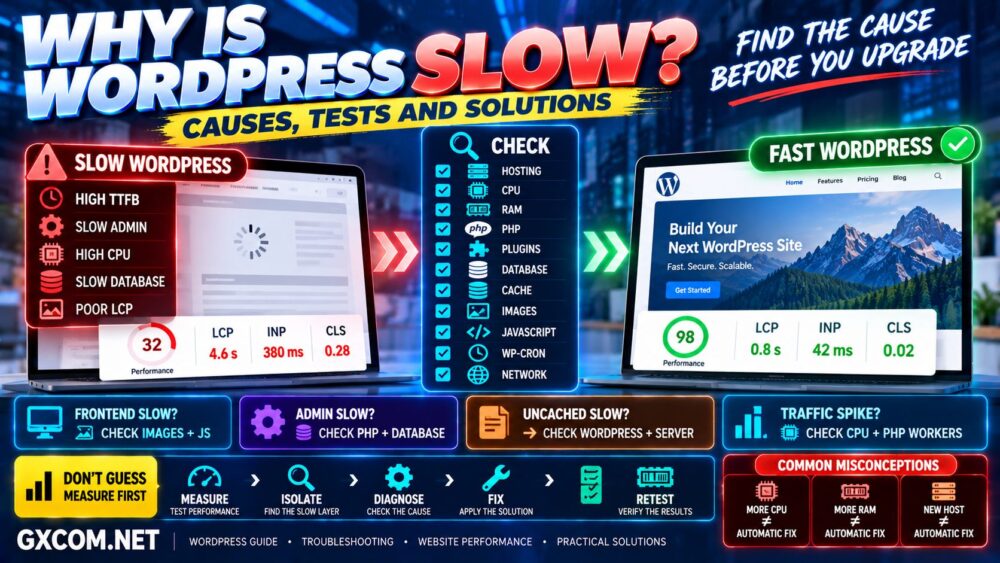
Why Is My WordPress Website Slow?
WordPress performance is the result of several layers working together.
A simplified WordPress request looks like this:
Visitor → Network → CDN → Web Server → PHP → WordPress → Plugins → Database → HTML → Browser
A bottleneck at any layer can make the website feel slow.
Common causes include:
- Slow or overloaded hosting
- Insufficient CPU resources
- PHP worker limits
- Slow database queries
- Heavy WordPress plugins
- Bloated themes or page builders
- Missing page caching
- Large unoptimized images
- Too much JavaScript
- Third-party scripts
- WP-Cron and background jobs
- Slow external APIs
- Database bloat
- Network latency
- Traffic spikes or bots
The important point is that different causes require different fixes.
Slow WordPress ≠ Automatically Slow Hosting.
Step 1: Identify What Is Actually Slow
Before changing anything, determine where visitors experience the slowdown.
Ask these questions:
- Is the entire website slow?
- Is only the homepage slow?
- Are individual posts slow?
- Is WooCommerce slow?
- Is checkout slow?
- Is only wp-admin slow?
- Is the site slow only when logged in?
- Does it become slow only during traffic spikes?
- Is it slow only in certain countries?
These symptoms provide important clues.
| Symptom | Possible Cause |
|---|---|
| Entire site slow | Hosting, PHP, database, network |
| Only wp-admin slow | Plugins, database, background jobs, external APIs |
| Only one page slow | Page content, query, plugin, external script |
| Logged-in users slow | Uncached dynamic requests |
| WooCommerce slow | Database, PHP, object cache, plugins |
| Slow during traffic spikes | CPU, PHP workers, RAM, database capacity |
| Slow only overseas | Network latency, CDN, origin location |
Step 2: Test WordPress Performance Before Making Changes
Create a baseline before troubleshooting.
Test several representative URLs rather than only your homepage.
Useful metrics include:
- Time to First Byte (TTFB)
- Largest Contentful Paint (LCP)
- Interaction to Next Paint (INP)
- Cumulative Layout Shift (CLS)
- Page size
- Number of requests
- Server response time
Useful tools include Google PageSpeed Insights, Lighthouse, Chrome DevTools, and WebPageTest.
Run multiple tests because a single test can be affected by cache state, network conditions, server load, and testing location.
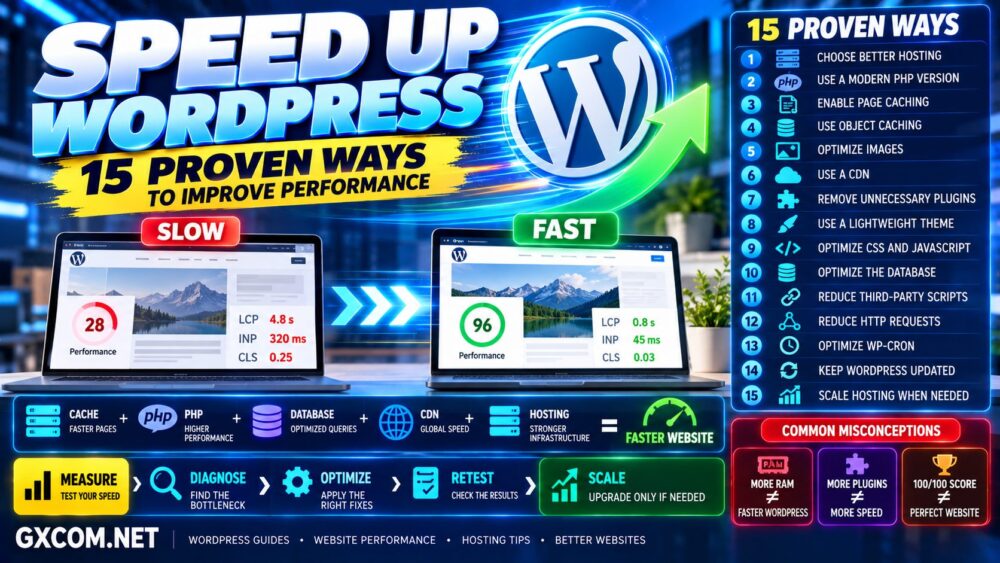
If your goal is broader optimization rather than troubleshooting a specific slowdown, see our How to Speed Up WordPress guide.
Step 3: Compare Cached and Uncached Performance
This is one of the most useful WordPress troubleshooting tests.
A cached page can bypass much of the WordPress application stack.
Cached Request:
Visitor → Cache → HTML
Uncached Request:
Visitor → PHP → WordPress → Plugins → Database → HTML
If cached pages are very fast but uncached pages are extremely slow, the bottleneck is more likely to involve:
- PHP execution
- Database queries
- Plugins
- Theme functions
- External API calls
- Server resources
This immediately narrows the investigation.
Fast Cache + Slow Dynamic Pages = Investigate the Application Stack.
Cause 1: Slow WordPress Hosting
Hosting can absolutely cause a slow WordPress site, but it should be diagnosed rather than assumed.
Hosting-related bottlenecks can include:
- Slow CPU performance
- CPU throttling
- Limited PHP workers
- Memory limits
- Slow storage
- Overloaded shared servers
- Slow database infrastructure
- Poor network routing
A hosting upgrade is most useful when monitoring shows that the existing environment cannot handle the workload.
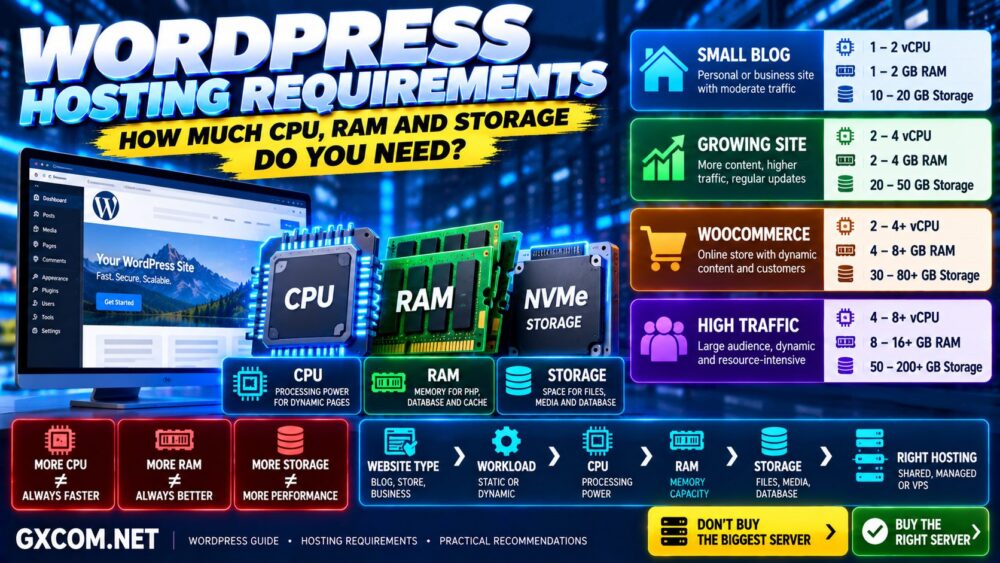
For smaller WordPress sites, quality shared or WordPress hosting may still be sufficient. Larger WooCommerce, membership, or high-traffic websites may benefit from managed hosting, cloud hosting, or VPS resources.
See our WordPress Hosting vs Web Hosting comparison if you are unsure which environment fits your website.
Cause 2: CPU Bottlenecks
WordPress relies heavily on CPU performance when generating dynamic pages.
CPU usage can rise because of:
- High traffic
- Expensive PHP code
- Heavy plugins
- Complex database queries
- WooCommerce activity
- Security scans
- Backups
- WP-Cron jobs
- Bots
If CPU usage is consistently near the account or server limit, requests may queue and response times can increase.
But do not immediately buy more CPU cores.
A poorly optimized plugin can consume additional CPU no matter how many resources you add.
High CPU → Find the Process → Fix the Cause → Scale if Necessary.
Cause 3: Not Enough RAM
Memory shortages can cause serious problems, but RAM is frequently misunderstood in hosting comparisons.
More RAM helps when the workload actually needs it.
Memory may be consumed by:
- PHP processes
- MySQL or MariaDB
- Redis
- Web server processes
- Control panels
- Background services
If memory is exhausted, the server may use swap, kill processes, or become unstable.
However:
Unused RAM Does Not Make WordPress Faster.
If your server uses only 2 GB out of 8 GB, upgrading to 16 GB will not automatically make pages load faster.
Cause 4: Slow PHP Execution
WordPress depends on PHP for dynamic page generation.
Slow PHP can result from:
- Old PHP versions
- Heavy plugins
- Complex theme functions
- Slow external requests
- Insufficient PHP workers
- CPU limitations
Use a modern supported PHP version when your WordPress installation, plugins, and theme are compatible.
Before changing PHP versions, create a backup and test compatibility.
Cause 5: Too Few PHP Workers
PHP workers process uncached dynamic requests.
If all available workers are busy, additional requests must wait.
This is particularly important for:
- WooCommerce
- Membership websites
- Logged-in users
- Learning platforms
- Forums
- Busy wp-admin environments
A heavily cached blog can serve large amounts of traffic without needing the same dynamic PHP capacity as an ecommerce site with logged-in customers.
Traffic Volume ≠ Dynamic PHP Workload.
Cause 6: A Slow WordPress Plugin
Plugins are one of the most common causes of WordPress performance problems.
The issue is not simply how many plugins you have.
A single plugin can create:
- Slow database queries
- External API calls
- Background jobs
- Large JavaScript files
- Site-wide CSS
- Excessive autoloaded options
When troubleshooting, disable plugins systematically in a staging environment and retest performance.
If performance improves dramatically after disabling one plugin, investigate its settings or replace it with a lighter alternative.
Plugin Count ≠ Plugin Performance.
Cause 7: A Heavy WordPress Theme or Page Builder
The theme affects both frontend resources and WordPress processing.
Heavy themes can introduce:
- Large CSS files
- JavaScript frameworks
- Animations
- Multiple fonts
- Large DOM structures
- Complex theme functions
Page builders can also generate significant markup and scripts depending on how pages are constructed.
Before changing themes, test whether the theme is actually contributing significantly to the slowdown.
Cause 8: Slow Database Queries
WordPress relies on its database for posts, pages, settings, user information, plugin data, WooCommerce products, orders, and much more.
Database problems become increasingly important as a website grows.
Potential causes include:
- Large tables
- Slow queries
- Missing indexes
- Excessive autoloaded options
- Plugin-generated tables
- Large WooCommerce databases
- Expired transients
Database optimization should be performed carefully.
Always create a database backup before deleting or modifying records.
For complex sites, identifying slow queries is much more useful than blindly running a database cleanup plugin.
Cause 9: Excessive Autoloaded Options
The WordPress options table can contain configuration data that is automatically loaded on many requests.
Plugins and themes sometimes leave behind large amounts of autoloaded data.
If the autoloaded dataset becomes excessive, it can increase database and PHP processing overhead.
Do not delete option records simply because they look unfamiliar.
Determine which plugin or component owns the data first and create a backup before making changes.
Cause 10: Missing or Broken Page Caching
Page caching can dramatically reduce the amount of work WordPress performs for anonymous visitors.
If caching is disabled, misconfigured, or constantly bypassed, every request may require PHP and database processing.
Check whether:
- Page caching is enabled
- Pages are actually receiving cache hits
- Cookies are unnecessarily bypassing cache
- Query strings are bypassing cache
- A plugin is clearing the cache constantly
- CDN and origin caching rules conflict
Do not install multiple page caching plugins simultaneously unless you understand exactly how the layers interact.
Cause 11: Large Images
If server response time is fast but the page still takes a long time to render, images may be part of the problem.
Check for:
- Multi-megabyte images
- Oversized image dimensions
- Uncompressed PNG or JPEG files
- Missing WebP or AVIF optimization
- Incorrect responsive image sizes
- Too many images above the fold
Lazy-load below-the-fold images, but be cautious about lazy-loading the main LCP image.
Cause 12: Too Much JavaScript
A website can have a fast server and still feel slow because the browser is busy processing JavaScript.
JavaScript-heavy pages can negatively affect responsiveness and INP.
Common sources include:
- Page builders
- Advertising
- Analytics
- Chat widgets
- Social widgets
- Sliders
- Popups
- Tracking systems
Use Chrome DevTools or Lighthouse to identify scripts consuming significant main-thread time.
Cause 13: Third-Party Scripts and External APIs
WordPress sometimes waits for services outside your server.
Examples include:
- Analytics platforms
- Advertising networks
- Social APIs
- Payment gateways
- External fonts
- CRM integrations
- License servers
If a third-party service becomes slow, your website can appear slow even when the hosting server is healthy.
This is particularly important when troubleshooting wp-admin, plugins, checkout systems, and external integrations.
Cause 14: WP-Cron and Background Tasks
WordPress plugins frequently use scheduled tasks.
These can include:
- Backups
- Security scans
- Email queues
- WooCommerce actions
- Database cleanup
- Feed imports
- Plugin maintenance
A large queue or failing scheduled job can repeatedly consume server resources.
Check scheduled tasks when the website becomes slow at predictable times or when wp-admin performance degrades.
Cause 15: Bots, Crawlers and Traffic Spikes
Not all traffic comes from real visitors.
A sudden increase in bots, aggressive crawlers, login attempts, search crawlers, or malicious traffic can consume CPU, PHP workers, and bandwidth.
Check server logs and analytics when performance suddenly deteriorates.
Rate limiting, CDN security controls, caching, and appropriate firewall rules can reduce unnecessary origin-server load.
Why Is WordPress Admin So Slow?
A slow WordPress dashboard deserves separate attention because wp-admin is largely dynamic and cannot be cached in the same way as public pages.
Common causes include:
- Slow plugins
- Heavy database queries
- Large WooCommerce stores
- WP-Cron jobs
- External API calls
- Heartbeat activity
- Insufficient PHP workers
- CPU limits
If the public website is fast but wp-admin is consistently slow, upgrading your CDN is unlikely to solve the underlying problem.
Fast Frontend + Slow Admin → Investigate PHP, Plugins and Database.
Why Is WooCommerce Slow?
WooCommerce is significantly more dynamic than a conventional WordPress blog.
Cart, checkout, account pages, inventory, sessions, orders, and logged-in customer activity reduce how much traffic can be handled through simple full-page caching.
For WooCommerce, investigate:
- PHP workers
- CPU performance
- Database queries
- Object caching
- WooCommerce Action Scheduler
- Payment plugins
- Third-party APIs
- Database size
A hosting plan that works perfectly for a cached blog may perform poorly for a busy ecommerce store.
Should You Add Redis Object Cache?
Redis can help dynamic WordPress workloads by storing frequently accessed database objects in memory.
It can be useful for:
- WooCommerce
- Membership sites
- Large databases
- Logged-in environments
- Frequently repeated database queries
But Redis is not a universal WordPress speed button.
A small cached blog may see little practical improvement.
Use Redis When Database/Object Work Is the Bottleneck—not Because Redis Sounds Fast.
How to Tell If Your Hosting Is Too Slow for WordPress
After eliminating frontend and WordPress-level problems, investigate infrastructure.
Signs that your current hosting may be limiting the website include:
- High CPU usage during normal traffic
- Repeated resource-limit warnings
- Insufficient PHP workers
- Slow uncached TTFB
- Database saturation
- Disk I/O limits
- 503 or 504 errors
- Performance collapse during moderate traffic spikes
- Slow dynamic pages after software optimization
This is the point where a hosting upgrade can provide meaningful improvement.
When Should You Upgrade WordPress Hosting?
| Situation | Possible Direction |
|---|---|
| Small WordPress blog | Quality WordPress / Shared Hosting |
| Growing content site | Managed WordPress / Cloud Hosting |
| Busy WooCommerce store | Performance Managed Hosting |
| High dynamic traffic | Managed VPS / Cloud VPS |
| Custom infrastructure needs | VPS / Cloud / Dedicated |
For smaller WordPress projects where ease of use matters, Hostinger is one hosting option worth comparing.
For websites that have outgrown conventional shared hosting, managed infrastructure from ScalaHosting or UltaHost can also be considered when greater resources and management are required.
Do not migrate simply because a benchmark produces a disappointing number.
Upgrade When Measurements Show the Hosting Environment Is the Bottleneck.
Shared Hosting vs VPS for a Slow WordPress Site
Moving from shared hosting to a VPS can provide greater resource control, but it is not automatically the right solution.
A badly optimized WordPress installation can remain slow on a larger server.
A VPS becomes more appropriate when you need:
- More predictable CPU resources
- More PHP capacity
- Custom server configuration
- Redis or other services
- Greater database resources
- Multiple high-traffic websites
If you decide to move to VPS infrastructure, read our Managed vs Unmanaged VPS comparison first.
Slow WordPress Troubleshooting Flow
Use this process instead of changing random settings:
1. Is the entire site slow?
If no → investigate the affected page or function.
2. Is cached content fast?
If yes → investigate PHP, plugins and database.
3. Is wp-admin slow?
Investigate dynamic processing, plugins, database and background jobs.
4. Is CPU saturated?
Identify which process or workload is consuming CPU.
5. Is RAM exhausted?
Check PHP, database and system memory usage.
6. Are database queries slow?
Identify expensive queries and plugin/database causes.
7. Is the frontend still slow with fast TTFB?
Investigate images, CSS, JavaScript, fonts and third-party scripts.
8. Is the website slow only in distant regions?
Investigate CDN, network latency and server location.
9. Is the server still saturated after optimization?
Consider scaling the hosting environment.
What Not to Do When WordPress Is Slow
- Do not immediately install five optimization plugins
- Do not upgrade RAM without checking memory usage
- Do not buy more CPU without identifying CPU load
- Do not delete database tables blindly
- Do not blame every problem on hosting
- Do not assume every problem is a plugin
- Do not optimize only for a PageSpeed score
- Do not test only cached pages
- Do not migrate before collecting performance data
The correct philosophy is:
Don't Guess. Measure.
Slow WordPress Website FAQ
Why is WordPress suddenly slow?
A sudden slowdown can be caused by a plugin update, traffic spike, bots, failed scheduled tasks, backups, security scans, external API problems, database issues, cache failures, or server resource saturation. Compare current behavior with recent changes and server logs.
Why is WordPress slow even with caching?
Caching may not cover logged-in users, WooCommerce pages, wp-admin, API requests, or other dynamic content. The cache may also be misconfigured or constantly purged.
Why is WordPress admin slow but the website is fast?
The public site may be served from cache while wp-admin requires PHP and database processing. Investigate plugins, database queries, background tasks, external API calls, CPU usage, and PHP capacity.
Can plugins make WordPress slow?
Yes. Plugins can create slow queries, PHP processing, background tasks, JavaScript, CSS, and external requests. Plugin quality and behavior matter more than plugin count alone.
Will more RAM fix slow WordPress?
Only when memory is actually constrained. If the server already has unused RAM, adding more memory is unlikely to fix a CPU, database, PHP, JavaScript, or network bottleneck.
Will a VPS make WordPress faster?
A VPS can improve performance when your existing hosting resources are limiting the workload. It will not automatically fix inefficient plugins, slow queries, oversized images, or excessive frontend scripts.
How do I know if my WordPress hosting is slow?
Look for consistently slow uncached server response times, CPU or I/O limits, insufficient PHP capacity, database saturation, 503/504 errors, and performance degradation under moderate traffic after WordPress itself has been optimized.
Why is WooCommerce slower than my blog?
WooCommerce performs more dynamic PHP and database work and has pages that should not simply be full-page cached. This increases the importance of CPU, PHP workers, database performance, object caching, and server resources.
How to Fix a Slow WordPress Website: Final Checklist
- ✓ Identify which pages or functions are slow
- ✓ Establish a performance baseline
- ✓ Compare cached and uncached requests
- ✓ Check CPU usage
- ✓ Check memory usage
- ✓ Check PHP performance and worker capacity
- ✓ Test plugins
- ✓ Test theme/frontend overhead
- ✓ Investigate database queries
- ✓ Check autoloaded options
- ✓ Verify page caching
- ✓ Optimize large images
- ✓ Investigate JavaScript
- ✓ Check external services
- ✓ Inspect WP-Cron/background jobs
- ✓ Check bots and traffic spikes
- ✓ Upgrade hosting only when infrastructure is the bottleneck
A slow WordPress website should be treated as a diagnostic problem rather than an excuse to immediately buy more server resources.
Start by identifying whether the delay occurs in the browser, network, cache, PHP, WordPress, plugins, database, or server infrastructure.
Then fix the layer responsible for the delay and test again.
Measure → Isolate → Diagnose → Fix → Retest.
If WordPress remains slow after application and frontend optimization—and monitoring shows CPU, PHP capacity, database resources, storage I/O, or other hosting limits are saturated—then upgrading the infrastructure becomes the correct next step.
Don't Upgrade the Server Until You Know the Server Is the Problem.