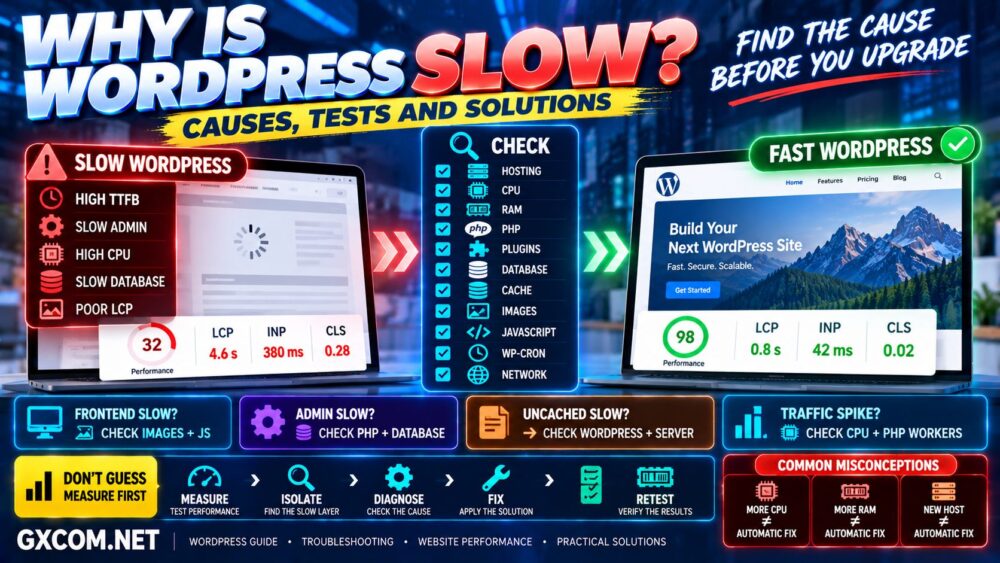
A slow WordPress website can hurt user experience, conversions, engagement, and search performance. The good news is that you usually do not need to rebuild your entire website or immediately upgrade to an expensive server to make WordPress faster.
The right approach is to identify the bottleneck first.
WordPress performance depends on multiple layers working together: hosting, PHP, WordPress, plugins, themes, database queries, caching, images, JavaScript, CSS, storage, CDN, and network latency.
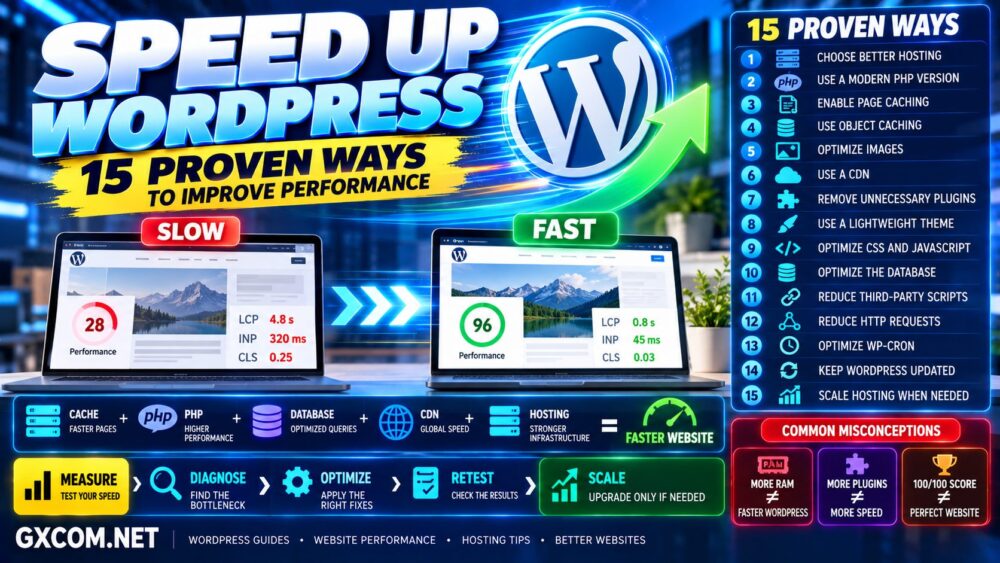
This guide explains how to speed up WordPress using 15 practical optimization methods, starting with measurement and low-cost improvements before moving to infrastructure upgrades.
Performance Strategy: Measure → Find the Bottleneck → Optimize → Test Again → Upgrade Only When Necessary.
Why WordPress Speed Matters
Website performance affects much more than how quickly a homepage appears.
A faster WordPress site can improve:
- User experience
- Mobile usability
- Page engagement
- Conversion rates
- WooCommerce shopping experience
- Crawl efficiency
- Core Web Vitals
Google also uses page experience signals including Core Web Vitals as part of its ranking systems, although speed alone will not make low-quality content rank.
The goal should therefore be a genuinely faster website for users—not simply a perfect performance score.
Test Your WordPress Speed Before Optimizing
Do not install optimization plugins randomly before establishing a baseline.
Test several important pages, including:
- Homepage
- Popular article
- Category or archive page
- Product page
- WooCommerce cart or other dynamic page
Useful testing tools include Google PageSpeed Insights, Chrome DevTools, Lighthouse, and WebPageTest.
Pay attention to:
- Time to First Byte (TTFB)
- Largest Contentful Paint (LCP)
- Interaction to Next Paint (INP)
- Cumulative Layout Shift (CLS)
- Total page size
- Number of requests
- Server response time
Test more than once. Network conditions, cache status, server load, and testing location can affect individual results.
1. Choose the Right WordPress Hosting
Hosting is the foundation of WordPress performance.
You can optimize images, minify CSS, and install caching, but weak server resources can still create slow PHP execution, database delays, and high TTFB.
Hosting performance can depend on:
- CPU performance
- Available CPU resources
- RAM
- Storage performance
- PHP configuration
- Database performance
- Server software
- Resource limits
- Network quality
Do not assume that a plan advertising more storage or more CPU cores is automatically faster.
More Resources ≠ Faster WordPress Unless Resources Are the Bottleneck.
For a new or relatively small WordPress site, quality shared or WordPress hosting may be sufficient. Growing WooCommerce, membership, or high-traffic sites may benefit from managed hosting, cloud hosting, or VPS infrastructure.
If you are unsure which environment you need, read our WordPress Hosting vs Web Hosting comparison.
2. Use a Modern PHP Version
WordPress is built on PHP, so PHP performance directly affects dynamically generated pages.
Modern supported PHP versions generally provide performance and security improvements over outdated releases.
Before changing PHP versions:
- Back up your website
- Update WordPress
- Update plugins
- Update your theme
- Check compatibility
- Test important functionality
Do not upgrade PHP blindly on a production website with old plugins or custom code.
If possible, test the new version in a staging environment first.
3. Enable Full-Page Caching
Without caching, WordPress may need to execute PHP and query the database every time a visitor requests a page.
Full-page caching stores a generated version of the page so repeat requests can be served with much less processing.
The simplified process changes from:
Visitor → PHP → WordPress → Database → HTML
to:
Visitor → Cached HTML → Faster Response
Depending on your hosting environment, caching may be handled through:
- Server-level caching
- LiteSpeed Cache
- Nginx FastCGI cache
- Managed WordPress caching
- WordPress caching plugins
Avoid stacking several full-page caching systems without understanding how they interact. More caching plugins do not automatically produce more speed.
4. Add Persistent Object Caching When Appropriate
Page caching and object caching solve different problems.
Persistent object caching can store frequently requested database results in memory using systems such as Redis or Memcached.
This can be useful for dynamic WordPress sites where full-page caching cannot handle every request, including:
- WooCommerce stores
- Membership websites
- Logged-in users
- Large WordPress databases
- Dynamic applications
A small static blog may see limited benefit, so do not add Redis simply because it sounds faster.
Use the Optimization That Matches the Bottleneck.
5. Optimize WordPress Images
Images are often among the largest resources on a web page.
A few unnecessarily large images can add several megabytes to a page even when the WordPress backend itself is fast.
For better image performance:
- Resize images before uploading
- Compress images
- Use WebP or AVIF where appropriate
- Serve responsive image sizes
- Lazy-load below-the-fold images
- Avoid uploading huge originals for small display areas
Be especially careful with the Largest Contentful Paint image.
Lazy-loading the main above-the-fold hero image can sometimes delay LCP rather than improve it.
6. Use a CDN
A Content Delivery Network stores or serves website assets from distributed edge locations closer to visitors.
A CDN can reduce latency for geographically distributed audiences and can also reduce some load on the origin server.
Common CDN-delivered resources include:
- Images
- CSS
- JavaScript
- Fonts
- Static files
Some CDN platforms can also cache HTML at the edge.
However, a CDN cannot magically repair a badly optimized origin server.
Slow Origin + CDN ≠ Automatically Fast WordPress.
7. Remove Unnecessary WordPress Plugins
The number of plugins alone does not determine performance.
Twenty lightweight, well-coded plugins can sometimes perform better than one poorly designed plugin making expensive database queries on every request.
Review plugins that:
- Run database queries on every page
- Load scripts globally
- Create external requests
- Perform background tasks
- Generate large database tables
- Duplicate functionality
Delete plugins you no longer need rather than simply leaving them deactivated indefinitely.
When troubleshooting, test plugin impact systematically instead of assuming the most recently installed plugin is always responsible.
8. Use a Lightweight WordPress Theme
A visually impressive theme can still create a slow frontend if it loads large frameworks, excessive scripts, unused CSS, sliders, fonts, animations, and page-builder components.
When evaluating a theme, consider:
- CSS size
- JavaScript size
- DOM complexity
- Font requests
- Page-builder dependency
- Unused features
You do not necessarily need to replace your theme immediately.
First determine whether the theme is actually a meaningful part of the performance problem.
9. Optimize CSS and JavaScript
CSS and JavaScript can delay rendering and interaction when too much code is loaded before the page becomes usable.
Potential optimizations include:
- Minifying CSS and JavaScript
- Removing unused CSS
- Deferring non-critical JavaScript
- Delaying third-party scripts where appropriate
- Reducing duplicate libraries
- Loading assets only where needed
Be careful with aggressive optimization.
Combining, delaying, or deferring scripts can break menus, forms, analytics, sliders, ecommerce functions, and other interactive features.
Always test the website after changing asset optimization settings.
10. Optimize the WordPress Database
WordPress databases accumulate data over time.
Depending on the site, this can include:
- Post revisions
- Expired transients
- Spam comments
- Old plugin tables
- Autoloaded options
- WooCommerce data
- Orphaned metadata
Database cleanup can help, but deleting data blindly can damage the website.
Create a full database backup before performing cleanup operations.
For larger sites, investigate slow queries and autoloaded data instead of assuming that deleting revisions alone will solve the problem.
11. Reduce Third-Party Scripts
Third-party scripts are an overlooked source of WordPress performance problems.
Examples include:
- Advertising scripts
- Analytics
- Tracking pixels
- Social widgets
- Chat systems
- Embedded videos
- External fonts
These resources can increase page weight, main-thread work, DNS connections, and JavaScript execution.
You may not be able to remove every third-party service, especially on monetized websites.
Instead, decide whether every script provides enough business value to justify its performance cost.
12. Reduce WordPress HTTP Requests
Modern HTTP protocols make multiple requests more efficient than they once were, so simply chasing the lowest possible request count is not the goal.
However, unnecessary resources still create overhead.
Remove assets that provide no useful functionality, including:
- Unused plugin CSS
- Unused JavaScript
- Duplicate icon libraries
- Unnecessary font weights
- Unused widgets
- Redundant tracking scripts
The objective is a lean page—not an artificially tiny request count.
13. Optimize WordPress Cron and Background Tasks
WordPress uses WP-Cron for scheduled operations such as publishing posts, checking updates, processing queues, and plugin tasks.
On busy or complex websites, poorly behaved scheduled tasks can consume server resources.
WooCommerce, backup plugins, security scanners, email systems, and other plugins can also create substantial background activity.
Check whether background jobs are:
- Running too frequently
- Failing repeatedly
- Building large queues
- Using excessive CPU
- Running during peak traffic
For higher-traffic websites, using a real system cron instead of relying entirely on visitor-triggered WP-Cron can provide more predictable scheduling.
14. Keep WordPress, Plugins and Themes Updated
Updates are important for security, compatibility, bug fixes, and sometimes performance.
Keep the following maintained:
- WordPress core
- Plugins
- Theme
- PHP
- Server software
However, production websites should still use a sensible update process.
Back up the site, test major changes, and avoid updating critical components without a recovery plan.
15. Upgrade Hosting Only When the Server Is the Bottleneck
Eventually, software optimization reaches a limit.
If WordPress remains slow after caching, image optimization, plugin cleanup, database tuning, and frontend optimization, investigate whether the server is saturated.
Signs that hosting may be the bottleneck include:
- Consistently high CPU usage
- Memory exhaustion
- Slow uncached PHP requests
- Database resource limits
- Frequent 503 or 504 errors
- Slow WordPress admin
- Performance degradation during traffic spikes
This is where moving to a better hosting environment can make a meaningful difference.
Which Hosting Type Is Right for a Faster WordPress Site?
| Website Type | Typical Hosting Direction |
|---|---|
| Small Blog | Quality Shared / WordPress Hosting |
| Growing Content Site | Managed WordPress / Cloud Hosting |
| WooCommerce | Performance-Focused Managed Hosting |
| High-Traffic WordPress | Cloud VPS / Managed VPS |
| Custom High-Resource Site | VPS / Cloud / Dedicated Infrastructure |
For users who want an easy entry-level WordPress environment, Hostinger is one option worth comparing. Websites that have outgrown conventional shared hosting can also consider managed infrastructure from ScalaHosting or UltaHost, depending on the resources and level of server management required.
Do not migrate simply because a benchmark score is imperfect. Upgrade when monitoring shows that your existing infrastructure is limiting the workload.
How to Diagnose a Slow WordPress Site
If you do not know what is slowing the website down, use a layered approach.
Step 1: Test the frontend.
Check LCP, INP, CLS, page size, requests, and rendering.
Step 2: Test cached vs uncached performance.
If cached pages are fast but uncached pages are extremely slow, investigate PHP, database, plugins, and server performance.
Step 3: Check server resources.
Look at CPU, RAM, disk I/O, PHP workers, and resource limits.
Step 4: Investigate WordPress.
Check plugins, theme, database queries, scheduled jobs, and background processes.
Step 5: Check external dependencies.
Analytics, ads, fonts, APIs, social widgets, and third-party JavaScript can affect frontend performance.
The process should look like this:
Browser → Network → CDN → Web Server → PHP → WordPress → Database
Find the slow layer before spending money on the wrong solution.
WordPress Speed Optimization Priorities
If you want a simple order of operations, start here:
| Priority | Optimization | Potential Impact |
|---|---|---|
| 1 | Measure Performance | Essential |
| 2 | Page Caching | Very High |
| 3 | Image Optimization | High |
| 4 | Plugin / Theme Audit | High |
| 5 | PHP / Database Optimization | High |
| 6 | CSS / JavaScript Optimization | Medium to High |
| 7 | CDN | Depends on Audience |
| 8 | Hosting Upgrade | Very High When Hosting Is the Bottleneck |
Common WordPress Speed Optimization Mistakes
Trying to make WordPress faster can sometimes make it less stable.
Avoid these common mistakes:
- Installing several caching plugins at the same time
- Optimizing without measuring first
- Buying more RAM when RAM is not the bottleneck
- Upgrading VPS CPU without checking PHP or database performance
- Lazy-loading the critical LCP image
- Deleting database records without a backup
- Delaying every JavaScript file blindly
- Chasing a 100/100 score instead of user experience
- Testing only the homepage
- Assuming a CDN fixes origin-server problems
Measure First. Optimize Second. Upgrade Third.
WordPress Speed and Core Web Vitals
Core Web Vitals focus on important parts of real-world page experience:
- LCP: loading performance
- INP: responsiveness to user interactions
- CLS: visual stability
Different problems require different solutions.
A slow LCP might involve server response time, images, fonts, CSS, or rendering. Poor INP can involve heavy JavaScript and main-thread work. CLS commonly involves images, advertisements, embeds, fonts, or elements appearing without reserved space.
Therefore:
Core Web Vitals Problem → Identify Metric → Identify Cause → Apply Targeted Fix
Do You Need a VPS to Speed Up WordPress?
Not necessarily.
A well-optimized WordPress site can perform extremely well on quality shared or managed WordPress hosting.
A VPS becomes more attractive when you need:
- More predictable resources
- Greater server control
- Custom software
- More PHP or database capacity
- Multiple high-traffic sites
- Resource-intensive applications
If you are considering that move, compare Managed vs Unmanaged VPS before choosing purely by price.
WordPress Speed Optimization FAQ
Why is my WordPress website so slow?
Common causes include slow hosting, missing caching, large images, inefficient plugins, heavy themes, slow database queries, excessive JavaScript, third-party scripts, and insufficient server resources. Test first to identify the actual bottleneck.
What is the fastest way to speed up WordPress?
For many websites, full-page caching and image optimization provide substantial improvements. However, the biggest improvement depends on what is currently causing the slowdown.
Do too many WordPress plugins slow down a website?
They can, but plugin quality matters more than the raw number. A single poorly optimized plugin can cause more performance problems than many lightweight plugins.
Does a CDN make WordPress faster?
A CDN can reduce latency and improve delivery of static assets, particularly for geographically distributed visitors. It cannot completely compensate for slow PHP, database queries, or an overloaded origin server.
Does NVMe make WordPress faster?
NVMe can improve storage I/O, particularly for database-intensive or high-activity workloads, but WordPress performance also depends on CPU, RAM, PHP, caching, database efficiency, and server configuration.
Will more RAM make WordPress faster?
Only when memory is constrained or additional RAM enables useful caching and workload capacity. Adding unused RAM does not automatically make PHP or database queries execute faster.
Should I move WordPress to a VPS?
Move when your current hosting environment is demonstrably limiting performance, control, or capacity. A VPS adds flexibility but can also add administration responsibility, especially when unmanaged.
What is a good PageSpeed score?
Use performance scores as diagnostic indicators rather than the sole objective. Prioritize real user experience, Core Web Vitals, stability, and consistently fast important pages.
How to Speed Up WordPress: Final Checklist
- ✓ Measure before optimizing
- ✓ Use appropriate WordPress hosting
- ✓ Run a modern supported PHP version
- ✓ Enable page caching
- ✓ Consider object caching for dynamic sites
- ✓ Compress and resize images
- ✓ Use a CDN when it benefits your audience
- ✓ Remove unnecessary plugins
- ✓ Keep the theme lightweight
- ✓ Optimize CSS and JavaScript carefully
- ✓ Maintain the database
- ✓ Reduce unnecessary third-party scripts
- ✓ Control background tasks
- ✓ Keep the software stack updated
- ✓ Upgrade hosting only when infrastructure is the bottleneck
The most effective way to speed up WordPress is not to apply every optimization you can find. It is to identify the slowest part of the system and fix that component first.
Measure → Diagnose → Optimize → Retest → Scale.
Start with caching, images, plugins, frontend resources, PHP, and the database. If monitoring then shows that CPU, memory, storage, PHP capacity, or server limits are restricting the site, move to a more appropriate hosting environment.
Don't Upgrade Because WordPress Is Slow. Upgrade Because You Know Why WordPress Is Slow.