WordPress powers millions of websites worldwide, but its popularity also makes it a common target for automated attacks, malware attempts and security vulnerabilities.
A secure WordPress website requires more than installing a security plugin. Hosting configuration, software updates, passwords, backups and server protection all play important roles.
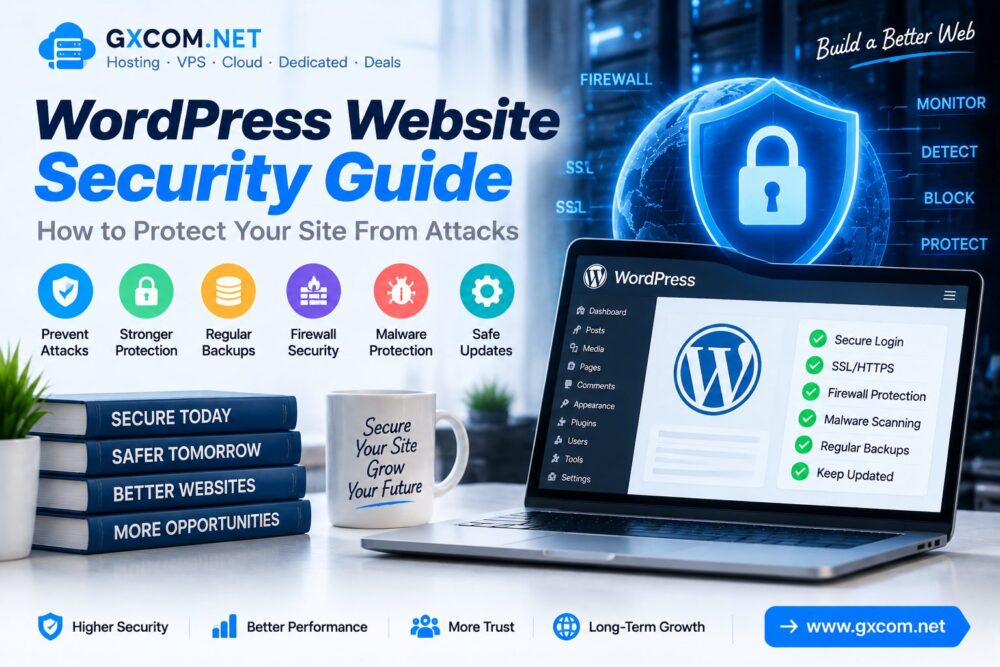
This WordPress Website Security Guide explains how to protect your site from attacks and improve overall website security.
Why WordPress Website Security Matters
Website security affects business reputation, search visibility and visitor trust.
A compromised WordPress website may experience:
- Malware infections
- Unauthorized access
- Data loss
- SEO ranking problems
- Website downtime
Common WordPress Security Threats
| Threat | Description |
|---|---|
| Brute Force Attacks | Repeated login attempts to access accounts |
| Malware | Malicious code injected into websites |
| Plugin Vulnerabilities | Security issues caused by outdated plugins |
| SQL Injection | Unauthorized database manipulation |
| Phishing | Attempts to steal user information |
1. Keep WordPress Core Updated
Keeping WordPress updated is one of the simplest ways to improve website security.
Updates usually include:
- Security patches
- Bug fixes
- Performance improvements
- Compatibility improvements
Always update:
- WordPress core
- Themes
- Plugins
2. Use Strong Administrator Passwords
Weak passwords remain one of the most common causes of unauthorized website access.
Security best practices include:
- Use long passwords
- Avoid common words
- Use password managers
- Create unique passwords
- Enable two-factor authentication
3. Install a WordPress Security Plugin
Security plugins provide additional protection by monitoring website activity and blocking suspicious behavior.
Common security features include:

- Firewall protection
- Login protection
- Malware scanning
- Security monitoring
- File integrity checks
4. Enable SSL Certificate and HTTPS
SSL encryption protects communication between visitors and your website.
A secure HTTPS connection helps:
- Protect visitor data
- Improve website trust
- Prevent data interception
- Meet modern browser standards
Learn more about website encryption in our SSL security guides.
5. Choose Secure WordPress Hosting
Hosting security is an important foundation of website protection.
A reliable WordPress hosting environment should provide:
- Server monitoring
- Regular backups
- Security updates
- Malware protection
- Reliable infrastructure
Compare hosting options through our best WordPress hosting guide.
6. Create Regular Website Backups
Backups provide a recovery option when websites experience attacks, errors or accidental data loss.
A good backup strategy includes:
- Automatic backups
- Database backups
- Off-site storage
- Regular recovery testing
7. Limit Login Attempts
Brute force attacks attempt to guess usernames and passwords through repeated login requests.
Protection methods include:
- Login attempt limits
- Two-factor authentication
- Changing default login settings
- Monitoring suspicious activity
8. Remove Unused Themes and Plugins
Unused WordPress components can create unnecessary security risks.
Recommended actions:
- Delete unused plugins
- Remove inactive themes
- Download plugins from trusted sources
- Review plugin permissions
9. Protect WordPress Database
The database contains important website information including posts, users and settings.
Database security practices include:
- Using secure database credentials
- Regular backups
- Limiting access permissions
- Removing unnecessary data
10. Improve Server-Level Security
Advanced users can improve WordPress security through server configuration.
Important measures include:
- Firewall configuration
- Regular server updates
- Secure SSH settings
- File permission management
- Malware monitoring
WordPress Security Checklist
| Security Action | Importance |
|---|---|
| SSL Enabled | Required |
| Regular Backups | Required |
| Updated Plugins | Required |
| Strong Passwords | Required |
| Security Monitoring | Recommended |
WordPress Security vs Hosting Security
| Security Layer | Protection Area |
|---|---|
| WordPress Settings | Website configuration |
| Plugins | Application protection |
| SSL | Data encryption |
| Hosting Server | Infrastructure protection |
How Hosting Affects WordPress Security
Website security depends partly on the hosting environment.

Secure hosting providers often provide:
- Server monitoring
- DDoS protection
- Automatic backups
- Security tools
- Technical support
For websites requiring more control, explore our best VPS reviews for advanced server solutions.
Frequently Asked Questions
Is WordPress secure by default?
WordPress provides a secure foundation, but website owners need to maintain updates, passwords, plugins and hosting security.
How can I protect my WordPress website from hackers?
Use strong passwords, enable SSL, update software, create backups and use reliable hosting.
Do WordPress security plugins work?
Security plugins can provide additional protection when properly configured alongside good website practices.
Does SSL protect WordPress from attacks?
SSL protects data transmission but should be combined with other security measures.
Final Thoughts
WordPress security requires continuous attention rather than a one-time setup.
Keeping software updated, using secure hosting, enabling SSL and maintaining backups can significantly reduce security risks.
By following these WordPress security practices, website owners can build safer, more reliable websites ready for long-term growth.