Is your WordPress website showing a 503 Service Unavailable error? This HTTP status code means the server cannot temporarily handle the request. Visitors may see a blank page, an error message, or a website that repeatedly goes offline.
Common causes include overloaded server resources, PHP-FPM problems, faulty plugins, maintenance mode, and hosting infrastructure issues.
This guide explains how to fix the WordPress 503 error, identify the underlying cause, and prevent it from returning.
What Does 503 Service Unavailable Mean in WordPress?
HTTP 503 indicates that the server is temporarily unable to process a request. Unlike a 404 error, it does not mean the requested page is missing.
A 503 response may originate from WordPress-related infrastructure, the web server, a reverse proxy, a CDN, or the hosting platform.
Quick answer: Start by checking hosting status, server resource usage, PHP services, recent plugin changes, and error logs. Avoid reinstalling WordPress before identifying the actual problem.
Quick WordPress 503 Error Troubleshooting Checklist
| Possible Cause | What to Check | Recommended Action |
|---|---|---|
| Hosting outage | Provider status and support | Confirm service availability |
| CPU or RAM exhaustion | Resource monitoring | Reduce load or adjust capacity |
| Plugin conflict | Recent plugin changes | Temporarily disable suspected plugins |
| PHP-FPM failure | PHP service and logs | Restore service after diagnosis |
| Maintenance mode | WordPress root directory | Remove stale maintenance state |
| CDN or proxy issue | Origin and edge responses | Identify the failing layer |
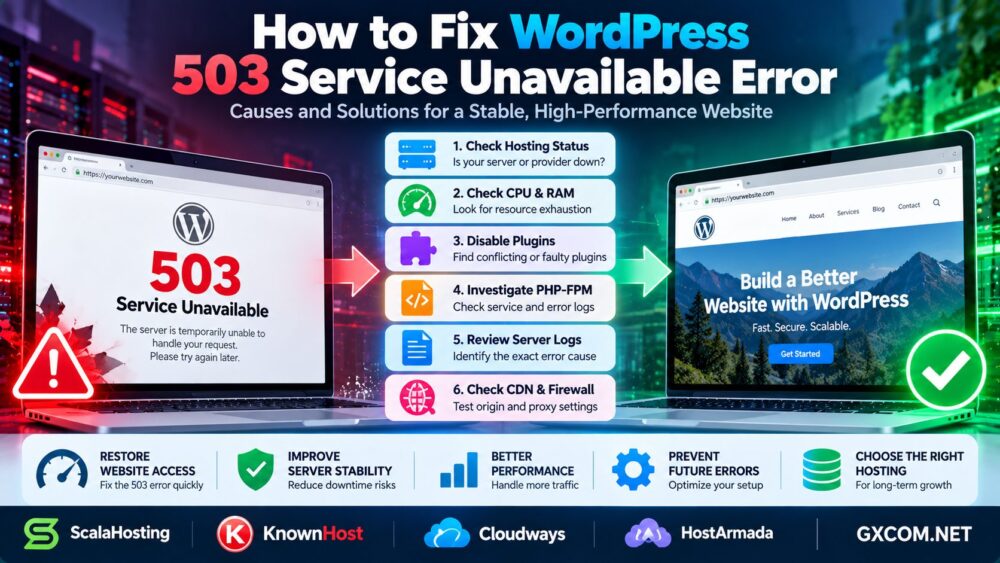
1. Check Whether Your Hosting Server Is Down
Before changing WordPress settings, determine whether the issue affects only your website or the hosting infrastructure.
Check your provider's service status, hosting dashboard, and recent incident notifications.
If multiple websites on the same server return 503 errors, investigate shared infrastructure or resource problems.
For managed hosting, contact support with the affected URL, error timestamp, and relevant log entries.
2. Check CPU, RAM, and Server Resource Limits
Insufficient server resources are a common reason WordPress becomes unavailable under heavy traffic.
PHP workers, database queries, scheduled tasks, and traffic spikes can exhaust available processing capacity.
On a Linux server with SSH access, useful diagnostic commands include:
top
free -h
df -h
These commands help inspect running processes, available memory, and disk capacity.
High CPU usage alone does not prove the cause. Check whether PHP worker limits, memory exhaustion, database connection limits, or disk pressure coincide with the errors.
If memory shortages are recurring, read our Dedicated Server RAM Requirements Guide.

3. Disable WordPress Plugins to Identify Conflicts
A plugin update or malfunction may trigger application failures that contribute to 503 responses.
If you can access WordPress Admin, deactivate recently changed plugins and test the website.
If the dashboard is unavailable, use SFTP or your hosting file manager to rename the plugin directory:
wp-content/plugins
wp-content/plugins-disabled
This temporarily prevents WordPress from loading plugins from the original directory.
If the website becomes accessible, restore the directory name and reactivate plugins carefully to identify the problem.
Important: Disabling plugins may interrupt payments, security controls, forms, or other essential functions. Create a backup and use a controlled maintenance procedure for business-critical websites.
4. Investigate PHP-FPM and PHP Worker Problems
PHP-FPM manages PHP application processes on many WordPress hosting environments.
If PHP-FPM workers are exhausted, the service fails, or the server cannot communicate with its PHP backend, visitors may receive server errors.
On a compatible system using systemd, an administrator can inspect the service:
systemctl status php8.3-fpmReplace the example service name with the actual PHP-FPM service installed on your server.
Review PHP-FPM logs for worker exhaustion, crashes, memory errors, or configuration problems.
A service restart may temporarily restore availability, but it does not resolve the underlying cause. Avoid restarting services repeatedly without investigation.
5. Check WordPress Maintenance Mode
WordPress can temporarily enter maintenance mode during updates.
If an update is interrupted, a stale .maintenance file may remain in the WordPress installation directory.
After confirming that no update is running, remove the stale file and reload the website.
Note that normal WordPress maintenance mode and HTTP 503 are not always the same issue. Some maintenance responses are generated by plugins, web servers, or hosting platforms.
6. Enable WordPress Debug Logging
WordPress debug logging can help identify PHP errors and application problems.
In wp-config.php, you can temporarily configure:
define('WP_DEBUG', true);
define('WP_DEBUG_LOG', true);
define('WP_DEBUG_DISPLAY', false);
Place these settings before the WordPress configuration stop marker, and avoid defining the same constants twice.
Errors may be written to wp-content/debug.log, depending on server permissions and configuration.
Keep debug output hidden from visitors. Disable unnecessary debugging afterward and protect or remove sensitive log files.
Also review the web server, PHP-FPM, and hosting platform logs, because a 503 may occur before WordPress executes.
7. Check CDN, Firewall, and Reverse Proxy Settings
A CDN or reverse proxy may return a 503 when it cannot successfully reach the origin server or when its own infrastructure is unavailable.
Compare the public response with the origin server response using a controlled diagnostic method.
Check firewall rules, security plugins, origin connectivity, and reverse proxy logs.
Do not permanently disable security protections merely to hide an error. Identify the failing layer first.
8. When Should You Upgrade WordPress Hosting?
If your WordPress website repeatedly encounters 503 errors caused by resource exhaustion, a hosting upgrade may be appropriate.
However, first rule out inefficient plugins, slow database queries, malicious traffic, and configuration problems.
For websites requiring managed VPS resources, ScalaHosting and KnownHost are providers worth evaluating.
Cloudways may suit businesses considering managed cloud hosting, while HostArmada is another option for comparing WordPress hosting environments.
Before purchasing, verify PHP worker limits, CPU and RAM allocation, backup features, support coverage, and renewal terms.
Our ScalaHosting vs KnownHost Comparison explores relevant managed hosting differences.
For broader infrastructure choices, see Managed vs Unmanaged Hosting.
How to Prevent WordPress 503 Errors
- Monitor CPU, RAM, PHP workers, and database performance.
- Keep WordPress, themes, and plugins updated after testing.
- Use appropriate caching for public content.
- Review scheduled jobs and backup timing.
- Configure uptime monitoring and error alerts.
- Maintain reliable backups and a rollback procedure.
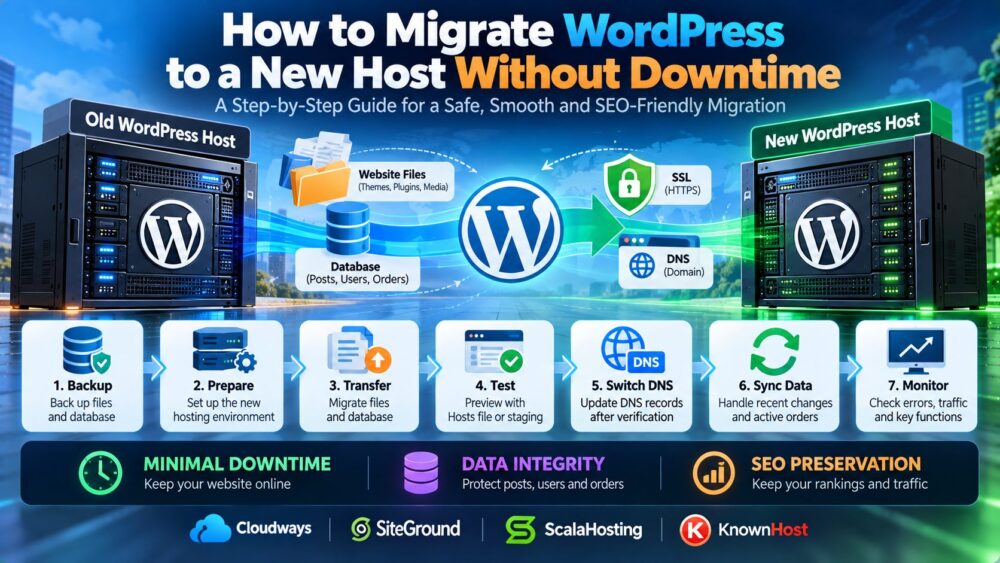
If your current hosting environment remains unreliable, our WordPress Migration Without Downtime Guide explains how to prepare a safer hosting move.

Frequently Asked Questions
Is a WordPress 503 error permanent?
Usually not. HTTP 503 indicates temporary unavailability, although recurring problems may continue until the underlying cause is fixed.
Can a WordPress plugin cause a 503 error?
Yes. Faulty plugins can exhaust resources or trigger application failures, depending on the server configuration.
Can low RAM cause WordPress 503 errors?
Yes. Memory exhaustion may prevent application processes from handling requests, although the exact HTTP response depends on the server stack.
Does restarting PHP-FPM fix a 503 error?
It may restore service temporarily if PHP-FPM is failing, but logs and resource usage should be investigated to prevent recurrence.
Will a WordPress 503 error affect Google rankings?
Brief temporary failures are not necessarily damaging, but prolonged or repeated unavailability can affect crawling and user experience.
Should I change hosting providers after a 503 error?
Not automatically. Identify whether the issue comes from application code, configuration, traffic, or insufficient hosting resources before deciding.
Final Verdict
To fix WordPress 503 Service Unavailable errors, begin with hosting availability, server resources, PHP-FPM, plugins, maintenance mode, and error logs.
A successful fix addresses the root cause rather than simply restarting services or upgrading hardware.
Check Hosting → Inspect Resources → Review Plugins → Diagnose PHP → Read Logs → Verify Stability.