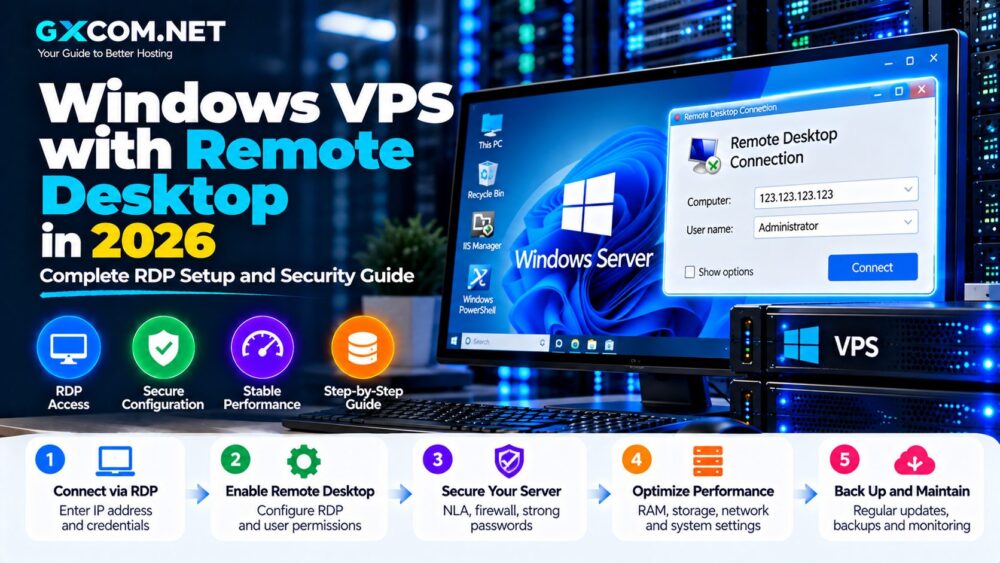
A Windows VPS with Remote Desktop gives you access to a complete Windows Server environment from almost anywhere with an internet connection. Instead of managing the server only through a command line, Remote Desktop Protocol (RDP) lets you interact with Windows applications, files and administrative tools through a graphical desktop.
This Windows VPS with Remote Desktop guide explains how to choose an RDP server, connect to your VPS, configure Remote Desktop and secure an internet-facing Windows Server in 2026.
The most important lesson is simple: getting RDP connected is only the beginning. A production Windows VPS also needs strong authentication, firewall rules, updates, backups and ongoing monitoring.
What Is a Windows VPS with Remote Desktop?
A Windows VPS is a virtual private server running Microsoft Windows Server. The hosting provider supplies virtual CPU, RAM, storage and network resources, while Windows Server operates inside the virtual machine.
Remote Desktop Protocol is Microsoft's technology for remotely interacting with that Windows environment.
After connecting, you can use the remote desktop much like a Windows computer:
- Manage files
- Install applications
- Configure IIS
- Use PowerShell
- Manage databases
- Configure Windows services
- Monitor server resources
- Run compatible Windows applications
Windows Server 2025, Windows Server 2022 and other supported Windows Server releases can act as Remote Desktop hosts.
RDP vs Windows VPS: What Is the Difference?
These terms are frequently used interchangeably by hosting companies, but they describe different things.
Windows VPS describes the virtual server itself.
RDP describes the protocol commonly used to connect to its graphical Windows environment.
An RDP connection therefore does not create a server. It provides remote access to an existing Windows system.
Remote Desktop Services (RDS) is broader still. It is a Windows Server platform designed for delivering managed desktops and applications to authorized users, including multi-session environments and RemoteApp deployments.
What Can You Use a Windows RDP VPS For?
Common legitimate use cases include:
- Remote Windows administration
- ASP.NET development
- IIS website management
- Software development and testing
- Microsoft SQL Server administration
- Remote business applications
- ERP and CRM applications
- Windows-only software
- Development environments
Before ordering a server, check whether your hosting provider permits your intended workload and whether the application requires additional Microsoft or third-party licensing.
How to Choose a Windows VPS for RDP
1. Choose Enough RAM
A graphical Windows Server environment generally requires more memory than a minimal command-line Linux installation.
| RAM | Typical Use |
|---|---|
| 1–2 GB | Testing and very light applications |
| 4 GB | General RDP and development |
| 8 GB | Business applications and multitasking |
| 16 GB+ | Databases and heavier workloads |
These are practical starting points rather than universal requirements. Application memory requirements should determine the final server size.
2. Check the CPU
Do not evaluate an RDP server only by the number of vCPUs.
Interactive performance can also depend on CPU generation, clock speed and whether processor resources are shared or reserved.
3. Compare SSD and NVMe Storage
SSD storage is adequate for many Remote Desktop workloads. NVMe can provide higher I/O performance for databases, development environments and applications that perform frequent storage operations.
4. Choose a Nearby Server Location
Network latency is particularly noticeable when using an interactive desktop.
If you are controlling the mouse, typing and opening applications remotely, a geographically appropriate server location can improve responsiveness.
5. Check the Windows License
Before comparing prices, confirm whether the advertised VPS price includes the Windows Server license.
For current provider and pricing comparisons, see our Windows VPS Hosting Providers guide.
How to Connect to a Windows VPS with Remote Desktop
Once your VPS provider finishes provisioning the server, you will normally receive:
- Server IP address or hostname
- Administrator username
- Initial password or authentication instructions
Step 1: Open Remote Desktop Connection
On a Windows computer, open the Start menu and search for:
Remote Desktop ConnectionYou can also launch the traditional client with:
mstscStep 2: Enter the Server IP Address
Enter the public IP address supplied by your VPS provider in the Computer field.
For example:
203.0.113.10This address is only an example. Use the real public IP address assigned to your VPS.
Step 3: Enter Your Credentials
Select Connect and enter the authorized Windows account credentials supplied or configured for the VPS.
Many new Windows servers initially use an Administrator account, but you should review user privileges after gaining access rather than relying indefinitely on a single highly privileged account for every task.
Step 4: Verify the Server Identity
Remote Desktop may display a certificate or identity warning, particularly during an initial connection.
Do not automatically dismiss unexpected security warnings. Confirm that you are connecting to the correct server and investigate certificate warnings when the environment should already have trusted certificates configured.
Step 5: Log In
After authentication, the Windows Server desktop should appear in the Remote Desktop client.
You can now administer the server remotely.
How to Enable Remote Desktop on Windows Server
Many commercial Windows VPS images arrive with Remote Desktop already configured. If it is disabled and you have another administrative access method, Windows Server allows you to enable it through Settings.
The general graphical path is:
Start → Settings → System → Remote DesktopEnable Remote Desktop and confirm the change.
Make sure the authorized account is permitted to connect remotely and that the Windows firewall allows the required Remote Desktop traffic.
Do not make restrictive firewall changes until you have confirmed you will retain administrative access to the VPS.
What Port Does RDP Use?
Remote Desktop Protocol uses port 3389 by default.
Microsoft documents both TCP and UDP 3389 for standard RDP traffic.
This does not mean that every internet-facing VPS should simply expose 3389 to the entire internet indefinitely.
Where supported by your architecture, consider restricting inbound access to known IP ranges, using a VPN, or implementing Remote Desktop Gateway for a more controlled remote-access design.
Enable Network Level Authentication
Network Level Authentication, or NLA, requires a user to authenticate before a complete Remote Desktop session is established.
Microsoft recommends keeping NLA enabled whenever possible because it adds an additional security layer and reduces exposure to unauthorized connections.
In supported Windows Server environments, verify that connections require Network Level Authentication unless you have a specific compatibility requirement that prevents it.
Disabling NLA simply to make an old client connect should not be your default troubleshooting strategy.
Secure the Administrator Account
Administrator credentials protect a highly privileged account, so weak or reused passwords create unnecessary risk.
Use a long, unique password that is not shared with another website, email account or server.
Also consider creating separate named administrative accounts where appropriate instead of sharing one Administrator credential among multiple people.
Apply the principle of least privilege: users should receive only the access required for their work.
Configure Windows Firewall
Windows Firewall should remain enabled unless another properly configured security control is replacing it.
Review inbound rules and expose only services the VPS actually needs.
A basic web server might need:
- HTTP – TCP 80
- HTTPS – TCP 443
- RDP – TCP/UDP 3389 when directly used
A server that does not provide public web services does not need ports 80 and 443 simply because they are common.
Minimizing exposed services reduces the server's attack surface.
Should You Change the Default RDP Port?
Windows Server allows administrators to change the default Remote Desktop listening port from 3389.
Changing the port can reduce some automated scanning noise, but it should not be treated as a replacement for authentication, firewall restrictions, NLA, updates or secure network architecture.
If you change the RDP port, you must also configure the corresponding Windows Firewall rule and then connect using the new port.
For example:
server.example.com:3390Test the new configuration carefully before removing the old access path so you do not accidentally lock yourself out.
Restrict RDP by IP Address
If you connect from a fixed office or home IP address, restricting RDP traffic to trusted source addresses can substantially reduce unnecessary internet exposure.
This can often be implemented through:
- Provider cloud firewall
- Windows Firewall
- Network security rules
Dynamic residential IP addresses can complicate this approach, so understand your connection environment before enforcing a restrictive rule.
Consider a VPN for RDP Access
Instead of exposing RDP directly to the public internet, another architecture is to require users to connect through a VPN first.
Microsoft lists VPN as an option for accessing Remote Desktop systems from outside their local network.
With this model, the Remote Desktop service can be restricted to traffic arriving through the trusted private network rather than accepting arbitrary public connections.
What Is Remote Desktop Gateway?
Remote Desktop Gateway is designed to provide authorized users with remote access to internal RDS resources from outside a corporate firewall.
RD Gateway can carry remote access through HTTPS, with TCP 443 used for external HTTPS traffic in a standard deployment.
This is more relevant to organizations operating multiple users, applications or Remote Desktop Session Hosts than to someone administering one inexpensive personal VPS.
For larger business environments, however, RD Gateway can provide a more structured architecture than directly exposing every RDP host to the internet.
Install Windows Updates Immediately
After receiving a new Windows VPS, check Windows Update before deploying important applications.
Cloud images may have been created before the latest security updates became available.
For a production server:
- Install current security updates
- Reboot when required
- Confirm updates completed successfully
- Establish an ongoing patching process
A VPS is not a one-time installation. It requires ongoing maintenance for as long as it remains connected to the internet.
Set Up Backups Before Installing Applications
Backups are easier to plan before a server becomes important.
Depending on the workload, your strategy may combine:
- Provider backups
- VPS snapshots
- Application-level backups
- Database backups
- Off-provider copies
Snapshots are useful before major software or configuration changes, but they should not automatically be treated as a complete independent backup strategy.
Monitor Failed RDP Logins
An internet-facing Windows VPS may receive repeated unauthorized login attempts.
Review Windows security logs and provider monitoring tools for suspicious authentication activity.
Repeated failures from unexpected sources are another reason to avoid exposing RDP more broadly than necessary.
RDP Clipboard, Drives and Device Redirection
Remote Desktop can redirect local resources into the remote session, including the clipboard, drives and other supported devices.
This is convenient, but it also creates additional data-sharing paths between your local computer and the server.
Microsoft introduced additional security warnings for RDP files with the April 2026 security update, including clearer warnings around potentially risky redirected resources.
Only enable the redirection features you actually need, especially when connecting to servers that contain sensitive business data.
How to Improve RDP Performance
If Remote Desktop feels slow, do not immediately assume the VPS provider is at fault.
Check:
- Network latency
- Available RAM
- CPU utilization
- Disk utilization
- Background applications
- Windows Update activity
- Server location
A VPS with 1 GB RAM may technically run a lightweight Windows environment but provide a poor interactive experience once applications begin consuming memory.
For regular RDP use, additional RAM can sometimes improve usability more noticeably than purchasing extra storage capacity.
Common RDP Connection Problems
Remote Desktop Cannot Connect
Check that:
- The VPS is running
- The IP address is correct
- Remote Desktop is enabled
- Your user is authorized
- The firewall permits the required traffic
- The provider firewall is not blocking the connection
Port 3389 Is Blocked
Microsoft identifies 3389 as the standard RDP port. Check both the Windows firewall and any network-level firewall provided by the VPS company.
NLA Authentication Error
Verify that the client supports Network Level Authentication and that the server's time, credentials and authentication environment are correctly configured before considering weaker security settings.
RDP Is Extremely Slow
Check latency and resource usage. A distant server location or insufficient RAM can make a functioning Remote Desktop session feel slow.
Windows VPS RDP Security Checklist
- Use strong unique credentials
- Keep NLA enabled where possible
- Install Windows security updates
- Keep Windows Firewall enabled
- Restrict RDP source IPs where practical
- Consider VPN or RD Gateway for stronger access control
- Expose only required ports
- Review authorized Remote Desktop users
- Monitor authentication logs
- Maintain external backups
- Review redirected clipboard and drive access
- Use least-privilege accounts
How Much Does a Windows RDP VPS Cost?
Windows VPS prices vary significantly because the operating-system license, resources and management level differ.
Budget plans can start below $10 per month, while configurations with more RAM, NVMe storage or managed support can cost substantially more.
Do not compare prices until you know whether the Windows Server license and RDP access are included.
Our Cheap Windows VPS Hosting comparison focuses specifically on current affordable RDP server options and their resource allocations.
Managed vs Unmanaged RDP VPS
An unmanaged Windows VPS gives you greater responsibility for Windows Update, RDP security, firewall configuration, applications, monitoring and backups.
A managed Windows VPS adds provider assistance, but the definition of “managed” varies between hosting companies.
If you are new to VPS hosting in general, our VPS Hosting for Beginners guide explains virtual CPU, RAM, storage, bandwidth and management models.
Windows VPS with Remote Desktop: Final Thoughts
A Windows VPS with Remote Desktop can provide a flexible environment for Windows applications, development, IIS, databases and remote administration.
Setting up RDP itself is straightforward. The more important task is securing the environment after the first successful connection.
Keep Network Level Authentication enabled where possible, use strong credentials, maintain Windows updates, configure firewalls carefully and avoid exposing unnecessary services. For higher-security or multi-user environments, consider architectures involving VPN access or Remote Desktop Gateway instead of relying entirely on a publicly exposed RDP endpoint.
Finally, choose enough CPU and RAM for the actual application. The cheapest server is not good value if Windows and your software consume most of its resources before useful work begins.