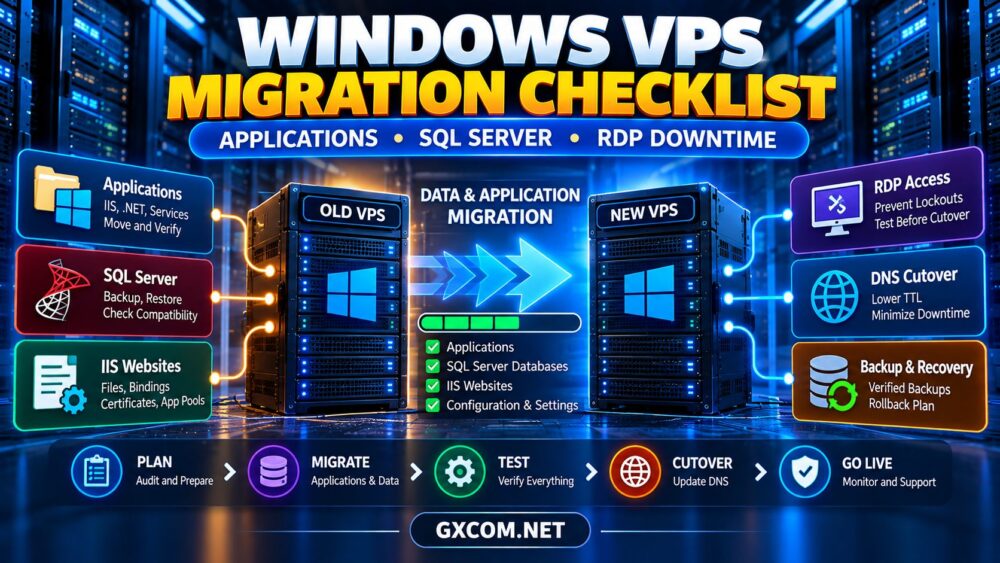
Moving a Windows server to a new VPS involves more than copying files and changing an IP address. Applications, SQL Server databases, Remote Desktop access, Windows licensing, and DNS records must work together after migration.
A reliable Windows VPS migration checklist helps administrators prevent application failures, database inconsistencies, and unexpected RDP downtime. Whether you are replacing an aging server or moving to a different hosting provider, preparation matters more than migration speed.
This guide covers the essential steps, common risks, and hosting considerations for a safer Windows VPS migration.
1. Audit Your Existing Windows VPS
Start by documenting the source environment. Record the Windows Server edition and version, CPU and RAM allocation, disk usage, IP addresses, firewall rules, and installed roles.
Inventory all hosted applications, including IIS websites, .NET runtimes, scheduled tasks, Windows services, and third-party software.
Identify dependencies on local paths, registry settings, service accounts, certificates, and external integrations.
Also check whether applications depend on specific Windows versions or hardware identifiers. These details can determine whether an in-place migration is practical.
2. Verify Windows Server and Application Compatibility
Before ordering the destination VPS, confirm that it supports the required Windows Server version and application stack.
Older applications may depend on deprecated components, legacy .NET Framework versions, or particular database drivers.
For IIS-hosted websites, document application pools, authentication methods, bindings, SSL certificates, and installed modules.
Test critical applications on the destination server before transferring production traffic. A successful Windows installation does not guarantee application compatibility.
3. Plan SQL Server Migration Carefully
SQL Server often presents the greatest migration risk because application data can change continuously.
First, identify the SQL Server version, edition, database sizes, recovery models, and application connection strings.
Choose a supported migration approach, such as database backup and restore, based on the source and destination versions.
Check compatibility before moving databases between SQL Server releases. Some downgrade paths are unsupported.
Remember that database backups do not automatically transfer every server-level dependency, including SQL logins, linked servers, SQL Agent jobs, and instance configuration.
For production systems, schedule a final data synchronization and validate database integrity before reopening application writes.
4. Prepare Backups and a Rollback Plan
Create verified backups of application files, databases, certificates, and configuration settings before changing the source server.
Keep at least one independent backup outside the VPS being migrated.
Define a rollback decision point. If critical validation fails, administrators should know whether to restore the old environment or continue troubleshooting the destination.

Do not terminate the original VPS immediately after DNS cutover. Retain it temporarily according to your recovery and data-retention requirements.
5. Prevent RDP Lockouts During Migration
Remote Desktop Protocol is often the primary administration method for Windows VPS hosting. Losing RDP access during migration can delay recovery even when applications remain intact.
Before cutover, confirm administrator credentials, RDP service status, Windows Firewall rules, and network security policies.
Check whether the new provider offers an independent web console or recovery access if RDP becomes unavailable.
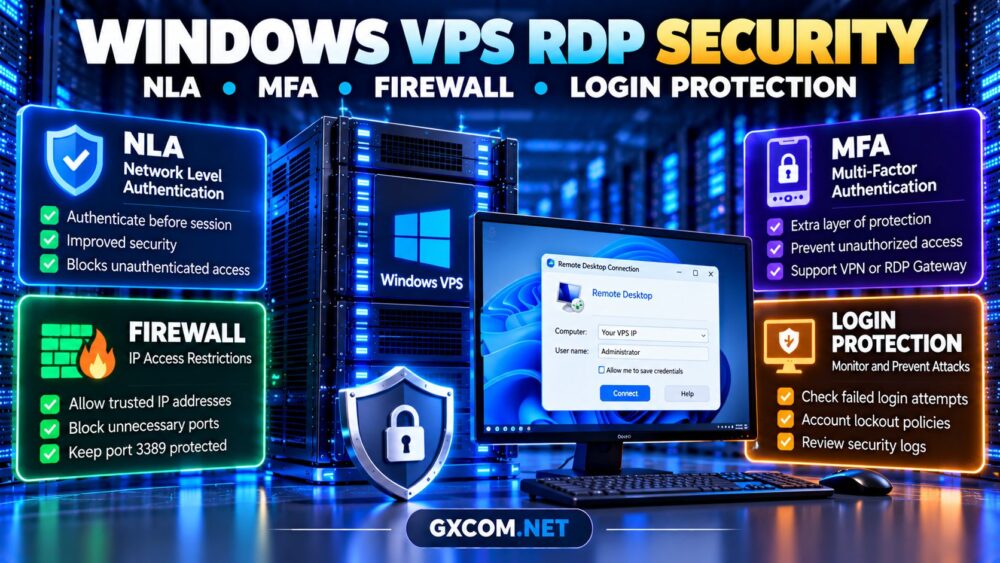
Restrict RDP exposure where practical through VPN access, approved IP addresses, or other security controls. Enable Network Level Authentication where supported.
Test a separate administrative connection before closing the original session.
6. Migrate IIS Websites and Application Services
For IIS applications, transfer website content together with the configuration required to run it.
Recreate application pools, bindings, certificates, permissions, and necessary Windows features on the destination server.
Update application configuration files containing database addresses, API endpoints, or storage paths.
Scheduled tasks and background Windows services also require attention. Verify that they run under the correct accounts and start after reboot.
Use a staging hostname or temporary test mapping to validate applications without affecting live visitors.
7. Reduce DNS Cutover and Application Downtime
Lower the relevant DNS TTL ahead of migration when appropriate, allowing time for earlier cached records to expire.
During cutover, stop or restrict application writes if necessary, complete the final database synchronization, and verify the destination environment.
Update DNS records only after application, database, and network checks succeed.
Monitor both servers during the transition. DNS propagation and client caching can cause traffic to reach different endpoints temporarily.
For broader migration planning, see our cloud server migration guide.
8. Windows VPS Migration Checklist
| Phase | Essential Action |
|---|---|
| Assessment | Inventory applications, Windows roles, SQL databases |
| Compatibility | Verify OS, .NET, IIS, SQL Server requirements |
| Protection | Test backups and document rollback |
| Access | Validate RDP, firewall, emergency console |
| Migration | Transfer files, services, databases, certificates |
| Cutover | Synchronize data and update DNS |
| Validation | Test applications, logins, jobs, and monitoring |
9. Four Windows VPS Providers to Compare
VPSHostingService — Budget-Focused Windows VPS
VPSHostingService is worth comparing when migration budgets are limited and Windows VPS resource allocation is a priority.
Check available Windows images, storage capacity, licensing, backup options, and whether migration assistance is included.
AccuWeb Hosting — Windows Hosting Requirements
AccuWeb Hosting is relevant for businesses comparing Windows VPS configurations and application hosting requirements.
Confirm the available Windows Server versions, administrative access, SQL Server compatibility, and management scope before purchasing.
Hostwinds — Windows and Linux VPS Comparison
Hostwinds offers another option for customers evaluating Windows VPS infrastructure and support arrangements.
Review our Hostwinds Windows and Linux VPS review for additional provider context.
RDP.Monster — Remote Desktop Workloads
RDP.Monster may appeal to customers prioritizing remote Windows desktop access and compatible application environments.
Verify the operating system, resource allocation, permitted usage, security controls, and software licensing for the intended workload.
10. Compare Migration Costs, Not Just Monthly Prices
A cheaper VPS may become expensive if the migration requires extra storage, backup services, Windows licensing, or specialist assistance.

SQL Server licensing deserves particular attention. Confirm whether the intended edition is included, separately billed, or supplied under an eligible license arrangement.
Our Windows Server licensing cost guide explains related budgeting considerations.
Compare current offers in our affordable cloud VPS deals guide, while confirming Windows availability for each plan.
Planning a Windows VPS Migration?
Compare Windows-compatible VPS plans, storage requirements, administrative access, and backup options before moving your applications.
Windows VPS Migration FAQ
Can I migrate SQL Server without downtime?
Some migration architectures can reduce downtime significantly, but requirements depend on database features, synchronization methods, and application design. Do not promise zero downtime without testing.
Will my Windows VPS IP address change?
Usually when moving between providers, although specific arrangements vary. Prepare DNS, firewall, and application configuration updates.
Can I transfer Windows Server licenses?
License portability depends on the agreement, product, and hosting arrangement. Confirm eligibility with the provider or licensing specialist.
Final Verdict
Successful Windows VPS migration requires coordinated planning across applications, SQL Server, RDP access, licensing, and DNS.
Test the destination environment, protect data, document rollback, and validate every critical service before retiring the original server.
The right VPS provider should support your Windows workload and provide the access, resources, and recovery options needed for a controlled transition.