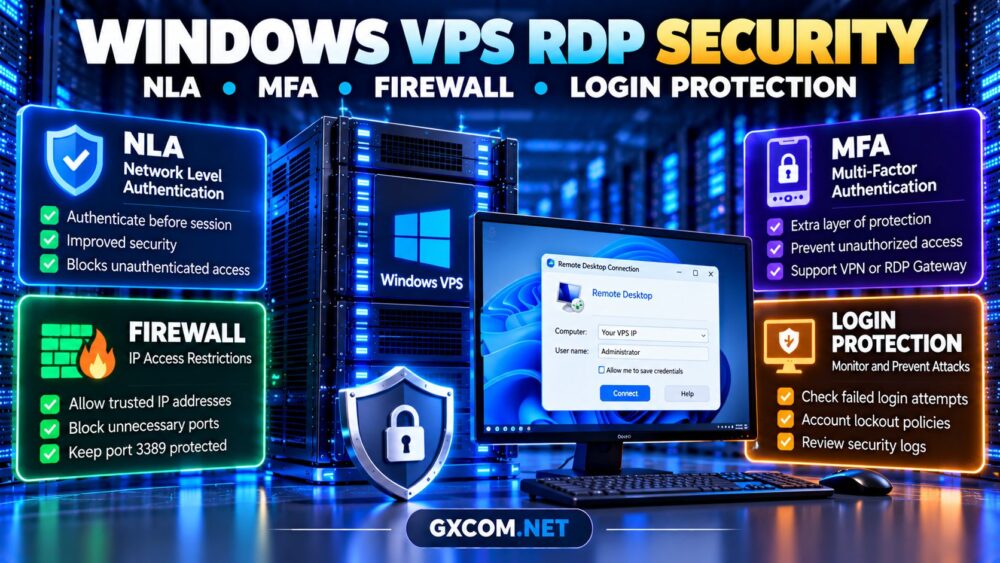
Windows VPS RDP security should be a priority before connecting a remote desktop server to the public internet. Remote Desktop Protocol (RDP) provides convenient Windows administration, but exposed login services can attract password guessing, credential-stuffing attacks, and unauthorized access attempts.
Enabling Network Level Authentication (NLA) helps, but it does not replace multifactor authentication, network restrictions, patching, and account protection.
This guide explains how to secure Windows VPS remote access without accidentally locking yourself out.
Why Is an Exposed Windows VPS RDP Port Risky?
RDP commonly listens on TCP port 3389. When accessible from any internet address, the service becomes discoverable by automated scanners.
Attackers may attempt stolen passwords, exploit unpatched vulnerabilities, or target weak administrator credentials. Changing the listening port can reduce routine scanning noise, but it is not a reliable security boundary.
The safer approach is to minimize public exposure and require stronger authentication.
1. Enable Network Level Authentication
NLA requires users to authenticate before establishing a full remote desktop session. This reduces unnecessary session creation and provides an additional protection layer.
On a supported Windows Server installation:
- Open Server Manager or the Remote Desktop settings.
- Locate the remote connection configuration.
- Enable the option requiring Network Level Authentication.
- Confirm that your RDP client supports NLA.
- Test a new connection before closing the existing session.
Administrators can also inspect relevant Remote Desktop Services settings through Group Policy.
Important: NLA is not MFA. An attacker possessing valid credentials may still authenticate unless additional controls are enforced.
2. Add MFA to Windows VPS Remote Access
Multifactor authentication helps protect accounts when passwords are stolen or reused.
However, ordinary standalone Windows Server RDP sessions do not automatically gain MFA simply because an administrator enables NLA.
Common deployment approaches include:
- An MFA-protected VPN or zero-trust access gateway.
- Remote Desktop Gateway with a compatible MFA integration.
- A supported third-party Windows logon or RDP authentication solution.
Verify that the selected approach protects the actual remote access path, including fallback accounts and emergency access.
Microsoft Entra MFA integration through NPS extensions applies to supported authentication architectures; it should not be assumed to protect every direct RDP connection.
3. Restrict RDP with Windows Firewall Rules
Limiting RDP access to trusted IP addresses is often more effective than leaving port 3389 publicly accessible.
First, identify your trusted public IP address and verify that your VPS provider offers console or recovery access.
On an elevated PowerShell session, inspect existing Remote Desktop firewall rules:

Get-NetFirewallRule -DisplayGroup "Remote Desktop" |
  Select-Object DisplayName, Enabled, Direction, Action
For a dedicated administrative access rule, an example is:
New-NetFirewallRule `
  -DisplayName "Trusted RDP TCP" `
  -Direction Inbound `
  -Protocol TCP `
  -LocalPort 3389 `
  -RemoteAddress "203.0.113.10" `
  -Action Allow
The address above is an example only. Replace it with your actual trusted public IP.
Warning: This allow rule does not restrict existing broad RDP allow rules. Review and narrow or disable those rules only after confirming your new access path. Windows Firewall rule precedence and provider-level filtering also matter.
If your IP changes frequently, consider an authenticated VPN or gateway instead of maintaining a fragile static whitelist.
4. Protect Administrator Accounts and Passwords
A secure Windows VPS should use separate administrator identities, strong unique passwords, and minimum necessary privileges.
Do not use the built-in Administrator account for routine application work. Restrict membership in the local Administrators and Remote Desktop Users groups.
Configure account lockout policies carefully. Excessively aggressive thresholds can allow attackers to trigger denial-of-service conditions against legitimate administrators.
Use password managers, avoid shared credentials, and remove unused accounts promptly.
5. Install Windows Security Updates
RDP protection depends on the security of the underlying Windows Server installation.
Apply supported operating system updates, review reboot requirements, and maintain a documented patching schedule.
Keep Windows Defender Firewall enabled and verify that endpoint protection is functioning.
Before selecting a server, check operating system licensing and update responsibilities. Our Windows VPS licensing costs guide explains important purchasing considerations.
6. Monitor Failed RDP Login Attempts
Windows Event Viewer provides useful authentication evidence.
Security Event ID 4625 records failed logon events when appropriate auditing is enabled. Event ID 4624 records successful logons, while logon type 10 commonly indicates a remote interactive session.
Use Event Viewer or PowerShell to inspect recent failures:
Get-WinEvent -FilterHashtable @{
  LogName = 'Security'
  Id = 4625
  StartTime = (Get-Date).AddHours(-24)
} -MaxEvents 30
Interpret event details carefully because failures may originate from different authentication methods.
Forward important security events to external monitoring where possible. Alert on repeated failures, unexpected successful logons, and changes to privileged accounts.
7. Use a VPN or Remote Desktop Gateway
For business workloads, avoid exposing RDP directly whenever practical.
A VPN can restrict access to authenticated users on a private network. Remote Desktop Gateway can centralize remote access policies and support compatible authentication controls.
Neither option is automatically secure: gateway software, certificates, access rules, and user identities still require maintenance.
For administrators managing their own operating systems, our unmanaged VPS setup checklist covers complementary firewall, update, and monitoring practices.
8. Compare Windows VPS Providers for Secure RDP
Provider selection matters because secure remote access requires more than an operating system image.
Evoxt: Budget-Conscious Windows VPS
Evoxt is worth comparing for cost-sensitive Windows VPS deployments. Confirm Windows licensing, available locations, console recovery, and the security controls supported by your selected configuration.
Database Mart: Windows Server Hosting
Database Mart is relevant for buyers comparing Windows-based virtual servers. Review the selected plan’s operating system options, RDP access policies, backups, and support responsibilities.
AccuWeb Hosting: Windows VPS Options
AccuWeb Hosting is another candidate for Windows VPS customers. Compare management coverage, administrative access, firewall capabilities, and recovery procedures.
Hostwinds: VPS Management Considerations
Hostwinds may suit customers evaluating different management arrangements. Verify whether operating system hardening, monitoring, and security incident assistance are included or customer-managed.
For broader comparisons, visit our best VPS providers guide.
9. Prepare for RDP Lockouts and Recovery
Before changing access controls, confirm you can reach a provider console independently of RDP.

Document trusted IP addresses, firewall changes, recovery credentials, and emergency procedures. Maintain backups of important applications and data.
If migrating to a new Windows VPS, test authentication and firewall policies before switching production traffic.
Our VPS migration costs guide covers downtime and infrastructure transition planning.
10. Evaluate the Total Cost of Secure Windows VPS Hosting
Security expenses may include Windows licensing, backup storage, monitoring, VPN access, MFA integration, and administrator time.
A low advertised monthly price does not necessarily include every security or management feature.
When comparing VPS hosting deals, evaluate the complete configuration and renewal terms.
Frequently Asked Questions
Is NLA enough to secure Windows RDP?
No. NLA should be combined with network restrictions, strong authentication, updates, and monitoring.
Does Windows VPS RDP support MFA?
Yes, through appropriately configured gateways, VPN authentication, or compatible third-party solutions. Direct RDP does not universally include native MFA.
Should I change the default RDP port?
A custom port may reduce automated connection attempts, but it does not replace proper access controls.
Can firewall rules lock me out?
Yes. Always verify alternative console access and test changes before ending your current session.
Final Verdict
Effective Windows VPS RDP security combines NLA, MFA where supported, restricted firewall access, account protection, timely updates, and login monitoring.
Prefer private remote access over unrestricted public RDP, and choose a VPS provider with recovery capabilities that support your security requirements.