How powerful does a Windows VPS actually need to be?
For basic Remote Desktop tasks, a modest Windows VPS may be enough. Business applications, databases, multiple users and heavier workloads can require significantly more CPU, RAM and storage performance.
But buying the biggest VPS you can afford is not the answer.
MORE CPU + MORE RAM + MORE STORAGE ≠ AUTOMATICALLY FASTER WINDOWS VPS.
The right server depends on what you intend to run.
A lightweight RDP environment has very different requirements from a Windows VPS running SQL Server, multiple applications or resource-intensive business software.
This guide explains realistic Windows VPS requirements and compares CPU, RAM and storage configurations for common workloads.
Use this framework:
WORKLOAD → CPU → RAM → STORAGE → RDP → NETWORK → HEADROOM
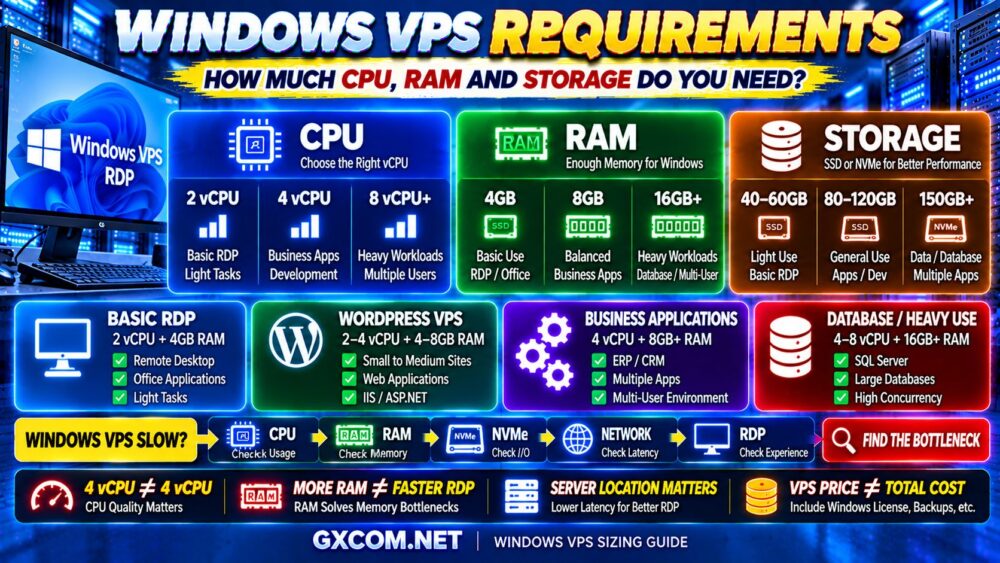
Windows VPS Requirements at a Glance
| Workload | CPU Starting Point | RAM Starting Point | Storage |
|---|---|---|---|
| Basic RDP / Light Tasks | 2 vCPU | 2–4GB | 40GB+ |
| Office / Business Apps | 2–4 vCPU | 4–8GB | 60GB+ |
| Web / Application Server | 2–4 vCPU | 4–8GB | 60–100GB+ |
| Development | 4 vCPU+ | 8GB+ | 80–120GB+ |
| Database Workloads | 4 vCPU+ | 8–16GB+ | NVMe Recommended |
| Multiple Users / Heavy Apps | 4–8 vCPU+ | 8–16GB+ | 100GB+ |
These are general planning ranges rather than universal requirements. Actual resource needs depend on the Windows Server version, installed applications, concurrent users, database activity and workload intensity.
Why Windows VPS Sizing Is Different From Linux VPS
Windows VPS resource planning is different from sizing a lightweight Linux server.
The operating system itself generally creates a larger baseline resource requirement, particularly when you are using the graphical interface and Remote Desktop.
Your Windows VPS may need resources for:
- Windows Server
- Remote Desktop Services
- Background Windows services
- Antivirus and security software
- Application software
- Database services
- Monitoring
- Backups
This means you should never allocate every gigabyte of RAM to your application.
The complete calculation is:
WINDOWS SERVER + RDP + APPLICATIONS + DATABASE + BACKGROUND SERVICES + HEADROOM
How Much CPU Does a Windows VPS Need?
CPU requirements depend on the type and intensity of work performed on the VPS.
A basic RDP server may operate comfortably with a modest number of virtual CPU cores, while development tools, databases and multiple concurrent users can require significantly more compute capacity.
A rough planning framework is:
| vCPU | Typical Use |
|---|---|
| 1 vCPU | Very lightweight testing |
| 2 vCPU | Basic RDP, lightweight applications |
| 4 vCPU | Business apps, development, moderate workloads |
| 8 vCPU+ | Heavy applications, databases, multi-user workloads |
However, core count alone can be misleading.
4 vCPU ≠ 4 vCPU.
Two providers can advertise the same number of virtual CPUs while delivering very different performance.
Why 4 vCPU Does Not Always Mean the Same Performance
Virtual CPU performance can depend on:
- Processor generation
- Clock speed
- Shared vs dedicated CPU
- Host-node utilization
- Virtualization platform
- CPU scheduling
Consider:
VPS A
4 shared vCPU
Older or heavily contended compute
versus:
VPS B
2 stronger vCPU
More consistent compute performance
VPS B can outperform VPS A for some Windows workloads.
This matters particularly for RDP because slow CPU response can make the entire desktop feel sluggish even when plenty of RAM remains available.
Is 2 vCPU Enough for Windows VPS?
Two virtual CPUs can be enough for lightweight Windows VPS workloads.
Examples include:
- Basic Remote Desktop
- Light office applications
- Small utilities
- Testing
- Low-traffic web services
- Simple automation
But 2 vCPU becomes limiting when you run several CPU-intensive applications simultaneously.
If CPU utilization frequently remains near saturation, adding RAM will not solve the problem.
CPU BOTTLENECK → STRONGER CPU.
NOT → MORE UNUSED RAM.
Is 4 vCPU Enough for Windows VPS?
Four virtual CPUs are a practical starting point for many moderate Windows workloads.
They can provide additional capacity for:
- Business applications
- Multiple browser sessions
- Development tools
- Web applications
- Moderate database activity
- Background processes
But again, CPU quality matters.
Do not buy based on the number “4” alone.
When Do You Need 8 vCPU or More?
Eight or more vCPU can become appropriate for workloads involving:
- Multiple concurrent users
- Heavy development environments
- CPU-intensive business applications
- Large database workloads
- Application servers
- High concurrency
The upgrade should be based on monitoring rather than assumption.
If your server uses 20% CPU during peak workload, doubling the number of cores is unlikely to produce a dramatic improvement.
How Much RAM Does a Windows VPS Need?
RAM is particularly important for Windows VPS because Windows Server itself consumes memory before your applications start.
A practical planning framework looks like this:
| RAM | Typical Windows VPS Use |
|---|---|
| 2GB | Very lightweight Windows environment |
| 4GB | Basic RDP and light applications |
| 8GB | Business applications and moderate workloads |
| 16GB | Databases, multiple apps, heavier workloads |
| 32GB+ | Large databases or memory-intensive applications |
These are planning ranges, not guarantees.
The application determines the real requirement.
Is 2GB RAM Enough for Windows VPS?
Two gigabytes should generally be viewed as a minimal configuration for lightweight use rather than a comfortable general-purpose Windows VPS.
Once Windows Server, security software, RDP and application processes are running, available memory can become limited.
A 2GB Windows VPS may still make sense for:
- Testing
- Very light remote administration
- Minimal applications
- Temporary environments
For regular desktop-style RDP usage, more memory often provides a more practical experience.
Is 4GB RAM Enough for Windows VPS?
For many basic Windows VPS workloads, 4GB is a much more practical starting point.
It can be suitable for:
- Remote Desktop
- Office-style applications
- Light business software
- Basic web hosting
- Small application servers
But applications such as databases, development environments and multiple simultaneous programs can push memory usage higher.
4GB CAN BE ENOUGH.
It does not mean 4GB is ideal for every Windows VPS.
Is 8GB RAM Enough for Windows VPS?
Eight gigabytes provides significantly more flexibility and is a useful configuration for many moderate Windows workloads.
It can support:
- Multiple applications
- Development tools
- Moderate databases
- Business software
- Multiple browser sessions
- More demanding RDP environments
However:
MORE RAM ≠ FASTER RDP.
If the server uses only 4GB during peak workload, moving from 8GB to 16GB may make little difference.

When Does Windows VPS Need 16GB RAM or More?
Consider 16GB or more when your workload includes:
- Large databases
- Multiple users
- Memory-intensive business software
- Development environments
- Multiple services
- High concurrency
Monitor actual memory consumption before upgrading.
The right formula is:
NORMAL MEMORY USAGE + PEAK USAGE + REASONABLE HEADROOM = RAM REQUIREMENT
How Much Storage Does a Windows VPS Need?
Storage requirements are often underestimated.
The VPS disk must hold more than your personal files.
Storage can be consumed by:
- Windows Server
- Windows updates
- Applications
- Databases
- Temporary files
- Logs
- User profiles
- Application caches
- Backup files
A server that looks comfortable immediately after installation can become constrained after months of updates and application growth.
Is 40GB Storage Enough for Windows VPS?
Forty gigabytes can work for a minimal Windows VPS, but it provides limited growth room.
It is most appropriate when:
- The environment is lightweight
- Few applications are installed
- Large files are stored elsewhere
- The VPS is temporary or used for testing
For long-term production use, additional storage can provide valuable breathing room.
Is 60GB to 80GB Enough?
For many general-purpose Windows VPS deployments, this range provides more flexibility.
It gives additional space for:
- Windows updates
- Applications
- User files
- Logs
- Temporary data
But databases and large application data can quickly require more.
When Do You Need 100GB to 150GB or More?
Larger storage allocations become useful for:
- Databases
- Multiple business applications
- Large user profiles
- Development environments
- Media and file storage
- Long-term application growth
Do not forget to leave free capacity for Windows updates and temporary operations.
SSD vs NVMe for Windows VPS
Storage capacity is only half of the equation.
Performance matters too.
NVMe can improve I/O-sensitive workloads such as:
- Databases
- Application loading
- File operations
- Development tools
- Windows updates
- Logging
But an NVMe label alone does not guarantee excellent performance.
Provider I/O limits, shared storage architecture and contention can still affect results.
For a deeper explanation, see NVMe VPS Performance.
Does NVMe Make RDP Faster?
It can make storage-related actions feel faster, but RDP responsiveness depends on much more than storage.
The complete chain includes:
CPU + RAM + STORAGE + NETWORK LATENCY + APPLICATION
If your desktop feels slow because the server is thousands of miles away, moving from SSD to NVMe will not eliminate network latency.
If CPU is saturated, faster storage will not fix the CPU bottleneck.
Why Server Location Matters for Windows RDP
Server location is especially important for interactive Remote Desktop workloads.
A website can hide some geographic latency through caching and CDNs.
RDP is different because you are continuously interacting with the remote machine.
Your mouse, keyboard and screen updates repeatedly travel between you and the VPS.
As latency increases, the desktop can feel less responsive.
Therefore:
RDP PERFORMANCE ≠ SERVER SPECS ALONE.
For interactive workloads, choose a location reasonably close to the people using the server whenever practical.
Windows VPS Requirements for Remote Desktop
A general-purpose RDP environment should balance all four resources:
CPU → DESKTOP/APPLICATION PROCESSING
RAM → WINDOWS + APPLICATIONS
NVMe/SSD → FILE AND APPLICATION I/O
NETWORK → RDP RESPONSIVENESS
This explains why a VPS with large RAM can still deliver a poor Remote Desktop experience.
MORE RAM ≠ FASTER RDP.
Windows VPS Requirements for Business Applications
Business software varies dramatically.
A lightweight accounting application may require modest resources, while ERP, CRM or database-driven applications can require substantially more.
Start by checking the application's own requirements.
Then add resources for:
- Windows Server
- Concurrent users
- Database
- Security software
- Backups
- Growth
Do not size the VPS using the application's minimum requirements alone.
Windows VPS Requirements for SQL Server
Database workloads deserve special attention because SQL Server can use substantial CPU, RAM and storage I/O.
The ideal configuration depends on:
- Database size
- Query complexity
- Concurrent users
- Indexes
- Memory configuration
- Storage latency
For database workloads, prioritize balance:
STRONG CPU + ENOUGH RAM + FAST STORAGE.
Adding RAM will not repair inefficient queries.
Windows VPS Requirements for Web Hosting
Windows VPS can be used for IIS, ASP.NET and other Microsoft-oriented web workloads.
Resource requirements depend on:
- Number of websites
- Dynamic requests
- Application pools
- Database workload
- Traffic concurrency
- Background services
A small IIS website may run comfortably with modest resources, while a busy application can require significantly stronger compute.
Windows VPS Requirements for Development
Development environments can consume more resources than expected.
Depending on the tools, you may run:
- IDE
- Browser
- Database
- Web server
- Build tools
- Version control
- Testing tools
For this type of workload, 4 vCPU and 8GB RAM can be a more comfortable starting point than entry-level configurations, with additional resources depending on the development stack.
Windows VPS for Multiple Users
Multiple simultaneous users increase resource requirements because each session can run its own applications and processes.
You need to consider:
BASE WINDOWS LOAD + USER 1 + USER 2 + USER 3 + …
CPU, RAM and storage I/O can all increase as concurrent usage grows.
Also verify Microsoft's applicable licensing requirements for your specific multi-user deployment rather than assuming a standard VPS license covers every Remote Desktop scenario.
Windows VPS Licensing Affects the Real Cost
Windows VPS is not only about hardware resources.
Windows Server licensing can affect the total cost of the service.
Before buying, check whether the advertised price includes the Windows license or whether it is charged separately.
The real calculation can look like:
VPS + WINDOWS LICENSE + BACKUPS + IPv4 + MANAGEMENT + SOFTWARE = REAL COST
For more detail, see our Windows Server Cost and Licensing Guide.
Managed vs Unmanaged Windows VPS
Resource specifications do not tell you who maintains the server.
With an unmanaged VPS, you may be responsible for:
- Windows updates
- Firewall
- RDP security
- Application installation
- Monitoring
- Backups
- Troubleshooting
Managed services can reduce some of that administrative workload, depending on exactly what the provider includes.
This introduces another resource that buyers often forget:
YOUR TIME.
See our Managed VPS vs Unmanaged VPS guide for the broader comparison.
How Much Windows VPS Do You Need for Common Workloads?
| Use Case | CPU | RAM | Storage |
|---|---|---|---|
| Basic RDP | 2 vCPU | 4GB | 40–60GB+ |
| Office / Light Business | 2–4 vCPU | 4–8GB | 60–80GB+ |
| Small Web Server | 2–4 vCPU | 4GB+ | 60GB+ |
| Development | 4 vCPU+ | 8GB+ | 80–120GB+ |
| Database | 4 vCPU+ | 8–16GB+ | NVMe / Workload Dependent |
| Multiple Users | 4–8 vCPU+ | 8–16GB+ | 100GB+ |
Again, treat these as planning points rather than guaranteed requirements.
Which Windows VPS Providers Should You Consider?
Once you understand your resource requirements, you can compare providers based on the configuration your workload actually needs.
Database Mart can be relevant to buyers comparing Windows-oriented VPS and server configurations where Windows workloads are a central requirement.
Hostwinds is worth considering when you want Windows VPS options and are also evaluating different levels of server management.
Kamatera can be useful when flexible resource sizing is important and you want to configure CPU, RAM and storage around the workload rather than simply choosing the largest preset package.
But do not choose any provider based only on the number of vCPU cores or gigabytes of RAM.
Compare the complete package:
- CPU quality
- RAM
- Storage performance
- Server location
- Windows licensing
- Backups
- Management
- Upgrade options
- Total cost
For provider-level comparisons, continue to our Best Windows VPS Hosting guide.
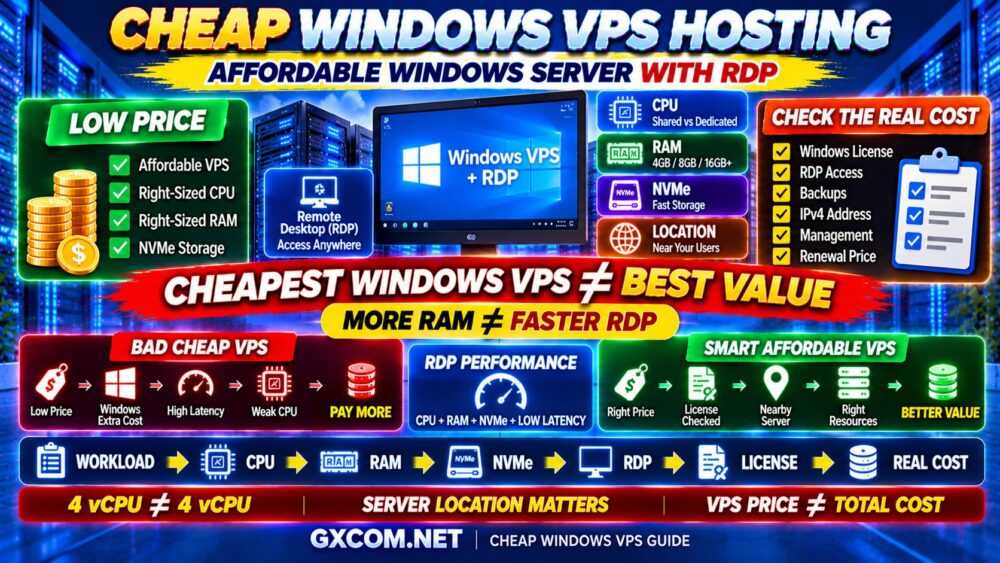
What About Cheap Windows VPS?
A cheap Windows VPS can be excellent value when its resources match the workload.
But inexpensive Windows VPS plans need extra scrutiny because the advertised server price may not tell the whole story.
Check:
- Is Windows Server included?
- Is RDP available?
- Is IPv4 included?
- How much NVMe/SSD storage is included?
- Are backups extra?
- What happens at renewal?
A low headline price is irrelevant if the final configuration does not meet your needs.
CHEAP VPS ≠ BAD VPS.
CHEAPEST VPS ≠ BEST VALUE.
For budget-oriented options, see our Cheap Windows VPS Hosting guide.
How to Tell If Your Windows VPS Needs More CPU
Possible signs include:
- CPU remains heavily utilized
- Applications respond slowly during processing
- RDP becomes sluggish under application load
- Database processing is CPU-bound
- Background tasks consume available compute
Before upgrading, identify which process is consuming CPU.
Do not assume more cores are always the answer.
How to Tell If Your Windows VPS Needs More RAM
Possible signs include:
- Available memory remains very low under normal workloads
- Applications frequently encounter memory pressure
- Paging becomes excessive
- Multiple applications cannot run comfortably together
- Database caching is constrained by memory
But if several gigabytes remain available while CPU usage is saturated, adding RAM is unlikely to help.
How to Tell If Your Windows VPS Needs More Storage
Do not wait until the disk is completely full.
Monitor:
- Free disk space
- Windows update growth
- Database growth
- Log files
- Temporary files
- User profiles
- Application data
Storage planning should include future growth rather than only today's usage.
Windows VPS Upgrade Strategy
When a Windows VPS becomes slow, avoid blindly upgrading everything.
Use this process:
WINDOWS VPS SLOW?
↓
CHECK CPU
↓
CHECK RAM
↓
CHECK STORAGE I/O
↓
CHECK DATABASE
↓
CHECK NETWORK LATENCY
↓
FIND THE BOTTLENECK
↓
OPTIMIZE OR UPGRADE
This can save money because you upgrade the resource that is actually limiting performance.
Windows VPS Buying Checklist
- ✓ Windows Server version
- ✓ Windows license included?
- ✓ Number of vCPU cores
- ✓ CPU generation and allocation
- ✓ Shared or dedicated CPU
- ✓ RAM
- ✓ NVMe or SSD
- ✓ Storage capacity
- ✓ RDP access
- ✓ Server location
- ✓ Network quality
- ✓ Bandwidth allowance
- ✓ IPv4 included?
- ✓ Backup options
- ✓ Managed or unmanaged
- ✓ Upgrade path
- ✓ Renewal terms
- ✓ Total real cost
Then ask:
WHAT RESOURCE WILL MY WORKLOAD ACTUALLY USE?
Windows VPS Requirements FAQ
How much RAM do I need for a Windows VPS?
For basic RDP and lightweight applications, 4GB can be a practical starting point. Moderate business applications may benefit from 8GB, while databases, multiple users and heavier workloads can require 16GB or more.
Is 2GB RAM enough for Windows VPS?
Two gigabytes can work for very lightweight or testing environments, but it provides limited headroom after Windows Server and background services consume memory. For regular RDP use, 4GB or more is generally more practical.
Is 4GB RAM enough for Windows Server?
It can be enough for basic RDP, light applications and small workloads. The correct amount depends on what software runs on top of Windows Server and how many processes or users are active.
Is 8GB RAM enough for Windows VPS?
Eight gigabytes can handle many moderate Windows VPS workloads, including business applications, development and multiple applications. More memory may be necessary for larger databases or multi-user environments.
How many vCPU do I need for Windows VPS?
Two vCPU can handle lightweight workloads, while four vCPU is a useful starting point for many moderate applications. Heavy databases, development or multi-user workloads may require eight or more, but CPU quality and allocation matter as much as core count.
How much storage does a Windows VPS need?
A lightweight server may operate with around 40–60GB, while general-purpose production environments often benefit from more room for Windows updates, applications, logs and user data. Databases and development environments can require 100GB or significantly more.
Is NVMe better for Windows VPS?
NVMe can improve storage-intensive operations such as databases, application loading and file processing, but CPU, RAM and network performance remain important.
Why is my RDP slow even with plenty of RAM?
RDP can feel slow because of CPU saturation, storage I/O, network latency, server location or application load. Additional RAM will only help if memory pressure is actually the bottleneck.
Final Verdict: How Much CPU, RAM and Storage Does a Windows VPS Need?
There is no single Windows VPS configuration that is right for every workload.
For basic Remote Desktop and lightweight applications, a modest VPS may be enough.
For general business use, more CPU and RAM provide additional flexibility.
Databases, development environments, multiple users and heavier applications require stronger resources.
The key is balance.
Use this process:
WORKLOAD
↓
CPU
↓
RAM
↓
NVMe / SSD
↓
RDP
↓
NETWORK
↓
WINDOWS LICENSE
↓
REAL COST
Remember:
4 vCPU ≠ 4 vCPU.
MORE RAM ≠ FASTER RDP.
NVMe ≠ FAST WINDOWS VPS BY ITSELF.
VPS PRICE ≠ TOTAL WINDOWS VPS COST.
BIGGEST SERVER ≠ BEST SERVER.
The best Windows VPS configuration is the one that provides enough CPU, RAM and storage for your actual workload, leaves reasonable room for growth and avoids paying for resources you will never use.