You published a new page, submitted your sitemap, and perhaps even requested indexing in Google Search Console—but the page still does not appear in Google.
Why?
Google indexing is not automatic. Before a page can appear in search results, Google generally needs to discover the URL, crawl it, process the content, determine its canonical version, and decide whether the page should be included in its index.
A page can fail at any stage of that process.
This guide explains why Google is not indexing your website, how to diagnose the most common indexing problems, and what you can do to fix them.
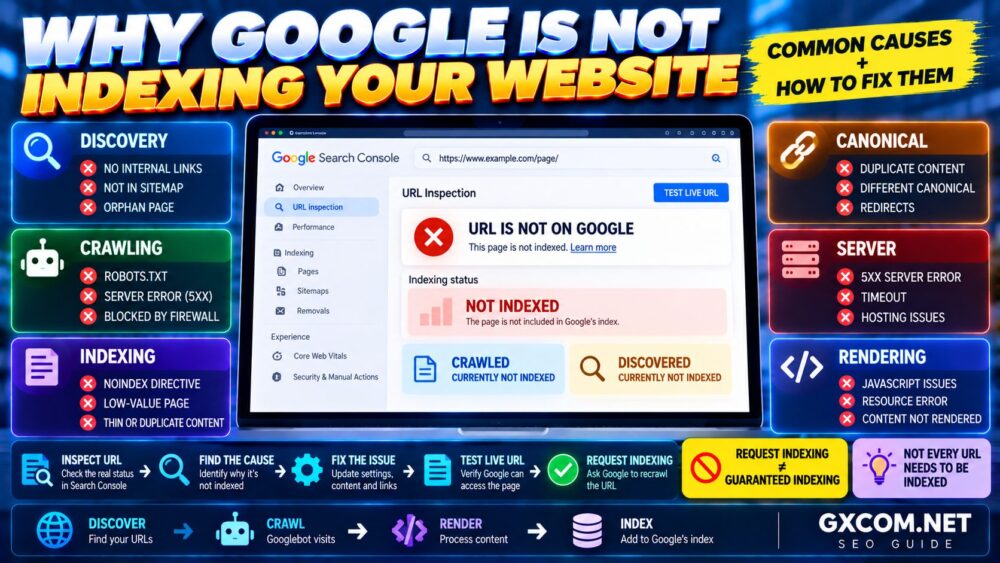
Google Indexing Process: Discover → Crawl → Render → Evaluate → Canonicalize → Index.
Why Is Google Not Indexing My Website?
The most common reasons include:
- Your website or page is new
- Google has not discovered the URL
- Robots.txt blocks crawling
- A noindex directive blocks indexing
- The page redirects elsewhere
- Google considers the page a duplicate
- Google selected a different canonical URL
- The page returns a 404 or other HTTP error
- The server returns 5xx errors
- Google crawled the page but did not index it
- Google discovered the page but has not crawled it
- The content provides insufficient unique value
- Internal linking is weak
- The page is effectively orphaned
- JavaScript or rendering problems interfere with content
- The site has security or manual-action issues
The important point is:
Not Indexed ≠ One Specific Problem.
You need to identify the exact reason before attempting to fix it.
First: Check Whether the Page Is Actually Indexed
Do not assume a page is unindexed simply because you cannot find it for your target keyword.
A page can be indexed but rank too low to appear prominently for the query you tested.
For a specific URL, the most useful diagnostic tool is Google Search Console's URL Inspection tool.
Inspect the exact canonical URL and review:
- URL status
- Crawl allowed?
- Page fetch
- Indexing allowed?
- Last crawl
- User-declared canonical
- Google-selected canonical
This distinction is essential:
Indexed but Not Ranking ≠ Not Indexed.
Understand the Google Indexing Process
Before troubleshooting, understand the basic sequence.
1. Discovery
Google needs to discover the URL through mechanisms such as internal links, external links, or a sitemap.
2. Crawling
Googlebot requests the URL and retrieves the page when crawling is permitted and the server responds successfully.
3. Rendering and Processing
Google processes the HTML and may render JavaScript to understand the page and its resources.
4. Canonicalization
If similar versions exist, Google determines which URL should represent the content.
5. Indexing
If Google determines that the page is appropriate for indexing, it may be stored in Google's index and become eligible to appear in search results.
Therefore:
Published → Does Not Automatically Mean → Indexed.
1. Your Website or Page Is Too New
New pages are not necessarily indexed immediately.
Google first needs to discover and crawl them, and indexing can take time.
For a new page:
- Add contextual internal links
- Include it in your XML sitemap when appropriate
- Make sure the page is indexable
- Use URL Inspection
- Request indexing when appropriate
Repeatedly submitting the same URL every few minutes will not force Google to index it faster.
2. Google Has Not Discovered the URL
If Google does not know a URL exists, it cannot crawl and index it.
Discovery problems often occur when:
- No internal pages link to the URL
- The page is missing from the sitemap
- The page is deeply buried in the site
- Navigation depends on inaccessible interactions
- The site is new and has few discovery signals
Important pages should normally be connected to the website architecture.
A useful structure might be:
Homepage → Category → Subcategory → Article
Do not rely exclusively on an XML sitemap to compensate for poor site architecture.
3. Robots.txt Is Blocking Googlebot
A robots.txt rule can prevent Googlebot from crawling a URL.
For example:
User-agent: *
Disallow: /private/
If an important page sits inside the blocked path, Google may be unable to crawl its current content.
Check robots.txt after:
- Website migrations
- Staging launches
- Security changes
- CMS changes
- Major redesigns
One particularly important distinction:
robots.txt Controls Crawling. It Is Not the Correct Tool for Reliably Removing a URL From Google's Index.
If you want Google to process a noindex directive, Googlebot must generally be able to crawl the page and see that directive.
4. The Page Contains a Noindex Directive
A page can explicitly tell search engines not to index it.
For example:
<meta name="robots" content="noindex, follow">
The directive may also be delivered through an HTTP X-Robots-Tag header.
This is useful when intentional, but disastrous when accidentally applied to:
- Homepage
- Important articles
- Product pages
- Category pages
- Landing pages
WordPress users should also check SEO plugin settings and the site's search-engine visibility configuration.
If Search Console reports that indexing is not allowed, investigate the robots meta tag and HTTP headers.
5. The URL Redirects Somewhere Else
A URL that permanently redirects to another URL is normally not the version you should expect Google to index.
For example:
Old URL → 301 → New URL
The old URL exists primarily as a redirect, while the destination is the page intended for indexing.
Check for:
- Unexpected 301 redirects
- 302 redirects
- Redirect chains
- Redirect loops
- HTTP → HTTPS redirects
- www → non-www or non-www → www redirects
Internal links and XML sitemaps should generally point directly to your intended canonical destination.
6. Google Thinks the Page Is a Duplicate
Google does not need to index every duplicate version of the same content.
Duplicates can be created through:
- URL parameters
- HTTP and HTTPS versions
- www and non-www versions
- Tracking URLs
- CMS archives
- Print versions
- Product variations
- Duplicate articles
Search Console may report statuses involving duplicate pages or alternate pages with proper canonical tags.
This is not necessarily an error.
If Google indexes your preferred canonical version instead, the system may be working exactly as intended.
Not Every Non-Indexed URL Needs to Be Indexed.
7. Google Selected a Different Canonical URL
You can specify your preferred canonical URL:
<link rel="canonical" href="https://www.example.com/preferred-page/">
However, canonical tags are signals rather than an absolute command that forces Google to select your preferred URL.
Google evaluates multiple signals when choosing a representative canonical.
Keep these signals consistent:
- Canonical tag
- Internal links
- XML sitemap
- Redirects
- HTTPS version
- Content consistency
If Search Console shows a Google-selected canonical different from your user-declared canonical, investigate why Google considers the other URL more representative.
8. “Crawled – Currently Not Indexed”
This is one of the most frustrating Search Console statuses.
It means Google crawled the page but the page is currently not indexed.
Do not respond by simply clicking Request Indexing repeatedly.
Instead evaluate the page itself.
Ask:
- Does the page provide substantial unique value?
- Is it extremely similar to another page?
- Is the content thin or largely templated?
- Does the page satisfy a clear search intent?
- Does it have meaningful internal links?
- Is the canonical correct?
- Is the content complete and useful?
For an important page, improve the content and its integration into the site before requesting another crawl.
Crawled ≠ Guaranteed Indexed.
9. “Discovered – Currently Not Indexed”
This means Google knows about the URL but has not yet crawled it.
Potential contributing factors can include:
- Large numbers of low-value URLs
- Weak internal linking
- New website or new content section
- Server capacity concerns
- Poor crawl efficiency
- Large amounts of duplicate or unnecessary URLs
Focus on making your important URLs easy to discover and reducing unnecessary crawl paths.
For large websites, inspect:
- Faceted navigation
- Internal search URLs
- Parameter URLs
- Tag archives
- Calendar archives
- Duplicate filters
10. Your Page Returns a 404 Error
If a page genuinely does not exist, a 404 response is appropriate.
But an important page returning 404 by mistake cannot be indexed normally.
Common causes include:
- Changed permalink
- Deleted page
- Incorrect rewrite rules
- Migration problems
- Broken CMS routing
If the page should exist, restore it or correct the routing.
If it has permanently moved, redirect the old URL to the most relevant replacement.
Do not automatically redirect every 404 to the homepage.
11. Soft 404 Problems
A soft 404 occurs when a page appears to be missing or provides little meaningful content but the server returns a successful status such as HTTP 200.
Examples can include:
- Empty product pages
- Empty category pages
- “Product not found” pages returning 200
- Thin placeholder pages
- Missing-content templates
Use an appropriate HTTP status when content genuinely does not exist.
If the page should remain indexable, make sure it provides substantial and useful content.
12. Server Errors Prevent Google From Crawling
Googlebot must be able to retrieve your pages reliably.
Common server errors include:
- 500 Internal Server Error
- 502 Bad Gateway
- 503 Service Unavailable
- 504 Gateway Timeout
Potential causes include:
- Server overload
- PHP failures
- Database problems
- Proxy errors
- CDN problems
- Insufficient resources
- Application bugs
If important pages frequently return 5xx errors, investigate the application and infrastructure rather than repeatedly requesting indexing.
13. Your Server or Firewall Is Blocking Googlebot
Security systems can sometimes interfere with legitimate crawlers.
Potential sources include:
- Web Application Firewalls
- CDN security rules
- Rate limiting
- Bot protection
- Hosting firewalls
- Security plugins
Do not simply whitelist a random crawler because it identifies itself as Googlebot.
When crawler identity matters, use Google's documented verification methods rather than trusting a user-agent string alone.
14. Poor Internal Linking Makes Pages Hard to Discover
Internal links are important for both users and search engines.
An article linked from relevant high-level pages is easier to discover than one that exists only in a sitemap.
Use contextual internal links between related pages.
For example, this article naturally belongs with our Technical SEO Checklist.
A logical topic cluster helps search engines and users understand how content relates.
15. The Page Is an Orphan Page
An orphan page has no meaningful internal links pointing to it.
It may exist in your CMS and even appear in a sitemap, but it is disconnected from normal website navigation.
For an important page, add relevant links from:
- Category pages
- Related articles
- Topic hubs
- Navigation where appropriate
If a Page Is Important, Integrate It Into the Site.
16. Your XML Sitemap Has Problems
An XML sitemap helps Google discover URLs, but it should contain the URLs you actually want search engines to process as canonical pages.
Check for:
- 404 URLs
- Redirected URLs
- Noindex URLs
- Duplicate URLs
- Non-canonical URLs
- Incorrect protocol or hostname
Your sitemap should reinforce your preferred site structure rather than contradict it.
Sitemap Submission ≠ Guaranteed Indexing.
17. JavaScript Rendering Problems Hide Important Content
Google can process JavaScript, but complex JavaScript implementations can introduce additional failure points.
Problems can occur when:
- Main content depends entirely on failed JavaScript
- Internal links are not implemented as crawlable links
- API requests fail
- Lazy loading is implemented incorrectly
- Resources required for rendering are unavailable
Use URL Inspection to examine Google's rendered view and retrieved HTML/resources when troubleshooting a JavaScript-heavy page.
18. The Content Is Too Similar to Existing Pages
Creating many pages targeting almost identical search intent can result in substantial overlap.
Examples include:
Best Cheap VPS
Cheap VPS Hosting
Affordable VPS Hosting
Low-Cost VPS Hosting
These can be legitimate separate pages if they serve genuinely different purposes, but changing only the title and a few words does not automatically create unique value.
Before publishing a new article, ask:
Does this page deserve to exist independently?
This is particularly important for large SEO content sites.
19. Thin or Low-Value Pages
There is no magic minimum word count that guarantees indexing.
A short page can be extremely useful, while a 3,000-word article can still provide little original value.
Evaluate whether the page:
- Answers the search intent
- Provides useful information
- Adds something beyond existing pages
- Has a clear purpose
- Is accurate and maintained
- Is not simply generated to create another keyword URL
More Words ≠ More Indexable.
20. Your Website Generates Too Many Unnecessary URLs
CMS platforms can create large numbers of URLs through:
- Tags
- Author archives
- Date archives
- Pagination
- Filters
- Search pages
- Parameters
- Attachments
Not every technically generated URL deserves to appear in Google.
Decide which URL types provide independent search value.
This can improve site architecture and reduce the amount of low-value URL duplication Google must process.
21. HTTPS, WWW and URL Variations Are Inconsistent
Potential URL versions include:
- http://example.com
- https://example.com
- http://www.example.com
- https://www.example.com
Your redirects, internal links, sitemap and canonical tags should consistently reinforce the intended version.
Also check:
- Trailing slashes
- Uppercase URLs
- Index files
- Parameters
Consistency reduces conflicting canonical signals.
22. Manual Actions or Security Problems
If technical settings appear correct but important pages or an entire website have serious visibility problems, check Google Search Console for:
- Manual Actions
- Security Issues
Do not assume every indexing problem is caused by a penalty.
Technical, canonical, discovery, duplication and content issues are far more routine explanations.
How to Fix “Crawled – Currently Not Indexed”
Use this sequence:
1. Inspect the URL
Confirm the exact Search Console status.
2. Check indexability
Verify robots, noindex, HTTP response and canonical configuration.
3. Compare competing URLs
Look for duplicates or substantially overlapping pages.
4. Improve the content
Make the page more complete, distinctive and useful.
5. Improve internal linking
Connect it from relevant authoritative pages.
6. Confirm sitemap inclusion
Include the canonical URL if it belongs in search.
7. Request indexing
After meaningful fixes, request another crawl.
Do not use:
Request Indexing → Request Indexing → Request Indexing
as a substitute for fixing the underlying problem.
How to Fix “Discovered – Currently Not Indexed”
Check:
- Internal links to the page
- XML sitemap
- Site architecture
- Duplicate and low-value URL generation
- Server reliability
- Overall site crawl efficiency
For an important new page, add strong contextual links from already established pages and ensure the canonical URL appears in the sitemap.
How to Request Google Indexing Correctly
For an individual page:
- Open Google Search Console
- Enter the complete URL into URL Inspection
- Review the existing index status
- Run a live test if you recently fixed the page
- Confirm the URL can be indexed
- Click Request Indexing
For many new or updated URLs, maintain and submit an XML sitemap rather than manually requesting hundreds of individual pages.
Remember:
Request Indexing = Request to Crawl/Process the URL.
Request Indexing ≠ Command Google to Index the URL.
How Long Does Google Take to Index a Page?
There is no guaranteed indexing time.
A page may be processed quickly, or it may take considerably longer depending on discovery, crawling, site conditions and Google's indexing decisions.
Do not create a rule such as:
“Not indexed within 24 hours = SEO problem.”
For newly published content, allow reasonable time before assuming something is broken.
Does Better Hosting Help Google Indexing?
Hosting can matter when infrastructure problems prevent Google from reliably accessing your site.
Examples include:
- Frequent 5xx errors
- Server timeouts
- Severe overload
- Very poor availability
- Misconfigured firewalls
But buying a larger server will not fix:
- Noindex directives
- Wrong canonical tags
- Duplicate content
- Orphan pages
- Weak internal linking
- Thin content
If server performance is genuinely a problem, diagnose it first rather than upgrading blindly.
WordPress users can follow our WordPress performance troubleshooting guide.
Google Indexing Troubleshooting Matrix
| Search Console Status / Problem | What It Usually Means | What to Check |
|---|---|---|
| Blocked by robots.txt | Crawling restricted | robots.txt |
| Excluded by noindex | Indexing explicitly blocked | Meta robots / X-Robots-Tag |
| Page with redirect | URL redirects elsewhere | Redirect target |
| Duplicate page | Another URL represents content | Canonical signals |
| Crawled – currently not indexed | Google crawled but did not index | Content, duplication, canonical, internal links |
| Discovered – currently not indexed | Known but not yet crawled | Discovery, crawl efficiency, site quality |
| Not found (404) | Page unavailable | URL, routing, deletion |
| Server error (5xx) | Server failed request | Hosting/application infrastructure |
| Alternate page | Another canonical is preferred | Canonical URL |
WordPress Google Indexing Checklist
For WordPress websites, check:
- ✓ Settings → Reading → Search engine visibility
- ✓ SEO plugin robots settings
- ✓ Post-level noindex settings
- ✓ Canonical URLs
- ✓ XML sitemap
- ✓ Category and tag settings
- ✓ Author/date archives
- ✓ Attachment URLs
- ✓ Pagination
- ✓ HTTP/HTTPS redirects
- ✓ Internal links
- ✓ Server status codes
- ✓ CDN/firewall rules
Do not install multiple SEO plugins to solve an indexing problem unless you understand which plugin controls robots directives, canonical tags and sitemaps.
Google Indexing FAQ
Why is Google not indexing my new page?
Google may not have discovered or crawled the page yet, or it may have crawled the URL without selecting it for indexing. Check URL Inspection, internal links, sitemap inclusion, robots directives and canonical configuration before assuming there is an error.
Why does Search Console say “Crawled – currently not indexed”?
Google has crawled the URL but it is currently not in the index. Review content quality, duplication, canonical signals, internal linking and whether the page provides sufficient independent value.
What does “Discovered – currently not indexed” mean?
Google knows about the URL but has not yet crawled it. Improve discoverability, internal linking and crawl efficiency, and verify that the site is reliable and not generating excessive unnecessary URLs.
Does submitting a sitemap guarantee indexing?
No. A sitemap helps Google discover URLs but does not guarantee that submitted pages will be indexed.
Does Request Indexing guarantee indexing?
No. Request Indexing asks Google to recrawl or process a URL. Google still determines whether the page should be included in its index.
Can robots.txt prevent indexing?
Robots.txt prevents crawling when a matching rule blocks Googlebot, but blocking crawling is not the same as reliably preventing a URL from appearing in Google's index. Use the appropriate indexing directive when exclusion from search is the objective.
Can a noindex page appear in Google?
If Google can crawl and process a valid noindex directive, the page should be excluded from Google Search. Make sure the page is not simultaneously blocked from crawling if you need Google to see the directive.
Are all non-indexed pages bad for SEO?
No. Duplicate URLs, redirects, intentionally noindexed pages, removed pages and many parameter URLs may correctly remain outside Google's index.
How do I know whether Google chose another canonical?
Use URL Inspection and compare the user-declared canonical with Google's selected canonical.
Can slow hosting stop Google indexing my site?
Infrastructure can contribute when the server frequently times out, returns errors or becomes unavailable. Normal indexing problems should not automatically be blamed on hosting.
Why Google Is Not Indexing Your Website: Final Checklist
- ✓ Confirm the URL is actually not indexed
- ✓ Inspect the URL in Google Search Console
- ✓ Check whether Google discovered the page
- ✓ Check robots.txt
- ✓ Check noindex directives
- ✓ Verify HTTP status code
- ✓ Check redirects
- ✓ Verify canonical URL
- ✓ Check Google's selected canonical
- ✓ Inspect duplicate URLs
- ✓ Review content quality and uniqueness
- ✓ Add meaningful internal links
- ✓ Eliminate orphan pages
- ✓ Verify XML sitemap
- ✓ Check server errors
- ✓ Check CDN/firewall rules
- ✓ Test JavaScript rendering where relevant
- ✓ Check Manual Actions and Security Issues
- ✓ Request indexing only after fixing problems
If Google is not indexing your website, do not start by repeatedly submitting URLs.
Start by determining where the indexing process is failing:
Discovery Problem?
Improve internal linking, sitemap discovery and site architecture.
Crawling Problem?
Check robots.txt, server responses, firewalls and availability.
Indexing Problem?
Check noindex directives, canonicalization, duplication and content value.
Rendering Problem?
Check JavaScript and important resources.
Server Problem?
Fix 5xx errors, timeouts and infrastructure instability.
Then test the live URL and request indexing again.
Discover → Crawl → Render → Evaluate → Canonicalize → Index.
Fix the Reason Google Is Not Indexing the Page—Not Just the Search Console Warning.