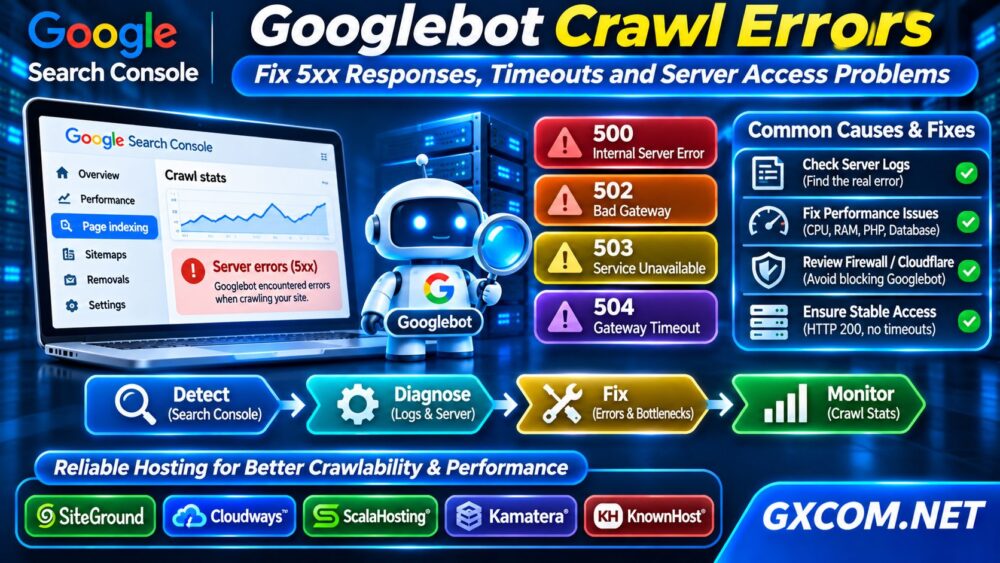
Googlebot crawl errors can prevent search engines from accessing important pages, especially when a website returns HTTP 5xx responses, experiences connection timeouts, or blocks legitimate crawlers. Occasional failures are not necessarily catastrophic, but persistent problems can reduce crawling reliability and delay content discovery.
This guide explains how to investigate Googlebot server errors using Google Search Console, web server logs, Cloudflare settings, and hosting performance metrics. You will also learn when technical fixes are sufficient and when infrastructure upgrades deserve consideration.
What Are Googlebot Crawl Errors?
Googlebot is Google’s web crawler. It requests website resources, follows links, and retrieves content for Google’s indexing systems.
A crawl error occurs when a requested resource cannot be retrieved or processed as expected. Server-side failures may involve HTTP errors, network interruptions, DNS problems, or inaccessible hosting infrastructure.
Google can retry temporary failures. However, repeated server errors may cause Google to reduce crawling activity, while persistently inaccessible URLs may eventually disappear from search results.
Step 1: Check Google Search Console
Open Google Search Console and inspect the Page indexing report for affected URLs. Then review Settings → Crawl stats to examine host availability, response codes, and crawling patterns.
Use URL Inspection to investigate important pages individually. Compare the reported error with a live test, remembering that live accessibility does not guarantee indexing.
Look for patterns involving specific directories, publication times, or traffic spikes. A widespread increase in server errors suggests a different problem from one broken application endpoint.
If Google successfully crawls a page but does not index it, read our Crawled Currently Not Indexed troubleshooting guide.
Step 2: Understand HTTP 500, 502, 503 and 504 Errors
Different server response codes point toward different failure categories.
| Error | Meaning | Common Investigation |
|---|---|---|
| 500 | Internal server error | Application and PHP logs |
| 502 | Bad gateway | Proxy and upstream connectivity |
| 503 | Service unavailable | Overload or maintenance |
| 504 | Gateway timeout | Slow upstream processing |
These explanations are diagnostic starting points, not definitive root causes. A reverse proxy, CDN, application server, or hosting platform may generate the response.

Step 3: Examine Server Access and Error Logs
Server logs help determine whether Googlebot requests reach your infrastructure and what responses they receive.
On a typical Linux server, an administrator might inspect Apache access logs using:
sudo grep -i 'Googlebot' /var/log/apache2/access.log | tail -30Log paths differ across distributions and hosting panels. Nginx installations commonly use directories under /var/log/nginx/.
Investigate timestamps, request paths, response codes, and processing durations. Correlate errors with PHP logs, database failures, deployments, or resource alerts.
A Googlebot user-agent string is not proof that the requester is genuine. Verify crawler identity using Google’s documented reverse-DNS and forward-DNS procedure or published IP ranges before changing access rules.
Step 4: Fix WordPress PHP and Database Failures
WordPress can return server errors when PHP processes exhaust memory, plugins trigger fatal errors, database connections fail, or concurrent requests exceed available application capacity.
Review PHP-FPM or web server logs, identify failing plugins, and examine database slow queries. Test suspicious changes in a staging environment rather than disabling critical production features blindly.
Repeated 504 errors may indicate slow backend processing, but increasing timeout limits without fixing the underlying problem can merely hide the symptoms.
For update-related failures, follow our WordPress Staging Site guide before modifying production software.
Step 5: Check Cloudflare and Firewall Rules
Cloudflare, web application firewalls, and security plugins may challenge or block automated traffic. Investigate firewall events, rate-limiting policies, bot-management rules, and origin connectivity.
Distinguish a genuine HTTP 5xx failure from an access-denied response or challenge page. A firewall challenge may prevent Googlebot from retrieving usable content even when the origin server is healthy.
Verify genuine Googlebot traffic before creating narrowly scoped exceptions. Avoid disabling security protections globally or trusting user-agent strings alone.
Also confirm that your origin server accepts legitimate requests through the configured CDN and that DNS records point to the correct infrastructure.
Step 6: Diagnose Timeouts and Resource Bottlenecks
Server timeouts can result from saturated CPU resources, insufficient memory, database locks, overloaded PHP workers, storage latency, or upstream network failures.
Monitor CPU utilization, memory pressure, disk I/O, request queues, and application response times during affected periods.
On shared virtual infrastructure, CPU scheduling contention can create inconsistent processing delays. Our VPS CPU Steal Time guide explains how to investigate that specific bottleneck.
Measure before upgrading. A poorly optimized database query can remain slow even after additional server resources are purchased.
Step 7: Restore Reliable Googlebot Access
After identifying the cause, repair the failing service, adjust incorrect firewall rules, optimize application performance, or restore healthy upstream connectivity.
Check that important pages consistently return HTTP 200 and that temporary maintenance responses are not continuing indefinitely.
Use appropriate HTTP 503 responses for genuine temporary maintenance, ideally with a sensible Retry-After header. Do not use maintenance responses as a permanent substitute for resolving failures.
Monitor subsequent Search Console crawl statistics and server logs. Improvements in crawling may take time to appear in reports.
When Should You Upgrade Hosting?
Consider infrastructure changes when monitoring confirms recurring resource exhaustion, inadequate application capacity, unreliable upstream services, or insufficient administrative control.

SiteGround is relevant for WordPress-focused hosting. Cloudways offers managed cloud environments for websites requiring flexible infrastructure management.
ScalaHosting and KnownHost provide managed VPS options, while Kamatera offers configurable cloud server resources for teams needing greater control.
Compare CPU allocation, memory, PHP processing capacity, support responsibilities, backup policies, and actual costs. No provider can guarantee Google indexing or rankings.
Explore our Managed Cloud Hosting comparison and Best VPS Providers guide when a measurable infrastructure upgrade is justified.
Frequently Asked Questions
Do Googlebot 5xx Errors Hurt SEO?
Persistent server errors can interfere with crawling and indexing. An isolated temporary error does not automatically imply a ranking penalty.
Can Cloudflare Block Googlebot?
Yes. Incorrect firewall, challenge, or rate-limiting configurations can interfere with legitimate crawler access.
Will Faster Hosting Fix Crawl Errors?
Only when the underlying issue involves hosting reliability or resource limitations. Application bugs and incorrect firewall rules require different fixes.
Final Verdict
Googlebot crawl errors should be diagnosed through Search Console evidence, server logs, application monitoring, and verified crawler access. Fix the actual cause before considering a hosting upgrade.
When recurring infrastructure limitations are confirmed, compare managed hosting, VPS, and cloud solutions according to workload requirements rather than assuming additional resources automatically improve search visibility.