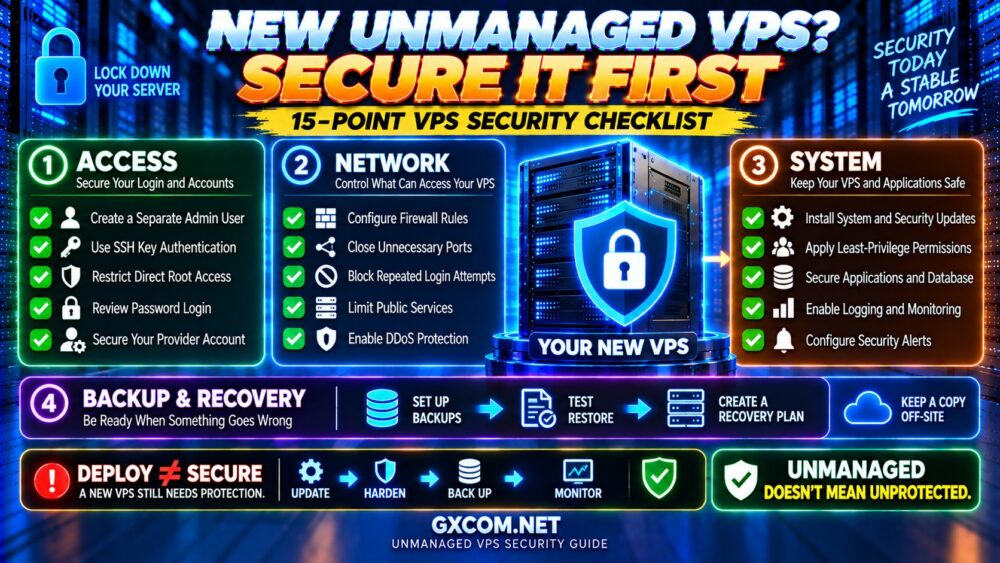
An unmanaged VPS setup checklist helps turn a newly deployed Linux server into a safer, more reliable environment. Unlike managed hosting, an unmanaged VPS generally leaves operating system maintenance, security configuration, monitoring, and recovery to the customer.
Whether you plan to host WordPress, Docker applications, or development services, complete these essential steps before exposing production workloads.

1. Confirm VPS Access and Server Details
Before changing anything, record your public IP address, Linux distribution, administrator credentials, and hosting control panel access.
Check the operating system:
cat /etc/os-release
uname -r
df -h
free -h
Verify that your provider offers a web console, rescue mode, or another recovery method. These tools become important if SSH access fails.
For new purchases, compare CPU allocation, storage, network limits, and support responsibilities rather than relying on advertised specifications alone.
2. Create a Non-Root Administrator
On Ubuntu, create a dedicated administrator account while retaining your existing working session:
sudo adduser deploy
sudo usermod -aG sudo deploy
Replace deploy with your preferred username. Test the account’s sudo permissions before restricting root access.
Separate administrator accounts improve accountability and reduce unnecessary use of the root account.
3. Configure SSH Key Authentication
SSH keys provide a stronger authentication approach than relying exclusively on passwords.
On your local computer, generate an Ed25519 key if you do not already have one:
ssh-keygen -t ed25519Install the public key for the new account using an appropriate method, such as:
ssh-copy-id deploy@SERVER_IPReplace SERVER_IP with your server address. On Windows, use a compatible SSH client or manually add the public key to the account’s authorized_keys file.
Open a second terminal and confirm that key-based login works:
ssh deploy@SERVER_IPOnly after successful testing should you consider setting these options in an appropriate SSH server configuration file:
PermitRootLogin no
PasswordAuthentication no
Check the effective configuration and validate syntax before reloading SSH. Keep your original session open until a new connection succeeds. Some environments require additional settings for complete password-based authentication restrictions.
4. Configure the VPS Firewall
A firewall limits unnecessary inbound connections. Ubuntu commonly uses UFW as a convenient management interface.
First, allow your SSH service:

sudo ufw allow OpenSSH
sudo ufw default deny incoming
sudo ufw default allow outgoing
sudo ufw enable
sudo ufw status verbose
If SSH uses a custom port, allow that port before enabling the firewall. Also verify provider-level firewall rules and console recovery access.
For a public website, allow HTTP and HTTPS when required:
sudo ufw allow 80/tcp
sudo ufw allow 443/tcp
Do not expose databases, administrative dashboards, or development ports unless necessary. Docker networking can bypass expectations based solely on UFW rules, so review container networking separately.
5. Install Security Updates
Outdated packages increase exposure to known vulnerabilities. On Ubuntu or Debian, begin with:
sudo apt update
sudo apt upgrade
Review package changes and reboot requirements. For unattended security maintenance on Ubuntu, install and configure:
sudo apt install unattended-upgradesAutomatic updates reduce routine work but do not eliminate the need to review failed updates, application compatibility, and reboot requirements.
For teams without time to manage these responsibilities, compare the differences in our managed vs unmanaged hosting guide.
6. Add Login Protection and Basic Monitoring
Review authentication logs and consider tools such as Fail2ban for services exposed to repeated login attempts.
For basic server health checks, start with:
uptime
top
df -h
free -h
systemctl --failed
These commands reveal load, resource usage, storage capacity, and failed services. They are useful for troubleshooting but do not provide continuous alerting.
Production environments should monitor CPU, RAM, disk space, network availability, and application health. Configure alerts that reach an administrator even when the VPS itself becomes unavailable.
Persistent performance problems may also involve shared CPU scheduling. Our VPS CPU steal time guide explains how to investigate potential contention.
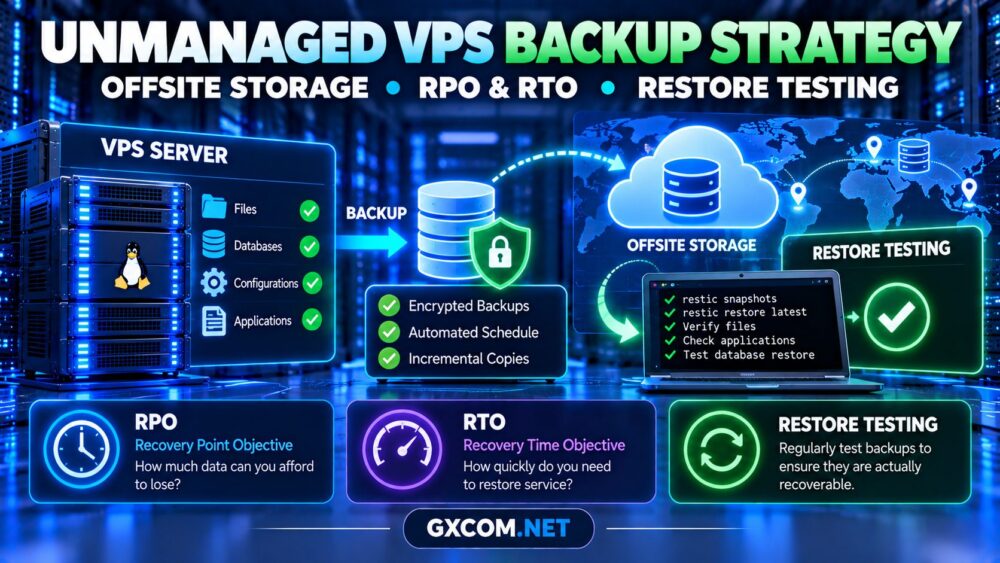
7. Set Up Independent Backups
Unmanaged VPS customers should not assume their provider automatically protects application data.
Create backups according to workload requirements and store at least one recoverable copy outside the production server’s failure domain.
For databases, use application-consistent backup methods. Protect backup credentials, document retention policies, and test restoration regularly.
Snapshots can simplify rollback, but they are not always independent backups. Read our VPS snapshots vs backups comparison before choosing a recovery strategy.
8. Compare Unmanaged VPS Providers
Once your security and maintenance requirements are clear, evaluate providers based on workload suitability, control panel capabilities, and recovery access.
Evoxt
Evoxt is worth comparing for budget-conscious Linux VPS deployments. Check the selected plan’s CPU policy, operating system options, backup features, and support boundaries.
AlphaVPS
AlphaVPS is another candidate for self-managed infrastructure. Evaluate its available configurations, network locations, storage options, and console recovery capabilities.
Vultr
Vultr offers cloud compute options that may suit developers who want infrastructure control. Compare the exact instance type, storage arrangement, and optional protection services.
RAKsmart
RAKsmart can also be considered when comparing VPS and cloud server deployments. Verify the chosen product’s operating system access, resource allocation, and management responsibilities.
For a broader shortlist, explore our best VPS providers comparison.
9. Complete a Pre-Launch Security Check
Before deploying a public application, confirm the following:
- SSH key login works for a non-root administrator.
- Unnecessary inbound ports are blocked.
- Security updates are installed and scheduled.
- Monitoring and external alerts are configured.
- Independent backups have been tested.
- Recovery console access is documented.
- Application secrets and credentials are protected.
Also verify DNS, HTTPS certificates, application permissions, and database access restrictions where applicable.

10. Understand the Real Cost of Unmanaged VPS Hosting
An inexpensive VPS may still require paid backup storage, monitoring tools, control panels, and administrator time.
Before purchasing, compare renewal terms and relevant VPS hosting deals against your total operational requirements.
Saving money on management is worthwhile only when you can maintain the server reliably.
Frequently Asked Questions
Is an unmanaged VPS secure by default?
Not necessarily. Security depends on the initial image, provider controls, exposed services, and customer configuration.
Should I disable root SSH login?
Usually, after confirming that a separate administrator can connect and perform necessary tasks.
Do I need a firewall if my provider has one?
Host-level and provider-level firewalls can complement each other. Coordinate their rules to avoid accidental exposure or lockouts.
Who handles updates on an unmanaged VPS?
Generally, the customer manages guest operating system and application updates, subject to the provider’s service terms.
Final Verdict
A reliable unmanaged VPS setup checklist starts with secure access, firewall rules, timely updates, monitoring, and recoverable backups.
Choose a provider that supports your operational requirements, document your configuration, and regularly test both security controls and recovery procedures.