Ubuntu is one of the most practical operating systems for a first virtual private server. It combines long-term support releases, extensive documentation, a large software ecosystem and straightforward package management, making it suitable for websites, Docker containers, APIs, development environments and self-hosted applications.
This Ubuntu VPS Hosting guide explains how to choose your first Ubuntu server in 2026, how much CPU and RAM you need, which Ubuntu version to install and what to do immediately after your VPS goes online.
You do not need to be an experienced Linux administrator to understand the basics. However, an unmanaged VPS gives you significant control over the server, which also means security, updates and backups become your responsibility.
What Is Ubuntu VPS Hosting?
An Ubuntu VPS is a virtual private server running Ubuntu Linux.
The hosting provider supplies virtualized computing resources such as CPU, RAM, storage and networking. Ubuntu runs as the server operating system, while you install and manage the software required by your project.
An Ubuntu VPS can be used for:
- WordPress websites
- Nginx or Apache web servers
- Docker containers
- Node.js applications
- Python applications
- PHP applications
- MySQL and PostgreSQL databases
- APIs
- Development and staging servers
- Self-hosted software
Unlike conventional shared hosting, an unmanaged VPS normally gives you root-level administrative control over the operating system.
Why Choose Ubuntu for a VPS?
Linux VPS providers usually offer several distributions, including Ubuntu, Debian, AlmaLinux and others. Ubuntu is particularly attractive to new VPS users because of its documentation and broad application support.
Key advantages include:
- Free and open-source operating system
- Long Term Support releases
- APT package management
- Large software repositories
- Extensive server documentation
- Strong Docker and development ecosystem
- Broad support among VPS providers
- Regular security updates
If you are still comparing providers rather than operating systems, see our Linux VPS Hosting Providers comparison.
Ubuntu 26.04 LTS vs 24.04 LTS for VPS Hosting
As of September 2026, Ubuntu 26.04 LTS is the newest Long Term Support release.
| Version | Released | Standard Security Maintenance | Good Choice For |
|---|---|---|---|
| Ubuntu 26.04 LTS | April 2026 | Until May 2031 | New VPS deployments |
| Ubuntu 24.04 LTS | April 2024 | Until May 2029 | Mature software compatibility |
| Ubuntu 22.04 LTS | April 2022 | Until May 2027 | Existing legacy deployments |
Choose Ubuntu 26.04 LTS When:
- You are deploying a new server
- Your software supports the latest LTS
- You want the longest standard support window
- You want newer packages and platform components
Choose Ubuntu 24.04 LTS When:
- Your application stack has already been tested on 24.04
- A specific application officially supports 24.04 but not yet 26.04
- You prioritize established compatibility over newer packages
For most new projects, an LTS release is preferable to a short-lived interim Ubuntu version because servers usually benefit from a longer maintenance lifecycle.
How Much Does an Ubuntu VPS Cost?
Ubuntu itself generally does not add a Windows-style operating-system license fee to a standard VPS plan.
The server price instead depends primarily on:
- vCPU allocation
- RAM
- Storage
- Bandwidth
- CPU type
- Data center
- Backups
- Server management
For example, DigitalOcean currently offers Basic Linux Droplets from $4 per month. Its $4 plan provides 512 MiB RAM, 1 vCPU, 10 GiB SSD and 500 GiB transfer, while the $6 configuration provides 1 GiB RAM, 1 vCPU, 25 GiB SSD and 1,000 GiB transfer.
Extremely small instances can be useful for Linux learning and lightweight services, but they may not provide enough memory for a production website with a database and multiple applications.
For price-focused options, see our Cheap Linux VPS Hosting comparison.
How Much RAM Does Your First Ubuntu VPS Need?
| RAM | Suggested Use |
|---|---|
| 512 MB–1 GB | Linux learning, testing, lightweight services |
| 2 GB | Small websites, APIs and simple applications |
| 4 GB | WordPress, Docker and multiple services |
| 8 GB+ | Databases, growing sites and heavier applications |
These are starting points rather than fixed requirements. Application configuration and traffic can dramatically affect memory consumption.
For many first production websites, 2–4 GB provides more flexibility than choosing the smallest possible VPS simply to save a few dollars.
SSD vs NVMe for Ubuntu VPS
Storage performance can affect databases, application loading and other disk-intensive operations.
Standard SSD storage is adequate for many small websites and development servers. NVMe can provide higher I/O performance and is attractive for database-heavy or storage-intensive applications.
Do not assume every VPS advertised as SSD uses NVMe. Check the actual plan specifications.
DigitalOcean, for example, distinguishes its regular Basic SSD plans from Premium Shared CPU configurations that use NVMe SSDs.
Choosing a VPS Location
When possible, deploy your Ubuntu server reasonably close to the people or systems that will access it most frequently.
If most website visitors are in Germany, a European data center may provide lower latency than a server in California. If your audience is primarily in the United States, choose an appropriate U.S. region.
Location is especially important for latency-sensitive applications.
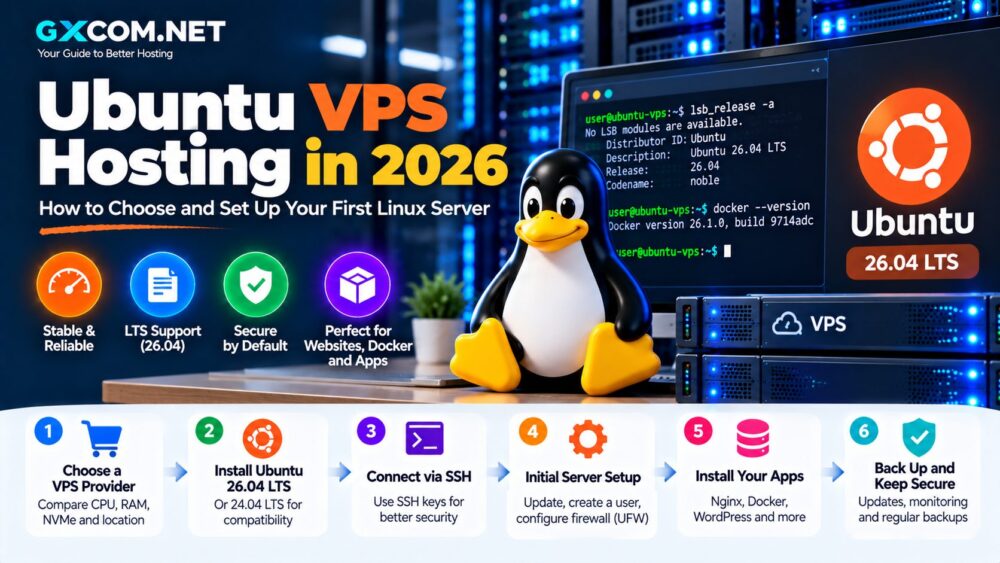
How to Set Up Your First Ubuntu VPS
Once you purchase the VPS and deploy Ubuntu, avoid immediately installing a website and assuming the server is ready for production.
A basic initial setup should include system updates, a non-root administrative user, SSH security, firewall configuration and backups.
Step 1: Connect to Your Ubuntu VPS with SSH
Your provider will normally give you the server's IP address and either a password or SSH key authentication method.
From Linux, macOS or a modern Windows terminal, the basic command is:
ssh root@YOUR_SERVER_IPReplace YOUR_SERVER_IP with the actual address of your VPS.
If your provider supports SSH keys during deployment, key-based authentication is preferable to relying only on a root password.
Step 2: Update Ubuntu
After logging in, update the package index and installed packages:
sudo apt update
sudo apt upgrade -y
Keeping security updates current is one of the most basic server-administration responsibilities.
Step 3: Create a Non-Root User
Avoid performing routine work as root.
adduser gxadmin
usermod -aG sudo gxadmin
Replace gxadmin with your preferred username.
You can then verify the new account before making further SSH restrictions.
Step 4: Configure SSH Keys
SSH keys provide a strong authentication method for remote server access.
On your local computer, you can generate a modern Ed25519 key:
ssh-keygen -t ed25519Copy the public key to the server using an appropriate method supported by your local system or hosting provider.
Before disabling password authentication, always confirm that you can successfully open a new SSH session using the key. Otherwise, you could lock yourself out of the VPS.
Step 5: Configure the Ubuntu Firewall
Ubuntu includes UFW, or Uncomplicated Firewall, as its default firewall configuration frontend.
Before enabling it on a remote VPS, make sure SSH access is allowed:
sudo ufw allow OpenSSH
sudo ufw enable
sudo ufw status
For a web server, you may later allow HTTP and HTTPS:
sudo ufw allow 80/tcp
sudo ufw allow 443/tcp
Only expose network services that your application actually needs.
Step 6: Set the Server Time Zone
Check the current configuration:
timedatectlList available zones if necessary:
timedatectl list-timezonesThen configure the required time zone:
sudo timedatectl set-timezone UTCUTC is commonly used on servers because it simplifies logs and distributed systems, although your requirements may differ.
Step 7: Configure Automatic Security Updates
Ubuntu supports unattended security upgrades. Verify the configuration on your chosen Ubuntu image rather than assuming the provider has enabled every update policy you want.
The relevant package is:
sudo apt install unattended-upgradesProduction servers should also be monitored so you know whether updates succeed and whether a reboot is required.
Installing Nginx on Ubuntu VPS
If the VPS will host a website, Nginx is one common web-server choice.
sudo apt update
sudo apt install nginx -y
Check its status:
systemctl status nginxIf your firewall is active, allow the required web traffic before expecting the site to be reachable externally.
A complete production configuration should also include HTTPS, appropriate virtual hosts, application configuration and monitoring.
Installing Docker on an Ubuntu VPS
Ubuntu VPS is widely used for Docker because containers make it easier to package and deploy applications.
However, avoid blindly copying old installation commands from random tutorials. Docker installation instructions and supported Ubuntu releases can change.
For a production environment, use Docker's current official repository and installation documentation for your specific Ubuntu release.
Once configured, Docker can be used for:
- Web applications
- APIs
- Development environments
- Databases
- Monitoring tools
- Self-hosted applications
Ubuntu VPS for WordPress
Ubuntu can run a complete WordPress stack using software such as:
- Nginx or Apache
- PHP
- MariaDB or MySQL
- Redis
- Let's Encrypt
Running WordPress on your own VPS provides extensive control over PHP, caching, databases and the web server.
That control also means you become responsible for operating-system security, database maintenance, backups and troubleshooting unless you purchase management services.
Do You Need a Control Panel?
No. Ubuntu can be administered entirely through SSH and the command line.
A control panel can nevertheless make tasks such as website management, databases and SSL certificates easier for less experienced administrators.
The tradeoff is cost and additional software running on the server.
Commercial panels can sometimes cost more each month than an inexpensive VPS, so include panel licensing when calculating the real hosting budget.
Ubuntu VPS Security Checklist
A public VPS is continuously exposed to internet traffic, so security should be part of the initial deployment rather than something added months later.
- Keep Ubuntu updated
- Use SSH keys
- Create a non-root administrative account
- Use sudo only when administrative privileges are required
- Enable and configure UFW
- Expose only necessary ports
- Use HTTPS for public websites
- Maintain independent backups
- Monitor disk and memory usage
- Review authentication and application logs
Canonical's own server security guidance recommends the principle of least privilege, using non-root accounts where possible, using a firewall and securing remote access with SSH.
Back Up Your Ubuntu VPS
Do not confuse high server uptime with data protection.
A VPS can operate perfectly until a configuration mistake, application failure or accidental deletion destroys important data.
A sensible backup strategy may include:
- Provider backups
- Snapshots before major changes
- Application-level backups
- Database dumps
- Copies stored outside the VPS provider
For important projects, avoid keeping the only backup on the same VPS.
Managed vs Unmanaged Ubuntu VPS
Most inexpensive developer-oriented Ubuntu servers are unmanaged infrastructure.
This means the provider maintains the underlying platform, while you remain responsible for much of the operating system and application environment.
If you want full server control and are comfortable learning Linux, an unmanaged VPS can provide excellent value. Our Unmanaged VPS Hosting comparison covers this model in more detail.
If the server hosts an important business website and nobody on your team can maintain Linux securely, Managed VPS Hosting may be the safer operational choice.
Common Ubuntu VPS Mistakes to Avoid
Choosing the Cheapest Server Without Enough RAM
The smallest VPS can be excellent for learning but unsuitable for a production application.
Using Root for Everything
Use a normal administrative account and elevate privileges only when required.
Enabling a Firewall Before Allowing SSH
Incorrect firewall configuration can lock you out of a remote server. Confirm SSH rules before enabling restrictive policies.
Disabling Password Login Before Testing SSH Keys
Always open a second session and confirm key authentication works before removing your fallback access method.
Ignoring Updates
An internet-facing VPS requires ongoing maintenance.
Having No External Backup
A server snapshot can be useful, but it should not automatically be treated as your complete backup strategy.
How to Choose Your First Ubuntu VPS
For a first server, use a simple checklist:
- Choose Ubuntu 26.04 LTS or a compatible supported LTS release.
- Start with enough RAM for the application rather than the smallest possible plan.
- Check whether CPU resources are shared or dedicated.
- Compare SSD and NVMe storage.
- Check included bandwidth and overage pricing.
- Choose a data center close to your users.
- Verify backup pricing.
- Decide whether you can manage Linux yourself.
- Confirm that the VPS can be resized later.
If you are completely new to virtual servers, read our VPS Hosting for Beginners guide before choosing a plan.
Ubuntu VPS Hosting in 2026: Final Thoughts
Ubuntu remains an excellent operating system for a first Linux VPS because it combines long-term support, extensive documentation and broad software compatibility.
Ubuntu 26.04 LTS is now the newest LTS option and receives standard security maintenance through May 2031. Ubuntu 24.04 LTS remains a sensible alternative when application compatibility has already been established on that release.
For a first production VPS, do not focus only on price. Choose enough CPU, RAM and storage for the workload, then configure SSH access, a non-root administrator, security updates, a firewall and reliable backups before deploying important applications.
A small Ubuntu VPS is also an excellent environment for learning Linux. Start simple, document your configuration and scale the server only when the workload actually requires additional resources.