Choosing the right GPU VPS for remote desktops involves much more than finding a virtual server with a graphics card. A remote GPU workstation must combine compatible GPU hardware, Windows or Linux support, reliable graphics drivers, suitable remote access software, and low-latency network connectivity.
For designers, architects, video editors, CAD professionals, and developers, a conventional VPS may be sufficient for administrative tasks but inadequate for demanding 3D applications. Even a server advertised as GPU-enabled may not provide the hardware access, display capabilities, or streaming performance required for an interactive desktop.
This guide explains how GPU VPS hosting works for remote workstations, the differences between GPU passthrough and virtual GPU technology, and how Windows RDP compares with Parsec, Sunshine, Moonlight, and other remote streaming solutions. It also examines infrastructure options worth evaluating before purchasing.
What Is a GPU VPS for Remote Desktops?
A GPU VPS is a virtual server that provides access to graphics processing resources through an assigned physical GPU, a virtual GPU profile, or another supported allocation method.
When configured as a remote desktop, it allows users to interact with applications running on the server from a laptop, desktop computer, or another supported client device.
Common workloads include:
- Remote 3D modeling and architectural visualization.
- CAD and engineering applications.
- GPU-accelerated video editing.
- Professional visualization and digital content creation.
- Interactive software development and graphics testing.
- Remote workstations for distributed production teams.
However, GPU compute access alone does not guarantee an interactive desktop. Some GPU cloud products are intended for headless AI processing and require additional setup before graphical remote access is possible.
GPU VPS vs Regular VPS: What Changes?
A conventional VPS typically provides virtual CPU cores, system RAM, storage, and networking. It may offer basic virtual display functionality, but that does not necessarily include a hardware-accelerated graphics environment.
A suitable GPU VPS adds compatible graphics resources and a method for exposing them to the operating system.
| Feature | Regular VPS | GPU VPS |
|---|---|---|
| Graphics acceleration | May be limited or software-based | Can use supported GPU hardware |
| 3D applications | May have significant limitations | Potentially suitable with compatible drivers |
| Video encoding | Often CPU-dependent | May support GPU hardware encoding |
| GPU VRAM | No dedicated GPU memory allocation in many plans | Depends on GPU assignment or vGPU profile |
| Remote streaming | Suitable for basic desktop administration | Can support more demanding interactive graphics |
| Typical use | Web hosting, administration, lightweight applications | CAD, visualization, editing and remote workstations |
GPU support must be verified at the specific plan level. The presence of a GPU model in a provider's catalog does not mean every VPS includes graphics acceleration.
Windows GPU VPS: Operating System and Licensing Requirements
Windows is a common choice for remote GPU workstations because many professional graphics applications are designed for Windows desktop environments.
However, not every GPU hosting provider supports Windows, and not every Windows Server configuration behaves like a Windows 11 workstation.
Windows 11 vs Windows Server
Windows 11 may be suitable for interactive workstation applications when the hosting environment and licensing arrangements permit its use.
Windows Server can support remote desktop workloads, but compatibility depends on the application, GPU drivers, display configuration, and Microsoft licensing requirements.
Do not assume that a Windows Server license automatically includes all rights needed for multiple remote desktop users or that a provider can legally offer every Windows desktop edition in its virtualized environment.
Check GPU Driver Compatibility
Before ordering, confirm that the selected GPU driver supports the operating system, virtualization technology, and graphics applications you intend to run.
Some GPU products or virtualization modes require specialized drivers or additional licensing.
Check Application Licensing
CAD, editing, rendering, and design applications may impose restrictions on virtual machines, remote access, shared environments, or commercial use.
Verify both operating system licensing and application licensing before deploying a production workstation.
GPU Passthrough vs vGPU for Remote Workstations
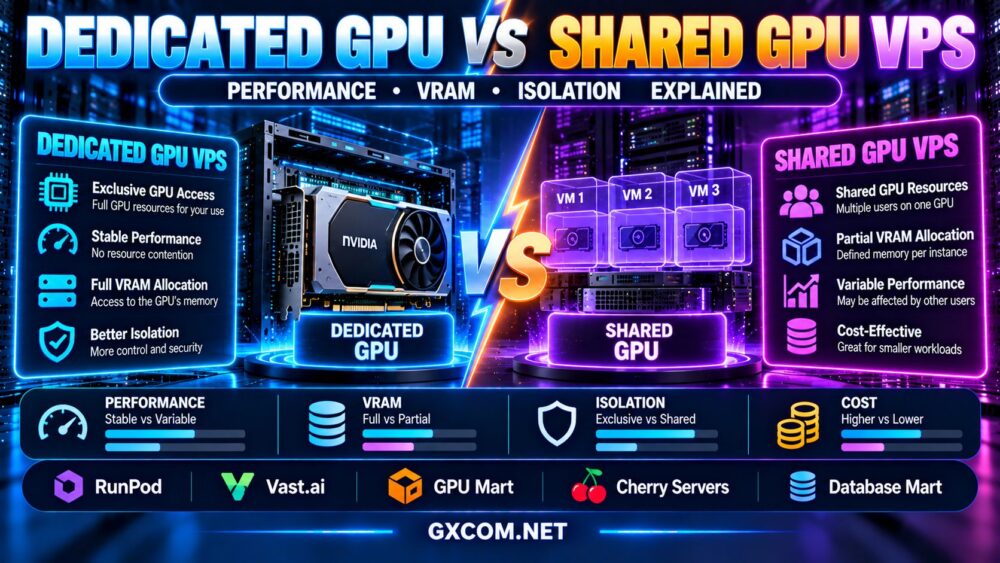
GPU passthrough and virtual GPU technology are two important approaches to delivering GPU resources to virtual machines.
GPU Passthrough
GPU passthrough typically assigns a physical GPU device directly to a virtual machine.
This can provide exclusive access to the accelerator, but it does not necessarily mean that the virtual machine has exclusive CPU, memory, storage, or networking resources.
For a remote workstation, passthrough may be attractive when applications require direct access to supported GPU features.
Virtual GPU (vGPU)
Virtual GPU technology can allow multiple virtual machines to use resources from one physical GPU, subject to the supported hardware, virtualization stack, resource profiles, and licensing.
A vGPU profile may provide a defined graphics memory allocation, but performance consistency and feature support depend on the implementation.
Does Shared GPU Mean Poor Remote Desktop Performance?
Not necessarily. A properly configured virtual GPU can support responsive remote graphics workloads.
However, resource contention, memory limits, driver restrictions, and encoding capabilities may affect the experience.
For a detailed technical comparison, read our dedicated GPU vs shared GPU VPS guide.
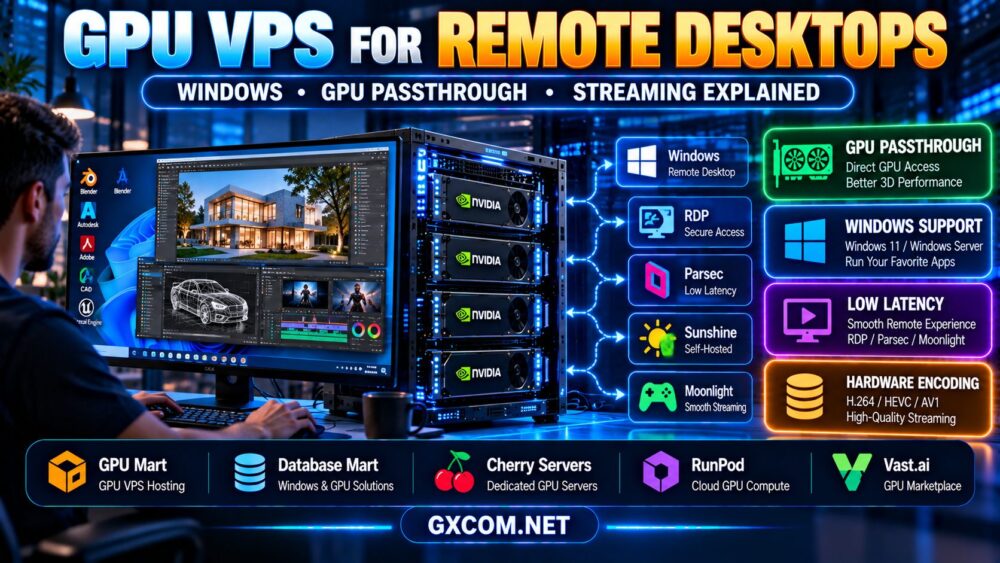
Windows RDP vs Parsec vs Sunshine and Moonlight
The remote access protocol can affect desktop responsiveness, video quality, application compatibility, and the perceived smoothness of interaction.
Choosing a powerful GPU does not automatically solve poor remote desktop performance.
| Remote Access Solution | Primary Role | Important Considerations |
|---|---|---|
| Microsoft RDP | Windows remote desktop access | Session behavior, GPU policy, graphics encoding |
| Parsec | Interactive remote graphics and streaming | Host OS, encoder support, licensing and network |
| Sunshine + Moonlight | Host-based streaming and compatible client access | GPU encoding, host setup, display configuration |
| Other remote workstation platforms | Professional remote visualization | Application compatibility, security and cost |
Microsoft Remote Desktop Protocol (RDP)
RDP is useful for Windows administration and many remote desktop tasks. Depending on Windows edition, server configuration, policies, and drivers, supported GPU acceleration and graphics encoding may be available.
However, RDP sessions can behave differently from local console sessions. Certain graphics applications, capture methods, or hardware features may not work as expected without appropriate configuration.

For demanding interactive graphics, test the exact application under an RDP session before assuming it will perform like a local workstation.
Parsec for Interactive Remote Graphics
Parsec is designed for interactive remote access with an emphasis on responsive video streaming.
It may be suitable for supported creative and graphics workflows, provided the host environment, operating system, GPU encoder, and software terms are compatible.
Verify the current supported host operating systems and licensing before choosing a Windows Server or cloud GPU configuration.
Sunshine and Moonlight
Sunshine is a self-hosted streaming host, while Moonlight is a compatible client commonly used to access streamed applications or desktops.
This combination can be relevant for technically experienced users building their own remote workstation environment.
However, setup may require additional attention to display configuration, hardware encoding, authentication, network connectivity, and secure remote access.
Why GPU Hardware Encoding Matters
Interactive remote desktops generally transmit a sequence of rendered images over the network.
A suitable GPU hardware encoder can help convert those frames into a compressed video stream without relying entirely on CPU-based encoding.
However, a GPU that supports rendering or CUDA computation does not necessarily provide the hardware video encoding features required by a particular streaming application.
Before purchasing, confirm:
- Hardware video encoder availability.
- Supported codecs such as H.264, HEVC or AV1 where applicable.
- Driver and operating system compatibility.
- Encoder access in the selected virtual machine.
- Supported display resolutions and frame rates.
- Remote streaming application compatibility.
Do not assume that every data center GPU includes the same video encoding capabilities as a consumer graphics card.
Remote GPU Desktop Latency: What Actually Matters?
Low-latency remote desktop performance depends on several stages of the interaction process.
A simplified sequence is:
INPUT → NETWORK → APPLICATION RENDERING → VIDEO ENCODING → NETWORK → VIDEO DECODING → DISPLAY
Each stage can contribute to the delay between a user's action and the visible response.
Network Distance and Routing
A server located closer to the user may reduce network latency, but geographic distance alone does not determine performance.
Routing quality, packet loss, congestion, and the user's local connection can all affect responsiveness.
Frame Rate and Encoding
Higher frame rates can improve perceived smoothness, but they also increase rendering, encoding, decoding, and network requirements.
A stable frame rate is often more useful than an unstable configuration targeting an unnecessarily high maximum.
Bandwidth and Packet Loss
Remote streaming requires enough bandwidth for the chosen resolution, frame rate, codec, and image quality.
Packet loss and jitter can cause visual artifacts or interruptions even when the nominal connection speed appears sufficient.
GPU VRAM, CPU and RAM for Remote Desktops
A remote GPU workstation should be sized according to the applications running on it.
GPU VRAM
GPU memory affects the ability to handle complex 3D scenes, large textures, graphics assets, and supported rendering workloads.
More VRAM does not automatically make an application faster when its working data already fits comfortably within available memory.
CPU Performance
Many CAD, modeling, editing, and interface operations still depend heavily on CPU performance.
A fast GPU cannot compensate for every CPU bottleneck, especially in software with significant single-threaded operations.
System RAM
System RAM supports the operating system, applications, loaded assets, caches, and background tasks.
Monitor real application memory usage before selecting a plan rather than relying on a universal RAM recommendation.
NVMe Storage
NVMe storage can improve project loading, application responsiveness during storage-intensive operations, and cache handling.
For large projects, storage capacity and sustained performance may matter as much as peak advertised speed.
GPU VPS Providers and Remote Workstation Infrastructure
GPU hosting products vary considerably. Some providers focus on GPU-oriented virtual servers, while others supply cloud compute or dedicated physical infrastructure that may require custom remote desktop setup.
The following providers represent different options worth evaluating. Their inclusion does not mean all five offer ready-to-use Windows GPU desktops.
| Provider | Infrastructure Role | What to Verify |
|---|---|---|
| GPU Mart | GPU-oriented virtual server hosting | Windows support, GPU allocation, drivers, RDP |
| Database Mart | Windows and GPU-related hosting evaluation | GPU product availability, licensing, remote access |
| Cherry Servers | Dedicated GPU infrastructure | Hardware encoder, OS options, setup responsibility |
| RunPod | Cloud GPU computing | Graphical desktop support, container/VM model, encoding |
| Vast.ai | GPU compute marketplace | Individual host capabilities, display access, storage |
GPU Mart: Evaluate Windows GPU VPS Options
GPU Mart is a relevant starting point for buyers looking at GPU-focused hosting configurations.
Check the exact GPU model, dedicated or shared allocation, available VRAM, supported Windows edition, GPU driver, and remote access capabilities.
For interactive workstations, request confirmation that the selected plan supports the intended graphics application and streaming software.
Database Mart: Windows and GPU Hosting Evaluation
Database Mart can be considered when comparing Windows-oriented hosting and GPU-related server products.
Before ordering, verify whether the specific plan includes a GPU, which operating systems are supported, and whether graphics acceleration is accessible within remote sessions.
Also confirm Windows licensing, technical support scope, and whether the GPU's video encoder is available to applications.
Cherry Servers: Dedicated GPU Workstation Infrastructure
Cherry Servers is relevant when a business prefers exclusive physical GPU infrastructure and is prepared to configure its own remote workstation environment.
Review GPU hardware, operating system options, network location, driver support, and the availability of hardware encoding.
A dedicated GPU server is not necessarily a preconfigured Windows desktop. Installation, licensing, and remote streaming may remain the customer's responsibility.
RunPod: Cloud GPU for Custom Remote Environments
RunPod provides cloud GPU infrastructure that may be useful for certain remote graphics and development workloads.
However, cloud GPU instances or containers designed for AI processing should not be assumed to support conventional Windows desktop installations or hardware-accelerated interactive streaming.
Verify the specific product's operating system, display environment, encoder access, and persistence before attempting a remote workstation deployment.
For additional platform context, read our RunPod GPU cloud review.
Vast.ai: Marketplace GPU Compute
Vast.ai is another option for technically experienced users evaluating GPU compute resources.
Individual listings may differ in GPU hardware, CPU and RAM allocation, networking, storage, host availability, and software environment.
Check whether a listing supports the graphical environment, encoding capabilities, and remote access tools required by your application.
Windows GPU VPS vs Dedicated GPU Server: Which Is Better?
A GPU VPS may be convenient when a provider offers a suitable preconfigured virtual workstation with compatible Windows licensing and remote access.
A dedicated GPU server may provide more control over physical hardware and GPU allocation, but can require additional operating system administration and remote streaming setup.
The decision should be based on application requirements, operational expertise, performance consistency, and total cost.
For long-term infrastructure decisions, see our GPU server rental vs buying comparison.
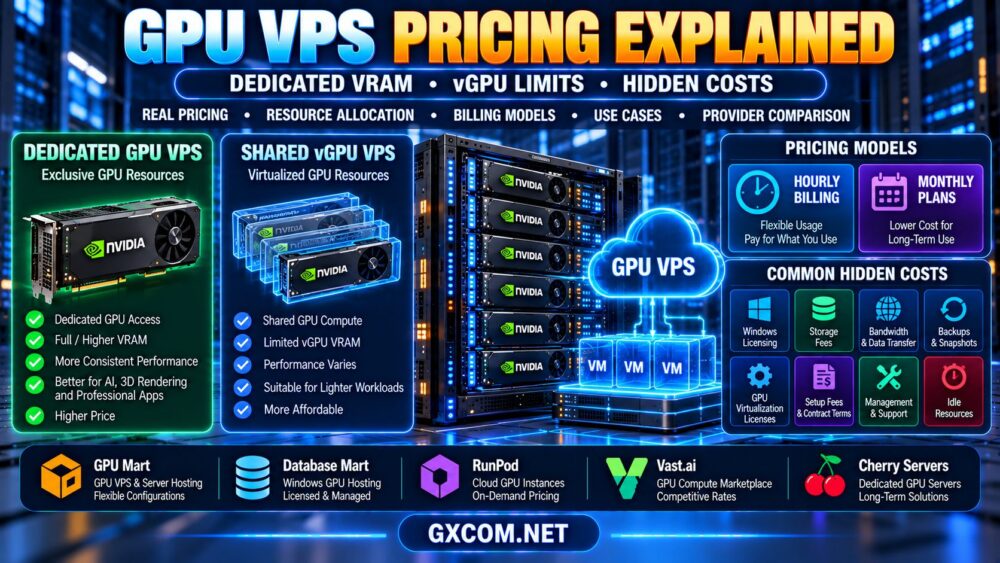
How Much Does a Remote GPU VPS Really Cost?
The advertised monthly or hourly compute rate is only one component of total cost.
Additional expenses may include:
- Windows licensing where applicable.
- GPU virtualization or professional graphics licensing.
- Remote access software subscriptions.
- Persistent storage and backups.
- Outbound network traffic.
- Server administration and setup.
- Additional CPU, RAM, or storage upgrades.
- Idle resource charges under usage-based billing.
A useful comparison is the total monthly cost of operating a workstation that meets your actual performance requirements, not simply the price of the cheapest GPU-enabled instance.
For more budget-focused options, consult our affordable NVIDIA GPU VPS guide.
Remote GPU Desktop Security and Reliability
Remote workstations can contain confidential design files, project data, application credentials, and licensed software.
Security should be part of the hosting decision.
- Use multi-factor authentication where supported.
- Avoid exposing RDP directly to the public internet when safer access methods are available.
- Prefer VPN, zero-trust access, or other appropriately secured connectivity.
- Apply operating system and application updates.
- Use least-privilege accounts and strong authentication.
- Encrypt sensitive data where appropriate.
- Maintain backups and test recovery procedures.
- Review the security of third-party remote streaming tools.
For production workflows, also examine the provider's hardware replacement policy, maintenance procedures, data center location, and service terms.
GPU VPS for CAD, 3D Modeling and Video Editing
CAD and Engineering Applications
CAD applications may depend on specific graphics APIs, certified drivers, CPU performance, and professional GPU features.
Verify the software vendor's remote and virtualized workstation support before selecting a GPU VPS.
3D Modeling and Architectural Visualization
Interactive modeling requires responsive viewport performance, sufficient VRAM, and a stable remote streaming connection.

Offline rendering is a different workload. A server optimized for batch rendering is not automatically the best interactive workstation.
For rendering-focused infrastructure, read our GPU servers for 3D rendering guide.
GPU-Accelerated Video Editing
Video editing performance depends on CPU, GPU, memory, storage, codec support, and the editing application's hardware acceleration capabilities.
Some workflows also require hardware video decoding or encoding features that are not present or exposed on every GPU server.
GPU Remote Desktop Buying Checklist
- Confirm the application: Identify exact software, version, and graphics requirements.
- Verify the operating system: Check Windows or Linux support and licensing.
- Identify GPU allocation: Determine whether the GPU is dedicated, virtualized, or partitioned.
- Check usable VRAM: Match available memory to real project requirements.
- Verify graphics drivers: Confirm supported APIs and application compatibility.
- Check hardware encoding: Ensure the GPU and VM expose the required encoder.
- Test remote access: Evaluate RDP or a compatible streaming solution.
- Choose a suitable region: Test network latency, packet loss, and stability.
- Evaluate total cost: Include software, licenses, storage, traffic, and administration.
- Plan security and backups: Protect remote access and important project files.
Frequently Asked Questions
Can I use a GPU VPS as a Windows remote desktop?
Yes, if the provider supports a properly licensed Windows environment, compatible GPU drivers, and an appropriate remote access configuration. Not every cloud GPU product supports this setup.
Does Windows RDP support GPU acceleration?
Supported Windows configurations can use GPU acceleration in remote sessions, but the behavior depends on the operating system, drivers, policies, application, and session type.
Is GPU passthrough better than shared GPU for remote desktops?
GPU passthrough can provide exclusive accelerator access, while shared GPU configurations may offer efficient resource allocation. Actual responsiveness depends on the hardware, virtualization implementation, and workload.
Can I install Parsec on Windows Server?
Compatibility depends on the current Parsec product, supported host operating systems, licensing, and GPU configuration. Check official requirements for the specific Windows Server version before purchasing.
Does every NVIDIA GPU support remote streaming?
No. Rendering or compute support does not guarantee that a particular GPU offers the required video encoder, driver support, or virtualization access for a streaming application.
Is a GPU VPS suitable for Blender or CAD?
It can be, provided the application supports the operating system, graphics hardware, drivers, and remote session environment. Test interactive viewport performance with representative projects.
How important is server location for a remote GPU desktop?
Server location can affect network latency and responsiveness, but routing, packet loss, encoding, decoding, and application performance also contribute to the user experience.
Should I rent a GPU VPS or a dedicated GPU server?
A suitable GPU VPS may simplify deployment and reduce the need for exclusive physical hardware. Dedicated GPU servers can offer greater hardware control but may require more setup and administration.
Final Verdict: Choose GPU VPS Hosting for the Entire Remote Experience
The best GPU VPS for remote desktops is not simply the server with the largest graphics card or highest advertised bandwidth.
For a responsive Windows remote workstation, buyers must evaluate GPU allocation, VRAM, driver support, hardware video encoding, remote desktop protocols, network latency, and licensing.
GPU Mart and Database Mart are relevant candidates for evaluating GPU-oriented and Windows hosting configurations. Cherry Servers offers a different dedicated infrastructure approach, while RunPod and Vast.ai can be considered for compatible custom GPU environments.
Before purchasing, verify the exact product's operating system support, GPU capabilities, remote streaming compatibility, and total operating cost.
APPLICATION → WINDOWS COMPATIBILITY → GPU ACCESS → VRAM → ENCODING → STREAMING → LATENCY → TOTAL COST
Choose infrastructure that delivers a reliable interactive workstation experience for the software you actually use.