You install an SSL certificate, open your website, and expect to see a secure HTTPS connection.
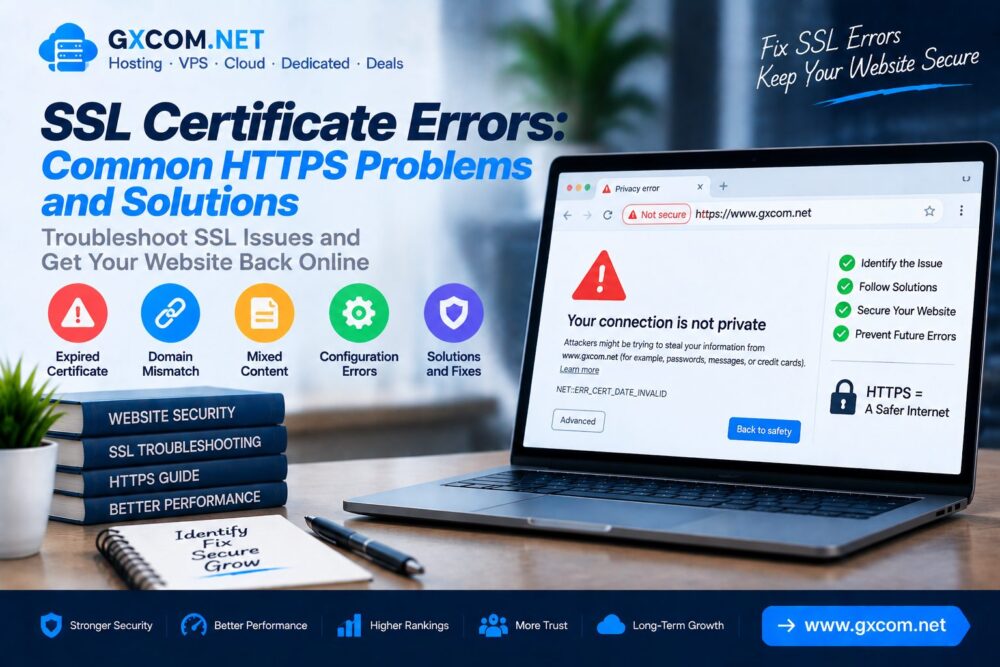
Instead, the browser displays a warning such as “Your connection is not private,” “Certificate expired,” “Certificate name mismatch,” or another SSL/TLS error.
SSL certificate errors can be caused by the certificate itself, the web server, DNS, a CDN or reverse proxy, redirects, the certificate chain, or even the visitor's device.
The key is to identify which layer is actually failing before replacing certificates or changing server settings.
This guide explains how to fix SSL certificate errors, including expired certificates, hostname mismatches, incomplete certificate chains, HTTPS redirect loops, mixed content, SSL handshake failures and other common HTTPS problems.
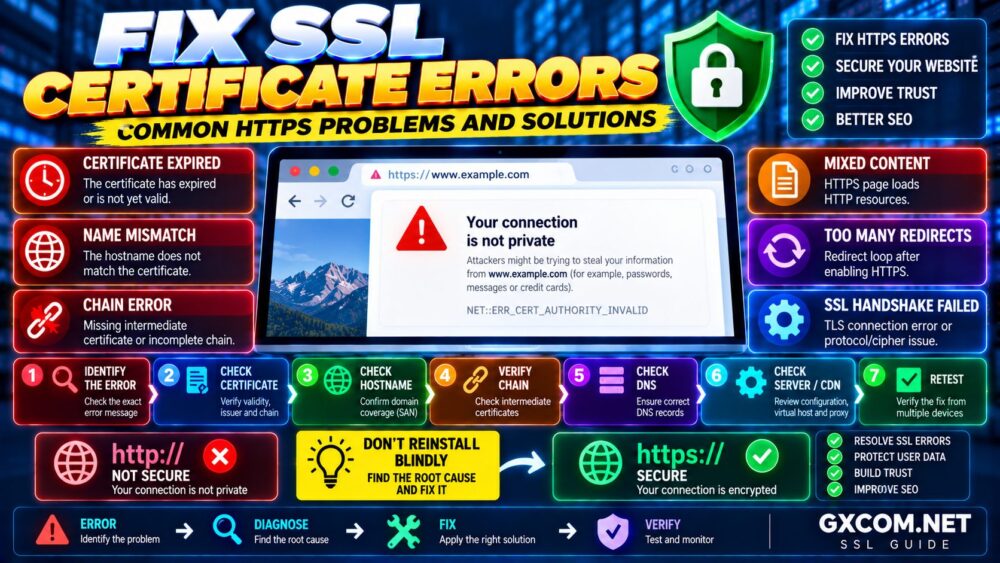
SSL Troubleshooting: Identify Error → Check Certificate → Verify Hostname → Check Chain → Test Server → Fix Configuration → Retest.
What Is an SSL Certificate Error?
An SSL certificate error occurs when a browser or client cannot successfully establish or validate the expected secure HTTPS connection.
Problems can occur at several layers:
- Certificate validity
- Domain or hostname coverage
- Certificate chain
- Private key
- Web server configuration
- TLS configuration
- DNS
- CDN or reverse proxy
- HTTPS redirects
- Website resources
- Client device settings
This is why replacing the SSL certificate is not always the correct solution.
SSL Error ≠ Automatically a Bad Certificate.
Common SSL Certificate Errors
| SSL Problem | Common Cause | Typical Solution |
|---|---|---|
| Expired certificate | Renewal failed | Renew and deploy certificate |
| Name mismatch | Hostname not covered | Issue certificate for correct hostname |
| Untrusted certificate | Trust or chain problem | Use trusted certificate and correct chain |
| Incomplete certificate chain | Missing intermediate certificate | Install correct chain/fullchain |
| Private key mismatch | Wrong certificate/key pair | Install matching private key |
| Mixed content | HTTPS page loads HTTP resources | Update resource URLs |
| Redirect loop | Conflicting HTTPS rules | Correct proxy/redirect configuration |
| SSL handshake failure | TLS/configuration incompatibility | Inspect server and TLS configuration |
| Wrong certificate served | Virtual host/SNI/CDN configuration | Correct hostname mapping |
1. SSL Certificate Has Expired
Every SSL/TLS certificate has a validity period.
If the certificate expires without successful renewal and deployment, browsers may warn visitors that the connection cannot be trusted.
Check:
- Certificate expiration date
- Automatic renewal status
- Renewal logs
- Domain validation
- Whether the renewed certificate was actually deployed
- Whether the web server was reloaded after renewal
One common mistake is assuming:
Certificate Renewed = Website Is Using New Certificate.
The new certificate may exist on the server while Apache, Nginx, a load balancer or CDN continues serving the previous one.
How to Fix an Expired SSL Certificate
If you use managed hosting, check the hosting control panel for SSL, AutoSSL or Let's Encrypt status.
On a self-managed server:
- Renew or reissue the certificate.
- Confirm the new certificate files exist.
- Verify the certificate covers the correct hostname.
- Confirm the web server points to the correct files.
- Test the web server configuration.
- Reload the web server.
- Test the certificate externally.
Do not simply renew the certificate and assume deployment succeeded.
Renew → Deploy → Reload → Verify.
2. SSL Certificate Name Mismatch
A hostname mismatch occurs when the certificate presented by the server does not cover the hostname the visitor requested.
For example, a certificate may cover:
example.com
but a visitor opens:
https://www.example.com/
If www.example.com is not included in the certificate, the browser can report a hostname mismatch.
The same issue can affect subdomains such as:
shop.example.com
api.example.com
mail.example.com
How to Fix a Certificate Name Mismatch
Check the certificate's Subject Alternative Names (SANs) and confirm the requested hostname is included.
If necessary:
- Reissue the certificate with the correct domains
- Add both root and www hostnames
- Use an appropriate wildcard certificate for eligible subdomains
- Correct DNS if traffic is reaching the wrong server
- Check CDN custom-domain configuration
Remember that a wildcard such as:
*.example.com
has specific hostname coverage rules and should not be assumed to cover every possible domain variation.
3. Incomplete SSL Certificate Chain
A server certificate is normally part of a chain of trust.
Conceptually:
Server Certificate → Intermediate CA → Trusted Root CA
The server usually needs to provide the appropriate intermediate certificate information so clients can construct the trust chain.
If the chain is incomplete, some browsers or applications may reject the certificate even if other clients appear to work normally.
How to Fix an Incomplete Certificate Chain
Download the correct intermediate certificate or certificate bundle from your certificate provider and configure the server according to its documentation.
For Nginx, the configured certificate file commonly contains the server certificate followed by the required intermediate certificates.
For example:
ssl_certificate /etc/ssl/certs/example.com-fullchain.pem;
ssl_certificate_key /etc/ssl/private/example.com.key;
Do not randomly concatenate certificate files.
The correct chain and file order matter.
4. SSL Certificate and Private Key Do Not Match
An SSL certificate is associated with a particular key pair.
If you install a certificate with the wrong private key, the web server may reject the configuration or HTTPS may fail.
This can happen when:
- Multiple CSRs were generated
- Several certificates exist on the server
- Old certificate files were reused
- A migration copied the certificate but not its matching key
- Files were renamed incorrectly
The correct relationship is:
Certificate ↔ Matching Private Key
Keep private keys secure and never publish them.
5. Browser Says “Your Connection Is Not Private”
This browser warning is a symptom rather than a single diagnosis.
Possible causes include:
- Expired certificate
- Hostname mismatch
- Untrusted certificate
- Incorrect certificate chain
- Local system clock problems
- Network interception
- Server configuration problems
Start by inspecting the certificate information rather than immediately reinstalling WordPress or changing DNS.
Determine:
- Which certificate is being served?
- Who issued it?
- Which hostnames does it cover?
- When does it expire?
- Is the trust chain valid?
6. NET::ERR_CERT_DATE_INVALID
Browsers may display an error similar to:
NET::ERR_CERT_DATE_INVALID
Common causes include:
- Expired certificate
- Certificate not yet valid
- Incorrect computer date or time
- Incorrect server or certificate deployment
If only one visitor experiences the error while external certificate tests show a valid certificate, check the visitor's device clock.
If everyone experiences it, inspect the certificate served by the website.
7. NET::ERR_CERT_COMMON_NAME_INVALID
This error commonly indicates that the requested hostname does not match the names covered by the certificate.
For example:
Certificate:
example.com

Requested:
www.example.com
Fix the certificate coverage, DNS routing, virtual host, CDN hostname configuration or redirect behavior depending on the underlying cause.
8. NET::ERR_CERT_AUTHORITY_INVALID
This generally means the browser does not trust the certificate authority or cannot establish a valid trust chain.
Potential causes include:
- Self-signed certificate
- Private/internal CA
- Incorrect intermediate chain
- Certificate issued by an untrusted source
- Network or security software intercepting HTTPS
For a public website, use a certificate that is trusted by the major clients your visitors use and configure the certificate chain correctly.
9. Mixed Content After Installing SSL
Sometimes the SSL certificate is completely valid, but the browser still reports security-related problems because the HTTPS page loads resources through HTTP.
For example:
https://www.example.com/
loads:
http://www.example.com/image.jpg
http://www.example.com/script.js
http://www.example.com/style.css
This is known as mixed content.
How to Fix Mixed Content
Check:
- Images
- CSS files
- JavaScript
- Web fonts
- Background images
- Embeds
- Theme settings
- Plugin settings
- Hard-coded database URLs
Use browser developer tools to identify HTTP resources.
Then update those resources to valid HTTPS URLs.
Do not assume an SSL plugin should be your first solution. Fixing the underlying URL configuration is generally preferable when practical.
10. Too Many Redirects After Enabling HTTPS
A redirect loop can occur after SSL installation when multiple systems disagree about whether a request is already using HTTPS.
A common architecture is:
Visitor → CDN/Proxy → Origin Server → WordPress
The visitor connects to the CDN over HTTPS, but the CDN may communicate with the origin in a way that causes the application to think the original request was HTTP.
WordPress redirects to HTTPS, the proxy repeats the request, and the process can loop.
How to Fix an HTTPS Redirect Loop
Check every layer that can force HTTPS:
- CDN
- Load balancer
- Hosting control panel
- Apache
- Nginx
- .htaccess
- WordPress
- SSL plugin
A configuration such as:
CDN Forces HTTPS
Server Forces HTTPS
WordPress Plugin Forces HTTPS
can work in some environments, but conflicting HTTPS detection can also create redirect loops.
Identify where TLS terminates and configure forwarded protocol information correctly.
One Coherent HTTPS Strategy > Multiple Blind Redirect Rules.
11. SSL Handshake Failed
An SSL/TLS handshake occurs when the client and server establish the parameters required for a secure connection.
A handshake can fail because of:
- Certificate problems
- TLS protocol incompatibility
- Cipher configuration
- SNI problems
- CDN/origin SSL configuration
- Client incompatibility
- Server configuration errors
Do not weaken server security simply to make one obsolete client work without understanding the tradeoff.
Use current server and TLS configuration guidance appropriate for your environment.
12. Wrong SSL Certificate Is Being Served
You may install the correct certificate and still find that visitors receive another certificate.
This can happen when:
- The wrong virtual host handles the request
- SNI configuration is incorrect
- DNS points to another server
- A CDN serves its own certificate
- A reverse proxy terminates TLS
- An old server is still receiving traffic
Always test the certificate visible from the public internet—not merely the certificate file stored on your server.
Certificate on Disk ≠ Certificate Served to Visitors.
13. SSL Works Without WWW but Not With WWW
If this works:
https://example.com/
but this fails:
https://www.example.com/
check:
- Certificate SAN coverage
- www DNS record
- Web server virtual host
- CDN hostname settings
- HTTPS redirects
Both hostnames should be correctly handled before redirecting one to the preferred canonical version.
14. SSL Works on WWW but Not the Root Domain
The reverse can also occur.
If www.example.com works but example.com fails, check whether the certificate includes the root domain and whether the root domain's DNS records point to the correct infrastructure.
A redirect cannot solve the certificate validation problem if the HTTPS connection fails before the browser can receive that redirect.
15. SSL Error After Moving to a New Server
Server migrations frequently create SSL problems because DNS, certificates and private keys must all point to the correct environment.
Check:
- DNS A/AAAA records
- Certificate installed on the new server
- Matching private key
- Virtual host configuration
- IPv6 routing
- CDN origin configuration
- Old server still receiving traffic
Do not shut down the old environment until the new HTTPS configuration has been tested properly.
16. SSL Error After Changing DNS
DNS changes can direct different visitors to different infrastructure during a transition.
If one server has the correct certificate and another does not, SSL behavior may appear inconsistent.
Verify:
- A records
- AAAA records
- CNAME records
- CDN proxy status
- Old IP addresses
IPv6 deserves particular attention. A forgotten AAAA record can send some visitors to a server with an outdated or incorrect certificate.
17. CDN SSL Certificate Errors
Using a CDN or reverse proxy creates at least two potentially important encrypted connections:
Visitor ↔ CDN
and, depending on configuration:
CDN ↔ Origin Server
The visitor-facing certificate can be valid while the CDN-to-origin connection fails.
Check:
- Edge certificate status
- Origin certificate
- Hostname coverage
- Certificate expiration
- Origin TLS mode
- DNS configuration
Do not troubleshoot only the browser-facing certificate when a proxy sits between visitors and your server.
18. WordPress SSL Errors
WordPress can experience additional HTTPS problems after an SSL migration.
Common symptoms include:
- Mixed content
- Login redirect loops
- Admin area redirect problems
- Images still using HTTP
- Incorrect WordPress Address
- Incorrect Site Address
- Plugin-generated HTTP resources
Check:
Settings → General
and verify the intended URLs use HTTPS:
WordPress Address:
https://www.example.com

Site Address:
https://www.example.com
Do not change these values until HTTPS is actually working on the server.
19. Apache SSL Configuration Errors
If HTTPS fails after editing Apache configuration, validate the configuration before restarting or reloading the service.
apachectl configtest
Check:
- Certificate file path
- Private key path
- Virtual host
- Hostname configuration
- Certificate chain
- Port 443 configuration
Depending on your Linux distribution, Apache may run under a service name such as apache2 or httpd.
20. Nginx SSL Configuration Errors
Before reloading Nginx, test its configuration:
nginx -t
Typical SSL configuration includes:
ssl_certificate /etc/ssl/certs/example.com-fullchain.pem;
ssl_certificate_key /etc/ssl/private/example.com.key;
Check for:
- Incorrect file paths
- Missing certificate chain
- Wrong private key
- Duplicate server blocks
- Incorrect server_name
- Port 443 conflicts
Only reload Nginx after the configuration test succeeds.
21. Let's Encrypt Certificate Renewal Failed
Automated SSL reduces maintenance, but renewal can still fail.
Possible causes include:
- DNS changes
- Validation path blocked
- Firewall changes
- Incorrect webroot
- Broken renewal configuration
- Domain no longer pointing to the server
- DNS validation credentials failing
If you use Certbot or another ACME client, inspect its renewal status and logs.
Do not wait until the certificate expires to discover that renewal automation stopped working.
22. SSL Certificate Works on Desktop but Not Mobile
If HTTPS works on some devices but fails on others, investigate:
- Incomplete certificate chain
- Client trust differences
- Old operating systems
- Old browsers
- TLS compatibility
- Network interception
Test from multiple independent clients before concluding that the server is configured correctly.
23. HTTPS Works in One Browser but Not Another
Browser-specific behavior can be caused by:
- Cached certificate information
- Browser extensions
- Local proxy/security software
- Different trust stores
- Outdated browser versions
If the certificate passes independent external tests and other devices work correctly, investigate the affected client environment.
24. SSL Errors Caused by Incorrect Device Time
Certificate validation depends on time.
If a computer or phone has an incorrect date, it may incorrectly determine that a certificate is:
- Not yet valid
- Already expired
If only one device reports a date-related certificate error, verify its clock, date and timezone before changing the website.
25. HTTP Resources Still Appear After HTTPS Migration
After migrating a website to HTTPS, old HTTP URLs may remain in:
- Database content
- Menus
- Widgets
- Theme options
- CSS
- Page builders
- Structured data
- Canonical tags
Update important internal references to their final HTTPS URLs.
For WordPress, take a database backup before performing any large-scale URL replacement.
How to Diagnose an SSL Certificate Error Step by Step
Instead of making random configuration changes, use this sequence.
Step 1: Record the Exact Error
Capture the browser or application error code.
Step 2: Check the Public Certificate
Determine which certificate visitors actually receive.
Step 3: Check Expiration
Verify the validity period.
Step 4: Check Hostname Coverage
Confirm the requested hostname appears in the certificate's valid names.
Step 5: Verify the Certificate Chain
Check whether clients can construct a valid chain of trust.
Step 6: Check DNS
Confirm the domain points to the intended infrastructure.
Step 7: Check CDN or Proxy
Determine where TLS terminates.
Step 8: Check the Origin Server
Inspect Apache, Nginx or hosting-panel SSL configuration.
Step 9: Check Redirects
Look for loops or conflicting HTTPS rules.
Step 10: Check Mixed Content
Inspect resources loaded by HTTPS pages.
Step 11: Retest Externally
Test from another browser, device or network when necessary.
Error → Layer → Root Cause → Fix → Retest.
Useful OpenSSL Commands for SSL Troubleshooting
On systems with OpenSSL installed, you can inspect a remote TLS connection:
openssl s_client -connect example.com:443 -servername example.com
The -servername option is important when testing servers hosting multiple HTTPS domains using SNI.
You can inspect a certificate file with:
openssl x509 -in certificate.crt -text -noout
Use command-line tools carefully on production systems and never expose private keys in public logs, screenshots or support forums.
Does Reinstalling the SSL Certificate Fix Every Error?
No.
Reinstalling the certificate may help when the installed certificate or chain is incorrect, but it will not automatically fix:
- Wrong DNS
- Mixed content
- Redirect loops
- CDN configuration
- Incorrect WordPress URLs
- Client clock problems
- Wrong virtual host
Diagnose First. Reinstall Only When the Certificate Deployment Is Actually the Problem.
Does Changing Hosting Fix SSL Errors?
Usually not.
A hosting migration may be justified when the provider cannot support the required TLS configuration or there are broader infrastructure problems, but most SSL errors should first be diagnosed directly.
Changing servers can actually introduce additional certificate, DNS and redirect problems if the migration is not performed correctly.
SSL Errors and SEO
Persistent HTTPS problems can interfere with users and search-engine access to your website.
After fixing SSL problems, verify:
- HTTP URLs redirect correctly to HTTPS
- HTTPS pages return the expected status codes
- Canonical URLs use HTTPS
- Internal links use HTTPS
- XML sitemap URLs use HTTPS
- Important resources load correctly
Our Technical SEO Checklist covers these signals as part of a broader technical site audit.
How to Prevent SSL Certificate Problems
The best SSL troubleshooting strategy is preventing avoidable failures.
- Enable reliable automatic renewal
- Monitor certificate expiration
- Keep DNS records documented
- Back up server configuration
- Test Apache/Nginx configuration before reloads
- Use correct certificate chains
- Protect private keys
- Test both root and www domains
- Test important subdomains
- Review CDN/origin SSL configuration
- Check HTTPS after server migrations
If you are setting up HTTPS for the first time, follow our step-by-step SSL certificate installation guide before troubleshooting individual errors.
SSL Certificate Error Troubleshooting Matrix
| Symptom | Check First | Likely Area |
|---|---|---|
| Certificate expired | Validity date | Renewal |
| Name mismatch | SAN/hostname | Certificate/DNS |
| Authority invalid | Trust chain | Certificate chain |
| Mixed content | HTTP resources | Website content |
| Too many redirects | HTTPS rules | Proxy/server/application |
| Handshake failure | TLS configuration | Server/CDN/client |
| Wrong certificate | Public certificate | SNI/virtual host/CDN |
| Works on some devices | Chain/client compatibility | Server/client |
| Fails after migration | DNS + certificate | New infrastructure |
SSL Certificate Error FAQ
Why am I getting an SSL certificate error?
Common causes include an expired certificate, hostname mismatch, incomplete certificate chain, incorrect server configuration, wrong certificate, CDN problems, TLS incompatibility or client-side issues.
How do I fix “Your connection is not private”?
Inspect the exact browser error and the certificate being served. Check its expiration, hostname coverage, issuing authority, trust chain and server configuration before making changes.
How do I fix NET::ERR_CERT_DATE_INVALID?
Check whether the certificate has expired or is not yet valid. If the problem affects only one device, also verify that device's date, time and timezone.
How do I fix NET::ERR_CERT_COMMON_NAME_INVALID?
Verify that the certificate covers the exact hostname being requested and check DNS, virtual-host and CDN configuration.
Why does my SSL certificate work without www but not with www?
The certificate may not cover the www hostname, the www DNS record may be incorrect, or the server/CDN may not be configured for that hostname.
Why does my website show mixed content after installing SSL?
The HTTPS page is still loading one or more resources over HTTP. Find those requests using browser developer tools and update them to valid HTTPS URLs.
Why does WordPress have too many redirects after enabling SSL?
The CDN, reverse proxy, server, WordPress or an SSL plugin may have conflicting HTTPS detection or redirect rules. Determine where TLS terminates and configure one coherent redirect strategy.
Can an SSL certificate be valid but still cause errors?
Yes. The certificate itself can be valid while the server sends an incomplete chain, serves it for the wrong hostname, uses the wrong virtual host, or the website contains other HTTPS configuration problems.
Should I reinstall SSL when HTTPS stops working?
Only after diagnosing the problem. Reinstallation will not fix unrelated issues such as DNS errors, redirect loops, mixed content or client clock problems.
How can I prevent SSL certificates from expiring?
Use reliable automatic renewal and monitor the renewal process. Do not assume automation is working indefinitely without verification.
SSL Certificate Error Checklist
- ✓ Record the exact SSL error
- ✓ Check certificate expiration
- ✓ Check hostname coverage
- ✓ Verify certificate chain
- ✓ Verify certificate/private key pair
- ✓ Check DNS A and AAAA records
- ✓ Check CDN or reverse proxy
- ✓ Check the certificate publicly served
- ✓ Check Apache/Nginx configuration
- ✓ Check port 443
- ✓ Check HTTPS redirects
- ✓ Check mixed content
- ✓ Check WordPress URLs
- ✓ Check automatic renewal
- ✓ Test root and www domains
- ✓ Test important subdomains
- ✓ Test another device/browser
Final Recommendation
When learning how to fix SSL certificate errors, avoid making random server changes based only on the browser warning.
Start with the exact error and identify the affected layer.
Expired? → Renew and deploy.
Name mismatch? → Check hostname coverage and DNS.
Untrusted? → Check the certificate authority and chain.
Mixed content? → Replace insecure resource URLs.
Redirect loop? → Check CDN, proxy, server and application rules.
Handshake failure? → Investigate TLS configuration and compatibility.
Wrong certificate? → Check DNS, SNI, virtual hosts and CDN configuration.
The most effective workflow is:
ERROR → CERTIFICATE → HOSTNAME → CHAIN → DNS → SERVER → CDN → APPLICATION → RETEST
And once the problem is fixed, verify automatic certificate renewal so the same SSL error does not return when the certificate expires.