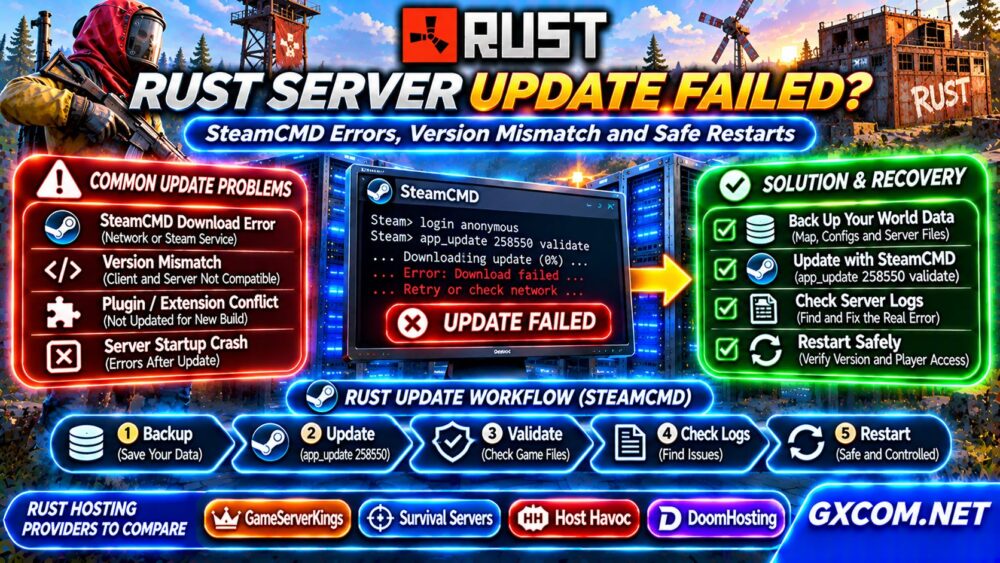
When a Rust server update fails, players may encounter version mismatch errors, missing servers, connection failures, or repeated startup crashes. SteamCMD download problems, insufficient disk space, incompatible extensions, and interrupted maintenance are common possibilities.
The safest response is not to reinstall everything immediately. Preserve your world files, identify the failed update stage, and verify the server installation before restarting. This guide covers practical SteamCMD troubleshooting, version checks, and hosting decisions for community administrators.
Why Does a Rust Server Update Fail?
Rust dedicated servers receive frequent game updates, including changes that may affect server binaries, plugins, configuration, and client compatibility. Problems can occur during downloading, installation, or the first startup afterward.
Typical causes include interrupted Steam downloads, filesystem permissions, insufficient storage, incompatible extensions, and a server build that differs from the player’s client.
First determine whether SteamCMD failed to install files or whether the updated application fails to launch. These are different problems requiring different solutions.
Step 1: Back Up Your Rust Server
Before troubleshooting, announce maintenance and stop new player connections. Use the server’s normal shutdown procedure to allow pending world data to be saved.
Preserve the server identity directory, world saves, configuration files, plugin data, and relevant logs. Confirm that your backup exists outside the installation directory before running destructive maintenance commands.
For recovery strategies, consult our VPS Snapshot and Backup Recovery Guide.
Step 2: Update Rust with SteamCMD
Rust Dedicated Server uses Steam application ID 258550. On a self-managed Linux host, an example update command is:
steamcmd +force_install_dir /srv/rustserver +login anonymous +app_update 258550 validate +quitReplace the installation directory with your actual path. Run SteamCMD using the appropriate non-root service account, with the game server stopped and sufficient disk space available.
The validate option checks installed application files and can replace damaged or missing files. It does not guarantee that custom plugins, configurations, or world data are compatible with the updated game.
Review SteamCMD output for download failures and confirm that the process finishes successfully before starting Rust.
Step 3: Fix Common SteamCMD Errors
| Symptom | Possible Cause | Recommended Check |
|---|---|---|
| Download failure | Network or Steam service issue | Connectivity and retry logs |
| Disk write failure | Storage or permission problem | Free space and ownership |
| Validation failure | Incomplete installation | Application files and logs |
| Startup crash | Software or plugin conflict | Rust console and extension logs |
Check the actual error rather than repeatedly reinstalling. On Linux, commands such as df -h and df -i help identify storage capacity or inode exhaustion.

If files cannot be written, verify directory ownership and permissions. Avoid broad permission changes that expose game files to unrelated system users.
Step 4: Resolve Rust Version Mismatch
A version mismatch commonly occurs when the Rust client and dedicated server are running incompatible builds. This can happen when players update before the server or when maintenance finishes incompletely.
Check the game’s current update announcements, your server’s startup output, and the build information available through the hosting panel.
Allow SteamCMD to finish installing the intended release, restart the server, and test a fresh connection. Do not assume that changing the map seed or deleting player data will resolve a binary version mismatch.
Step 5: Check Plugins and Startup Logs
Rust communities using third-party extension frameworks may experience failures after game updates. An extension can depend on behavior that changes in a new server build.
Inspect console messages and plugin logs for missing dependencies, exceptions, or incompatible framework versions. Update the framework and extensions only through their appropriate official distribution channels.
When isolating a problem, test changes in a separate environment where possible. Preserve plugin data before disabling or replacing components.
Our Game Server Hosting troubleshooting guides cover broader startup and connection problems.
Step 6: Restart the Rust Server Safely
After confirming installation integrity, use a controlled restart instead of immediately enabling aggressive automatic restart loops.
- Notify players of the maintenance window.
- Save the world using supported server controls.
- Stop the Rust process gracefully.
- Complete the SteamCMD update and validation.
- Review available storage and startup settings.
- Start the server and inspect its console.
- Test player connections before reopening.
Use a maintenance schedule that leaves enough time for troubleshooting. Repeated forced termination can increase the risk of incomplete saves.
When Is Rolling Back a Rust Update Possible?
Rollback is not always available. SteamCMD does not provide a universal, supported command for returning every Rust dedicated server to an arbitrary previous release.
A world backup protects data, but it does not necessarily restore an older compatible game binary. Avoid mixing newer saves with unsupported older server versions.
If recovery requires an earlier build, verify that the necessary software is legitimately available and compatible before attempting restoration.
Does Hardware Cause Rust Update Problems?
CPU and memory pressure can complicate startup, while insufficient disk space can interrupt installation. However, upgrading hardware will not repair an invalid plugin or incompatible game build.
Monitor memory, CPU activity, storage capacity, and disk errors during maintenance. Compare the observed failure with application logs before purchasing additional resources.
For infrastructure options, explore our Game Dedicated Servers guides.
Four Rust Hosting Providers to Compare
GameServerKings, Survival Servers, Host Havoc, and DoomHosting are candidates for administrators evaluating managed game hosting.
For GameServerKings, examine current Rust installation support, update controls, and console access. With Survival Servers, compare backup options, file management, and maintenance procedures.

For Host Havoc, investigate update scheduling, support responsibilities, and available recovery features. For DoomHosting, confirm current Rust product availability and administration capabilities before ordering.
These are purchasing considerations, not independently tested rankings. Always verify the exact product’s current features and resource limits.
When Should You Switch Hosting Providers?
An occasional game update failure does not necessarily justify migration. Repeated incomplete updates, inaccessible logs, inadequate backups, or unclear support responsibilities are more meaningful warning signs.
Compare total costs, update management, storage capacity, support scope, and recovery tools. Visit our Game Hosting Comparisons and Game Server Deals for further research.
Frequently Asked Questions
What Is the SteamCMD App ID for Rust Dedicated Server?
The Rust Dedicated Server application ID is 258550.
Will SteamCMD Validate Delete My Rust World?
Validation targets application files, but administrators should never rely on it as a substitute for independent world and configuration backups.
Why Is My Rust Server Outdated After Updating?
Check whether the update completed, the correct installation directory was used, and the server restarted with the intended executable.
Final Verdict
When a Rust server update fails, protect player data first, identify the SteamCMD or startup error, validate installation files, and restart carefully. Reliable hosting should provide clear logs, manageable updates, practical backups, and sufficient resources for recovery.