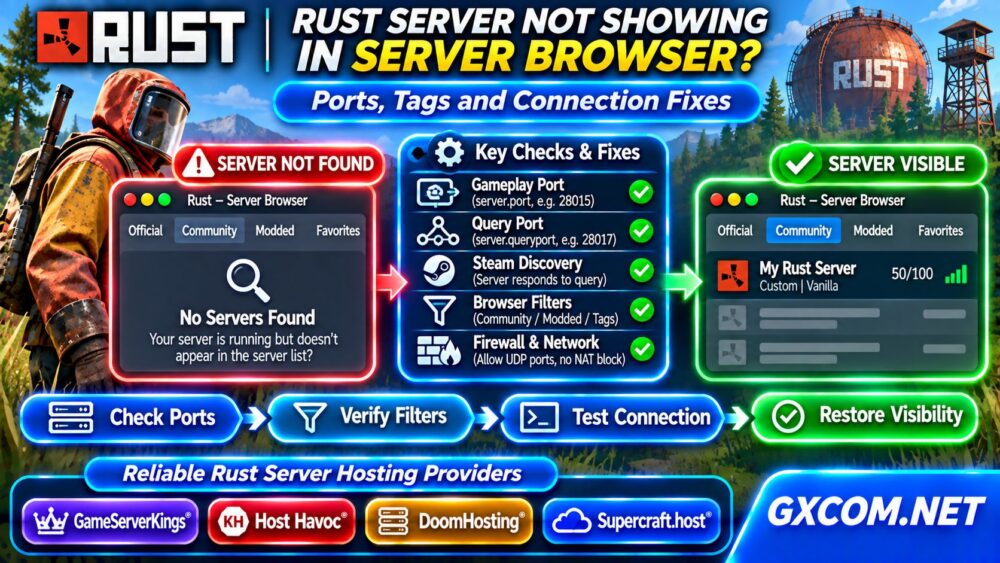
Is your Rust server not showing in the server browser even though the hosting panel says it is online? This frustrating problem can prevent new players from finding your community, especially after changing server settings, migrating hosts, or installing modifications.
The cause is not always a broken server. Rust uses separate mechanisms for gameplay connections and server discovery. A server may accept direct connections while remaining absent from the public list because of query port configuration, firewall rules, browser filters, or temporary discovery delays.
This guide explains how to isolate the problem before paying for unnecessary hosting upgrades.
Why Is Your Rust Server Missing from the Browser?
Start by separating three different symptoms:
- Server completely offline: The Rust process failed to start or cannot accept connections.
- Direct connection works, but listing is missing: Investigate query responses, discovery settings, and browser filters.
- Server appears but players cannot join: Check the gameplay port, client compatibility, and network access.
These symptoms require different fixes. Changing your server name or increasing RAM will not repair a blocked UDP query port.
1. Confirm That Your Rust Server Is Actually Running
Open your hosting control panel or server console. Verify that the Rust process has completed startup rather than merely showing an active container or running service.
Look for recent startup errors, failed updates, missing files, or repeated restarts. Check CPU and memory usage and confirm that the server has a reachable public IP address.
If you manage a Linux VPS, inspect the service status and logs using your deployment’s actual service name:
systemctl status rust-server
journalctl -u rust-server -n 100
The example assumes a systemd service named rust-server; custom installations may use another name or a game panel.
For broader administration guidance, visit our Game Server Hosting guides.
2. Test Direct Connection Before Troubleshooting Discovery
Launch Rust, open the F1 console, and try connecting directly using your public IP address and gameplay port:
client.connect 203.0.113.10:28015Replace the example address and port with your actual server details. The address above is documentation-only and is not a live Rust server.
If direct connection succeeds, the gameplay service is reachable. Concentrate on the server browser, query port, and listing configuration.
If direct connection fails, investigate the gameplay port, firewall, server startup, and client-server version compatibility first.
Remember that direct connectivity does not prove the separate Steam query service is working.

3. Check Rust Gameplay and Query Ports
Rust servers use a gameplay port and a query port for server discovery. Common configurations use UDP port 28015 for gameplay and UDP port 28017 for queries, but actual values depend on your setup.
Review the startup configuration:
+server.port 28015
+server.queryport 28017
Ensure the query port is distinct from the gameplay port and is not already occupied by another application. Confirm the settings against the current Rust server documentation and your hosting provider’s allocated ports.
Both relevant UDP ports must be permitted by the hosting network and local firewall. TCP-only forwarding rules will not substitute for the required UDP access.
On a Linux system using UFW, an administrator might configure:
sudo ufw allow 28015/udp
sudo ufw allow 28017/udp
sudo ufw status
Use your actual allocated ports. Also check cloud security groups, provider firewalls, container networking, and any upstream filtering.
4. Review Community, Modded and Browser Filters
Rust’s server browser separates servers into categories such as Official, Community, and Modded. A server running supported modifications may appear under Modded rather than Community.
Check the appropriate category before assuming the server is invisible. Clear search terms, player-count filters, favorites restrictions, and other active filters.
Search using a distinctive part of the configured server hostname. Avoid generic names that are difficult to distinguish from competing communities.
Review your server tags and descriptive settings. Incorrect or misleading tags can affect how players filter and discover servers, although changing tags does not repair network connectivity.
After changing configuration, restart safely and allow time for the server browser to refresh. Listing visibility is not necessarily immediate.
5. Verify Public IP, NAT and Firewall Rules
A server behind home-router NAT, carrier-grade NAT, or a restricted hosting network may run normally without being publicly discoverable.
Verify that players are using the correct public IP address. Private addresses such as 192.168.x.x are generally unsuitable for external connections.
If using a home network, configure appropriate UDP port forwarding and confirm that your internet connection permits inbound traffic.
For VPS and cloud deployments, inspect provider-level firewall policies and public networking. A local firewall rule alone cannot override upstream restrictions.
A UDP port scanner reporting no response is not always conclusive because UDP services may ignore unexpected probes. Prefer real connection and protocol-specific tests.
6. Check Steam Discovery and Recent Rust Updates
Rust server discovery depends on functioning query responses and current server compatibility. Following a game update, verify that the dedicated server files have been updated successfully.
Check SteamCMD output, startup logs, and any pending restart requirements. Version mismatches can prevent players from joining even when the server appears online.
Do not repeatedly reinstall the server without preserving configuration and world data. First determine whether the failure involves discovery, connectivity, or the installed server version.
If the server recently migrated, verify that DNS records, public IP details, allocated ports, and panel configuration all reflect the new environment.
7. Use a Simple Rust Server Troubleshooting Checklist
| Symptom | Likely Area | First Action |
|---|---|---|
| Cannot connect directly | Gameplay service or network | Check server logs and UDP gameplay port |
| Direct connection works; listing missing | Query service or browser | Verify query port and filters |
| Appears under Modded only | Server classification | Review installed modifications |
| Missing after migration | IP or firewall configuration | Check public address and allocated ports |
| Players cannot join after update | Version compatibility | Verify server update and restart |
Document each change and retest before modifying another setting. This makes the root cause easier to identify.
8. When Should You Change Rust Hosting Providers?
Changing providers should be a measured decision, not the first troubleshooting step. A misconfigured query port or incorrect browser filter will often remain a problem after migration.

However, recurring network restrictions, inadequate administrative access, unreliable restarts, or poor support may justify comparing managed Rust hosting services.
GameServerKings, Host Havoc, DoomHosting, and Supercraft.host are approved providers to evaluate. Compare Rust-specific management tools, port configuration access, backup options, DDoS protection, server locations, and support responsibilities.
Explore our Rust Server Hosting resources, browse Game Hosting Comparisons, and check Game Server Deals for relevant purchasing options.
If considering a self-managed VPS instead, understand the operational responsibilities in our Managed vs Unmanaged VPS comparison.
Frequently Asked Questions
Why Can Friends Join My Rust Server but Not Find It?
Successful direct connections suggest that gameplay networking works. Investigate the separate query port, server browser category, search filters, and discovery delays.
Does Rust Need a Separate Query Port?
Modern Rust dedicated server configurations use a query port distinct from the gameplay port. Verify both settings and their required UDP access.
Will More RAM Make My Rust Server Appear?
Not normally. Additional RAM helps only when resource exhaustion prevents the server or its services from operating reliably.
Final Verdict
When a Rust server is not showing in the server browser, confirm startup, test direct connectivity, verify gameplay and query ports, and inspect Community or Modded filters. Only consider changing hosting providers after identifying a genuine infrastructure or support limitation.