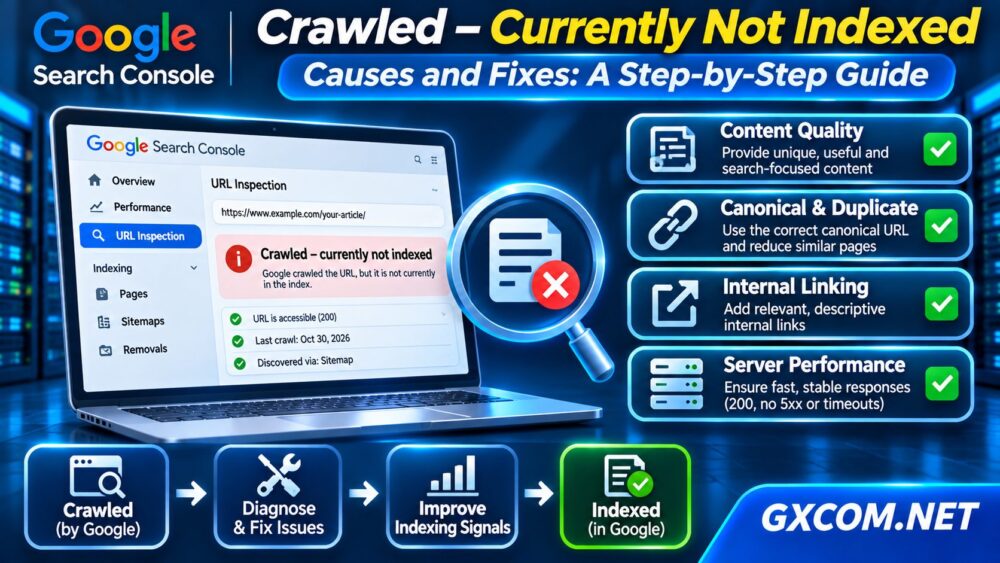
Seeing “Crawled – currently not indexed” in Google Search Console can be frustrating, especially when Google has already visited your page. The status means Google crawled the URL but has not included it in its index at the time reported.
It does not automatically mean your website is penalized, your server is broken, or your content is permanently rejected. Google may reconsider the page later. The useful approach is to investigate indexing signals systematically rather than repeatedly requesting indexing.
What Does Crawled – Currently Not Indexed Mean?
Google discovers URLs, crawls their content, and decides whether to index them. Crawling and indexing are separate processes.
This Search Console status indicates that Google has crawled the page without currently indexing it. The report alone does not reveal one definitive reason.
Compare it with “Discovered – currently not indexed,” where Google knows about a URL but has not necessarily crawled it yet.
Also remember that Search Console reports may lag behind Google’s current processing. Inspect the specific URL before assuming the problem remains unresolved.
Step 1: Inspect the Affected URL
Open Google Search Console and enter the exact URL into the URL Inspection tool. Review the reported indexing status, last crawl, canonical information, and available crawl details.
Then select Test Live URL to check whether Google can access the current page.
A successful live test does not guarantee indexing. It only helps determine whether the page is accessible and meets relevant technical checks at that moment.
Check whether the page returns HTTP 200, contains its expected main content, and avoids accidental noindex directives.
Step 2: Evaluate Content Quality and Search Intent
Google does not promise to index every accessible page. Pages with limited original value, repetitive information, or weak relevance may struggle to earn inclusion.
Review the article from a searcher’s perspective:
- Does it answer a specific question completely?
- Does it offer original examples, comparisons, or useful evidence?
- Is it substantially different from existing pages?
- Are the title and introduction aligned with search intent?
- Is the information accurate and maintained?
For technical hosting articles, practical commands, configuration examples, troubleshooting steps, and clearly explained limitations can make content more useful than generic definitions.
Do not assume that increasing word count alone will solve indexing problems.

Step 3: Check Duplicate Pages and Canonical Signals
Several URLs may display substantially similar content because of categories, parameters, translations, pagination, or WordPress configuration.
Inspect the declared canonical URL and compare it with Google’s selected canonical when that information is available.
Ensure important pages use consistent internal links, appropriate redirects, and self-referencing canonicals where suitable.
A canonical tag is a signal, not an absolute instruction. Google can select a different canonical based on the broader evidence.
Avoid automatically redirecting or deleting valuable pages simply because they appear in this report.
Step 4: Improve Internal Linking
An important article should not exist as an isolated page with no meaningful connections to the rest of your website.
Link from relevant category pages, established guides, and related comparisons using descriptive anchor text. Organize content into clear topical clusters rather than adding unrelated links everywhere.
For example, a hosting performance article can connect technical troubleshooting with our NVMe VPS vs SSD Performance guide.
Internal links help visitors navigate related information and provide Google with additional discovery and contextual signals. They do not guarantee indexing.
Step 5: Verify XML Sitemaps and Indexing Directives
Check that your XML sitemap contains canonical, indexable URLs rather than redirects, error pages, or intentionally excluded content.
For WordPress websites using Yoast SEO, review the indexing settings for individual posts, categories, and other content types.
Look for accidental noindex directives in HTML or HTTP headers. Also check robots.txt restrictions, but remember that blocking crawling is not the same as requesting noindex.
If Google cannot crawl a blocked page, it may not see its noindex directive.
Submit a clean sitemap in Search Console, but avoid treating sitemap submission as an indexing guarantee.
Step 6: Investigate Server Errors and Response Times
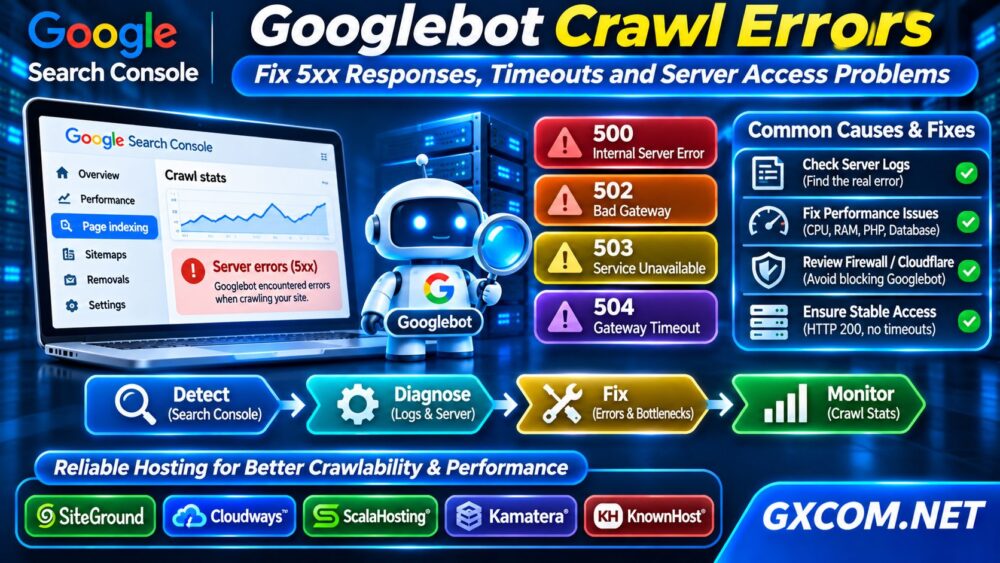
Server performance becomes relevant when Googlebot encounters intermittent failures, overloaded application workers, timeouts, or unstable responses.
Review server access logs and error logs for Googlebot requests. Look for HTTP 5xx responses, repeated timeouts, unexpected redirects, and resource exhaustion.
Our VPS CPU Steal Time troubleshooting guide explains one virtualization performance issue that can affect application responsiveness.
Slow hosting does not automatically cause “Crawled – currently not indexed.” However, persistenthttps://www.gxcom.net/cpu-steal-time-vps-troubleshooting/ infrastructure failures deserve investigation because they can interfere with reliable crawling and website operation.
Step 7: Fix WordPress Performance Bottlenecks
WordPress websites can become slow because of expensive database queries, excessive plugins, insufficient PHP workers, uncached requests, or limited server memory.
Check PHP error logs, database performance, caching configuration, and peak resource consumption before upgrading infrastructure.
Our VPS vs Shared Hosting comparison explains when a growing website may benefit from more resource control.
Focus on fixing measurable performance problems rather than assuming a faster server will make Google index every article.
When Should You Consider Better Hosting?
If monitoring confirms recurring resource exhaustion, unreliable response times, or insufficient configuration control, comparing hosting options becomes reasonable.
SiteGround offers WordPress-oriented hosting options, while Cloudways provides managed cloud environments for websites requiring flexible infrastructure.
ScalaHosting and KnownHost are relevant when comparing managed VPS solutions. Kamatera offers configurable cloud server resources for teams comfortable evaluating infrastructure requirements.
Compare resource allocation, support responsibilities, backup policies, caching options, and actual costs. Confirm current plan specifications before purchasing.

For broader cloud choices, explore our Managed Cloud Hosting comparison
How Long Does Google Indexing Take?
There is no guaranteed indexing timetable. Some pages appear quickly, while others remain excluded for extended periods or never enter the index.
After making meaningful improvements, request indexing when appropriate and monitor the URL over time. Repeated submissions without changes are unlikely to provide a reliable shortcut.
Evaluate patterns across page groups rather than reacting to every individual URL.
Frequently Asked Questions
Is Crawled – Currently Not Indexed a Google Penalty?
No. The status alone does not establish a manual action or algorithmic penalty. Check the separate Manual Actions report for applicable notifications.
Will Changing Hosting Fix the Issue?
Not necessarily. Hosting changes may help verified availability or performance problems, but content value, duplication, and canonical signals also influence indexing.
Should Every Website Page Be Indexed?
No. Duplicate, utility, filtered, and low-value pages may not need indexing. Prioritize pages that serve meaningful search intent.
Final Verdict
Fixing “Crawled – currently not indexed” requires evidence, not guesswork. Start with URL Inspection, assess content usefulness, check canonical signals and internal links, then investigate server reliability.
If genuine hosting limitations remain, compare suitable infrastructure through our Best Cloud Hosting Solutions guide. Better infrastructure supports a healthier website, but indexing decisions ultimately remain Google’s.