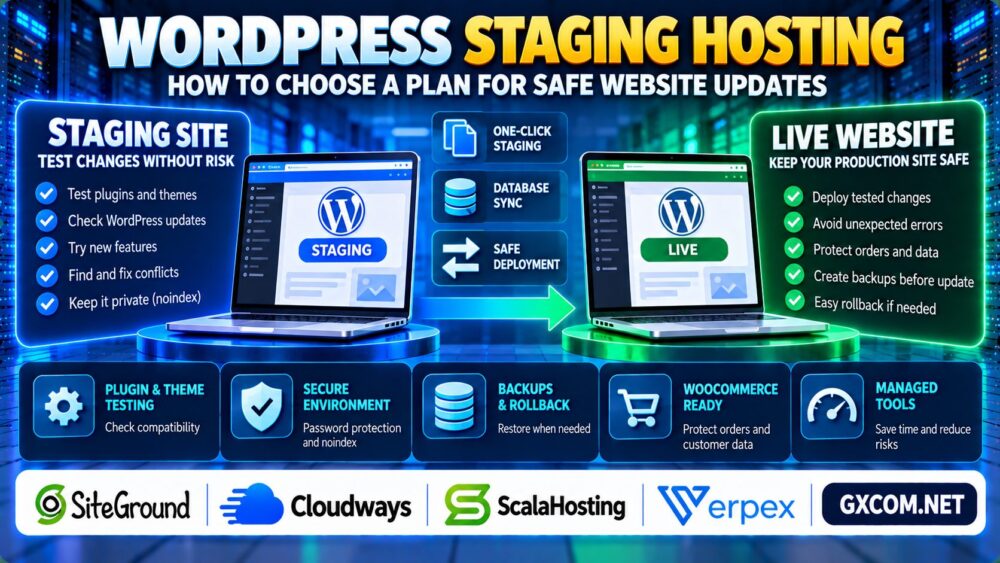
Updating WordPress plugins, themes, or core software directly on a live website can introduce unexpected problems. A plugin conflict may break a contact form, a theme update may change page layouts, and a WooCommerce extension may disrupt checkout.
WordPress staging hosting helps reduce these risks by providing a separate environment where website owners can test changes before applying them to production.
However, not every staging feature works the same way. Some hosting plans offer simple site cloning, while others provide more advanced deployment controls. This guide explains what to look for when choosing WordPress hosting with staging.
What Is a WordPress Staging Environment?
A WordPress staging environment is a separate copy of a website used to test updates, design changes, plugins, and configuration adjustments.
It typically contains copies of the production site's WordPress files and database, although the exact cloning process depends on the hosting platform.
Staging lets administrators inspect changes without immediately exposing them to visitors.
It is especially useful for websites that depend on custom themes, multiple plugins, membership features, or ecommerce functionality.
Importantly, staging is not a substitute for backups. A staging copy may become outdated, and deployment mistakes can still affect production data.
Why Choose WordPress Hosting with Staging?
Built-in staging tools can simplify tasks that would otherwise require manual file transfers, database exports, and configuration changes.
Common uses include:
- Testing WordPress core updates before deployment.
- Checking plugin and theme compatibility.
- Previewing design changes on different devices.
- Testing PHP version upgrades.
- Investigating conflicts without disrupting visitors.
- Reviewing WooCommerce changes before release.
For business websites, a repeatable testing process can reduce avoidable disruptions and improve confidence in routine maintenance.
1. One-Click Staging: What Does It Actually Include?
One-click staging generally refers to a hosting tool that creates a test environment with minimal manual configuration.
However, the term does not guarantee identical functionality across providers.
Before buying, ask whether the feature supports:
- Complete file and database cloning.
- Separate staging URLs or subdomains.
- Automatic URL and path adjustments.
- Independent PHP and application testing.
- Deployment from staging to production.
- Protection against public access and indexing.
Also check whether staging is included in the selected plan or restricted to higher-priced packages.
A staging feature that only creates a copy may still require manual work to deploy tested changes.
2. Staging-to-Live Deployment and Selective Push
Creating a staging environment is only half the workflow. The deployment process determines how tested changes reach the live website.
Some hosting tools support full-site deployment, which may replace production files and database content with the staging version.
Other platforms provide selective deployment options, allowing certain files or database changes to be handled separately.
| Deployment Method | Main Benefit | Important Risk |
|---|---|---|
| Full-site push | Simple deployment of a complete tested copy | May overwrite newer production data |
| Files-only push | Can deploy code and theme changes | May not apply required database changes |
| Selective database push | May reduce unnecessary data replacement | Requires accurate table and data selection |
| Manual deployment | Offers detailed control | Requires more technical expertise |
Selective database deployment does not automatically guarantee safe record-level merging. WordPress plugins may store related information across multiple tables.

For a broader explanation of copying websites between environments, see our WordPress Website Migration Guide.
3. WooCommerce Staging: Protect Orders and Customer Data
WooCommerce websites require additional care because production databases change whenever customers place orders, update accounts, or modify shopping carts.
Suppose a staging environment is created on Monday and deployed on Friday. During those days, the live store may have received new orders and customer registrations.
Overwriting the live database with Monday's staging copy could destroy or replace newer business records.
For WooCommerce stores, prioritize deployment workflows that preserve production orders, customers, inventory, and other transactional information.
Test payment gateways using appropriate sandbox or test modes, and prevent staging notifications from reaching real customers.
Our WordPress Hosting for WooCommerce Guide explains related database and checkout performance requirements.
4. Staging Security, Privacy and Search Engine Indexing
A staging site may contain copied customer records, administrative accounts, configuration files, or other sensitive information.
It should not be treated as a harmless public demo.
Recommended protections include:
- Password protection or HTTP authentication.
- Restricted administrative access.
- Appropriate noindex settings for search engines.
- Disabled outgoing customer notifications.
- Test-mode payment integrations.
- Secure handling of copied personal data.
A noindex directive is useful for search visibility, but it is not an access-control mechanism. Private staging sites should use authentication or equivalent restrictions.
Keep staging software updated and remove abandoned copies that are no longer needed.
5. Backups and Rollback: Essential Deployment Protection
Even after successful staging tests, deployment can fail because of unexpected production differences.
Before pushing changes live, create a fresh production backup and verify that restoration is possible.
Look for hosting features such as:
- On-demand backups before deployment.
- Database and file restoration.
- Clearly documented rollback procedures.
- Backup retention information.
- Accessible support during deployment incidents.
Some hosting platforms offer restore points, but their scope and retention policies vary.
Never assume a rollback button will recover every external transaction or integration.
For additional operational planning, review our Server Backup Strategy Guide.
6. Hosting Resources and Staging Storage Requirements
A staging copy consumes resources, although the amount depends on the platform's cloning technology and environment architecture.
Some systems duplicate website files and database content within the same hosting account. Others use separate environments or storage arrangements.
Ask whether staging consumes:
- Your existing disk storage allocation.
- Additional database capacity.
- Account inode or file-count allowances.
- Shared CPU and memory resources.
- Separate billable cloud resources.
Resource-intensive staging tests can affect production performance if both environments share restrictive account limits.
For shared hosting accounts, our Shared Hosting Resource Limits Guide explains CPU, RAM, I/O, and concurrent-request restrictions.
7. Comparing WordPress Staging Hosting Providers
When evaluating managed WordPress hosting, compare staging functionality alongside support, backups, resource limits, and renewal pricing.
SiteGround and Cloudways are relevant candidates when researching WordPress management tools and staging workflows.
ScalaHosting and Verpex are additional providers worth investigating when comparing managed hosting options, control-panel functionality, and WordPress deployment requirements.
Do not assume that staging features are included across every product offered by these companies. Check the current plan, platform documentation, and available deployment controls.
For a broader discussion of provider responsibilities, read our Managed Hosting vs Unmanaged Hosting Comparison.
8. A Safe WordPress Update Workflow
Staging is most useful when combined with a consistent deployment process.
- Create and verify a recent production backup.
- Clone the current website into staging.
- Restrict staging access and disable real transactions.
- Apply WordPress, plugin, theme, or PHP changes.
- Test forms, navigation, logins, and key functionality.
- Review database changes and deployment options.
- Deploy during an appropriate maintenance window.
- Test the live website and monitor for errors.
For ecommerce and membership sites, confirm how new production records will be preserved before any database deployment.

If a change cannot be deployed safely using the hosting platform's built-in tools, consider a more controlled manual deployment process.
WordPress Staging Hosting Buying Checklist
- Confirm staging availability on the exact hosting plan.
- Check whether cloning includes files and databases.
- Review full-site and selective deployment options.
- Verify production backup and rollback procedures.
- Confirm staging access controls and indexing protection.
- Understand storage and resource consumption.
- Check WooCommerce and dynamic-data compatibility.
- Compare support coverage and renewal costs.
Frequently Asked Questions
What is WordPress staging hosting?
It is WordPress hosting that provides or supports a separate testing environment for reviewing changes before deploying them to the live website.
Does every WordPress hosting plan include staging?
No. Availability depends on the provider, hosting product, and plan tier. Some platforms require manual staging setup.
Can I push staging changes to a live WordPress site?
Yes, when supported by the platform, but deployment methods differ. Full database replacement can overwrite newer production data.
Is staging safe for WooCommerce?
It can be useful when access, test transactions, and deployment are managed carefully. Live orders and customer records must be protected.
Does a staging site need its own backup?
Backups remain important, particularly before production deployment. The required backup approach depends on the website and hosting architecture.
Is one-click staging worth paying extra for?
It may be valuable for frequently updated or business-critical websites, especially when it includes reliable deployment controls and restoration options.
Final Verdict: Choose Staging Features That Protect Production
The best WordPress staging hosting plan is not necessarily the one advertising the simplest cloning button.
Prioritize safe deployment, clear database synchronization options, reliable backups, access controls, and sufficient resources.
For WordPress websites handling orders, registrations, or other changing data, understanding the staging-to-live workflow is essential before choosing a hosting provider.