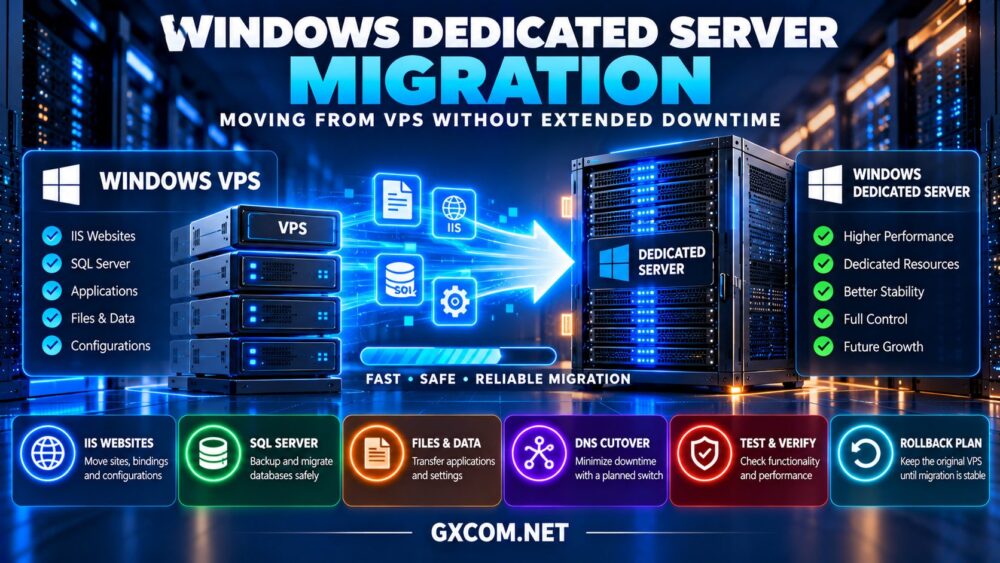
A successful Windows dedicated server migration requires more than copying files from an existing VPS. Businesses must move applications, databases, IIS settings, certificates, and scheduled tasks while protecting data and keeping service interruptions as short as possible.
Upgrading from a Windows VPS to a physical dedicated server can provide dedicated hardware resources, greater configuration control, and room for demanding workloads. However, a poorly planned migration can cause broken websites, database inconsistencies, and unexpected licensing costs.
This guide explains how to move from Windows VPS hosting to a dedicated server, reduce downtime, test applications, and compare infrastructure options from AccuWeb Hosting, Hostwinds, InterServer, and ServerMania.
When Should You Move from Windows VPS to Dedicated Hosting?
A Windows VPS may become restrictive when applications consistently consume available CPU, memory, storage I/O, or network capacity.
Dedicated hardware can be useful for busy ASP.NET applications, SQL Server workloads, specialized Windows software, and environments requiring predictable resource allocation.
However, migration is not automatically necessary when performance problems originate from inefficient database queries, application code, or incorrect configuration.
Review our dedicated server vs VPS comparison before deciding whether physical hardware is the appropriate upgrade.
1. Audit Your Existing Windows VPS
Begin by documenting the current Windows Server version, installed applications, IIS websites, SQL Server instances, user accounts, certificates, and firewall rules.
Record CPU utilization, memory usage, disk capacity, storage latency, and network traffic during normal and peak periods.
Identify dependencies such as external APIs, mapped drives, email services, license servers, and third-party software.
Confirm whether the target Windows Server version supports your applications. A migration involving an operating system upgrade may require additional testing or application changes.
2. Select Compatible Dedicated Server Hardware
Choose hardware based on measured workload requirements rather than simply matching the VPS specifications.
Evaluate processor generation, physical cores, RAM, SSD or NVMe performance, network connectivity, and storage redundancy.
For SQL Server, pay particular attention to memory capacity, storage latency, and database growth.
Verify that the provider offers a suitable Windows Server installation and remote administration access. Also confirm whether the dedicated server includes Windows licensing or requires a separate charge.
Our Windows dedicated server licensing guide explains important cost considerations.
3. Prepare the Destination Windows Server
Provision the new server before scheduling the production cutover. Apply supported security updates, configure remote access, and install required Windows roles and application dependencies.
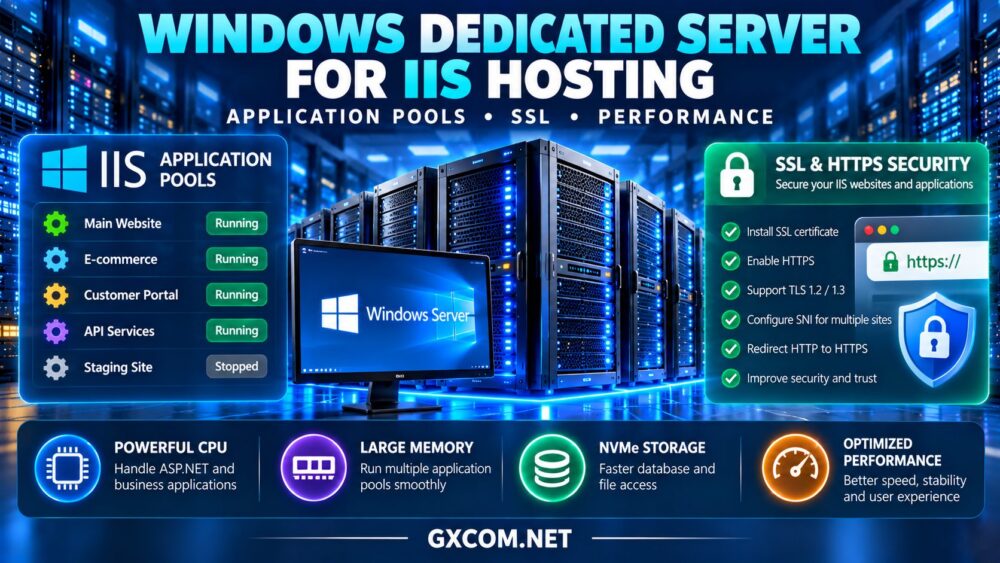
For IIS workloads, install the appropriate web server features, .NET runtime versions, application pools, and supporting components.

Import SSL certificates securely and verify that private keys are available where required.
Configure Windows Firewall rules carefully and restrict administrative access to trusted networks whenever practical.
Keep the original VPS operational throughout preparation and testing.
4. Migrate IIS Websites and Application Files
IIS migration involves more than copying website directories. Application pool identities, bindings, authentication settings, URL Rewrite rules, and installed modules may also need attention.
Use supported IIS configuration export methods or Web Deploy where appropriate for the source and destination environments.
For large file collections, Robocopy can support staged synchronization. Review permissions, exclusions, and logging before running commands against production directories.
Perform an initial transfer while the old server remains live, then synchronize changed files during the final cutover window.
Our Windows dedicated server IIS hosting guide covers application pools, SSL configuration, and performance considerations.
5. Plan SQL Server Migration Carefully
Databases often determine the minimum downtime achievable during migration.
For suitable environments, a full database backup followed by differential or transaction log backups can reduce the amount of data transferred during the final cutover.
The exact method depends on SQL Server edition, recovery model, version compatibility, and application requirements.
Log shipping, availability groups, or other synchronization methods may be appropriate for more demanding workloads, but they require compatible infrastructure and careful configuration.
Do not assume that copying active database files produces a consistent database.
Before switching production traffic, verify database integrity, user mappings, SQL Agent jobs, linked servers, and application connection strings.
6. Reduce Downtime with a Staged Cutover
For many applications, the most practical approach is to prepare and test the new server before scheduling a short final synchronization window.
- Lower DNS TTL values ahead of the planned migration where appropriate.
- Complete initial file transfers and database synchronization.
- Test the destination using a temporary hostname or controlled hosts-file mapping.
- Schedule a maintenance window and notify affected users.
- Stop writes to the old application or enable maintenance mode.
- Apply the final data changes and verify consistency.
- Update DNS or other traffic-routing configuration.
- Monitor the new server and retain the original environment for rollback.
DNS changes alone do not guarantee an immediate switch because clients and resolvers may retain cached records.
Applications that cannot tolerate a maintenance window may require more advanced replication and traffic-switching designs.
7. Compare Windows Dedicated Hosting Providers
When choosing a destination, verify Windows Server availability, licensing, remote access, hardware specifications, and migration support. These services may differ by plan.
AccuWeb Hosting: Windows Hosting Evaluation
AccuWeb Hosting is worth considering for organizations comparing Windows-focused hosting options.
Confirm dedicated hardware availability, supported Windows Server versions, SQL Server compatibility, and any migration assistance.
Best for: Buyers seeking Windows-oriented hosting configurations.
Hostwinds: Dedicated Infrastructure and Support
Hostwinds is relevant for businesses evaluating dedicated servers alongside technical support options.
Review Windows licensing, storage configurations, server management, and whether application migration is included or separately billed.
Best for: Businesses comparing dedicated hardware and operational support.
InterServer: Cost-Conscious Windows Dedicated Hosting
InterServer is another provider to investigate when comparing Windows-compatible dedicated server configurations.
Check available operating system installations, license charges, hardware upgrades, and remote administration options.
Best for: Experienced administrators balancing hardware and software costs.
ServerMania: Business Infrastructure Requirements
ServerMania is relevant for organizations requiring dedicated infrastructure with clearly defined deployment and support requirements.
Confirm Windows installation options, remote management, storage capabilities, and migration-related service boundaries.
Best for: Businesses planning structured infrastructure upgrades.
8. Compare Migration Requirements
| Component | Migration Requirement | Primary Risk |
|---|---|---|
| Windows Server | Version and license validation | Compatibility problems |
| IIS | Sites, bindings and app pools | Broken application configuration |
| SQL Server | Consistent database synchronization | Missing transactions |
| DNS | Planned traffic cutover | Temporary routing inconsistency |
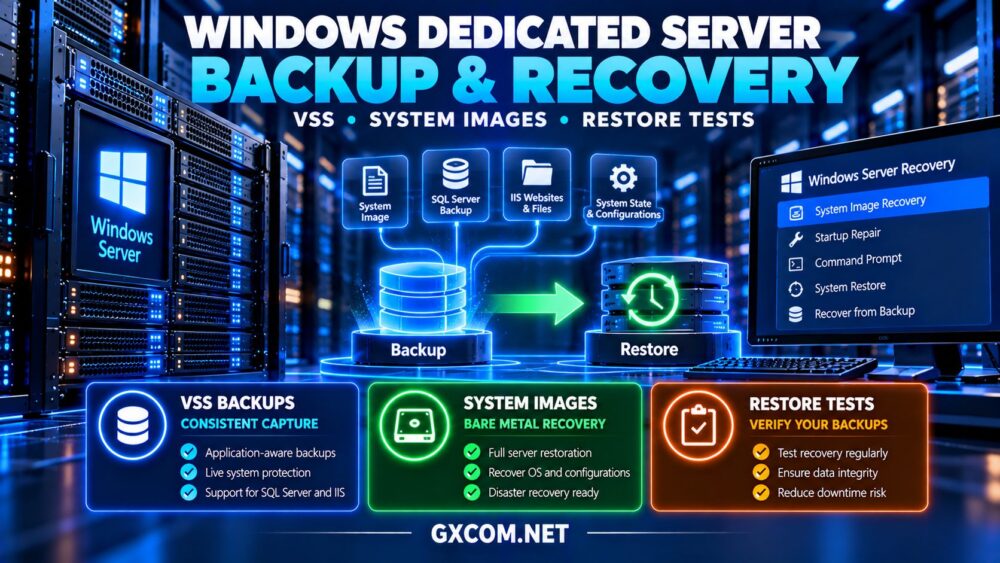
| Backups | Verified recovery points | Failed rollback |
9. Estimate Migration and Operating Costs
Migration expenses may include temporary overlapping hosting, Windows licensing, SQL Server licensing, backup storage, and administrator time.

Consider a hypothetical project with $140 monthly dedicated hosting, $35 in additional software charges, and $180 allocated to migration labor.
If both servers remain active for one month, include the existing VPS rental in the transition budget.
Compare available infrastructure offers in our affordable Windows dedicated servers guide.
10. Test, Monitor and Prepare Rollback
After cutover, test website functionality, database transactions, scheduled tasks, authentication, SSL certificates, and application logs.
Monitor CPU usage, memory, storage latency, network performance, and application errors.
Keep a documented rollback procedure, including the conditions that would trigger it. If production data changes after cutover, reversing traffic without synchronizing those changes can cause data loss.
Retire the original VPS only after successful validation, backup verification, and completion of the agreed observation period.
Final Verdict
A well-planned Windows dedicated server migration can move applications from VPS infrastructure with a controlled maintenance window rather than extended downtime.
AccuWeb Hosting, Hostwinds, InterServer, and ServerMania provide infrastructure options worth evaluating. Confirm Windows compatibility, licensing, migration assistance, and recovery capabilities for each selected plan.
Prioritize testing, database consistency, and rollback readiness over unrealistic promises of zero downtime.