A Windows dedicated server for remote desktop can provide centralized access to business applications, administrative tools, and Windows-based working environments. But choosing the right server involves more than enabling Remote Desktop Protocol (RDP) and creating user accounts.
One of the most common mistakes is assuming that a Windows Server license automatically permits unlimited employees to connect to separate remote desktop sessions.
It does not.
Windows Server remote administration and a properly licensed Remote Desktop Services (RDS) environment serve different purposes. Organizations planning multi-user access must consider licensing, server capacity, security, user experience, and hosting-provider responsibilities before deployment.
This guide explains how RDP works on a dedicated server, when RDS CALs are required, how concurrent sessions differ from licensed users, and what to verify before purchasing remote desktop hosting.
RDP ACCESS DOES NOT AUTOMATICALLY MEAN MULTI-USER DESKTOP LICENSING.
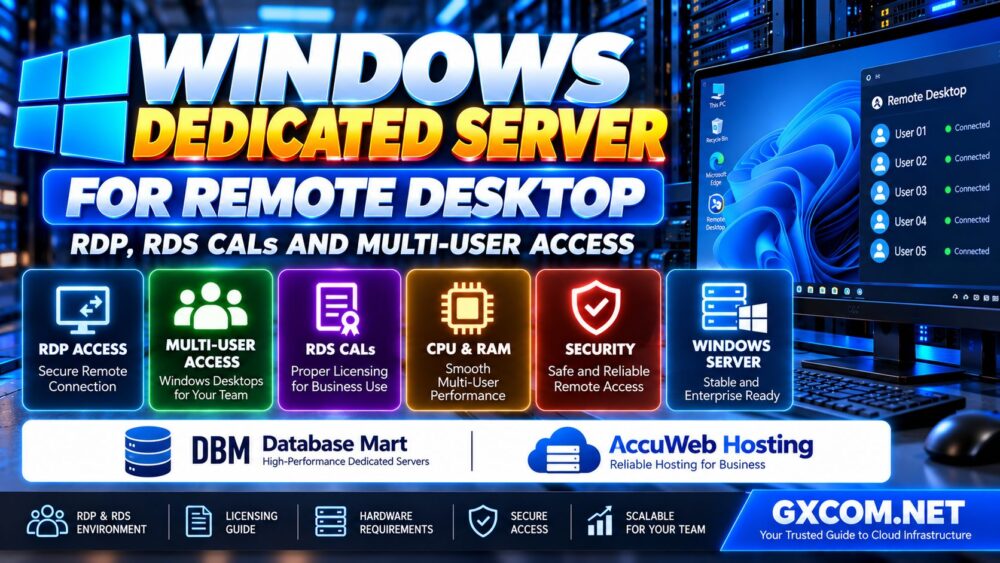
What Is a Windows Dedicated Server for Remote Desktop?
A Windows dedicated server is a physical machine allocated to a single customer and configured to run a licensed edition of Windows Server.
Remote Desktop Protocol allows authorized users to interact with a remote Windows environment over a network connection.
Organizations may use remote access for:
- Server administration and maintenance
- Centralized business software
- Remote access to Windows-based applications
- Accounting and enterprise resource planning systems
- Development and testing environments
- Shared office applications
- Remote workstations for distributed teams
However, these workloads do not all have the same licensing or technical requirements.
A system administrator connecting to maintain a server is different from an employee using the server as a daily remote workstation.
That distinction should determine the deployment architecture before hardware is purchased.
RDP vs Remote Desktop Services: What Is the Difference?
RDP is the communication protocol used to display and control a remote Windows session.
Remote Desktop Services is a Windows Server platform that supports managed remote desktop and application delivery for authorized users.
Although RDS uses RDP for remote connections, the terms are not interchangeable.
| Feature | Remote Administration | Remote Desktop Services |
|---|---|---|
| Primary purpose | Managing the Windows server | Delivering desktops and applications to users |
| Typical users | System administrators | Employees and authorized application users |
| Session model | Limited administrative access | Licensed multi-user session hosting |
| RDS CALs | Generally not required for permitted administrative access | Generally required for applicable RDS access |
| Deployment focus | Maintenance and troubleshooting | User sessions, applications, licensing, and capacity |
The critical purchasing question is whether the server will be used for administration or as a remote desktop platform for end users.
Can Two Users Connect to Windows Server Without RDS CALs?
Windows Server generally permits up to two simultaneous remote connections for administrative purposes without requiring RDS CALs for those permitted administrative sessions.
This allowance is not a free two-user remote office solution.
The administrative sessions are intended for managing the server, not providing ordinary employees with general-purpose hosted desktops.
If staff members need to run business applications, work in separate desktop sessions, or access a shared Windows environment as part of their regular jobs, the organization should evaluate a properly licensed RDS deployment.
TWO ADMINISTRATIVE SESSIONS DO NOT EQUAL TWO FREE BUSINESS DESKTOPS.
What Are RDS CALs?
Remote Desktop Services Client Access Licenses, commonly called RDS CALs, are licensing entitlements used for qualifying access to Windows Server Remote Desktop Services.
They are separate from the underlying Windows Server operating system license.
Depending on the licensing arrangement, organizations may also need applicable Windows Server CALs and other software licenses.
Purchasing the physical server and installing Windows Server does not automatically supply the RDS access rights required for a multi-user deployment.
Before ordering a hosted Windows dedicated server, request written confirmation of which licenses are included and which must be purchased separately.
RDS Per User CAL vs Per Device CAL
Microsoft provides two principal RDS CAL models for relevant Windows Server deployments: Per User and Per Device.
RDS Per User CAL
A Per User CAL is associated with an authorized user rather than a single endpoint device.
This model may be appropriate when employees access the same remote environment from multiple devices, subject to the applicable licensing terms.
For example, an employee may connect from a desktop computer at the office and a laptop while traveling.
RDS Per Device CAL
A Per Device CAL is associated with a client device.
This model may be more suitable for environments where multiple employees use the same workstation at different times, such as shift-based operations.
| Consideration | Per User CAL | Per Device CAL |
|---|---|---|
| Licensed access | By user | By device |
| Multiple devices per employee | Often a useful fit | Each qualifying device may need coverage |
| Shared workstations | Each qualifying user needs coverage | May be more economical |
| Typical example | Employees with personal laptops and desktops | Shift workers sharing office computers |
| Workgroup RDS deployment | Not permitted in the standard workgroup licensing configuration | Supported subject to configuration and licensing requirements |
Microsoft's licensing documentation distinguishes these modes and their configuration requirements. The correct choice depends on your users, devices, server environment, and licensing agreement.
Do RDS CALs Limit Concurrent Sessions?
RDS CALs and concurrent session capacity measure different things.
A licensing entitlement determines whether a user or device has the required access rights.
Concurrent session capacity describes how many active remote sessions the infrastructure can support at the same time.
For example, a business with 20 authorized employees may have only 12 people connected during a normal workday.
That does not automatically mean the business only needs 12 Per User CALs. The applicable licensing model must cover the qualifying users or devices, not merely the peak number of simultaneous sessions.

Likewise, purchasing sufficient RDS CALs does not guarantee that a server has enough CPU, RAM, storage performance, or network capacity to support the expected users.
LICENSED USERS AND SIMULTANEOUS SESSIONS ARE NOT THE SAME METRIC.
How Many Remote Desktop Users Can a Dedicated Server Support?
There is no universal number of RDS users that every Windows dedicated server can support.
Session density depends on the actual applications and how employees use them.
Important factors include:
- Processor model and per-core performance
- Available CPU cores and threads
- Installed RAM
- Application memory consumption
- Storage latency and I/O throughput
- User profile storage
- Background services
- Network latency and throughput
- Printing and peripheral redirection
- Security and monitoring software
Ten users running lightweight administrative applications may consume fewer resources than five users running demanding business software.
The best approach is to test representative user sessions and monitor the server under realistic workloads.
CPU Requirements for Multi-User Remote Desktop
CPU performance influences how responsive remote applications feel, especially when many users launch programs or process data simultaneously.
When selecting a dedicated server, examine the exact processor model rather than relying only on advertised core counts.
Applications that depend heavily on single-thread performance may benefit from newer processors with strong per-core speed.
Other workloads can benefit from additional cores when many independent user processes run simultaneously.
Plan for peak activity rather than sizing the server around idle desktop sessions.
For a broader explanation of CPU generations, memory, and storage specifications, see our Dedicated Server Hardware Selection Guide.
How Much RAM Is Needed for RDS Users?
RAM is often a critical constraint in multi-user Windows Server environments.
Each active session consumes memory for user processes, desktop components, and running applications.
Database clients, browsers, spreadsheets, and line-of-business applications can have very different memory requirements.
A useful planning approach is to estimate:
- Memory required by Windows Server and background services
- Average memory usage per active session
- Peak application usage
- Expected simultaneous sessions
- Additional headroom for maintenance and growth
For example, if an application-heavy user session consumes substantially more memory than a lightweight session, a simple users-per-gigabyte rule will produce misleading results.
Monitor representative workloads before committing to a fixed capacity plan.
Why NVMe Storage Matters for Remote Desktop Hosting
Storage performance can affect logon times, application launches, temporary files, and user profile loading.
NVMe SSD storage may help when multiple users generate concurrent disk operations, but the benefit depends on the workload.
Consider the following:
- Operating system and application storage
- User profiles and profile containers
- Temporary application files
- Database activity
- Backup operations
- Storage redundancy and recovery
Fast storage does not replace adequate RAM or CPU resources, and RAID is not a substitute for independent backups.
Remote Desktop Services Roles Explained
A production RDS deployment may involve several Windows Server roles.
RD Session Host
RD Session Host runs the Windows desktop sessions or applications accessed by authorized users.
RD Licensing
RD Licensing manages the issuance and tracking of applicable RDS CALs.
RD Connection Broker
RD Connection Broker helps manage connections and reconnect users to existing sessions in supported deployment architectures.
RD Gateway
RD Gateway provides a controlled access path for remote connections, reducing the need to expose RDP directly to the public internet.
RD Web Access
RD Web Access can provide authorized users with browser-based access to published remote resources.
Not every small deployment requires every role, but the architecture should be designed around security, licensing, availability, and user requirements.
RDS Licensing Server and Grace Period
A correctly licensed RDS deployment generally requires an activated Remote Desktop license server and the appropriate licensing configuration.
Microsoft documents a 120-day licensing grace period for applicable RD Session Host deployments.
This grace period is not a permanent substitute for licensing and should not be used as a long-term business deployment strategy.
Before the grace period ends, administrators should confirm that the licensing server is activated, the correct CALs are available, and the RD Session Host is configured to use the intended licensing mode.
RDS CAL version compatibility also matters. Older CAL versions cannot automatically license access to newer Windows Server session hosts.
Security: Never Treat Public RDP as a Complete Remote Access Strategy
Exposing RDP directly to the internet can increase the attack surface of a Windows dedicated server.
Organizations should consider a layered access strategy that includes:
- RD Gateway or an appropriately secured VPN
- Multi-factor authentication where supported
- Strong identity and access controls
- Network firewall restrictions
- Account lockout and monitoring policies
- Regular Windows security updates
- Endpoint security controls
- Auditing of privileged access
- Independent backups and tested recovery procedures
Changing the default RDP port alone is not a sufficient security strategy.
Administrative accounts should not be shared between employees, and users should receive only the permissions required for their work.
Windows Dedicated Server vs Windows VPS for Remote Desktop
A Windows VPS may be sufficient for small remote administration tasks or limited application workloads.
A dedicated server becomes more attractive when an organization needs exclusive physical hardware, predictable resource access, substantial memory capacity, or specialized infrastructure requirements.
However, dedicated hardware is not automatically faster than every VPS.
Processor generation, virtualization overhead, storage performance, network quality, and the workload itself influence actual results.
Both deployment types still require appropriate Windows and RDS licensing for their intended uses.
For buyers comparing overall Windows hosting costs, our Windows Dedicated Server Cost and Licensing Guide explains important operating system, licensing, and infrastructure expenses.
Windows Dedicated Server Providers for Remote Desktop
When evaluating a Windows dedicated server for remote desktop, prioritize licensing transparency, hardware suitability, security options, and support responsibilities.
Database Mart and AccuWeb Hosting are two providers worth including in a Windows dedicated hosting shortlist.
These are evaluation candidates rather than a claim that every current plan includes multi-user RDS rights or a fully managed Remote Desktop Services deployment.
Database Mart: Evaluate Windows Dedicated Server Configurations
Database Mart is a relevant candidate when comparing Windows server infrastructure for remote administration and Windows-based application hosting.
Before purchasing, confirm the Windows Server edition, license arrangement, available CPU and RAM configurations, storage performance, and remote management options.
For a multi-user deployment, ask whether the provider can supply or support the required RDS licensing arrangement and whether the proposed use is permitted under the service agreement.
Best evaluation angle: Windows server configuration, remote access requirements, and licensing clarity.
AccuWeb Hosting: Compare Windows Hosting and Support Requirements
AccuWeb Hosting is another candidate for organizations comparing Windows dedicated infrastructure.
Review the available Windows Server options, administrative access, network arrangements, and support scope for the specific product.
If employees need a shared desktop environment, ask whether RDS deployment assistance is available and which licensing components must be purchased separately.
Best evaluation angle: Windows dedicated hosting suitability, technical support expectations, and remote desktop deployment requirements.
Windows Remote Desktop Hosting Provider Checklist
| Requirement | What to Confirm |
|---|---|
| Windows Server | Edition, version, activation, and licensing terms |
| Remote administration | Permitted administrative RDP access |
| Multi-user RDS | RDS rights, licensing model, and deployment support |
| RDS CALs | Whether they are included, supplied separately, or customer-provided |
| CPU and RAM | Capacity for representative concurrent workloads |
| Storage | SSD or NVMe performance, backups, and recovery |
| Security | Firewall, secure access architecture, and authentication |
| Support | Hardware support versus Windows and RDS administration |
| Billing | Recurring licenses, management, and infrastructure charges |
For a broader comparison of Windows dedicated hosting features and purchasing considerations, read our Best Windows Dedicated Server Hosting Guide.
How to Calculate the Total Cost of Multi-User RDP Hosting
The server rental is only one part of the total cost of a business RDS deployment.
Potential expenses include:
- Dedicated server rental
- Windows Server licensing
- Applicable Windows Server CALs
- RDS CALs or an applicable service-provider licensing arrangement
- Remote access gateway infrastructure
- Security and identity management
- Backup storage and disaster recovery
- System administration
- Monitoring and technical support
- Application-specific licenses
Some software products have additional restrictions or requirements when used in shared or hosted environments.

Organizations should confirm application licensing directly with the relevant software vendor.
For lower-cost hardware comparisons, see our Affordable Windows Dedicated Servers Guide, while remembering that a low server rental does not necessarily include multi-user desktop licensing.
Common Remote Desktop Deployment Mistakes
Avoid these common mistakes when planning a Windows dedicated server for remote access:
- Assuming two administrative sessions permit two ordinary business users.
- Believing the Windows Server license automatically includes RDS CALs.
- Buying CALs based only on simultaneous session counts.
- Ignoring Per User and Per Device licensing differences.
- Deploying an RDS workgroup configuration without checking licensing restrictions.
- Exposing RDP directly to the internet without adequate access controls.
- Underestimating memory consumption from active user sessions.
- Assuming the hosting provider manages RDS configuration by default.
- Forgetting application-specific licensing requirements.
- Failing to test backups, licensing configuration, and user experience before production use.
Frequently Asked Questions
Can multiple users use RDP on a Windows dedicated server?
Yes, a properly configured and licensed Remote Desktop Services environment can support multiple user sessions. The permitted number of users and practical capacity depend on licensing, architecture, and hardware resources.
Are two RDP sessions free on Windows Server?
Windows Server generally permits two simultaneous remote administrative connections without RDS CALs for those administrative purposes. This does not authorize ordinary multi-user desktop hosting.
Do I need RDS CALs for every remote desktop user?
For qualifying RDS deployments, appropriate RDS access licensing is generally required. Whether access is licensed by user or device depends on the applicable licensing arrangement.
What is the difference between RDP and RDS?
RDP is the remote display and interaction protocol. RDS is the Windows Server platform used to deliver and manage remote desktop sessions and applications.
Can 10 users connect to one Windows dedicated server?
A properly licensed RDS deployment may support 10 or more users if the hardware, applications, and configuration can handle the workload. A standard administrative RDP configuration is not an equivalent substitute.
Is a Windows dedicated server better than a VPS for RDP?
Dedicated hardware may be preferable for larger or specialized workloads, but a VPS can be suitable for smaller deployments. Licensing and security requirements remain important in both cases.
Do hosting providers include RDS CALs?
Do not assume they do. Ask whether RDS licensing is included, available separately, or must be supplied under another valid licensing arrangement.
Does buying RDS CALs guarantee more simultaneous sessions?
No. Licensing rights and technical session capacity are separate. Hardware resources, applications, and deployment settings determine practical performance.
Final Verdict: Choose a Licensed, Secure and Properly Sized RDS Environment
A Windows dedicated server for remote desktop can be an effective platform for centralized Windows applications and multi-user business access.
But the right solution requires more than enabling RDP.
First, determine whether the workload involves server administration or ordinary user desktops. Then identify the correct licensing model, estimate concurrent resource demand, and plan secure remote connectivity.
Database Mart and AccuWeb Hosting are relevant providers to evaluate, but buyers should verify the exact Windows Server product, RDS licensing options, support scope, and permitted usage before ordering.
USERS → LICENSING → SESSIONS → HARDWARE → SECURITY → TOTAL COST.
REMOTE DESKTOP ACCESS IS NOT THE SAME AS MULTI-USER LICENSING.
The best Windows dedicated server for remote desktop is the one that supports your users legally, securely, and reliably as the organization grows.