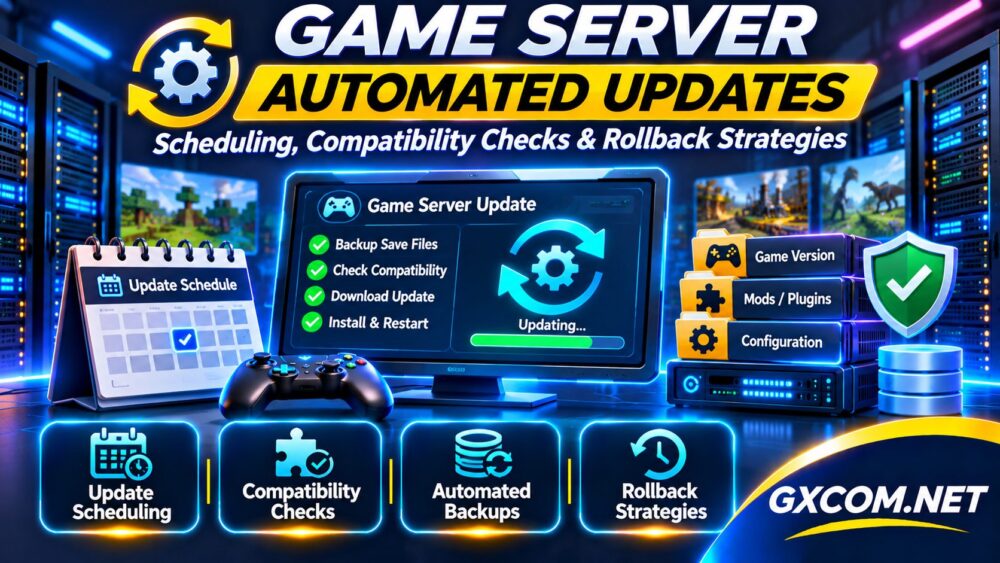
Game server automated updates help multiplayer communities stay compatible with new client releases and receive important fixes without constant manual intervention. However, installing every available update immediately can break plugins, interrupt active sessions or leave a persistent world unusable. Effective automation needs safeguards, not just a recurring restart timer.
This guide explains how to schedule maintenance, verify compatibility, protect player data and recover from unsuccessful updates. It also compares documented management features from three game hosting providers.
How Game Server Automated Updates Work
An update workflow typically checks for a new release, prepares the server, installs the required software and restarts the game process. SteamCMD is commonly used to download and update supported Steam dedicated server applications. Minecraft servers generally require a different workflow involving server JAR files, loaders or modpack distributions.
A scheduled restart alone does not necessarily download new software. Similarly, an automatic backup does not guarantee that an older game version can be installed. Treat scheduling, installation, backup and recovery as separate capabilities.
Schedule Updates Around Player Activity
Choose a maintenance window based on actual player activity rather than the administrator’s local time. International communities may have several busy periods each day. Check the hosting panel’s time zone and how daylight saving changes affect recurring tasks.
Announce planned downtime, prevent new connections when appropriate and allow players to finish important activities. Save the world using the game’s supported commands before gracefully stopping the process. Avoid terminating a server while it is writing persistent data.
Use separate schedules for backups, updates and routine restarts. Prevent overlapping maintenance jobs, and configure a maximum waiting period so a busy server cannot postpone essential security maintenance indefinitely. Communities operating several instances can use our multiple community game hosting guide to plan independent maintenance windows.
Check Compatibility Before Installing Updates
| Component | Pre-update check |
|---|---|
| Base game | Server release and supported client versions |
| Mods and plugins | Compatible releases and required dependencies |
| Runtime | Java version, libraries and operating system requirements |
| Persistent data | Save format and database migration requirements |
| Configuration | Deprecated settings and changed startup arguments |
For Minecraft, verify the exact game release and compatibility with Paper, Forge, Fabric or NeoForge where applicable. Rust administrators should check whether their Carbon or Oxide installation supports the new server build. ARK communities should verify the appropriate game edition, map dependencies and mod versions.

When resources permit, test the update on a private instance containing a representative copy of the production world. Disable public access and avoid connecting the test environment to production databases that it could modify. Our modded game server hosting comparison covers additional considerations for communities that depend on third-party modifications.
Create a Safe Automated Update Workflow
- Detect an available release and review relevant compatibility information.
- Notify players and activate the maintenance window.
- Save persistent data, stop the server gracefully and create a recovery copy.
- Confirm backup completion and sufficient free storage.
- Install the approved update and record the result.
- Start the server, perform health checks and reopen access only after validation.
Configure automation to stop when a critical prerequisite fails. A backup error should not automatically lead to an unprotected software upgrade. Keep maintenance logs, restrict administrative credentials and prevent a second update task from running while the first is active.
For SteamCMD deployments, use the correct dedicated server application identifier and authentication method. File validation can replace modified application files, so preserve important customizations and use validation deliberately rather than assuming it is necessary for every routine update.
Compare Hosting Providers for Update Management
Host Havoc: Scheduled Maintenance
Host Havoc documents recurring restart tasks for Garry’s Mod, including an option to wait for players to leave before restarting. This is useful when evaluating maintenance scheduling for busy communities. Confirm whether your chosen game template also supports automatic software installation and which recovery operations require administrator intervention.
Sparked Host: Conditional Tasks and Backups
Sparked Host documents scheduling tools in its Apollo Panel, including conditions based on server state or supported player counts, backup actions and configurable task failure behavior. These controls can help organize maintenance prerequisites. Check whether the particular game supports an update action and whether backup capacity is sufficient for your world.
Shockbyte: Rust Update Controls
Shockbyte documents automatic updates enabled by default for its Rust servers, with changes applied following a restart. Its instructions also address Oxide and Carbon. This makes the service relevant to Rust administrators evaluating update convenience, although plugin compatibility and recovery procedures still require attention.
These are documented feature examples, not comparative performance tests. Ask each provider about version selection, backup retention, restoration charges and support coverage before ordering. Do not assume that every supported game uses the same panel features.
Validate the Server After an Update
A running process is not enough to establish that an update succeeded. Check startup logs, connect with a compatible client, load the expected world and verify player inventories, permissions and essential plugins. Monitor memory consumption and simulation performance during representative gameplay.
Compare measurements with a baseline recorded before maintenance. Our game server lag troubleshooting guide helps identify resource bottlenecks and configuration problems. If essential checks fail, keep the maintenance window active instead of repeatedly restarting a broken deployment.

Rollback Strategies and Recovery Costs
A reliable rollback requires compatible server binaries, configuration files, modifications and persistent data. Keep an independent recovery copy and document the previous working versions. Restoring only an older executable may fail if an update has already converted the world or database to a newer format.
Older builds are not always available through official distribution channels, and clients may no longer support them. In that situation, a compatible forward fix may be safer than downgrading. Avoid restoring a vulnerable release without considering security exposure.
Plan recovery time as well as storage costs. For example, restoring a 20 GB backup at an effective 50 MB/s takes roughly seven minutes for data transfer alone, using decimal units. Extraction, verification and startup add time. This is an illustrative calculation, not a measured hosting result.
Choose Automation That Matches Your Community
Small vanilla communities may need only scheduled maintenance and dependable backups. Modded networks benefit from explicit version approval, compatibility testing and controlled rollout. Compare hosting plans using the cost of administration, additional backup storage and potential downtime alongside subscription prices. The best update workflow is one that prevents avoidable failures and provides a practical recovery path when automation cannot complete safely.