When a game server crashes after updates, the cause is often a compatibility problem rather than a permanent hardware failure. Minecraft plugins, Rust extensions, ARK mods, and server configuration files can behave differently after a new game build is installed.
Repeated restarts rarely solve the underlying issue. Administrators need to preserve evidence, inspect crash logs, isolate recent changes, and restore a known working state when necessary. This guide explains a practical recovery process and how hosting features influence long-term stability.
Why Do Game Servers Crash After Updates?
Game updates can change software dependencies, configuration formats, networking behavior, and supported extensions. A server that worked yesterday may fail immediately after installing a new version.
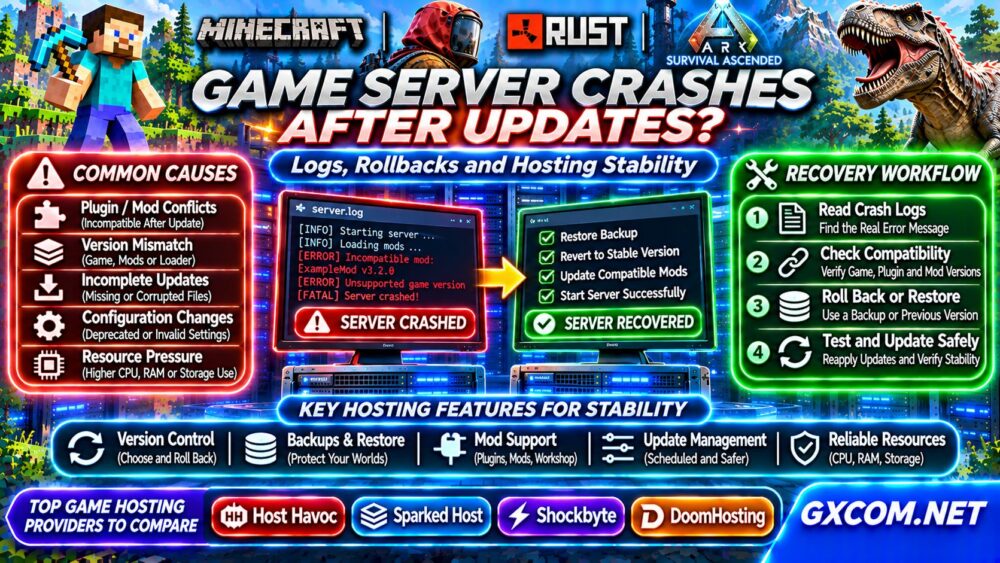
Common causes include:
- Outdated plugins: Extensions calling incompatible game APIs.
- Mod version conflicts: Missing dependencies or mismatched loaders.
- Incomplete updates: Damaged or missing server files.
- Configuration changes: Deprecated settings or invalid parameters.
- Resource pressure: Increased memory, CPU, or storage demand.
- Save incompatibility: World data that cannot load correctly.
Identify the failure stage before changing files. A crash during startup requires different troubleshooting from one occurring after players connect.
Step 1: Read the Server Crash Logs
Logs are usually the most useful starting point. Open your hosting panel’s console, crash reports, or log directory and examine messages immediately before the failure.
Look for exception names, missing dependencies, failed file access, unsupported versions, and memory allocation errors. The final line alone may describe shutdown rather than its original cause.
For Minecraft, inspect the latest server log and available crash reports. For Rust or ARK, review the relevant application logs and provider console output.
Record the game version, update time, installed modifications, and exact error before attempting recovery.
Step 2: Check Version and Mod Compatibility
A game update does not guarantee that third-party extensions are ready. Minecraft plugin APIs, mod loaders, Rust extensions, and ARK modifications follow different compatibility schedules.
Compare installed versions with their developers’ published requirements. Check dependencies and confirm that server-side and client-side components match where required.
If the problem began immediately after updating a modification, disable it in a controlled test environment. Avoid deleting multiple extensions simultaneously because doing so makes the original cause harder to identify.
For modded communities, our Game Hosting Comparisons provide a starting point for evaluating management features.

Step 3: Identify Startup and Restart Loops
Some hosting panels automatically restart failed processes. This can create a loop in which the server launches, crashes, and starts again without giving administrators enough time to inspect the error.
Temporarily disable automatic restart when your panel permits it. Preserve the latest logs, then perform one controlled startup attempt.
Check whether the process exits because of an application exception, memory limit, missing executable, or failed dependency.
Never repeatedly regenerate worlds or reinstall software without preserving existing player data.
Step 4: Roll Back Without Losing Progress
Rollback means returning to a previously working state. However, game executables, plugins, configurations, and world files may require different recovery procedures.
Before restoring anything:
- Stop the server and prevent new writes.
- Copy current worlds, logs, and configuration files.
- Identify the last verified working backup.
- Check whether the game supports the required older version.
- Restore compatible files in a separate test environment.
- Verify startup and player data before reopening.
Some games do not support downgrading after a major update. Restoring an older executable alongside newer save files can create additional corruption risks.
Review our VPS Snapshot and Backup Recovery Guide for safer recovery planning.
Minecraft, Rust, and ARK: Different Failure Patterns
| Game | Common Update Problem | First Check |
|---|---|---|
| Minecraft | Plugin or mod-loader mismatch | Crash reports and dependency versions |
| Rust | Extension incompatibility or update failure | Startup logs and server build |
| ARK | Mod conflicts or save-loading problems | Application logs and mod compatibility |
These patterns are examples, not definitive diagnoses. Always investigate the actual error rather than assuming that every update-related crash has the same cause.
Step 5: Check CPU, RAM, and Storage
Not every post-update crash is caused by software incompatibility. Updates may increase memory requirements, expand game files, or trigger expensive world processing.
Inspect peak memory consumption, CPU activity, free disk space, and storage errors. An out-of-memory termination may appear without a conventional application crash report.
On a self-managed Linux server, system logs can help identify process termination or filesystem problems. Hosting customers should request equivalent diagnostics when operating-system access is unavailable.
For infrastructure planning, explore our Gaming VPS guides.
How to Prevent Crashes During Future Updates
Reliable maintenance depends on controlled changes rather than automatic installation alone.
- Schedule updates during announced maintenance windows.
- Back up world data and configurations beforehand.
- Record game, plugin, and mod versions.
- Test major changes outside the production server.
- Confirm available storage and memory headroom.
- Keep rollback instructions accessible to administrators.
Automatic updates may be appropriate for some communities, but administrators should understand how their hosting panel handles compatibility and recovery.
Four Game Hosting Providers to Evaluate
Host Havoc, Sparked Host, Shockbyte, and DoomHosting are relevant hosting candidates when comparing server management and recovery workflows.
Host Havoc
Evaluate console access, update scheduling, available backups, and support responsibilities for the specific game being hosted.
Sparked Host
For Minecraft communities, investigate software selection, modpack management, file access, and recovery options before selecting a plan.
Shockbyte
Shockbyte is another Minecraft hosting option to compare. Confirm the current product’s backup tools, version controls, and technical support scope.

DoomHosting
DoomHosting is worth investigating for supported game hosting products. Verify console access, update procedures, and restoration capabilities before purchasing.
These providers should be compared using current plan features rather than assumed recovery guarantees or unverified performance rankings.
When Should You Change Hosting Providers?
One crash after a game update does not automatically justify migration. However, repeated downtime, inaccessible logs, inadequate backups, and unclear support responsibilities can make administration unnecessarily difficult.
Compare providers by recovery access, update controls, resource limits, server location, and total cost. Browse our Game Server Deals when evaluating alternatives.
Frequently Asked Questions
Why Won’t My Game Server Start After an Update?
Possible causes include incompatible modifications, incomplete files, invalid settings, or insufficient resources. Start with the earliest meaningful error in the logs.
Can I Roll Back a Game Server Update?
Sometimes. Availability depends on the game, hosting panel, supported older builds, and compatible backups.
Will Reinstalling the Server Fix Crashes?
It may repair damaged software files, but reinstalling without backups risks losing worlds and configurations.
Final Verdict
When game server crashes follow updates, preserve logs, verify compatibility, isolate changes, and restore carefully. Choose hosting with practical diagnostic access, reliable backups, and clear support responsibilities. Stable communities depend on repeatable recovery procedures, not simply more powerful hardware.