Is your game server not showing up even though the hosting panel says it is online? Players may see an empty server browser, receive connection timeout errors, or fail to join through a public IP address. These problems affect Minecraft, Rust, ARK, and many other multiplayer games.
However, an invisible server is not necessarily offline. Game discovery, direct connections, and network accessibility are different functions. This guide explains how to identify the actual failure, fix common configuration problems, and decide whether your hosting environment needs improvement.
Why Is Your Game Server Not Showing Up?
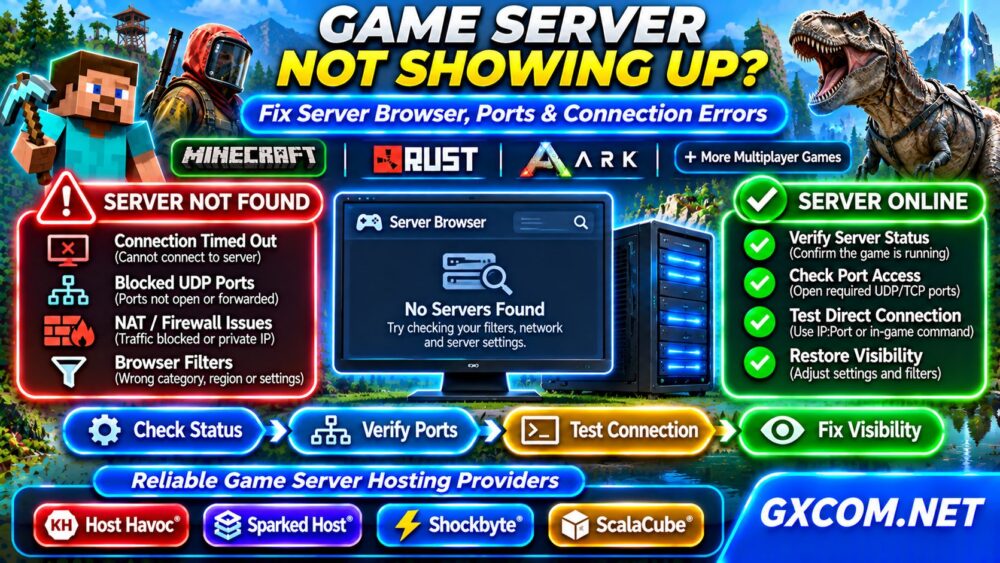
Begin by identifying which situation describes your problem:
- Server offline: The game process failed to start or crashed.
- Server running but missing from the browser: Discovery settings, query services, or filters may be responsible.
- Server visible but inaccessible: Investigate gameplay ports, authentication, and client compatibility.
- Local connections work but external connections fail: Check NAT, public addressing, and firewall rules.
These symptoms require different solutions. Increasing RAM will not fix incorrect port forwarding, while changing a server name cannot repair a crashed game process.
1. Confirm That the Game Server Is Running
Open the hosting dashboard, server console, or system terminal. Check whether the game application completed startup and remains active.
A control panel showing “running” may only indicate that a container or background process exists. Review startup logs for missing dependencies, invalid configuration, failed updates, and unexpected shutdowns.
On a Linux system using systemd, inspect the relevant service:
systemctl status your-game-service
journalctl -u your-game-service -n 100
Replace the placeholder with your actual service name. Managed game panels may provide equivalent console and log features.
If the server repeatedly crashes, resolve that problem before investigating public discovery.
2. Test Direct Connection Separately
Many multiplayer games support direct connections using an IP address, hostname, invitation, or game-specific console command.
Use the connection method documented for your game. For example, a server address might resemble:
203.0.113.10:27015This is a documentation-only address, not a working server. Replace it with your actual public address and gameplay port.
If direct connection succeeds but the server remains absent from the browser, focus on discovery and query configuration. If direct connection fails, investigate network access, startup status, and version compatibility.
Some games do not expose traditional direct-IP connections, so follow their supported joining methods.
3. Check Gameplay Ports and Query Ports
Different games use different network protocols and port arrangements. Some require separate gameplay and server-query ports; others rely on platform services or different discovery mechanisms.

Verify the required ports using official documentation for your exact game and server version. Do not copy a Rust port configuration into Minecraft or ARK.
Check that the configured port matches the hosting panel’s allocation and that another application is not already using it.
On Linux, inspect listening sockets with:
sudo ss -lntupRemember that UDP services may not respond to ordinary TCP connection tests. Use protocol-appropriate checks and actual game-client connection attempts.
4. Review Server Browser Filters and Visibility
Before modifying firewall settings, clear search filters inside the game browser. Check the selected region, game mode, player-count restrictions, password settings, and community categories.
Some games separate official, community, modded, and private servers. A correctly configured server may appear in a different category than expected.
Search for a distinctive server name and confirm that the game version matches the client’s version. After configuration changes, allow time for discovery services to update.
A server may also be intentionally private or unlisted. Verify its visibility settings before treating this behavior as a network failure.
5. Fix Firewall and Port Forwarding Problems
For self-hosted servers, the operating-system firewall must permit the required traffic. Cloud and VPS environments may also have provider-level security rules.
On Ubuntu systems using UFW, a UDP rule might look like:
sudo ufw allow 27015/udp
sudo ufw status
This port is illustrative. Apply only the ports and protocols required by your game, and avoid opening unnecessary services.
Home-hosted servers may require router port forwarding to the correct internal device. Confirm that the device retains a stable local address.
Our Unmanaged Server Security Checklist explains additional precautions when exposing services to the internet.
6. Investigate NAT, CGNAT, and Public IP Addresses
A server behind network address translation may work locally but remain unreachable to external players.
Private IPv4 addresses, including common 192.168.x.x and 10.x.x.x ranges, cannot serve as ordinary public connection addresses.
Carrier-grade NAT can prevent traditional inbound port forwarding because the customer does not control the provider’s public-facing translation.
Check whether your hosting service provides a reachable public address and permits the required inbound traffic. Some platforms offer alternative networking methods, but compatibility depends on the game.
7. Check Game Updates and Authentication
Server discovery is not the only reason players cannot join. Client-server version mismatches, incomplete updates, authentication failures, and incompatible mods can produce similar symptoms.
Compare game versions and review the server console immediately after a failed connection attempt. Look for rejection messages, missing files, or failed authentication requests.
If problems began after an update, verify installation integrity and restart safely. Preserve world data and configuration before reinstalling software.
For broader operational planning, explore our Game Server Hosting resources.
8. Follow a Structured Troubleshooting Checklist
| Symptom | Likely Cause | Recommended Check |
|---|---|---|
| Server process exits | Startup or software failure | Inspect logs |
| Direct join works; browser missing | Discovery or filters | Check query settings |
| Local join works; remote join fails | NAT or firewall | Verify public access |
| Server visible; join rejected | Version or authentication | Review client and logs |
| Connection fails intermittently | Network or server instability | Monitor uptime and resources |
Change one setting at a time and retest. Document the results so you can distinguish a genuine fix from a temporary recovery.

9. When Should You Compare Game Hosting Providers?
Switching providers should follow evidence, not guesswork. Incorrect filters and application-level configuration problems often persist after migration.
However, restrictive networking, unavailable public IP addresses, repeated outages, inadequate administrative access, or poor technical support may justify evaluating managed hosting.
Host Havoc, Sparked Host, Shockbyte, and ScalaCube are approved game-hosting brands worth comparing. Check support for your specific game, server locations, management tools, allocated resources, backups, and network policies.
Explore our Game Hosting Comparisons and Game Server Deals to evaluate relevant options. Administrators considering self-managed infrastructure can also read our Managed vs Unmanaged VPS comparison.
Frequently Asked Questions
Why Is My Game Server Online but Not Visible?
The game process may be running while browser filters, query services, visibility settings, or discovery delays prevent its appearance.
Why Can I Join Locally but My Friends Cannot?
Common causes include incorrect public addressing, missing port forwarding, firewall restrictions, or carrier-grade NAT.
Does Better Hosting Fix Server Browser Problems?
Only when the underlying cause involves networking restrictions, unreliable infrastructure, or inadequate support. Configuration errors must still be corrected.
Final Verdict
When a game server is not showing up, verify startup, test direct connectivity, inspect discovery settings, and check ports, firewalls, and public addressing. Once the root cause is established, choose hosting based on measurable network and operational requirements rather than assumptions.