If your Minecraft server keeps crashing, the fastest solution is usually hidden in its logs. A failed startup, unexpected shutdown, or repeated restart can result from incompatible Java versions, broken mods, insufficient memory, corrupted world data, or hosting resource limits.
Instead of reinstalling everything immediately, identify when the crash occurs and examine the evidence. This guide explains how to read Minecraft server logs, interpret common errors, restore stability, and decide whether your hosting environment needs attention.
Why Does a Minecraft Server Keep Crashing?
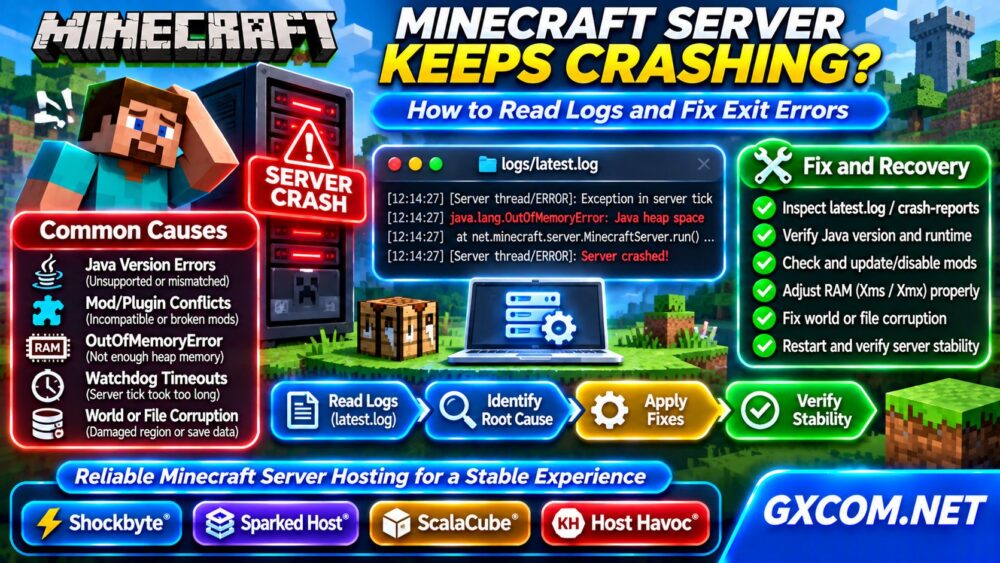
Minecraft Java Edition servers can fail during startup, world loading, or normal gameplay. These situations suggest different causes.
- Startup crash: Java incompatibility, missing libraries, invalid configuration, or mod loader errors.
- Crash while loading a world: Corrupted data, incompatible world files, or problematic mods.
- Crash during gameplay: Memory exhaustion, watchdog timeouts, or plugin failures.
- Unexpected process termination: Hosting memory limits, operating-system intervention, or external restarts.
Record the Minecraft version, server software, installed modifications, recent changes, and approximate crash time before troubleshooting.
1. Find Minecraft Server Logs and Crash Reports
Start with the logs/latest.log file in your server directory. It normally contains recent startup messages, warnings, and errors. Older compressed logs may help identify recurring failures.
When Minecraft generates a crash report, look inside the crash-reports directory. Filenames commonly include the crash date and time.
On Linux, inspect the latest messages using:
tail -n 100 logs/latest.logFor live monitoring, run:
tail -f logs/latest.logManaged hosting panels often provide console output and file managers. Download the complete log when asking for support, but remove credentials, private addresses, and other sensitive information before sharing it publicly.
2. Read the First Relevant Error, Not Just the Last Line
Search for terms such as ERROR, Exception, Caused by, OutOfMemoryError, and UnsupportedClassVersionError.
A final message saying the server stopped is often only a consequence. Inspect the preceding stack trace to identify the underlying exception, affected mod, or missing dependency.
Multiple errors may appear together. Focus on the earliest meaningful failure near the crash rather than assuming every warning requires action.

3. Fix Java Version and Exit Code Errors
Different Minecraft releases and mod loaders require compatible Java runtimes. A server launched with an unsupported Java version may fail before loading its world.
Check the installed runtime:
java -versionCompare the result with the official requirements for your exact Minecraft and loader versions. An UnsupportedClassVersionError commonly indicates that software was compiled for a newer Java runtime.
Exit code 1 is a general process failure indicator, not a diagnosis. Examine the full startup output before changing memory settings or reinstalling Java.
After correcting the runtime, restart once and review the new log rather than repeatedly changing unrelated settings.
4. Diagnose Mods and Plugin Conflicts
Modded Minecraft servers are particularly sensitive to version mismatches. Forge, Fabric, NeoForge, and plugin-based server software use different compatibility models.
Check whether every mod matches the installed Minecraft version and loader. Remove client-only mods from dedicated server installations when the mod author specifies they are unsuitable.
If crashes began after an update, restore the previous working configuration from a backup. Test changes on a separate instance whenever possible.
Disable suspected modifications in controlled groups, then narrow down the failing component. Avoid deleting an active world’s modded content without understanding potential data loss.
Our Modded Minecraft Server Hosting guide explains resource and compatibility considerations for larger modpacks.
5. Identify OutOfMemoryError and RAM Limits
A Java OutOfMemoryError can indicate insufficient heap memory or another memory-related failure. However, a process terminated by the operating system may leave no Java crash report.
Check your startup arguments. For example:
java -Xms2G -Xmx6G -jar server.jar noguiThis example sets a 2 GB initial heap and a 6 GB maximum heap. It is not a universal recommendation. The server also needs memory outside the Java heap, and the hosting environment requires additional headroom.
On a Linux VPS, inspect available memory and possible out-of-memory events:
free -h
journalctl -k --since "1 hour ago"
Look for relevant kernel messages, memory limits, or process termination evidence. If the server exceeds a hosting plan’s allocation, reducing memory demand or upgrading resources may be necessary.
6. Understand Watchdog Crashes and Server Freezes
Minecraft’s watchdog may terminate a server when its main tick takes excessively long. Crash reports can contain messages indicating that a single server tick exceeded the permitted duration.
Possible causes include expensive world generation, excessive entities, problematic plugins, overloaded CPU resources, or storage stalls.
Do not treat disabling the watchdog as a performance fix. Investigate tick times, CPU utilization, recent changes, and available profiling data first.
For broader diagnostics, read our Game Server Lag Troubleshooting guide.
7. Check World Corruption and Storage Problems
World-loading failures can involve damaged region files, incompatible saved data, or interrupted writes. Disk exhaustion can also prevent reliable saving and startup.
On Linux, check storage availability:
df -hStop the server before restoring world files. Create a separate copy of the affected world, preserve available logs, and restore a known-good backup when corruption is confirmed.
Avoid deleting region files blindly: doing so can permanently remove builds and terrain.
8. When Is Minecraft Hosting the Real Problem?
Not every crash requires a new provider. Software incompatibility and corrupted data will often follow the server to another host.

However, repeated resource-limit terminations, unstable CPU availability, inadequate storage, or missing administrative access can justify comparing hosting options.
Shockbyte, Sparked Host, ScalaCube, and Host Havoc are Minecraft hosting providers worth evaluating. Compare available memory, CPU policies, Java support, modpack installation, backups, and technical support for the exact plan.
Start with our Game Server Requirements guide, explore Game Hosting Comparisons, and review Game Server Deals before purchasing.
Frequently Asked Questions
Why Does My Minecraft Server Crash on Startup?
Common causes include incompatible Java versions, missing dependencies, invalid startup commands, and mod loader conflicts. Inspect the first relevant exception in the startup log.
Does Exit Code 1 Mean Insufficient RAM?
No. Exit code 1 is not specific to memory. Check the console output and logs for the actual failure.
Will More RAM Stop Minecraft Server Crashes?
Only when memory pressure is the cause. Additional RAM cannot repair incompatible mods, damaged world files, or software configuration errors.
Final Verdict
When a Minecraft server keeps crashing, preserve the logs, identify the first meaningful error, and change one variable at a time. Verify Java compatibility, investigate mods, inspect memory limits, and protect world backups before attempting repairs.
If reliable measurements reveal persistent infrastructure limitations, compare Minecraft hosting plans based on actual resources and support rather than advertised player counts alone.