Moving a website to a managed dedicated server can improve infrastructure control, resource isolation, and performance consistency. But a poorly planned migration can cause broken pages, missing emails, database inconsistencies, and unexpected downtime.
The challenge is not simply copying website files. A successful migration must preserve application data, DNS records, SSL certificates, email services, and user activity while switching production traffic to the new server.
Managed hosting can reduce the administrative workload, but the provider's migration responsibilities must be confirmed before the move begins.
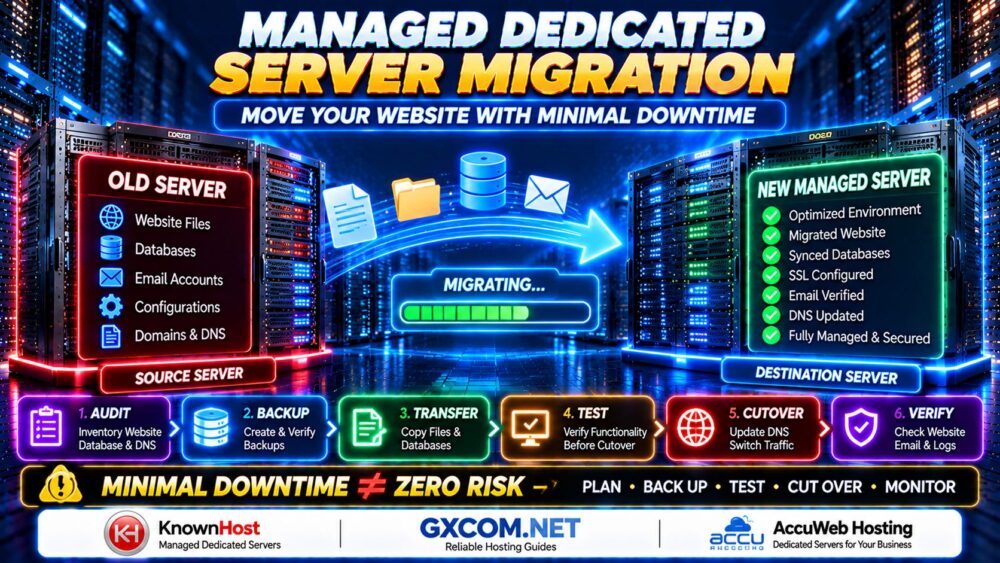
MINIMAL DOWNTIME ≠ ZERO RISK.
This guide explains how to migrate a website to a managed dedicated server, prepare a safe cutover, minimize service disruption, and recover quickly if something goes wrong.
What Is Managed Dedicated Server Migration?
Managed dedicated server migration is the process of transferring a website, application, or hosting environment from an existing server to a dedicated physical server with an agreed level of provider management.
A migration may involve:
- Website files and media
- MySQL, MariaDB, or other databases
- PHP versions and application dependencies
- Web server configuration
- SSL certificates
- DNS records
- Email accounts and mailboxes
- Scheduled tasks and background workers
- Backup and monitoring configurations
Not every managed hosting provider transfers all these components. Some assist with standard control panel migrations but exclude custom applications, complex databases, or third-party email systems.
Before choosing a migration provider, review our Managed Dedicated Hosting Features Guide to understand support, backups, security, and service boundaries.
Managed Dedicated Server Migration Checklist
| Stage | Essential Task | Expected Outcome |
|---|---|---|
| 1. Audit | Inventory websites, databases, email, and DNS | Complete migration scope |
| 2. Plan | Define maintenance window and rollback conditions | Approved migration plan |
| 3. Prepare | Configure and secure the destination server | Ready hosting environment |
| 4. Back Up | Create and verify independent backups | Recoverable source data |
| 5. Transfer | Copy files and import databases | Initial destination copy |
| 6. Test | Validate the site without changing public DNS | Functional destination |
| 7. Sync | Reconcile changes made after the initial copy | Consistent production data |
| 8. Cut Over | Switch traffic using a controlled procedure | New production environment |
| 9. Verify | Check transactions, logs, SSL, and email | Confirmed service health |
| 10. Retire | Decommission the old server after a safe period | Completed migration |
1. Audit Your Existing Website and Hosting Environment
Begin with a complete inventory. Migration failures often occur because a critical dependency was overlooked.
Document Your Application Stack
Record the current operating system, web server, PHP version, database engine, application version, installed extensions, and scheduled tasks.
For a typical Linux PHP website, useful diagnostic commands include:
php -v
php -m
mysql --version
df -h
du -sh /var/www/
These commands are examples; the actual application path and installed database client may differ.
Also identify configuration files, environment variables, API credentials, payment integrations, outbound email services, and external storage connections.
Inventory DNS and Email Services
Export or document relevant DNS records, including A, AAAA, CNAME, MX, TXT, SPF, DKIM, and DMARC configurations where applicable.
Check whether email is hosted on the same server, a separate provider, or a third-party platform.
Moving a website does not automatically require moving its email service.
2. Choose a Migration Window and Set Recovery Objectives
Schedule the migration during a period of relatively low activity, but do not assume that low traffic means no transactions or background processes are running.
Define:
- Who approves the migration
- Who performs each technical task
- When write activity will be paused
- How the team will communicate during cutover
- What conditions trigger rollback
- How long the old server will remain available
RPO and RTO Matter
Recovery Point Objective (RPO) is the maximum acceptable data loss measured in time.
Recovery Time Objective (RTO) is the target time to restore service after an interruption.
These are planning objectives, not automatic guarantees from a managed hosting provider.
For an active eCommerce store, even a short period of lost orders may be unacceptable. The migration plan must account for writes occurring during the transition.
3. Prepare the New Managed Dedicated Server
The destination server should be fully configured before production traffic is redirected.
Confirm that the provider or your technical team has completed:
- Operating system installation and updates
- Web server and PHP configuration
- Database installation and compatibility checks
- Firewall and SSH access configuration
- SSL certificate preparation
- Disk capacity and permissions checks
- Backup configuration
- Monitoring and alert setup
Verify the destination server's CPU, memory, storage, and network capacity against the actual workload.
For help evaluating hardware specifications, see our Dedicated Server Hardware Guide.
Check Software Compatibility Before Migration
A website that works on the old server may fail on the new server if PHP extensions, database versions, file permissions, or application dependencies differ.
Test compatibility in a staging environment rather than assuming the latest software versions will work with every existing application.
4. Create a Verified Backup Before Transferring Data
Never rely exclusively on a hosting provider's migration process as your only backup.
Before making changes, create independent copies of:

- Website files
- Databases
- Application configuration
- DNS settings
- Email data if email is being migrated
- Relevant certificates and deployment information
Store at least one backup outside the server being migrated and verify that it can be restored.
BACKUP CREATED ≠ RECOVERY VERIFIED.
5. Transfer Website Files and Databases
For many Linux websites, the first transfer can happen while the original website remains online.
Transfer Files Using rsync
For a Linux-to-Linux migration, rsync over SSH can efficiently copy files and repeat the transfer later to synchronize changes.
Run the following example from the destination server, after confirming SSH connectivity and the correct source path:
rsync -avz --progress \
  sourceuser@OLD_SERVER_IP:/var/www/example.com/ \
  /var/www/example.com/
Replace the example username, IP address, and directories with the actual values.
For production use, review ownership, permissions, symlinks, exclusions, and whether a privileged transfer method is necessary. Do not use destructive synchronization options without validating their effect.
Export a MySQL or MariaDB Database
For a small, compatible MySQL or MariaDB application, a logical database dump may be suitable.
mysqldump --single-transaction \
  --routines --triggers --events \
  -u DB_USER -p DB_NAME > site-backup.sql
The --single-transaction option can provide a consistent snapshot for supported transactional tables such as InnoDB. It does not guarantee consistency for every storage engine or concurrent schema change.
For large or busy databases, physical backups, replication, or specialized migration tools may be more appropriate.
Import the Database on the Destination
After securely transferring the dump and preparing the destination database:
mysql -u DB_USER -p DB_NAME < site-backup.sql
Check character sets, database permissions, stored routines, and application connection settings after import.
Important: An initial database copy is not the final synchronization if the original website continues accepting new orders, comments, registrations, or other writes.
6. Test the Website Before Changing DNS
Testing the destination before public cutover is one of the most effective ways to reduce migration risk.
For a conventional website, you can temporarily map its domain to the destination IP address in a local hosts file.
For example:
203.0.113.20 example.com
203.0.113.20 www.example.com
The address above is reserved for documentation and must be replaced with the actual destination IP.
Alternatively, test with a staging hostname or a request tool that supports resolving the domain to a specified address.
What Should You Test?
- Homepage and important landing pages
- WordPress administrator login
- Contact forms
- Database-driven pages
- Images and downloadable files
- SSL certificate validity
- Redirects and canonical URLs
- Scheduled tasks
- Payment and checkout workflows
- Outgoing email delivery
For WordPress, verify permalinks, media permissions, caching, PHP extensions, and plugin compatibility.
For WooCommerce, test the cart, checkout, order processing, payment callbacks, and transactional emails using safe test procedures.
Do not perform live payment transactions against an incomplete staging copy.
7. Reduce DNS Propagation Delays
DNS is often blamed for migration downtime, but DNS record changes are only one part of the cutover process.
Lower DNS TTL Before the Migration
Where supported, reduce the Time to Live (TTL) of relevant DNS records in advance.
A lower TTL can help compliant DNS resolvers refresh records sooner, but existing cached records may remain until their original TTL expires. Some resolvers may also behave differently.
Lowering TTL does not guarantee an instantaneous global switch.
Keep Both Servers Available During the Transition
During DNS changes, some visitors may reach the old server while others reach the new one.
For a static website, this may be manageable. For a dynamic website, accepting writes on two independent databases can create serious data inconsistencies.
DNS SWITCHED ≠ EVERY VISITOR SWITCHED.
Plan how to prevent conflicting writes while both environments are reachable.
8. Prevent Database Data Loss During Cutover
Database consistency is usually more important than the time required to copy website files.
For a simple WordPress website with limited write activity, a controlled migration might involve:
- Complete the initial file and database transfer.
- Test the destination website.
- Enable maintenance mode or temporarily pause writes on the original application.
- Stop scheduled jobs and background workers that could modify data.
- Perform the final database synchronization.
- Validate the destination database.
- Switch production traffic.
- Confirm the destination is the only environment accepting new writes.
For WooCommerce stores, membership websites, or high-traffic applications, maintenance mode alone may not be enough. Payment callbacks, queue workers, external integrations, and asynchronous jobs can continue changing data.
These systems may require a carefully designed replication, traffic-routing, or application-level migration strategy.
Can You Achieve Zero-Downtime Migration?
Near-zero or zero user-visible downtime may be achievable with suitable architecture, replication, load balancing, and a carefully controlled cutover.
However, it should never be assumed for a basic website migration.
For many small businesses, a short planned read-only or maintenance window is safer than risking lost transactions.
9. Migrate SSL, Email and Scheduled Tasks
SSL Certificates
Install or issue valid certificates on the destination before redirecting visitors. Verify the certificate covers the required hostnames and that automatic renewal is configured correctly.
Email Accounts
If email is hosted separately, preserve the existing MX and related DNS records unless a mail migration is intended.
If mailboxes are moving, plan mailbox synchronization, authentication settings, DNS changes, and final message reconciliation.
Do not assume that copying website files also migrates email.
Cron Jobs and Background Workers
Document scheduled tasks before migration. Ensure they are not running simultaneously on both servers in ways that could duplicate invoices, notifications, or database updates.
Activate the destination workers only when the cutover plan allows them to process production data.
10. Validate the New Server After Cutover
Once production traffic is directed to the new server, monitor the application closely.
Check:
- HTTP response codes and redirect behavior
- SSL and HTTPS functionality
- Application and web server error logs
- Database connectivity and query errors
- CPU, memory, disk, and network utilization
- Contact forms and outgoing email
- Orders, registrations, and payment callbacks
- Backup completion
- External monitoring alerts
Use multiple networks or external monitoring locations where possible to detect users still reaching the previous server.
Keep the old environment available until the migration has been validated and the agreed retention period has passed.
11. Prepare a Rollback Plan Before You Need It
A rollback plan defines how to restore the previous service if the destination fails acceptance checks.
It should include:
- Conditions that trigger rollback
- Who authorizes the decision
- How DNS or traffic routing will be restored
- How data changes will be reconciled
- Which backups will be used
- How customers will be informed
Warning: Once the new server starts accepting production writes, simply changing DNS back to the old server can lose or split data.
A safe rollback may require synchronizing changes back to the original database or temporarily suspending writes while restoring a consistent state.
Test the rollback procedure before the migration whenever practical.
12. What Does a Managed Hosting Provider Handle During Migration?
Managed dedicated hosting providers may assist with provisioning, supported software configuration, website transfers, database migration, and post-migration troubleshooting.
However, the scope of assistance varies by provider, plan, control panel, and application complexity.
KnownHost
KnownHost is worth evaluating for businesses that want a managed dedicated server and a clearly defined migration support process.
Before ordering, confirm which control panels and application types are eligible, whether migration assistance is included, and how the provider handles DNS, databases, and post-migration troubleshooting.
AccuWeb Hosting
AccuWeb Hosting is another option to consider when comparing dedicated server configurations and migration-related support.
Request written confirmation of the management level, migration scope, backup responsibilities, and any additional charges for complex application transfers.
Neither provider should be assumed to guarantee zero downtime or to migrate every custom application without additional work.
13. Managed Dedicated Server Migration Costs
Migration costs depend on the complexity of the environment rather than just the size of the website.
Potential expenses include:
- New server provisioning
- Migration labor or professional services
- Temporary overlap between old and new hosting
- Control panel licenses
- Backup storage
- Database synchronization tools
- Additional IP addresses
- Specialized troubleshooting
- Application testing and downtime planning
Ask whether the hosting provider charges for migration by account, website, server, or engineering time.
For a broader breakdown of hosting expenses, see our Dedicated Server Total Cost of Ownership Guide.
Common Dedicated Server Migration Mistakes
- Changing DNS too early: Test the destination first.
- Copying the database only once: Reconcile writes made after the initial transfer.
- Forgetting email: Check MX records, mailboxes, and authentication settings.
- Ignoring scheduled jobs: Prevent duplicate background processing.
- Assuming low TTL guarantees instant cutover: Plan for overlapping traffic.
- Skipping SSL checks: Validate certificates before launch.
- Deleting the old server immediately: Maintain a recovery window.
- Assuming managed means everything is included: Confirm the migration service scope.
Managed Dedicated Server Migration FAQ
How long does a dedicated server migration take?
The timeline depends on website size, database activity, application compatibility, network transfer speed, and testing requirements. A small website may be straightforward, while a large transactional platform can require extensive preparation.
Can I migrate a website without downtime?
Some architectures support near-zero or zero user-visible downtime, but this requires careful data synchronization and traffic management. A planned maintenance window may be safer for simpler environments.
Does managed dedicated hosting include free migration?
Not necessarily. Migration assistance may be included for eligible accounts or charged separately. Always verify the current provider policy.
Will changing DNS immediately move all visitors?
No. Cached DNS records may continue directing some visitors to the previous server until they expire or refresh.
How do I migrate a WordPress website?
Prepare the destination stack, back up files and databases, transfer and test the site, synchronize final changes, then perform a controlled traffic cutover.
How do I avoid losing WooCommerce orders?
Control all sources of database writes, including checkout activity, payment callbacks, scheduled jobs, and background queues. Use a migration strategy appropriate to the store's transaction volume.
Should I keep the old server after migration?
Yes, for a defined verification and recovery period. Do not allow both environments to accept conflicting production writes.
Is a managed dedicated server better for migration?
It can reduce administrative workload when the provider offers appropriate migration support. The actual benefit depends on the supported applications, service boundaries, and technical requirements.
Final Verdict: Plan the Cutover, Not Just the File Transfer
A successful managed dedicated server migration is a controlled infrastructure transition, not simply a file copy.
The safest process starts with an inventory and verified backups, followed by destination preparation, application testing, final data synchronization, and a carefully managed cutover.
Whether you evaluate KnownHost, AccuWeb Hosting, or another managed dedicated hosting provider, confirm the exact migration scope and recovery responsibilities before placing an order.
For businesses still deciding between management models, our Managed Dedicated vs Unmanaged Dedicated comparison explains the operational trade-offs.
AUDIT → BACKUP → TRANSFER → TEST → SYNC → CUTOVER → VERIFY.
MINIMAL DOWNTIME REQUIRES MAXIMUM PREPARATION.