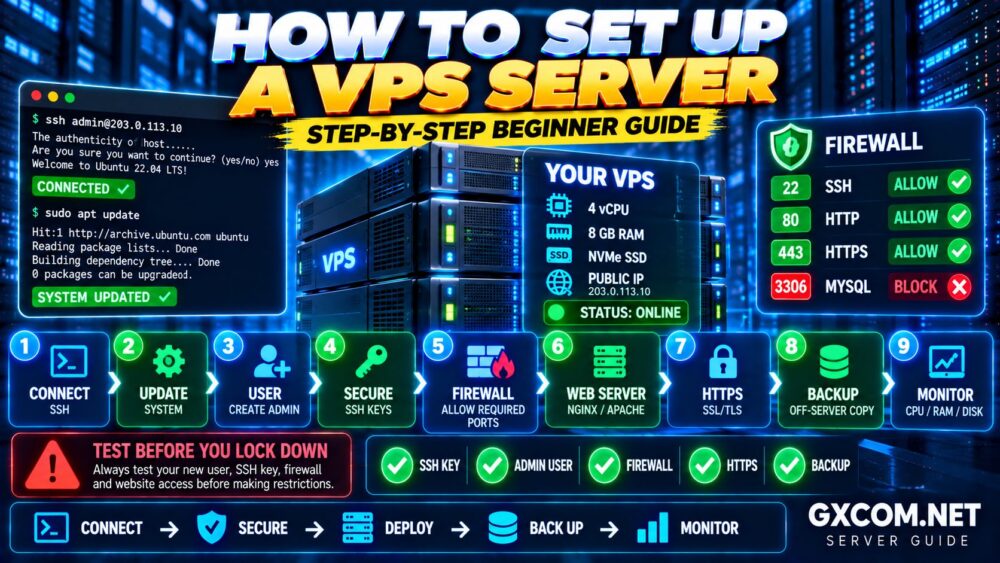
A fresh Linux server may be online within minutes, but that does not mean it is ready for production.
Before deploying WordPress, a database, API, web application or other workload, you should configure the operating system, administrative users, SSH access, firewall, updates, time synchronization, logging, backups and monitoring.
A good Linux server setup reduces unnecessary exposure while creating a stable foundation for everything you install later.
This guide walks through the essential Linux server configuration steps for a new VPS, cloud server or dedicated server, with a particular focus on security, SSH and firewall configuration.
Linux Server Setup: Update → Users → SSH → Firewall → Time → Services → Security → Backups → Monitoring.
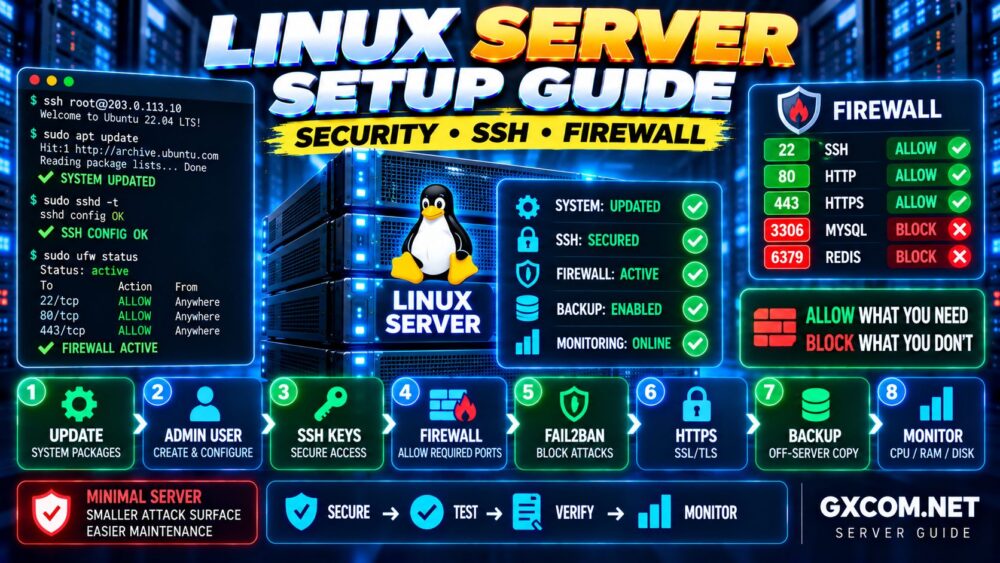
What Should You Configure on a New Linux Server?
A basic Linux server setup should address several important areas:
- Operating system updates
- Hostname and timezone
- Administrative users
- SSH authentication
- Root access
- Firewall rules
- Automatic security updates
- Unnecessary services
- Brute-force protection
- Logs
- Storage and memory
- Backups
- Monitoring
The exact configuration depends on what the server will do.
A public web server, database server, development server and Docker host should not automatically have identical firewall rules or installed software.
Workload First → Configuration Second.
Linux Server Setup Checklist
| Configuration | Purpose | Priority |
|---|---|---|
| System Updates | Patch known vulnerabilities and bugs | Critical |
| Admin User | Reduce routine root usage | Critical |
| SSH Keys | Secure remote authentication | Critical |
| Firewall | Limit exposed services | Critical |
| Time Sync | Accurate logs and authentication | High |
| Security Updates | Maintain patching | High |
| Fail2ban | Reduce repeated login attacks | Optional/Useful |
| Backups | Recover data and configuration | Critical |
| Monitoring | Detect failures and resource problems | High |
1. Connect to the Linux Server
Most Linux servers are administered remotely through SSH.
From Linux, macOS or a modern Windows environment with an SSH client, the basic command is:
ssh root@SERVER_IP
For example:
ssh [email protected]
Your hosting provider may use another initial username, such as:
ubuntu
debian
ec2-user
cloud-user
Use the credentials provided by your server provider.
When connecting for the first time, SSH may display the host key fingerprint.
Where possible, verify this fingerprint through your provider before accepting it.
2. Update the Linux Server
One of the first things you should do is update the operating system.
For Ubuntu and Debian:
sudo apt update
sudo apt upgrade -y
On distributions such as AlmaLinux or Rocky Linux, package-management commands differ.
For example:
sudo dnf update
Always follow the documentation for your exact distribution and version.
A freshly created server image may still contain packages with available security updates.
Fresh Installation ≠ Fully Patched Server.
3. Check Whether the Server Needs a Reboot
Some updates—particularly kernel or low-level system updates—may require a reboot before the new components are active.
On Ubuntu/Debian systems, one useful check is:
test -f /var/run/reboot-required && echo "Reboot required"
If a reboot is required and it is safe for your workload:
sudo reboot
Your SSH connection will close while the server restarts.
4. Configure the Linux Hostname
A clear hostname makes servers easier to identify in logs, monitoring systems and administration tools.
Check the current hostname:
hostnamectl
Set a new hostname:
sudo hostnamectl set-hostname web01.example.com
Useful naming conventions might include:
web01.example.com
web02.example.com
db01.example.com
app01.example.com
A consistent naming convention becomes increasingly important as infrastructure grows.
5. Configure the Server Timezone
Correct system time is important for:
- Server logs
- Authentication
- Scheduled jobs
- SSL/TLS
- Database records
- Security investigations
Check the current configuration:
timedatectl
To use UTC:
sudo timedatectl set-timezone UTC
UTC is often convenient for servers distributed across multiple geographic regions because it gives administrators a consistent time reference.
6. Create a Non-Root Administrative User
Using the root account for every task increases the consequences of administrative mistakes.
Create a separate user:
adduser adminuser
On Ubuntu/Debian, grant sudo privileges:
usermod -aG sudo adminuser
Then test:
su - adminuser
and:
sudo whoami
The result should be:
root
This means the account can perform administrative tasks through sudo.
7. Configure SSH Key Authentication
SSH keys are one of the most important parts of a secure Linux server setup.
On your local computer, generate an Ed25519 key if you do not already have an appropriate SSH key:
ssh-keygen -t ed25519
This normally creates a private key and a corresponding public key.
The private key stays private.
Never upload it to public repositories, paste it into support forums or share it through screenshots.
If your local system provides ssh-copy-id, copy the public key:
ssh-copy-id adminuser@SERVER_IP
Then test:
ssh adminuser@SERVER_IP
Do this from a second terminal while keeping your existing session open.
Never remove your current login method until the replacement has been tested.
8. Understand SSH File Permissions
Incorrect SSH file permissions can prevent key authentication from working.
A typical user configuration includes:
~/.ssh/
~/.ssh/authorized_keys
Permissions commonly used are:
chmod 700 ~/.ssh
chmod 600 ~/.ssh/authorized_keys
The files should also belong to the correct user.
If SSH keys suddenly stop working after copying or editing files, permissions and ownership are among the first things to check.
9. Harden the SSH Server
OpenSSH server configuration is commonly located at:
/etc/ssh/sshd_config
Modern systems may also load configuration snippets from:
/etc/ssh/sshd_config.d/
Depending on your security requirements, settings may include:
PermitRootLogin no
PubkeyAuthentication yes
PasswordAuthentication no
However, do not blindly disable root or password authentication.
First verify:
- Your administrative user works
- SSH key authentication works
- Sudo works
- You have access to the provider's console or recovery system
Validate the SSH configuration before applying changes:
sudo sshd -t
If the command reports an error, fix it before reloading SSH.
10. Should You Change the SSH Port?
Many Linux servers use TCP port 22 for SSH.
Changing it can reduce noise from some automated scans, but it should not be confused with strong authentication or real access control.
Your main SSH defenses should be:
- Secure keys
- Appropriate root login policy
- Strong account security
- Firewall rules
- Updates
- Monitoring
Non-Standard Port ≠ Secure SSH.
11. Configure the Linux Firewall
A firewall controls which network services are reachable.
The basic principle is simple:
Allow What You Need. Block What You Don't.
Ubuntu commonly uses UFW as an easy firewall-management interface.
Check its status:
sudo ufw status
Before enabling it, allow SSH:
sudo ufw allow OpenSSH
For a public web server:
sudo ufw allow 80/tcp
sudo ufw allow 443/tcp
Then enable it:
sudo ufw enable
Verify:
sudo ufw status verbose
12. Which Ports Should a Linux Web Server Open?
A typical public web server may require:
| Port | Service | Typical Exposure |
|---|---|---|
| 22 | SSH | Restricted where practical |
| 80 | HTTP | Public |
| 443 | HTTPS | Public |
| 3306 | MySQL/MariaDB | Usually Private |
| 5432 | PostgreSQL | Usually Private |
| 6379 | Redis | Usually Private |
Databases and caching services generally should not be exposed directly to the public internet unless your architecture explicitly requires remote access and you have implemented appropriate security controls.
Installed Service ≠ Public Service.
13. Understand Provider Firewalls vs Server Firewalls
Cloud and VPS providers may offer an external firewall in addition to the firewall inside Linux.
This creates two security layers:
Internet → Provider Firewall → Linux Firewall → Application
Using both can be useful.
For example, the provider firewall may restrict SSH to known source addresses while the local firewall controls access between services.
But remember that conflicting firewall rules can make troubleshooting more difficult.
Document which layer controls which traffic.
14. Enable Automatic Security Updates
Security patches should not depend entirely on someone remembering to log in manually.
Ubuntu/Debian systems can use unattended upgrades for eligible updates.
Install the package if needed:
sudo apt install unattended-upgrades -y
Then review the configuration appropriate for your server.
Automation does not eliminate the need for monitoring.
You should still know:
- Whether updates succeeded
- Whether services need restarting
- Whether a reboot is required
- Whether an application depends on a specific package version
Automated Patching + Monitoring > Automated Patching Alone.
15. Install Fail2ban If Appropriate
Public SSH services often receive repeated automated login attempts.
Fail2ban can monitor logs and temporarily block addresses that repeatedly trigger configured authentication failures.
On Ubuntu/Debian:
sudo apt install fail2ban -y
Check the service:
sudo systemctl status fail2ban
Do not treat Fail2ban as a replacement for SSH keys or a firewall.
The better model is:
SSH Keys + Firewall + Updates + Monitoring + Fail2ban
16. Review Running Services
Every network-facing service increases the number of components you must maintain.
View listening sockets with:
sudo ss -tulpn
This helps identify which processes are listening for network connections.
Ask:
- Do I recognize this service?
- Does it need to be running?
- Does it need to listen on every interface?
- Does it need public internet access?
Disable services you genuinely do not need rather than leaving unnecessary software running indefinitely.
17. Manage Services With systemd
Many modern Linux distributions use systemd to manage services.
Common commands include:
systemctl status nginx
systemctl start nginx
systemctl stop nginx
systemctl restart nginx
systemctl reload nginx
systemctl enable nginx
Understand the difference between restart and reload.
A reload can allow some services to apply configuration changes without a complete restart, but behavior depends on the service.
18. Install Only the Software You Need
A new server does not need every administration utility, web server, database and control panel you encounter in tutorials.
A few common utilities may include:
sudo apt install curl wget unzip git htop -y
But the general rule should be:
Minimal Server → Smaller Attack Surface → Easier Maintenance.
Install software because the workload needs it, not because another server happens to use it.
19. Check Disk Usage
Disk exhaustion can cause databases, applications and system services to fail.
Check filesystem usage:
df -h
To examine directory sizes:
du -sh /var/* 2>/dev/null
Common causes of growing disk usage include:
- Logs
- Database files
- Website uploads
- Local backups
- Package caches
- Docker images
- Temporary files
Monitor disk growth before the filesystem becomes completely full.
20. Check Linux Memory Usage
Use:
free -h
Linux intentionally uses available RAM for caches, so beginners should not assume that all “used” memory represents a problem.
Evaluate:
- Available memory
- Swap activity
- Application usage
- Out-of-memory events
- Long-term trends
Used RAM ≠ Wasted RAM.
21. Should You Configure Swap?
Swap can provide additional virtual memory when physical RAM becomes constrained.
Check current swap:
swapon --show
and:
free -h
A small VPS may benefit from appropriately configured swap, but swap is not a replacement for sufficient physical memory.
Heavy swapping can significantly reduce performance, especially for latency-sensitive applications.
Swap = Safety Buffer, Not Free RAM.
22. Monitor CPU and System Load
Useful commands include:
top
htop
uptime
These can help identify CPU-intensive processes and system load.
However, high load does not always mean the CPU is the bottleneck.
Processes waiting on disk or other resources can contribute to load as well.
Before upgrading the server, determine whether the real constraint is:
CPU → RAM → Disk I/O → Database → Network → Application
If the server already feels slow, use this diagnostic approach rather than immediately purchasing more resources.
23. Configure Log Management
Logs are essential for diagnosing security incidents and application failures.
Depending on the Linux distribution and software stack, logs may be available through:
/var/log/
and systemd's journal:
journalctl
Useful examples include:
journalctl -p err
journalctl -u ssh
journalctl -u nginx
Service names vary by distribution.
Logs should also be rotated so they do not consume the entire filesystem.
24. Check Failed SSH Login Attempts
Authentication logs can help identify repeated failed SSH attempts.
On Ubuntu/Debian, authentication information is commonly available in:
/var/log/auth.log
For example:
sudo grep "Failed password" /var/log/auth.log
On other distributions, authentication logs may use different files or the system journal.
Do not be surprised if a public server receives automated login attempts.
Public IP addresses are routinely scanned.
25. Configure DNS Correctly
If the Linux server will host a website or application, configure DNS only after you know which server addresses should receive traffic.
Typical records include:
example.com      A       IPv4_ADDRESS
www.example.com  A       IPv4_ADDRESS
For IPv6:
example.com AAAA IPv6_ADDRESS
Do not publish an AAAA record unless the server is actually configured to handle IPv6 traffic correctly.
An outdated IPv6 record can create confusing problems where the website works for some visitors but fails for others.
26. Configure HTTPS for Public Websites
If the Linux server hosts a public website, enable HTTPS after DNS and the web server are working correctly.
Use a publicly trusted certificate and configure automatic renewal where possible.
Our SSL certificate installation guide explains HTTPS setup in more detail.
Once configured, verify:
- Certificate validity
- Hostname coverage
- Certificate chain
- HTTP-to-HTTPS redirect
- Automatic renewal
27. Secure the Database
If the server runs MySQL, MariaDB, PostgreSQL or another database, do not expose it publicly by default.
For a single-server website architecture:
Application → Local Database
is usually preferable to:
Internet → Public Database Port
If remote database access is required, restrict it using appropriate network and database access controls.
Also use:
- Unique database users
- Strong credentials
- Minimum required privileges
- Regular backups
28. Use Least Privilege
Not every application should run as root.
Not every user needs sudo access.
Not every database account needs access to every database.
Not every service needs to listen on all interfaces.
This principle is known as least privilege.
Give each user, application and service only the permissions required to perform its job.
This limits the potential impact if one component is compromised.
29. Configure Backups
Before placing important data on the server, decide how it will be backed up.
A backup strategy may include:
- Application files
- Databases
- Configuration files
- Server snapshots
- Off-site copies
- Multiple restore points
Do not keep the only backup on the same VPS.
If the server, account or storage fails, both production data and the backup could disappear together.
Server + Backup on Same Server = Single Failure Domain.
30. Test Backup Restoration
A backup job reporting “successful” does not prove that you can recover the system.
Periodically test:
- File restoration
- Database restoration
- Configuration recovery
- Credentials required for recovery
- Recovery time
The real objective is not creating backups.
It is recovering successfully.
Backup ≠ Recovery Until You Test the Restore.
31. Set Up Server Monitoring
A production Linux server should not depend on someone manually checking it every day.
Monitor at least:
- Server availability
- CPU usage
- RAM usage
- Disk space
- Disk I/O
- Network traffic
- Load
- Important services
- Backup status
- SSL certificate expiration
Alerts are particularly useful for conditions such as:
- Server offline
- Disk almost full
- Service stopped
- Backup failed
- Certificate approaching expiration
32. Reboot Carefully
A Linux server does not need to be rebooted simply because it has been running for a long time.
Reboot when there is a technical reason, such as:
- Required kernel update
- Planned maintenance
- Specific troubleshooting
Before rebooting a production server, understand which services must automatically return afterward.
Check important services with:
systemctl status SERVICE_NAME
33. Document Your Server Configuration
Documentation becomes invaluable when something breaks months later.
Record information such as:
- Server purpose
- Operating system
- Hostname
- Public/private IP roles
- Open ports
- Installed services
- Firewall rules
- Backup locations
- Monitoring systems
- DNS configuration
- Recovery procedures
Do not store sensitive passwords or private SSH keys in insecure documentation.
Linux Server Security: What Should You Prioritize?
Beginners sometimes focus on obscure hardening tweaks while missing basic controls.
Prioritize the fundamentals:
1. PATCH
Keep software updated.
2. AUTHENTICATE
Use secure SSH authentication.
3. RESTRICT
Expose only required ports and services.
4. LIMIT
Use least privilege.
5. BACK UP
Keep recoverable copies outside the server.
6. MONITOR
Know when something changes or fails.
Advanced hardening is useful, but it should build on these fundamentals rather than replace them.
Common Linux Server Setup Mistakes
Using Root for Everything
Create separate administrative and application accounts where appropriate.
Disabling SSH Access Too Early
Test your new user and SSH key before disabling existing access.
Enabling the Firewall Before Allowing SSH
This is a classic way to lock yourself out of a remote server.
Opening Every Port
Only expose services that require external access.
Exposing MySQL or Redis Publicly
Do not make backend services public unless your architecture requires it.
Installing Too Much Software
Every additional package creates maintenance overhead.
Ignoring Logs
Logs often provide the first evidence of configuration or security problems.
Keeping Backups Only on the Server
This does not protect against loss of the entire server.
Assuming Automatic Renewal Always Works
Monitor SSL certificate renewal and deployment.
Upgrading the Server Before Finding the Bottleneck
More CPU and RAM will not repair every application, database, storage or network problem.
Linux Server Setup vs VPS Setup: What's the Difference?
A VPS setup guide focuses on the complete process of taking a newly purchased VPS from initial login to a running workload.
A Linux server setup guide focuses more deeply on configuring and maintaining the Linux operating system itself.
If you have just purchased your first VPS, start with our How to Set Up a VPS Server guide.
Then use this guide to strengthen the underlying Linux configuration.
Linux Server Setup FAQ
What should I do first on a new Linux server?
Verify your access, update the operating system, create an administrative user, configure secure SSH access and establish firewall rules before deploying production applications.
Should I disable root login on Linux?
Restricting direct remote root login is a common security measure. Before doing so, verify that another administrative account has working SSH key authentication and sudo access.
Should I disable SSH passwords?
Key-based authentication can reduce reliance on passwords. Test SSH key access and ensure you have recovery-console access before disabling password authentication.
Do Linux servers need a firewall?
Yes. A firewall helps limit which network services are reachable. VPS and cloud providers may also offer an external firewall that can complement the operating system firewall.
Is UFW enough for a Linux server?
UFW can provide straightforward host-level firewall management for many Ubuntu servers. Firewall requirements depend on the architecture, and complex environments may use other firewall technologies or provider-level controls.
Do I need Fail2ban?
Not every server requires it, but it can help reduce repeated automated login attempts. It should supplement secure authentication, firewall rules and monitoring rather than replace them.
Should I change SSH port 22?
You can, and doing so may reduce some automated scan noise, but changing the port is not a substitute for SSH keys, secure authentication and access controls.
Should MySQL port 3306 be open?
For many single-server web applications, no. The database can communicate locally with the application without exposing MySQL directly to the internet.
How often should a Linux server be updated?
Security updates should be applied promptly according to the risk and operational requirements of the server. Automated security updates can help, but they should still be monitored.
How do I know whether my Linux server is secure?
No configuration makes a server permanently “secure.” Security is an ongoing process involving updates, access control, firewall rules, application security, monitoring, backups and regular review.
Essential Linux Server Configuration Checklist
- ✓ Update operating system
- ✓ Reboot if required
- ✓ Set hostname
- ✓ Configure timezone and time synchronization
- ✓ Create non-root administrator
- ✓ Configure SSH keys
- ✓ Verify SSH file permissions
- ✓ Review root SSH access
- ✓ Review password authentication
- ✓ Validate SSH configuration
- ✓ Configure firewall
- ✓ Allow only required ports
- ✓ Review listening services
- ✓ Enable security updates
- ✓ Configure brute-force protection if appropriate
- ✓ Restrict database exposure
- ✓ Apply least privilege
- ✓ Configure HTTPS for websites
- ✓ Monitor disk space
- ✓ Monitor RAM and swap
- ✓ Monitor CPU and load
- ✓ Review logs
- ✓ Configure off-server backups
- ✓ Test restoration
- ✓ Configure uptime and resource monitoring
- ✓ Document the server
Final Recommendation
A reliable Linux server setup is not about applying hundreds of complicated hardening tweaks.
Start with the fundamentals and configure them correctly.
UPDATE
↓
CREATE ADMIN USER
↓
SECURE SSH
↓
CONFIGURE FIREWALL
↓
REMOVE UNNECESSARY EXPOSURE
↓
PATCH
↓
BACK UP
↓
MONITOR
Above all, avoid making security changes blindly.
Test the new administrator before restricting root. Test SSH keys before disabling passwords. Allow SSH before enabling the firewall. Test HTTPS before forcing redirects. Test backups before depending on them.
SECURE → TEST → VERIFY → MONITOR
A well-configured Linux server gives your website or application a much stronger foundation—and makes future troubleshooting significantly easier.