Deploying Docker containers on Google Cloud Run allows developers to run containerized web applications without managing virtual machines, operating system patches, or traditional server infrastructure.
Google Cloud Run is a fully managed application platform that supports container-based services, automatic scaling, HTTPS endpoints, and integration with Google Cloud services.
However, a production deployment requires more than uploading a Docker image. You also need to configure container ports, permissions, secrets, monitoring, resource limits, and a reliable release process.
In this guide, you will learn how to deploy Docker containers to Google Cloud Run using Cloud Build and Artifact Registry, then prepare the application for production traffic.
Google Cloud Run Docker Deployment: Quick Overview
| Component | Purpose |
|---|---|
| Dockerfile | Defines the application container image |
| Cloud Build | Builds the container image |
| Artifact Registry | Stores container images |
| Cloud Run | Runs and scales the containerized service |
| IAM | Controls deployment and service permissions |
| Secret Manager | Stores sensitive configuration values |
| Cloud Logging | Collects application logs |
| Cloud Monitoring | Tracks service health and performance |
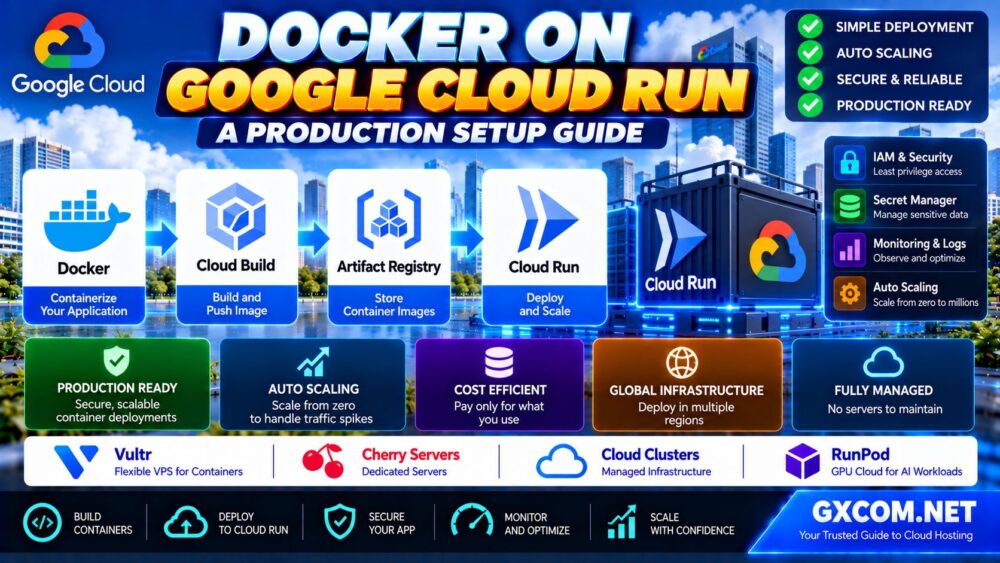
Deployment workflow: Prepare the application, build the image, push it to Artifact Registry, deploy it to Cloud Run, configure security, and monitor the production service.
1. What Is Google Cloud Run?
Google Cloud Run is a managed platform for running applications packaged as containers.
Unlike a traditional virtual machine, Cloud Run does not require developers to administer the underlying server operating system.
For supported workloads, it provides automatic scaling, revision-based deployments, and managed HTTPS endpoints.
Cloud Run is commonly used for:
- REST APIs
- Containerized web applications
- Backend microservices
- Webhook receivers
- Event-driven processing
- Internal application services
Cloud Run also supports other execution models, including jobs and worker-oriented workloads, but this tutorial focuses on deploying an HTTP service.
If you are deciding whether a managed container platform is appropriate, read our Google Cloud Run vs Compute Engine Comparison before proceeding.
2. Prerequisites for Deploying Docker to Cloud Run
Before starting, prepare:
- A Google Cloud project with billing enabled
- Google Cloud CLI installed and authenticated
- A Dockerized application or application source code
- Permissions to use Cloud Build, Artifact Registry, and Cloud Run
- An appropriate Google Cloud Region
- A plan for secrets, databases, and application access
For production projects, use least-privilege IAM roles rather than assigning broad administrative permissions unnecessarily.
Cloud Build's build service account and the Cloud Run runtime service account are different identities and may require different permissions.
3. Create a Docker Application
This example uses a small Node.js HTTP application. The same general deployment process can be adapted for Python, Go, Java, PHP, and other supported runtimes.
Create package.json
{
  "name": "cloud-run-demo",
  "version": "1.0.0",
  "private": true,
  "scripts": {
    "start": "node server.js"
  },
  "engines": {
    "node": ">=22"
  }
}
Create server.js
const http = require("node:http");

const port = Number(process.env.PORT || 8080);

const server = http.createServer((req, res) => {
  if (req.url === "/health") {
    res.writeHead(200, {
      "Content-Type": "application/json"
    });
    res.end(JSON.stringify({ status: "ok" }));
    return;
  }

  res.writeHead(200, {
    "Content-Type": "application/json"
  });

  res.end(JSON.stringify({
    message: "Hello from Google Cloud Run!"
  }));
});

server.listen(port, "0.0.0.0", () => {
  console.log(`Listening on port ${port}`);
});
The important configuration is process.env.PORT combined with the 0.0.0.0 network binding.
Cloud Run needs the ingress container to listen on the configured port and accept traffic from outside the container's loopback interface.
4. Create a Production-Friendly Dockerfile
Create a file named Dockerfile in the application directory:
FROM node:22-alpine

ENV NODE_ENV=production

WORKDIR /app

COPY package.json ./
COPY server.js ./

USER node

EXPOSE 8080

CMD ["node", "server.js"]
This example uses a supported Node.js major-version image family, avoids unnecessary dependencies, and runs the application as a non-root user.
For production deployments, use a currently supported, patched base image and consider pinning the image to a verified digest for reproducible builds.
Create a .dockerignore File
node_modules
.git
.env
.env.*
*.log
Dockerfile.local
A .dockerignore file helps prevent unnecessary files and local secrets from entering the build context.
Never bake production API keys or database passwords directly into the container image.
5. Configure Your Google Cloud Project
Open a terminal with the Google Cloud CLI installed.
Replace the example project ID and Region with your own values.
export PROJECT_ID="your-project-id"
export REGION="us-central1"
export REPOSITORY="cloud-run-images"
export SERVICE="docker-web-app"

gcloud auth login

gcloud config set project "$PROJECT_ID"
Enable the required APIs:
gcloud services enable \
  run.googleapis.com \
  cloudbuild.googleapis.com \
  artifactregistry.googleapis.com \
  secretmanager.googleapis.com
API enablement and resource creation require suitable permissions in the selected project.
6. Create an Artifact Registry Repository
Artifact Registry stores the container images used by your Cloud Run deployments.
Create a Docker repository:
gcloud artifacts repositories create "$REPOSITORY" \
  --repository-format=docker \
  --location="$REGION" \
  --description="Cloud Run container images"
If the repository already exists, reuse it rather than creating a duplicate.
Construct the image name:
export IMAGE="$REGION-docker.pkg.dev/$PROJECT_ID/$REPOSITORY/$SERVICE:v1"Using a dedicated repository makes it easier to manage image permissions, cleanup policies, and deployment artifacts.
7. Build the Docker Image With Cloud Build
Run the build command from the directory containing your Dockerfile:
gcloud builds submit \
  --tag "$IMAGE" \
  .
Cloud Build uploads the source context, builds the container image, and pushes it to Artifact Registry.
The build identity must have permission to upload artifacts to the selected repository.

Depending on project settings, you may need to configure the Cloud Build service account and grant the appropriate Artifact Registry permissions before the build succeeds.
After the build completes, verify that the image appears in Artifact Registry.
8. Deploy the Container to Google Cloud Run
Deploy the image as a Cloud Run service:
gcloud run deploy "$SERVICE" \
  --image "$IMAGE" \
  --region "$REGION" \
  --port 8080 \
  --memory 512Mi \
  --cpu 1 \
  --concurrency 40 \
  --max-instances 10 \
  --no-allow-unauthenticated
This configuration deploys the service with authentication required by default.
It also sets an initial memory allocation, CPU allocation, concurrency limit, and maximum instance count.
These values are examples, not universal production recommendations. Adjust them after load testing and cost analysis.
Allow Public Access When Required
If the application is intended to be a public website or public API, configure unauthenticated access deliberately.
For environments that support IAM-based public access, the following option can be used during deployment:
--allow-unauthenticatedSome organizations restrict public IAM bindings. Google Cloud also supports a Cloud Run Invoker IAM check configuration for public services where permitted by organizational policy.
Do not expose administrative endpoints, internal APIs, or sensitive application data simply to make testing easier.
9. Test the Cloud Run Deployment
Retrieve the service URL:
gcloud run services describe "$SERVICE" \
  --region "$REGION" \
  --format="value(status.url)"
For a publicly accessible service, open the URL in a browser.
For a service that requires authentication, use an identity authorized to invoke it.
For example, with appropriate IAM permissions:
export SERVICE_URL="$(gcloud run services describe "$SERVICE" \
  --region "$REGION" \
  --format='value(status.url)')"

curl -H "Authorization: Bearer $(gcloud auth print-identity-token)" \
  "$SERVICE_URL/health"
The test should return a successful JSON health response.
If authentication fails, verify the calling identity, Cloud Run Invoker permissions, and token audience requirements.
10. Configure Environment Variables and Secrets
Applications commonly need configuration values such as database hostnames, feature flags, and API endpoints.
Non-sensitive values can be supplied as environment variables.
gcloud run services update "$SERVICE" \
  --region "$REGION" \
  --update-env-vars APP_ENV=production
For passwords, API keys, and other sensitive values, use Google Cloud Secret Manager instead of placing secrets in source code or container images.
Create a Secret
For an example secret, securely provide its value through the supported Secret Manager workflow.
Grant the Cloud Run runtime service account the minimum required Secret Manager access.
Then configure the service to reference the secret:
gcloud run services update "$SERVICE" \
  --region "$REGION" \
  --update-secrets API_KEY=app-api-key:latest
This command assumes the secret exists and the runtime service account has permission to access it.
For production environments, consider pinning secrets to specific versions and using a controlled rotation process.
11. Configure Cloud Run Autoscaling
Cloud Run can automatically adjust service instance counts based on demand and configured scaling behavior.
Important settings include:
- Minimum instances
- Maximum instances
- Request concurrency
- CPU allocation
- Memory allocation
- Request timeout
Minimum Instances
Keeping a minimum number of instances available may help reduce startup latency for latency-sensitive applications.
However, maintaining idle capacity can increase costs.
Maximum Instances
A maximum instance setting helps limit how far the service can scale under normal conditions.
It should not be treated as an absolute financial guarantee because other billable services and usage patterns still affect total spending.
Concurrency
Concurrency controls how many requests an individual instance can handle simultaneously.
Higher concurrency may improve resource efficiency for some applications, but CPU-intensive or memory-sensitive workloads may perform better with lower settings.
Benchmark realistic traffic before choosing production limits.
12. Cloud Run Pricing and Cost Optimization
Cloud Run pricing depends on the selected billing model, allocated resources, usage, and other billable services.
Potential cost components include:
- CPU usage or allocated CPU time
- Memory usage or allocated memory time
- Requests under applicable billing models
- Minimum instance capacity
- Artifact Registry storage
- Cloud Build usage
- Network traffic
- Logging and monitoring
- External databases and supporting services
Cloud Run services can scale to zero when their configuration and workload allow it.
However, scale-to-zero behavior does not mean the entire application architecture has no idle cost.
For applications requiring a continuously running operating system, specialized networking, or persistent local services, a traditional VM may be more suitable.
Our Google Cloud VM Pricing Guide explains machine types, discounts, storage costs, and other charges to consider when comparing Cloud Run with Compute Engine.
13. When Should You Use a Docker VPS Instead?
Cloud Run is well suited to many HTTP applications, but some containerized workloads need more infrastructure control.
Examples include applications requiring a custom host operating system, privileged container behavior, specialized networking, or software that is not compatible with the managed Cloud Run execution model.
For these workloads, a traditional cloud VPS may be worth evaluating.
Vultr is one candidate for developers comparing configurable virtual servers and Docker hosting infrastructure.
Cherry Servers may be relevant for teams considering dedicated resources for sustained container workloads.
These services are not direct replacements for Cloud Run's fully managed deployment and autoscaling features.
Compare operating system management, network requirements, backup responsibilities, and application availability before migrating.
Before moving a containerized application from a managed platform to a virtual server, review our Cloud Hosting vs VPS Comparison to understand the differences in scalability, infrastructure control, performance and management responsibilities.
14. Secure a Production Cloud Run Service
Production container security should cover both the application and its deployment infrastructure.
Use a Dedicated Runtime Service Account
Assign a service account with only the permissions required by the application.
Avoid using broad project-level permissions when narrower resource-level access is sufficient.
Protect Secrets
Use Secret Manager for sensitive configuration values.
Keep Container Images Updated
Rebuild and redeploy images when security patches become available.
Restrict Application Access
Choose the appropriate authentication and ingress model.
For internal applications, consider private access patterns and supported networking controls.
Validate Input and Dependencies
Apply standard application security practices, including input validation, dependency scanning, and appropriate authentication.
Use Least Privilege
Separate build, deployment, and runtime permissions wherever practical.
15. Configure Logging, Monitoring and Alerts
Cloud Run integrates with Google Cloud's observability services.
Application output written to standard output and standard error can be collected by Cloud Logging.
Monitor:
- Request latency
- Error rates
- Instance counts
- CPU and memory usage
- Startup failures
- Application exceptions
- Service availability
Configure alerts for meaningful production problems rather than relying only on manual dashboard checks.
Use structured logs where possible and avoid writing passwords, access tokens, or other sensitive data to log output.
16. Deploy New Revisions and Roll Back Safely
Cloud Run supports revision-based deployments, allowing teams to introduce new application versions and manage traffic between revisions.
A safer production workflow includes:
- Build a new container image.
- Deploy a new revision.
- Run health and smoke tests.
- Gradually shift traffic where appropriate.
- Monitor errors and latency.
- Restore traffic to a previous healthy revision if necessary.
For example, deploying without immediately directing traffic to the new revision can support staged verification:
gcloud run deploy "$SERVICE" \
  --image "$IMAGE" \
  --region "$REGION" \
  --no-traffic
After testing, manage revision traffic through the Google Cloud console or the supported Cloud Run CLI commands.
Application database migrations require additional planning because rolling back the container does not automatically reverse schema changes.
17. Cloud Run Alternatives for Specialized Containers
Some workloads are not well matched to an HTTP-focused managed container service.
For example, GPU-intensive AI applications, specialized processing pipelines, and workloads requiring dedicated hardware may need a different deployment environment.
RunPod is relevant when evaluating GPU infrastructure for compatible AI container workloads.
Cloud Clusters may also be worth investigating for supported application hosting and infrastructure requirements, depending on the specific service offered.
Neither should be assumed to provide Cloud Run's exact API, deployment behavior, or security model.
For broader infrastructure choices, see our Best Cloud Hosting Solutions Guide.
18. Common Google Cloud Run Docker Deployment Errors
Container Failed to Start and Listen on PORT
Check that the application listens on the configured PORT and binds to 0.0.0.0.

Verify the Dockerfile startup command and review container logs.
Permission Denied When Pushing an Image
Check Artifact Registry permissions for the identity used by Cloud Build.
Permission Denied When Deploying
Review Cloud Run deployment permissions and service account impersonation requirements.
403 Forbidden When Calling the Service
Confirm whether authentication is required and whether the calling identity has permission to invoke the service.
Application Crashes Under Load
Review memory usage, CPU allocation, concurrency, dependency timeouts, and application logs.
Unexpected Cloud Run Costs
Check minimum instances, traffic patterns, request duration, network usage, Artifact Registry storage, and connected Google Cloud services.
Application Loses Files After Restart
Cloud Run's local filesystem is not durable application storage.
Move persistent data to an appropriate external storage or database service.
Production Deployment Checklist
- Use a supported and patched container base image.
- Bind the application to the configured PORT.
- Keep secrets outside the image.
- Use a least-privilege runtime service account.
- Choose appropriate authentication and ingress settings.
- Configure CPU, memory, concurrency, and scaling limits.
- Use external persistent storage where needed.
- Enable logging and meaningful alerts.
- Test production traffic and startup behavior.
- Document the deployment and rollback procedure.
Frequently Asked Questions
Can Google Cloud Run deploy Docker containers?
Yes. Cloud Run supports applications packaged as compatible container images, including images built using Docker.
Do I need Kubernetes to use Cloud Run?
No. Cloud Run manages the underlying container infrastructure, so developers do not need to operate a Kubernetes cluster for a standard Cloud Run service.
Does Cloud Run require port 8080?
Port 8080 is a common default, but the service port can be configured. The application must listen on the port provided through the PORT environment variable.
Can Cloud Run scale to zero?
Yes, eligible services can scale to zero when idle, depending on their configuration. Minimum instance settings and workload requirements can affect idle capacity.
Can Cloud Run store uploaded files?
Temporary files can be used during execution, but local container storage should not be treated as persistent. Use external storage for durable uploads.
Is Cloud Run cheaper than Compute Engine?
It depends on workload patterns, resource requirements, billing configuration, and supporting services. Intermittent workloads may benefit from managed scaling, while continuously running workloads require a full cost comparison.
Can Cloud Run use a custom domain?
Yes, through supported domain configuration options. For production architectures, review the currently recommended custom-domain and load-balancing methods for your Region and requirements.
How do I secure a Cloud Run API?
Use IAM-based invocation controls or suitable application authentication, a least-privilege service account, Secret Manager, and appropriate network access restrictions.
Can I roll back a Cloud Run deployment?
Yes. Cloud Run revisions allow traffic to be shifted back to a previous revision, subject to application compatibility and external state changes.
Final Verdict: Deploy Docker to Cloud Run With Production Controls
Google Cloud Run provides a convenient platform for deploying containerized web applications without managing virtual machines.
A successful production setup should include a reliable image build process, Artifact Registry, controlled service permissions, secure configuration, resource limits, monitoring, and a tested rollback plan.
For workloads requiring direct VM control, dedicated infrastructure, or specialized GPU resources, alternatives such as Vultr, Cherry Servers, Cloud Clusters, and RunPod may be worth evaluating.
BUILD → STORE → DEPLOY → SECURE → MONITOR → ROLLBACK.
The best deployment is not simply one that starts successfully. It is one that remains secure, observable, reliable, and manageable as the application grows.