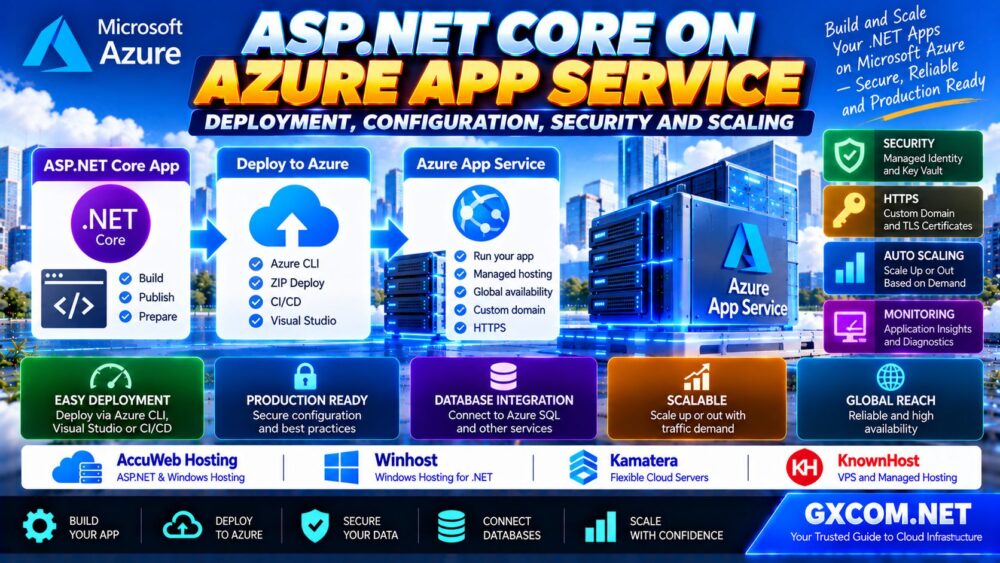
Deploying ASP.NET Core to Azure App Service is a practical way to host a modern .NET website or API without managing a complete Windows or Linux virtual machine. Azure App Service provides managed application hosting, deployment tools, HTTPS support, monitoring integrations, and scaling capabilities.
However, getting an application online is only the first step. A reliable production deployment also requires secure configuration, identity management, database connectivity, deployment controls, monitoring, and a recovery strategy.
This guide explains how to deploy ASP.NET Core to Azure App Service, configure environment settings, protect secrets with Azure Key Vault, enable HTTPS, and scale an application for production traffic.
Azure App Service Deployment: Quick Overview
| Component | Purpose |
|---|---|
| ASP.NET Core | Web application or API framework |
| Azure App Service | Managed application hosting |
| App Service Plan | Underlying compute capacity and pricing tier |
| Azure CLI | Deployment and resource management |
| Application Settings | Environment-specific configuration |
| Managed Identity | Passwordless access to supported Azure resources |
| Azure Key Vault | Centralized secrets management |
| Application Insights | Application telemetry and diagnostics |
| Deployment Slots | Staged releases and traffic switching |
| Autoscale | Adjust supported hosting capacity |
Recommended workflow: Create the application, choose a hosting environment, deploy, configure secrets and HTTPS, validate production behavior, and establish monitoring and scaling rules.
1. Why Host ASP.NET Core on Azure App Service?
Azure App Service is designed to host web applications and APIs without requiring developers to maintain the underlying server operating system.
It is suitable for many ASP.NET Core workloads, including business websites, REST APIs, customer portals, internal applications, and database-driven services.
Key advantages include:
- Managed hosting infrastructure
- Support for compatible .NET runtimes
- Windows and Linux hosting options
- HTTPS and custom domain support
- Application configuration management
- Deployment integration
- Monitoring and diagnostics
- Scaling options on eligible plans
However, App Service is not identical to a traditional virtual machine. Applications requiring full operating system control, unsupported background services, or specialized system-level configuration may need another hosting model.
Our Azure Virtual Machines vs App Service Comparison explains the differences in infrastructure control, scalability, and operational responsibility.
2. Prerequisites for ASP.NET Core Deployment
Before starting, prepare the following:
- An active Azure subscription
- The .NET SDK compatible with your application
- Azure CLI installed and authenticated
- An ASP.NET Core application or API
- Permission to create or update Azure resources
- A deployment Region
- A plan for application configuration and database access
This tutorial uses .NET 10 as an example. Existing applications may target other supported .NET versions, but the Azure runtime and application dependencies must be compatible.
Check the available App Service runtimes before deployment rather than assuming every .NET version is available on every operating system and hosting configuration.
3. Create a New ASP.NET Core Application
Open a terminal and create a sample ASP.NET Core web application:
dotnet new webapp -n AzureAspNetDemo --framework net10.0

cd AzureAspNetDemo
Run the application locally:
dotnet runOpen the local URL displayed in the terminal.
Confirm that the application starts successfully before attempting deployment.
For an existing application, verify that the project builds cleanly and that environment-specific settings are not hardcoded.
4. Choose Windows or Linux App Service
Azure App Service supports compatible ASP.NET Core applications on Windows and Linux.
The right choice depends on application requirements rather than an assumption that all .NET applications require Windows Server.
Choose Linux When Appropriate
Linux App Service can be suitable for modern cross-platform ASP.NET Core applications that do not depend on Windows-specific components.
Choose Windows When Required
Windows App Service may be necessary for applications that depend on Windows-specific features, compatible legacy integrations, or the full .NET Framework.
ASP.NET Core is cross-platform, but applications can still contain dependencies that restrict where they run.
| Application Requirement | Hosting Option to Evaluate |
|---|---|
| Cross-platform ASP.NET Core API | Linux or Windows App Service |
| Modern .NET website | Linux or Windows App Service |
| Windows-specific dependencies | Windows App Service |
| Full .NET Framework application | Windows App Service |
| Full operating system administration | Azure VM or another VPS |
5. Deploy ASP.NET Core Using Azure CLI
Azure CLI provides a convenient deployment method for developers who prefer terminal-based workflows.
First, sign in:
az loginConfirm the intended subscription:
az account showIf necessary, select the correct subscription:
az account set --subscription "YOUR_SUBSCRIPTION_ID"For a straightforward initial deployment, run the following command from the ASP.NET Core project directory:
az webapp up \
  --name your-unique-app-name \
  --resource-group rg-aspnet-production \
  --location eastus \
  --os-type linux \
  --runtime "DOTNETCORE:10.0" \
  --sku B1
Replace the application name, resource group, and Region with values appropriate for your environment.
The application name must be available under the Azure naming rules.
This command is a deployment example. Confirm that the selected runtime, Region, and pricing tier are available for your subscription.
The B1 tier is used here as an illustrative paid hosting tier, not a universal production recommendation.
After deployment, Azure CLI displays the application endpoint.
Open the URL and verify that the application loads successfully.
6. Deploy a Published ASP.NET Core Application
For more controlled deployments, publish the application before uploading the deployment package.
Run:
dotnet publish -c Release -o ./publishCreate a ZIP archive containing the contents of the publish directory, rather than placing the publish directory itself at the root of the archive.
On Linux or macOS:
cd publish

zip -r ../deploy.zip .

cd ..
On Windows PowerShell, use an appropriate archive command that preserves the published files at the ZIP root.
Deploy the package to an existing Azure App Service:
az webapp deploy \
  --resource-group rg-aspnet-production \
  --name your-unique-app-name \
  --src-path deploy.zip \
  --type zip
ZIP deployment of a prebuilt ASP.NET Core application avoids depending on server-side compilation.
Make sure the published runtime target and the App Service configuration are compatible.
7. Configure ASP.NET Core Environment Variables
Production applications should separate environment-specific configuration from application source code.
ASP.NET Core supports configuration through environment variables and other providers.
Azure App Service application settings are exposed to the application as environment variables.
For example:

az webapp config appsettings set \
  --resource-group rg-aspnet-production \
  --name your-unique-app-name \
  --settings ASPNETCORE_ENVIRONMENT=Production
ASP.NET Core can also read hierarchical configuration values using double underscores.
For example, an application setting named ConnectionStrings__DefaultConnection can map to the corresponding configuration section.
However, database passwords and API secrets should not be embedded directly in deployment scripts or committed to source control.
Use managed identity and Azure Key Vault where appropriate.
8. Enable Managed Identity for Azure App Service
Managed identity allows an Azure-hosted application to authenticate to supported Azure resources without maintaining application credentials in source code.
Enable a system-assigned managed identity:
az webapp identity assign \
  --resource-group rg-aspnet-production \
  --name your-unique-app-name
The application now has an Azure-managed identity that can be granted access to supported resources.
However, enabling the identity does not automatically grant permissions to Key Vault, databases, or storage accounts.
Grant only the resource-specific permissions required by the application.
9. Protect Secrets With Azure Key Vault
Azure Key Vault provides centralized management for sensitive configuration values such as API keys and database credentials.
A common production pattern is:
- Create an Azure Key Vault.
- Store the application secret in the vault.
- Enable managed identity on the App Service.
- Grant the identity permission to read the required secret.
- Reference the secret through App Service configuration.
An App Service Key Vault reference can use the following format:
@Microsoft.KeyVault(
  SecretUri=https://YOUR-VAULT.vault.azure.net/secrets/YOUR-SECRET/
)
The actual application setting should contain the reference in the supported single-line format.
For an Azure Key Vault using Azure role-based access control, grant the managed identity an appropriate secret-reading role scoped to the required vault or secret.
For vaults using access policies, configure the equivalent secret permissions.
After configuration, verify that the application can resolve the reference without exposing the secret value in logs or error messages.
10. Connect ASP.NET Core to Azure SQL Database
Many ASP.NET Core applications require a relational database.
Azure SQL Database is one option for applications that need managed SQL Server-compatible database services.
A production database connection should consider:
- Database authentication
- Network access restrictions
- Encryption
- Connection pooling
- Retry behavior
- Schema migration procedures
- Backup and recovery requirements
Where supported by the application and database configuration, Microsoft Entra authentication and managed identity can reduce reliance on stored database passwords.
Do not automatically expose the database to all public IP addresses merely to simplify deployment.
For Entity Framework Core applications, apply database migrations through a controlled release process rather than assuming that every application startup should modify the production schema.
11. Configure a Custom Domain and HTTPS
Azure App Service provides a default application hostname, but production websites typically use a custom domain.
To configure one:
- Verify ownership of the domain.
- Create the required DNS records.
- Add the custom hostname to App Service.
- Configure an appropriate TLS certificate.
- Enable HTTPS-only access.
- Test redirects and certificate validity.
Certificate availability and supported options depend on the hosting plan and domain configuration.
Enable HTTPS-only access using Azure CLI:
az webapp update \
  --resource-group rg-aspnet-production \
  --name your-unique-app-name \
  --https-only true
For ASP.NET Core applications operating behind Azure's reverse proxy infrastructure, ensure forwarded headers and HTTPS-related middleware are configured correctly for the hosting environment.
Do not assume that enabling HTTPS automatically resolves every authentication callback or redirect configuration issue.
12. Configure Authentication and Authorization
Production applications should protect administrative and private application endpoints.
Azure App Service supports built-in authentication features, while ASP.NET Core also provides application-level authentication and authorization mechanisms.
Common approaches include:
- Microsoft Entra ID authentication
- OpenID Connect
- ASP.NET Core Identity
- Application-specific authorization policies
- API token validation
Choose an authentication model appropriate for your application architecture.
Authentication confirms user identity, while authorization determines which resources the user may access.
For business applications, apply least-privilege access controls and protect sensitive routes.
13. Configure Azure App Service Scaling
Azure App Service provides scaling capabilities through supported App Service Plans.
Two important approaches are vertical scaling and horizontal scaling.
Scale Up: Increase Instance Resources
Vertical scaling means moving to a plan with greater compute or memory capacity.
It may be useful when the application consistently requires more resources per instance.
Scale Out: Increase Instance Count
Horizontal scaling means running additional instances of the application.
This can help support increased traffic when the application is designed to run across multiple instances.
Configure Autoscale
Supported App Service Plans can use automatic scaling features, with availability and configuration depending on the selected tier and scaling model.
Potential signals include:
- CPU utilization
- Memory-related metrics where supported
- HTTP request patterns
- Application performance
- Scheduled traffic changes
Autoscaling is not a replacement for efficient application code or database optimization.
Test application behavior under realistic concurrency before selecting scaling thresholds.
14. Make ASP.NET Core Applications Scale Safely
Horizontal scaling works best when application instances do not depend on local server state.
For multi-instance applications:
- Use external databases for persistent application data.
- Store uploaded files in durable external storage.
- Consider distributed caching where appropriate.
- Share ASP.NET Core Data Protection keys when required.
- Avoid relying on in-memory session state across instances.
- Review background job coordination.
- Monitor database connection limits.
For applications using cookie authentication, Data Protection key consistency is especially important when requests move between instances or deployment slots.
Session affinity may reduce some immediate problems but should not replace a properly designed distributed architecture.
15. Monitor ASP.NET Core With Application Insights
Application Insights provides application performance monitoring and diagnostic capabilities for supported .NET applications.
Useful telemetry includes:
- Request duration
- Failed requests
- Dependency performance
- Application exceptions
- Availability checks
- Distributed tracing
- Resource-related performance indicators
Configure monitoring before the application experiences production problems.
For modern ASP.NET Core applications, evaluate supported Azure Monitor OpenTelemetry instrumentation and the currently recommended integration method.
Avoid logging connection strings, access tokens, personal information, or other sensitive data.
16. Use Deployment Slots for Safer Releases
Deployment slots allow supported App Service Plans to maintain separate application environments, such as production and staging.
A typical release workflow is:
- Deploy the new application version to staging.
- Configure slot-specific settings.
- Run health checks and smoke tests.
- Warm up the staging application.
- Swap staging and production when ready.
- Monitor the production release.
- Use an appropriate rollback procedure if problems occur.
Deployment slots are not available on every pricing tier.
Review which settings move during a slot swap and which remain attached to a specific slot.
Database migrations and external state changes require additional planning because a slot swap does not automatically reverse them.
17. Optimize Azure App Service Hosting Costs
Azure App Service costs depend on the hosting plan, provisioned capacity, operating system, Region, scaling configuration, and supporting services.
Additional costs may include:
- Azure SQL Database
- Azure Storage
- Application Insights and Log Analytics
- Network services
- Key Vault operations
- Backup and recovery services
- Other application dependencies
Multiple compatible applications may share an App Service Plan, but they also share the underlying plan resources.
Evaluate resource utilization before consolidating workloads.
For applications requiring direct server administration, Azure VMs may provide more infrastructure control, but they introduce additional operational responsibilities.
18. When Should You Consider Alternative ASP.NET Core Hosting?
Azure App Service is attractive for applications that benefit from Microsoft cloud integrations and managed platform features.
However, not every ASP.NET Core application requires Azure-specific services.
For simpler websites, independent business applications, and conventional .NET hosting requirements, third-party hosting providers may offer a different balance of cost, control, and support.
AccuWeb Hosting and Winhost are relevant candidates when evaluating ASP.NET-compatible hosting services.
Before choosing a plan, verify support for the exact .NET runtime, application architecture, database requirements, and deployment method.
Do not assume that a provider advertising ASP.NET hosting supports every modern ASP.NET Core version or every application dependency.
19. ASP.NET Core Hosting Alternatives Compared
AccuWeb Hosting
AccuWeb Hosting is relevant for developers comparing Windows hosting, VPS options, and supported ASP.NET applications.
Review the available .NET runtime versions, IIS configuration, SQL Server compatibility, and technical support scope.
Winhost
Winhost focuses on Windows-based web hosting and is worth investigating for compatible ASP.NET applications.
Check whether the intended application requires features beyond those provided by a shared hosting environment.
Kamatera
Kamatera may be appropriate when developers need configurable Windows or Linux virtual server infrastructure with greater operating system control.
This model requires a different level of server management from Azure App Service.
KnownHost
KnownHost is another option for evaluating VPS hosting and managed infrastructure services.
Confirm the exact operating system, .NET deployment support, and management responsibilities for the selected plan.
| Hosting Platform | Primary Evaluation Angle |
|---|---|
| Azure App Service | Managed ASP.NET Core application platform |
| AccuWeb Hosting | Windows and ASP.NET hosting options |
| Winhost | Windows-based website hosting |
| Kamatera | Configurable Windows/Linux cloud servers |
| KnownHost | VPS and managed infrastructure |
Compare application compatibility, database hosting, deployment access, security responsibilities, backups, and technical support rather than relying on advertised server specifications alone.

For more infrastructure options, read our Best Cloud Hosting Solutions Guide.
20. Common Azure App Service Deployment Errors
Application Returns HTTP 500
Review application startup logs, environment configuration, dependency initialization, and runtime compatibility.
HTTP 502 or 503 Errors
Check application startup, worker health, resource exhaustion, deployment status, and platform diagnostics.
Application Works Locally but Fails on Azure
Verify environment variables, case-sensitive paths on Linux, connection strings, external dependencies, and operating system compatibility.
Database Connection Fails
Check database authentication, firewall rules, network access, connection strings, and managed identity permissions.
Key Vault Reference Is Not Resolved
Verify managed identity configuration, vault authorization, network restrictions, and secret reference syntax.
Authentication Redirect Loop
Review HTTPS settings, redirect URIs, forwarded headers, authentication middleware, and proxy configuration.
Application Slows Down After Scaling
Investigate shared database bottlenecks, cache behavior, session state, Data Protection configuration, and downstream dependency limits.
Deployment Slot Swap Causes Errors
Review slot-specific configuration, database compatibility, warm-up behavior, and application startup requirements.
Production Deployment Checklist
- Use a supported .NET runtime.
- Choose Windows or Linux based on application requirements.
- Publish a production build.
- Keep sensitive configuration outside source control.
- Enable managed identity where appropriate.
- Use Azure Key Vault for application secrets.
- Configure custom domains and HTTPS.
- Protect authentication and authorization flows.
- Use durable storage for persistent data.
- Configure health checks and application monitoring.
- Test scaling and concurrency.
- Use staging deployments where supported.
- Document rollback and database recovery procedures.
- Review the complete monthly hosting cost.
Frequently Asked Questions
Can ASP.NET Core run on Azure App Service?
Yes. Azure App Service supports compatible ASP.NET Core applications on Windows and Linux hosting environments.
Do I need Windows Server to host ASP.NET Core?
Not necessarily. Modern ASP.NET Core applications are cross-platform, although Windows-specific dependencies may require Windows hosting.
How do I deploy ASP.NET Core using Azure CLI?
Use a supported deployment workflow such as az webapp up for a straightforward initial deployment or publish the application and deploy a ZIP package to an existing App Service.
Does Azure App Service support .NET 10?
Microsoft's current App Service quickstart documents .NET 10 deployment. Verify runtime availability for your chosen hosting configuration.
How do I store ASP.NET Core secrets securely on Azure?
Use Azure Key Vault together with managed identity and appropriately scoped permissions. Avoid embedding credentials directly in source code.
Can Azure App Service scale automatically?
Yes, supported App Service Plans provide automatic scaling capabilities. The available options depend on the plan and scaling model.
Can I deploy without Visual Studio?
Yes. Azure CLI, .NET CLI, supported CI/CD workflows, and other deployment methods can be used without Visual Studio.
Can I use Azure SQL Database with ASP.NET Core?
Yes. Azure SQL Database is commonly used with compatible ASP.NET Core applications. Configure authentication, networking, and migrations carefully.
What is the difference between Azure App Service and Azure VM hosting?
App Service manages more of the hosting platform, while Azure VMs provide greater operating system control and require more infrastructure administration.
Can I roll back an Azure App Service deployment?
Supported deployment slots and release workflows can help restore an earlier application version. External database and state changes may require separate recovery procedures.
Final Verdict: Deploy ASP.NET Core With Production Controls
Azure App Service offers a managed platform for hosting modern ASP.NET Core applications without maintaining a traditional virtual machine.
A reliable deployment requires more than publishing code. Developers should configure environment settings, secure secrets, protect database access, enable HTTPS, monitor application health, and test scaling behavior.
For applications that depend heavily on Azure services, App Service can reduce infrastructure management work. For simpler or more portable .NET applications, AccuWeb Hosting, Winhost, Kamatera, and KnownHost are additional hosting options worth evaluating.
BUILD → DEPLOY → CONFIGURE → SECURE → SCALE → MONITOR.
The best ASP.NET Core hosting environment is the one that supports your application's technical requirements while keeping operations secure, reliable, and manageable.