Is your ARK dedicated server not starting after an update, mod installation, or configuration change? A server that closes during launch can leave players disconnected and administrators unsure whether the problem involves software, saved worlds, or hosting resources.
Before reinstalling anything, determine whether the process fails to launch, crashes while loading a map, or starts successfully but cannot accept connections. These symptoms require different fixes. This guide covers both ARK: Survival Ascended (ASA) and ARK: Survival Evolved (ASE), while recognizing that their server software and mod systems differ.
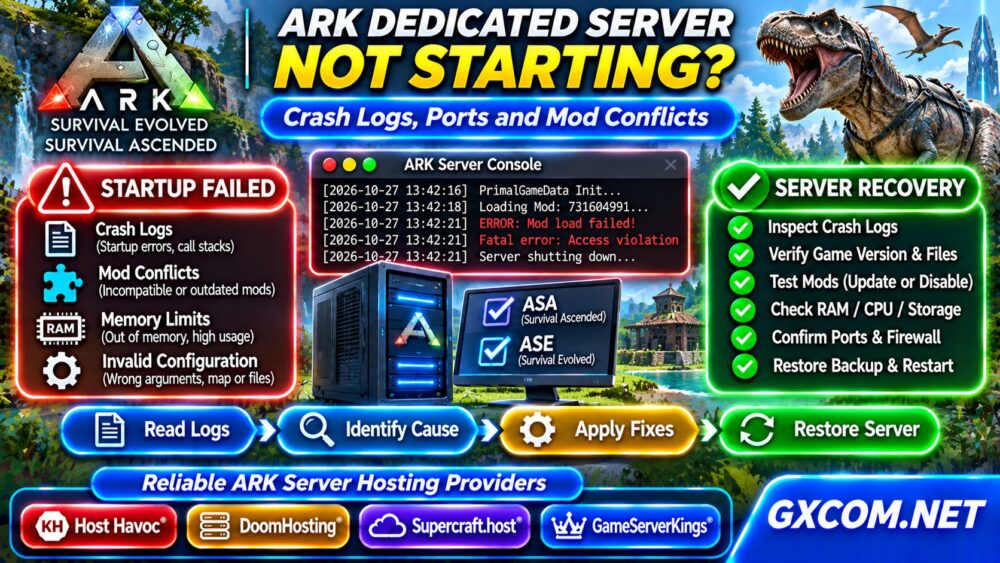
1. Identify Exactly Where Startup Fails
Open your hosting console or terminal and watch a complete startup attempt. Record the game version, map, recent updates, installed mods, and approximate failure time. A control panel reporting “offline” does not prove that the server crashed; its startup command or monitoring configuration could also be incorrect.
Use this quick distinction:
- Immediate exit: Check executable paths, missing dependencies, permissions, and startup arguments.
- Crash during map loading: Examine memory consumption, mod loading, and world data.
- Running but unreachable: Investigate ports, firewalls, and client compatibility rather than startup crashes.
2. Read ARK Crash Logs and Console Output
Save the complete console output before restarting repeatedly. Depending on the ARK version and operating system, logs commonly appear under the game’s ShooterGame/Saved/Logs directory. Crash reports and diagnostic files may be stored separately, and managed hosting panels may expose them through a file manager.
Look near the first meaningful error for missing files, failed initialization, access violations, mod loading failures, or out-of-memory conditions. A final “process exited” message usually describes the result, not the root cause.
On Linux, inspect a log file with a command adapted to your installation:
tail -n 120 ShooterGame/Saved/Logs/*.logIf multiple logs exist, select the file matching the failed launch. On Windows, use the hosting console or open the relevant log in a text editor. Keep a copy before making changes.
3. Check Updates and Server File Integrity
An incomplete update can prevent ARK from launching. Verify that the server version matches the intended game and that required files finished downloading. For SteamCMD-based ASE installations, validate the installation using the appropriate app configuration and installation directory.
ASA deployment and update workflows may differ from ASE, so follow the documentation for your exact server edition. Never assume an ASE startup script or mod identifier works unchanged on ASA.

Before reinstalling, back up configuration files and saved worlds. Reinstalling binaries may solve missing executable files, but it will not necessarily fix incompatible mods or damaged save data.
4. Isolate Mod Conflicts Without Losing Your World
Mods are a frequent cause of launch failures following game updates. Check each mod’s supported game edition, current version, dependencies, and known compatibility notices. ASA and ASE use different mod ecosystems and management methods.
Stop the server, back up the entire saved directory, and record the existing mod list. Test a separate copy with suspected mods disabled, ideally in controlled groups. If the server starts, reintroduce components gradually to locate the conflict.
Do not remove mods from a production world casually: missing modded items, structures, or creatures can cause permanent data loss. Restore from a known-good backup if testing changes damage saved content.
5. Investigate RAM, CPU, and Storage Limits
ARK world loading can demand substantial memory, especially with large maps, mods, and established communities. A server terminated by the operating system may leave incomplete application logs.
On a Linux host, check resources and kernel messages:
free -h
df -h
journalctl -k --since "1 hour ago"
Look for out-of-memory kills, exhausted storage, or other system-level errors. On Windows, inspect Event Viewer and available memory. Compare peak usage with the plan’s actual limits, not only its advertised player capacity.
More RAM will not repair corrupted files or incompatible mods. However, consistent memory exhaustion or overloaded CPU resources can indicate that the server needs fewer active workloads or a more suitable hosting plan.
6. Verify Startup Parameters and Map Configuration
Review the executable, map name, configuration paths, and launch arguments against the documentation for your specific ARK edition. A typo, unsupported option, or incorrect map reference may prevent startup.
Check file permissions after migrations and confirm that the server can write to its saved-data directory. Avoid copying launch commands from unrelated guides without confirming compatibility.
Make one change at a time, restart, and save the resulting log. This approach reveals which adjustment actually fixes the failure.
7. Separate Port Problems from Startup Failures
If the process remains running but players cannot connect, check the game’s configured UDP ports, query service, firewall, and hosting provider’s allocated network ports. ARK networking requirements vary by edition and deployment.
Confirm that your public IP address is correct and that provider firewalls, cloud security groups, and local rules allow the required traffic. A server missing from a browser list is not necessarily crashing.
For broader troubleshooting, explore our Game Server Hosting guides and the ARK Server Hosting resource hub.
8. Recover Safely After a Failed Launch
Before restoring data, stop the server and copy the current world, configuration, and logs to a separate location. Choose a backup created before the failed update or configuration change, then test the restore on an isolated instance when possible.
Check whether the restored world requires specific mods or game versions. Avoid mixing newer save data with older software unless compatibility is documented. Verify that players can join and that world progress is intact before reopening the community.
9. When Should You Compare ARK Hosting Providers?
Changing hosts is unnecessary when the root cause is a broken mod or invalid startup parameter. Consider an upgrade when repeated crashes correlate with verified resource exhaustion, unstable storage, restricted file access, or inadequate operational support.

Host Havoc, DoomHosting, Supercraft.host, and GameServerKings are approved game-hosting brands to evaluate. Confirm whether each currently supports your chosen ASA or ASE edition, preferred map, mods, region, backups, and management features before purchasing.
Use our Game Hosting Comparisons to evaluate service models, then check Game Server Deals for relevant offers. If considering a self-managed environment, compare responsibilities in our Managed vs Unmanaged VPS guide.
Frequently Asked Questions
Why Does My ARK Server Close Immediately?
Common causes include invalid startup arguments, missing files, incompatible updates, and failed dependencies. The console output and earliest relevant log error provide better evidence than the exit status alone.
Can Mods Stop an ARK Dedicated Server from Starting?
Yes. Unsupported or outdated mods can interrupt loading. Back up the world and test modifications safely before changing the production installation.
Will More RAM Fix an ARK Startup Crash?
Only if insufficient memory is the verified cause. Memory upgrades cannot fix incompatible software, incorrect ports, or damaged configuration files.
Final Verdict
When an ARK dedicated server is not starting, capture logs, classify the failure, check updates and mods, and verify system resources before restoring backups. Move to a different hosting plan only when the evidence points to a genuine infrastructure or support limitation.