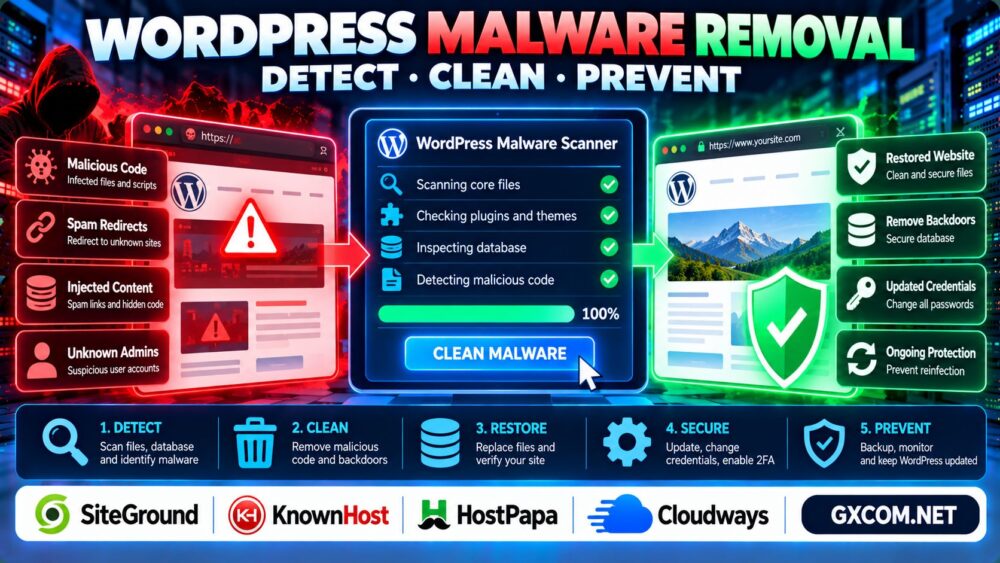
A hacked WordPress website can redirect visitors to suspicious pages, inject spam links, display unfamiliar advertisements, or expose sensitive information. Some infections remain hidden until search engines or security tools detect them.
Effective WordPress malware removal requires more than deleting suspicious files. You must identify the compromise, preserve evidence, remove unauthorized changes, and close the vulnerability that allowed the attack.
This guide explains how to detect WordPress malware, clean an infected website, restore trusted files, and reduce the risk of reinfection.
How Do You Know if WordPress Has Malware?
Malware infections can affect website files, database content, administrator accounts, and server configuration.
Common warning signs include:
- Unexpected redirects to unfamiliar websites.
- Spam pages or links appearing in Google search results.
- Unknown WordPress administrator accounts.
- Modified PHP files or unfamiliar plugins.
- Security warnings from browsers or hosting providers.
- Unexpected changes to scheduled tasks or configuration files.
Quick answer: Scan the website, preserve a copy of the affected environment, review recent changes, replace compromised files with trusted versions, and investigate the original entry point.
1. Isolate the Infected WordPress Website
Before cleaning malware, reduce the risk of further damage.
If the website is actively distributing malicious content, consider restricting public access temporarily while maintaining secure administrator access.
Contact your hosting provider if the compromise affects shared infrastructure or if you cannot safely isolate the account.
Create a forensic copy of website files, database records, and relevant logs before modifying the infected environment. Store this copy securely and do not restore it directly into production.
Preserving evidence helps identify the attack method and supports incident investigation.
2. Scan WordPress Files and Database Content
Use reputable WordPress security tools and your hosting provider's available malware scanning features.
Compare WordPress core files against official releases and review installed plugins and themes.
With WP-CLI, administrators can check core file integrity:
wp core verify-checksumsThis checks supported WordPress core files against published checksums. It does not establish that plugins, themes, uploads, or database content are clean.
Investigate suspicious files in directories such as wp-content/uploads/, particularly unexpected executable scripts.
Also inspect database content for injected links, scripts, and unfamiliar administrator records.
3. Remove Malware and Restore Trusted Files
Once suspicious components are identified, replace compromised WordPress core files with clean copies from official sources.

Reinstall affected plugins and themes from trusted distributions rather than relying on potentially modified local copies.
Remove unauthorized administrator accounts only after verifying that they are not legitimate users.
Review the following areas:
- WordPress core, plugin, and theme files.
wp-config.phpand relevant server configuration.- Unexpected PHP files inside upload directories.
- Database entries containing injected scripts or redirects.
- Scheduled tasks and unfamiliar startup mechanisms.
Do not delete unfamiliar files blindly. Some custom applications legitimately contain nonstandard code.
If a verified clean backup exists, restoration may be safer than manually repairing extensive damage.
For backup planning, read our Dedicated Server Backup Strategy.
4. Reset Credentials and Remove Backdoors
Cleaning visible malware is insufficient if attackers still possess valid credentials or hidden access mechanisms.
Reset WordPress administrator passwords, hosting control panel credentials, database passwords, and relevant API credentials.
Rotate WordPress authentication salts and invalidate active sessions where appropriate.
Review authorized SSH keys, administrator permissions, and scheduled tasks for unauthorized changes.
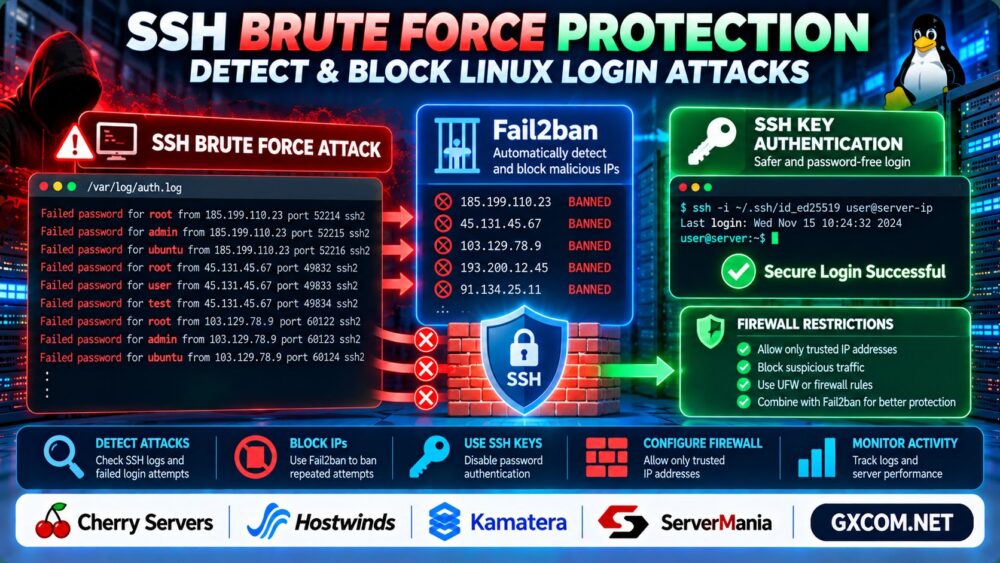
For Linux servers exposed to login attacks, see our SSH Brute Force Protection Guide.
Investigate the initial entry point, such as an outdated plugin, stolen password, vulnerable theme, or compromised hosting account.
5. Fix Malware Redirects and SEO Spam
WordPress malware can create spam URLs, inject hidden links, or redirect search visitors to unrelated destinations.
Inspect WordPress content, database records, redirect rules, and relevant server configuration.
After removing malicious changes, test affected URLs from a clean browser environment and verify that expected pages return correctly.
Use Google Search Console to inspect security warnings, unexpected indexed URLs, and crawl issues.
For URL discovery and indexing fundamentals, see our XML Sitemap vs Robots.txt Guide.
Do not assume that removing malware immediately removes spam pages from search results. Search engines may need time to recrawl updated content.
6. Prevent WordPress Malware Reinfection
Long-term prevention depends on keeping the WordPress environment maintained and reducing unnecessary access.
- Update WordPress core, plugins, and themes promptly.
- Remove unused plugins and themes.
- Enable multifactor authentication for privileged accounts.
- Apply least-privilege access permissions.
- Use trusted plugin and theme sources.
- Maintain offsite backups and test restoration.
- Monitor unexpected file changes and administrator activity.
For websites that require external maintenance support, managed hosting may reduce some administrative responsibilities.
SiteGround and KnownHost are relevant providers to compare when evaluating WordPress hosting and management options.
Always verify which security tasks, malware remediation services, and recovery assistance are included in a specific plan.
7. When Should You Change WordPress Hosting?
Changing hosting providers does not automatically remove malware. Migrating infected files or database records can transfer the compromise to a new environment.
First clean and validate the website, then assess whether the current hosting arrangement meets your operational requirements.
Cloudways and HostPapa are additional options when comparing WordPress hosting, administration, and support needs.
Evaluate backup access, isolation between websites, update responsibilities, support coverage, and recovery procedures.
Our Managed vs Unmanaged Hosting Guide explains the difference between provider-managed and customer-managed responsibilities.
8. Verify That Your WordPress Website Is Clean
After remediation, run fresh malware scans and check important website functionality.
Test login pages, forms, redirects, plugin functionality, and key customer-facing pages.

Review security logs for recurring suspicious activity and verify that unauthorized accounts or scheduled tasks have not returned.
If you migrate the recovered website, follow a controlled process and verify the destination environment.
Our WordPress Migration Without Downtime Guide</a covers related migration planning.
Frequently Asked Questions
How do I know if my WordPress website is hacked?
Unexpected redirects, unknown administrator accounts, modified files, spam pages, and security warnings can indicate compromise.
Can a WordPress security plugin remove all malware?
No. Security tools can assist detection and cleanup, but hidden backdoors or compromised credentials may require additional investigation.
Should I restore a backup after a malware infection?
A verified clean backup can help, but you must also address the vulnerability that caused the original compromise.
Can malware affect WordPress SEO?
Yes. Injected spam, malicious redirects, and browser security warnings can damage user trust and search visibility.
Does changing hosting remove WordPress malware?
No. Moving infected files or database records can reproduce the infection on the destination server.
How can I prevent WordPress malware from returning?
Maintain updates, strong authentication, limited privileges, trusted software, monitoring, and tested backups.
Final Verdict
Successful WordPress malware removal means eliminating the infection and closing the security gap that allowed it.
Preserve evidence, restore trusted components, rotate credentials, validate the recovered website, and monitor for reinfection.
Detect → Isolate → Clean → Secure → Verify → Monitor.