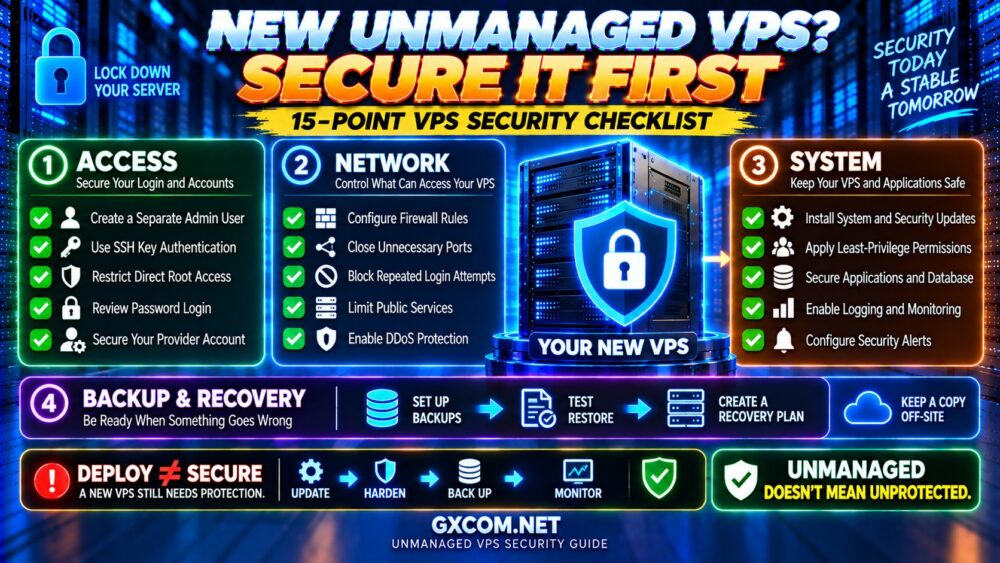
An unmanaged VPS gives you flexibility, control and often excellent price-to-resource value—but it also makes you responsible for keeping the server secure, updated, backed up and healthy.
Buying the VPS is the easy part.
The real work begins after deployment.
If you manage an unmanaged VPS yourself, you need a repeatable process for handling:
- Initial server security
- SSH access
- System updates
- Firewall configuration
- Application maintenance
- Backups
- Resource monitoring
- Logs
- Performance problems
- Incident recovery
You do not need to spend every day watching the server. A well-designed management routine should automate routine tasks, alert you when something needs attention and give you a recovery path when something goes wrong.
This guide explains how to manage an unmanaged VPS using a practical framework focused on security, updates, backups, monitoring and recovery.
What Does Managing an Unmanaged VPS Actually Mean?
With unmanaged VPS hosting, the provider normally manages the physical infrastructure and virtualization platform while you manage the operating system and applications inside your virtual server.
The responsibility is roughly divided like this:
| Provider Typically Manages | You Typically Manage |
|---|---|
| Physical server | Operating system |
| Datacenter | SSH access |
| Power and cooling | Firewall |
| Physical network | Security updates |
| Virtualization platform | Web server |
| Hardware replacement | Database |
| Host availability | Backups and monitoring |
The exact boundary varies by provider, so always check the support policy for your VPS.
If you are new to this hosting model, start with our What Is Unmanaged VPS Hosting? guide.
The Unmanaged VPS Management Framework
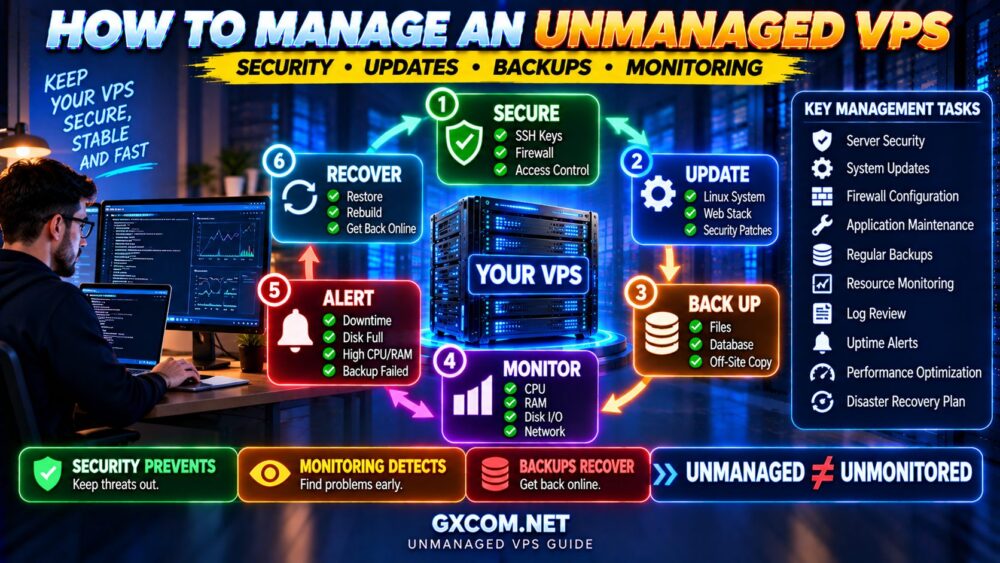
A reliable unmanaged VPS management process can be organized into five areas:
SECURE
↓
UPDATE
↓
BACK UP
↓
MONITOR
↓
RECOVER
If one of these layers is missing, the server becomes harder to operate safely.
Security reduces the chance of compromise.
Updates reduce exposure to known vulnerabilities.
Backups protect your data.
Monitoring tells you when something is going wrong.
Recovery planning determines how quickly you can restore service.
1. Secure the VPS Immediately After Deployment
A newly deployed internet-facing VPS should not be treated as secure simply because it is new.
Automated systems continuously scan public IP addresses for exposed services and weak configurations.
Initial security should therefore be one of your first tasks.
Your basic security checklist should include:
- Install current security updates
- Create appropriate administrative accounts
- Secure SSH access
- Use SSH keys where practical
- Configure a firewall
- Remove or disable unnecessary services
- Review open ports
- Use strong authentication
- Configure logging and monitoring
For a broader checklist, see our How to Secure a VPS guide.
2. Secure SSH Access
SSH is one of the most important services on a Linux VPS because it gives administrators remote access to the server.
That also makes SSH a frequent target for automated login attempts.
A strong SSH security strategy can include:
- SSH key authentication
- Strong account passwords where passwords are permitted
- Limiting privileged access
- Restricting unnecessary users
- Monitoring authentication logs
- Rate limiting or automated blocking of abusive login attempts
Changing the default SSH port may reduce some automated noise, but it should not be treated as a replacement for strong authentication and access controls.
The priority is:
STRONG AUTHENTICATION → LEAST PRIVILEGE → MONITORING.
Our SSH Security Best Practices guide covers this topic in more detail.
3. Configure a Firewall
A firewall should allow the services your workload needs and restrict unnecessary exposure.
For a basic web server, public services may include:
- SSH administration
- HTTP
- HTTPS
Additional applications may require other ports, but every open service increases the attack surface.
A good principle is:
IF A PORT DOES NOT NEED TO BE PUBLIC, DO NOT EXPOSE IT PUBLICLY.
Be particularly careful when configuring firewall rules remotely.
An incorrect rule can block your own SSH access.
Before making major firewall changes, know whether your provider offers a web console, recovery console or rescue environment that can restore access if you lock yourself out.
4. Keep the Operating System Updated
Security updates are one of the most important recurring responsibilities on an unmanaged VPS.
Linux distributions regularly publish fixes for:
- Security vulnerabilities
- Software bugs
- Kernel issues
- Library vulnerabilities
- Application problems
Ignoring updates for months can leave known vulnerabilities exposed.
However, production server updates should also be managed carefully.
A sensible process is:
CHECK UPDATES
↓
REVIEW IMPORTANT CHANGES
↓
VERIFY BACKUP
↓
APPLY UPDATE
↓
RESTART IF REQUIRED
↓
VERIFY SERVICES
This is safer than blindly applying major changes without a recovery plan.
Should You Enable Automatic Security Updates?
Automatic security updates can reduce the time between a security patch becoming available and being installed.
For many systems, automating appropriate security updates can be useful.
But automation does not remove the need for monitoring.
You still need to know:
- Whether updates succeeded
- Whether services restarted correctly
- Whether a reboot is required
- Whether an application became incompatible
For critical production environments, test significant changes where practical and maintain a rollback or recovery path.
AUTOMATE ROUTINE WORK—NOT RESPONSIBILITY.
5. Update the Application Stack Too
Updating Linux is only one part of server maintenance.
Your server may also run:
- Nginx
- Apache
- PHP
- MySQL or MariaDB
- PostgreSQL
- Redis
- Docker
- Node.js
- WordPress
- Other frameworks and applications
Each component has its own update lifecycle and security considerations.
For WordPress, for example, you also need to maintain:
- WordPress core
- Plugins
- Themes
- PHP compatibility
UPDATED OS + VULNERABLE APPLICATION = VULNERABLE SERVER.
6. Build a Real Backup Strategy
Backups are not optional for important data.
An unmanaged VPS can fail because of:
- Human error
- Software failure
- Database corruption
- Security incidents
- Accidental deletion
- Failed upgrades
- Infrastructure incidents
A useful backup strategy should answer four questions:
WHAT ARE YOU BACKING UP?
HOW OFTEN?
WHERE IS THE BACKUP STORED?
HOW DO YOU RESTORE IT?

If you cannot answer the fourth question, your backup strategy is incomplete.
Snapshots vs Backups
Snapshots are useful, but they should not automatically be treated as your entire backup strategy.
A snapshot can provide a convenient point-in-time copy of a VPS or disk, depending on the provider.
But consider what happens if:
- The account is compromised
- The provider account becomes inaccessible
- The snapshot is accidentally deleted
- You need individual files
- You need longer retention
For important workloads, consider keeping independent copies of critical data outside the production VPS environment.
A common principle is the 3-2-1 backup approach:
- 3 copies of important data
- 2 different storage types or systems
- 1 copy off-site or otherwise isolated
How Often Should You Back Up a VPS?
The correct frequency depends on how much data you can afford to lose.
Ask:
IF THE SERVER FAILED RIGHT NOW, HOW MUCH RECENT DATA COULD I AFFORD TO LOSE?
That question defines your Recovery Point Objective, or RPO.
For example:
| Workload | Possible Backup Strategy |
|---|---|
| Static website | Daily or after major changes |
| Blog | Daily |
| Active business site | Daily or more frequent |
| WooCommerce store | Frequent database backups |
| Critical application | Designed around business RPO requirements |
These are examples, not universal rules.
A store receiving orders every few minutes has very different backup requirements from a portfolio website updated once a month.
7. Test Your Backups
A backup that has never been restored is an assumption.
Periodically test whether you can actually recover:
- Website files
- Databases
- Configuration files
- Application data
Also document the recovery procedure.
During a real outage, you do not want to discover for the first time that your backup archive is incomplete or that nobody remembers the restore process.
BACKUP SUCCESS ≠ RECOVERY SUCCESS.
8. Monitor CPU Usage
CPU monitoring helps identify overloaded applications, traffic spikes and inefficient processes.
Watch for:
- Sustained high CPU usage
- Unexpected CPU spikes
- Processes consuming excessive CPU
- Increasing load averages
- Performance degradation during traffic peaks
A brief CPU spike is not necessarily a problem.
Sustained saturation combined with slow response times is more important.
Before upgrading, identify which process is consuming CPU.
HIGH CPU → FIND THE PROCESS → FIND THE CAUSE → THEN UPGRADE IF NECESSARY.
9. Monitor RAM and Swap
Running out of memory can cause severe performance problems and may result in processes being terminated.
Monitor:
- Available memory
- Application memory usage
- Database memory
- Cache usage
- Swap activity
Linux memory figures can sometimes confuse new administrators because unused RAM may be used for caching.
Do not judge server health by one number alone.
Look for memory pressure, excessive swapping and application failures.
10. Monitor Disk Space
A full filesystem can break websites, databases, logging and updates.
Disk space can disappear because of:
- Growing logs
- Database growth
- Backups stored locally
- Temporary files
- Uploads
- Application caches
Set alerts before the disk reaches 100% capacity.
Waiting until the filesystem is completely full makes recovery more difficult.
11. Monitor Disk I/O
A VPS can have plenty of free CPU and RAM while still feeling slow because storage is the bottleneck.
Watch for:
- High I/O wait
- Storage latency
- Heavy database activity
- Processes generating excessive writes
- Provider I/O limits
NVMe storage can help I/O-intensive workloads, but faster storage is not a substitute for identifying inefficient applications.
See our Is NVMe VPS Worth It? guide for a real-world look at storage bottlenecks.
12. Monitor Network Traffic
Network monitoring can reveal:
- Traffic spikes
- Unexpected outbound traffic
- Bandwidth saturation
- Possible abuse
- Application traffic patterns
Unexpected outbound traffic deserves particular attention because it can sometimes indicate a compromised server or misbehaving application.
You should also know your provider's:
- Monthly transfer allowance
- Port speed
- Overage policy
- Traffic restrictions
13. Monitor Website and Service Availability
Monitoring only server resources is not enough.
A VPS can technically be online while your website, database or application is unavailable.
Monitor the services users actually depend on.
This can include:
- Website HTTP/HTTPS availability
- Application endpoints
- Database service
- SSL certificate expiration
- DNS resolution
External uptime monitoring is particularly useful because it checks the application from outside the server itself.
14. Configure Alerts
Monitoring without alerts still requires you to constantly watch dashboards.
Useful alerts might include:
- Server unreachable
- Website unavailable
- CPU sustained above a threshold
- Low available disk space
- Memory pressure
- Backup failure
- SSL certificate approaching expiration
Avoid creating so many alerts that you begin ignoring them.
ALERT ON CONDITIONS THAT REQUIRE ACTION.
15. Review Server Logs
Logs are one of the most valuable troubleshooting and security resources on an unmanaged VPS.
Depending on your stack, useful logs may include:
- Authentication logs
- System logs
- Nginx or Apache access logs
- Web server error logs
- PHP logs
- Database logs
- Application logs
Logs can help answer questions such as:
- Why did a service fail?
- When did the problem start?
- Which IP generated unusual traffic?
- Which application produced the error?
- Are login attempts increasing?
Also configure appropriate log rotation so logs do not eventually fill the disk.
16. Monitor the VPS Before Upgrading It
One of the most common VPS mistakes is upgrading resources before identifying the bottleneck.
A slow server does not automatically need more CPU or RAM.
The problem could be:
- CPU saturation
- Insufficient RAM
- Slow storage
- Database queries
- PHP workers
- Network latency
- External APIs
- Poor caching
Use this process:
WEBSITE SLOW?
↓
CHECK CPU
↓
CHECK RAM
↓
CHECK STORAGE I/O
↓
CHECK DATABASE
↓
CHECK NETWORK
↓
FIND THE BOTTLENECK
Then fix or upgrade the constrained resource.
Our How to Troubleshoot a Slow Server guide provides a more detailed framework.
17. Protect the VPS Against DDoS Attacks
Server security is not limited to passwords and software vulnerabilities.
Public services can also be targeted by denial-of-service attacks.
You cannot mitigate every large network-layer attack from inside the VPS itself because the attack may saturate the provider's upstream network before your firewall can help.
Protection can therefore involve several layers:
- Provider network mitigation
- Firewall rules
- Rate limiting
- Reverse proxies
- CDN services
- Application-level protection
See our How to Prevent DDoS Attacks guide for a layered protection strategy.
18. Document Your Server Configuration
Documentation is often ignored until something fails.
Record important information such as:
- Operating system
- Installed services
- Firewall policy
- Backup locations
- Monitoring configuration
- DNS dependencies
- Application deployment process
- Recovery procedure
Do not store sensitive credentials in unsecured documentation.
The goal is to make the server reproducible and recoverable rather than relying entirely on memory.
19. Create a Recovery Plan Before You Need It
Imagine your VPS becomes unavailable tomorrow.
Could you rebuild it?
You should know:
- Where your backups are
- How to deploy a replacement VPS
- How to restore the database
- How to restore application files
- How to restore configuration
- How DNS would be updated
- How long recovery might take
This introduces another important concept: Recovery Time Objective (RTO).
RPO asks:
HOW MUCH DATA CAN WE AFFORD TO LOSE?
RTO asks:
HOW LONG CAN WE AFFORD TO BE OFFLINE?
Your backup and recovery strategy should reflect both.
20. Use Automation Carefully
Automation can make unmanaged VPS administration much easier.
Useful candidates for automation include:
- Backups
- Security updates
- Log rotation
- Monitoring
- Uptime checks
- Certificate renewal
- Routine maintenance scripts
But automated tasks should produce logs or alerts when they fail.
A backup job that silently stopped six months ago is worse than a backup system you actively verify.
The best approach is:
AUTOMATE → MONITOR → VERIFY.
Daily, Weekly and Monthly VPS Maintenance Checklist
| Frequency | Tasks |
|---|---|
| Continuous / Automated | Uptime, resource monitoring, alerts, backups where required |
| Daily | Review important alerts and failed jobs |
| Weekly | Review updates, disk space, logs and unusual activity |
| Monthly | Review resource trends, accounts, firewall rules and backup health |
| Periodically | Test recovery and review documentation |
The exact schedule depends on the importance and activity level of the server.
A development VPS does not require the same operational discipline as a revenue-generating ecommerce server.
When Should You Stop Managing the VPS Yourself?
Self-management is not automatically the best long-term choice.
Consider managed VPS hosting when:
- Server administration consumes too much time
- You are uncomfortable handling security
- The website becomes business-critical
- You cannot reliably respond to outages
- Your infrastructure becomes more complex
- You need stronger technical support
The question is not whether you are technically capable of managing the VPS.
It is whether managing it yourself remains the best use of your time.
Our Managed vs Unmanaged VPS guide explains the tradeoff in more detail.
Unmanaged VPS Providers and Management Responsibility
Self-managed VPS platforms can be attractive because you are primarily paying for infrastructure rather than extensive server administration.
Developer-oriented platforms such as DigitalOcean and Vultr are relevant examples when comparing flexible VPS or cloud server environments.
Users comparing other VPS configurations may also encounter providers such as Database Mart, RackNerd and VPSDime.
But whichever provider you choose, do not assume that “24/7 support” means the provider will administer your unmanaged server.
Before purchasing, check exactly where the provider's responsibility ends and yours begins.
Unmanaged VPS Management Checklist
Use this checklist as a starting point for every important unmanaged VPS:
- ✓ Install security updates
- ✓ Secure SSH access
- ✓ Configure firewall rules
- ✓ Remove unnecessary services
- ✓ Keep the application stack updated
- ✓ Configure automated backups
- ✓ Keep independent backup copies
- ✓ Test restores
- ✓ Monitor CPU
- ✓ Monitor RAM and swap
- ✓ Monitor disk space
- ✓ Monitor storage I/O
- ✓ Monitor network traffic
- ✓ Monitor website availability
- ✓ Configure actionable alerts
- ✓ Review important logs
- ✓ Configure log rotation
- ✓ Monitor SSL expiration
- ✓ Document server configuration
- ✓ Maintain a recovery plan
SECURITY PREVENTS.
MONITORING DETECTS.
BACKUPS RECOVER.
How to Manage an Unmanaged VPS FAQ
Is an unmanaged VPS difficult to manage?
It can be challenging for beginners because you are responsible for the operating system, security, updates, applications, backups and monitoring. Experienced Linux users may find routine VPS management straightforward once automation and monitoring are configured.
How often should I update my VPS?
Security updates should be handled promptly according to the risk and operating system. Major application or operating system changes should be planned carefully, with working backups and a recovery path available.
Do I need to monitor my VPS 24/7?
You do not need to manually watch the server continuously. Monitoring tools can check availability and resources automatically and alert you when predefined conditions require attention.
How often should I back up an unmanaged VPS?
Backup frequency should be based on how much recent data you can afford to lose. A static website may need less frequent backups than a busy ecommerce store or application with constantly changing data.
Are VPS snapshots enough for backups?
Snapshots are useful but should not automatically be your only protection. Important data should have an independent backup strategy with suitable retention and tested restoration.
What should I monitor on a VPS?
At minimum, monitor uptime, CPU, memory, disk space, storage I/O and important application services. Depending on the workload, also monitor network traffic, databases, SSL certificates, logs and backup status.
Can my VPS provider manage the server for me?
It depends on the provider and plan. Unmanaged plans generally provide limited administration assistance. Some companies sell management separately or allow customers to move to managed VPS services.
When should I switch from unmanaged to managed VPS?
Consider switching when server administration consumes too much time, you lack the expertise to maintain security reliably, or downtime has become too costly for the business.
Final Thoughts: Managing an Unmanaged VPS Successfully
An unmanaged VPS can deliver excellent flexibility and value, but only when the server is actively maintained.
You do not need to manually administer every task every day.
The goal is to create a system:
SECURE THE SERVER
↓
KEEP IT UPDATED
↓
BACK UP THE DATA
↓
MONITOR THE WORKLOAD
↓
ALERT ON PROBLEMS
↓
BE READY TO RECOVER
The biggest unmanaged VPS mistake is assuming that a server requires attention only when something breaks.
Good server management works in the opposite direction.
Security reduces incidents.
Monitoring finds problems early.
Updates reduce known vulnerabilities.
Backups limit data loss.
Recovery planning limits downtime.
AN UNMANAGED VPS SHOULD NOT BE AN UNMONITORED VPS.