Improving Windows dedicated server IIS performance requires more than installing a faster processor. Internet Information Services (IIS) manages application pools, worker processes, request queues, and resource policies that directly influence how Windows websites respond under load.
For ASP.NET applications, a poorly configured application pool can cause slow requests, unexpected recycling, high CPU usage, or HTTP 503 errors even when the physical server has available resources. This guide explains practical tuning methods and when upgrading dedicated hardware makes financial sense.
How IIS Uses Dedicated Server Resources
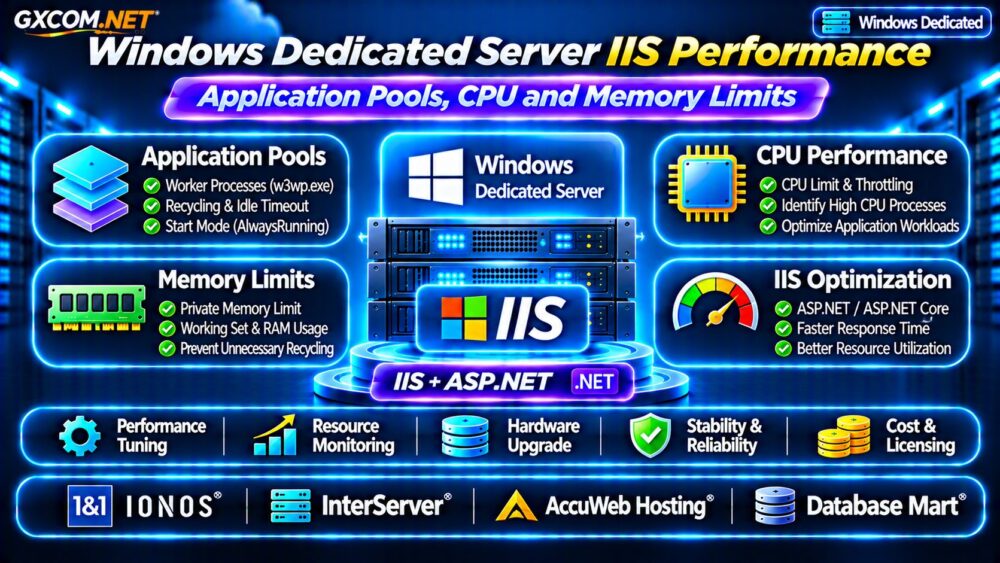
IIS handles incoming requests through Windows services and application worker processes, commonly identified as w3wp.exe. Application pools isolate workloads so different websites can use separate processes, identities, and configuration settings.
A dedicated server provides exclusive physical hardware, but its CPU cores, RAM, storage, and network capacity remain finite. Multiple application pools can compete for those resources, especially during traffic spikes or scheduled background operations.
Before changing settings, measure processor utilization, available memory, request latency, queue lengths, and application errors. These metrics help distinguish IIS configuration problems from genuine hardware shortages.
IIS Application Pool Settings That Affect Performance
Open IIS Manager, select Application Pools, choose the relevant pool, and review Advanced Settings. Changes should be tested in staging because some settings can interrupt active requests.
| Setting | Performance Consideration |
|---|---|
| Start Mode | AlwaysRunning can reduce startup delays |
| Idle Time-out | May stop idle worker processes |
| Maximum Worker Processes | Controls web garden process count |
| CPU Limit | Can trigger configured enforcement actions |
| Private Memory Limit | Can trigger application pool recycling |
| Regular Time Interval | Controls periodic recycling |
Start Mode and Idle Time-out
AlwaysRunning can help applications that experience startup delays, but it does not guarantee that every application is fully initialized. Application Initialization and suitable preload configuration may also be necessary.
For frequently accessed production websites, review whether idle timeouts are causing avoidable cold starts. Persistent worker processes consume memory, so balance responsiveness against server capacity.
Maximum Worker Processes
The default single-worker model is appropriate for many applications. Increasing Maximum Worker Processes creates a web garden, not a conventional multi-server cluster.
Additional processes can complicate in-memory sessions, caches, and application state. Benchmark the change rather than assuming more workers always improve throughput.
IIS CPU Limits: Why Throttling Can Reduce Throughput
IIS application pools provide CPU settings including Limit, Limit Action, and Limit Interval. Their behavior depends on the selected enforcement action and Windows Server version.

A CPU limit is not a straightforward allocation of physical cores. Depending on configuration, exceeding a threshold may trigger logging, throttling, or process termination.
For a business-critical application, aggressive throttling can increase response times precisely when traffic grows. Investigate inefficient code, expensive database queries, and background jobs before restricting CPU consumption.
Troubleshooting High w3wp.exe CPU
Use Task Manager, Resource Monitor, Performance Monitor, and application telemetry to identify the responsible worker process and workload.
Check expensive requests, synchronous operations, excessive serialization, garbage collection, and repeated database calls. A faster processor may help sustained compute workloads, but it will not correct inefficient application logic.
IIS Memory Limits and Application Pool Recycling
The Private Memory Limit setting can recycle a worker process when its private memory usage reaches the configured threshold. Recycling may interrupt in-flight work or create temporary performance degradation.
A limit of zero generally disables that specific private-memory recycling threshold; it does not mean the process has unlimited physical memory.
For memory-intensive ASP.NET applications, monitor working sets, private bytes, managed heap behavior, and overall available RAM before establishing limits.
If memory consumption rises continuously, investigate caching policies, object retention, and possible leaks. Repeated recycling may hide symptoms without solving the underlying problem.
ASP.NET Core and IIS Hosting Considerations
ASP.NET Core applications hosted through IIS use the ASP.NET Core Module. In-process and out-of-process hosting models have different process arrangements and performance characteristics.
For in-process hosting, application code runs inside the IIS worker process. Out-of-process hosting forwards requests to a separate Kestrel process.
Verify the hosting model, runtime version, application pool settings, and supported deployment configuration before comparing benchmarks. Avoid applying traditional ASP.NET tuning assumptions to every ASP.NET Core application.
When Should You Upgrade Windows Dedicated Hardware?
Upgrade decisions should follow sustained measurements, not isolated CPU spikes. A physical server upgrade becomes reasonable when optimized applications consistently exhaust available resources.
Consider these indicators:
- CPU saturation persists during normal business traffic.
- Available RAM remains low despite application optimization.
- Database and storage latency increase under concurrent requests.
- Request queues grow while response-time targets are missed.
- Expected growth exceeds practical hardware expansion options.
Evaluate processor generation, core count, memory capacity, and NVMe storage together. Our Windows Dedicated Server Cost and Licensing Guide explains additional budgeting considerations.
Four Windows Dedicated Hosting Providers to Compare
The following approved providers are candidates for Windows infrastructure evaluation. Confirm Windows Server availability, licensing, management coverage, and specific hardware configurations before ordering.
IONOS: Enterprise Windows Infrastructure
IONOS is worth comparing for organizations planning Windows workloads on dedicated hardware. Evaluate processor specifications, RAM options, storage, support terms, and the Windows operating system arrangements available for the selected product.
InterServer: Hardware and Budget Comparison
InterServer provides another option when comparing dedicated hardware against virtualized Windows hosting. Request complete pricing for the intended configuration, including Windows licensing and any required management services.
AccuWeb Hosting: Windows Application Requirements
AccuWeb Hosting is relevant to buyers evaluating Windows-oriented hosting environments. Confirm that the chosen service supports the necessary IIS version, ASP.NET runtime, administrative access, and deployment requirements.
Database Mart: Database-Intensive Workloads
Database Mart is worth investigating when IIS applications depend on substantial database activity. Compare memory, processor performance, storage latency, and any database licensing requirements separately.
Do not assume that every provider’s Windows VPS, managed hosting, and dedicated server products include identical features or support responsibilities.
Calculate the Real Cost of IIS Performance
Compare the complete monthly operating cost rather than server rental alone. Include Windows Server licensing, backup storage, monitoring, management, database licensing where applicable, and migration work.
For example, a hypothetical $110 monthly server requiring $35 in additional services costs $145 monthly, or $1,740 annually. These figures illustrate budgeting and are not live provider quotations.

If optimization eliminates the need for a larger server, engineering work may deliver better value than purchasing additional cores.
Our Azure VM vs Windows VPS Comparison provides another perspective on Windows infrastructure choices.
IIS Troubleshooting Checklist Before Purchasing
- Record baseline response times and CPU utilization.
- Review application pool recycling and idle behavior.
- Investigate w3wp.exe resource consumption.
- Check database latency, disk queues, and available RAM.
- Load-test proposed changes outside production.
- Verify backups and recovery procedures.
For operational responsibility comparisons, read our Managed vs Unmanaged Hosting Guide. For physical infrastructure planning, see Dedicated vs Cloud Server Comparison.
Frequently Asked Questions
Should IIS CPU Limits Be Disabled?
Not universally. Limits may help enforce workload policies, but inappropriate throttling can harm performance. Select settings based on monitoring and isolation requirements.
Does More RAM Prevent IIS Recycling?
Additional RAM can relieve memory pressure, but configured recycling thresholds, application faults, and memory leaks still require investigation.
Is a Dedicated Server Always Faster for IIS?
No. Processor generation, application design, database performance, and configuration matter more than the hosting label alone.
Final Verdict
Effective IIS optimization begins with application pool configuration, CPU monitoring, memory analysis, and realistic load testing. Dedicated hardware becomes valuable when measurable resource demand exceeds an optimized environment’s capacity.
Compare IONOS, InterServer, AccuWeb Hosting, and Database Mart using verified Windows configurations, complete licensing costs, and application-specific benchmarks before committing to an upgrade.