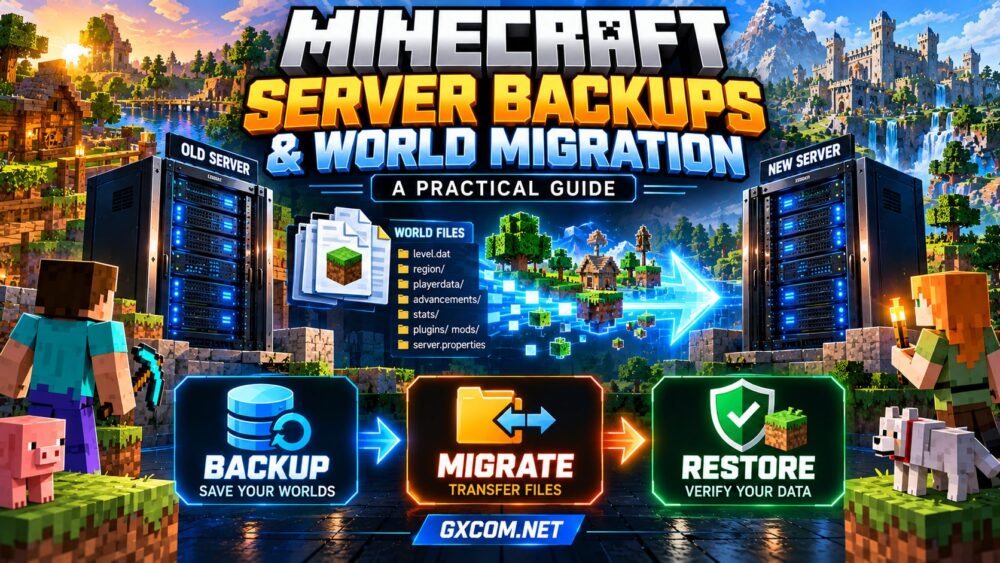
Moving a Minecraft server should not mean losing months of building, player inventories, or carefully configured mods. Yet incomplete backups and incorrect world paths can turn a routine hosting migration into an unexpected reset.
This practical guide to Minecraft server backups and world migration explains what to save, how to transfer a Java Edition world, and how to verify that everything works before inviting players back.
Why Minecraft Server Backups Matter
A Minecraft world contains more than buildings. It may include player inventories, advancements, statistics, dimension data, plugin databases, and configuration files. Losing one component can leave the world playable but incomplete.
Backups protect against accidental deletion, corrupted saves, failed updates, incompatible mods, and hosting problems. They also make it safer to experiment with new server software.
For broader recovery planning, see our game server backup strategies guide.
1. Identify the Files You Must Back Up
On a typical Minecraft Java Edition server, the main world folder contains essential files and directories. Exact layouts vary by server software and configuration.
| File or Folder | Purpose |
|---|---|
| level.dat | World settings and essential metadata |
| region/ | Overworld terrain and chunk data |
| playerdata/ | Player-specific saved data |
| advancements/ | Player advancement progress |
| stats/ | Player statistics |
| plugins/ or mods/ | Extensions and their associated files |
| server.properties | Server configuration, including world name |
Paper and Spigot-based servers may store Nether and End dimensions in separate folders such as world_nether and world_the_end. Vanilla servers commonly store dimensions inside the main world directory.
Back up all relevant dimension folders rather than assuming one directory contains everything.
2. Create a Consistent Minecraft World Backup
The safest straightforward method is to stop the server before copying its files. This prevents new world changes while the backup is being created.
- Notify players and schedule a maintenance window.
- Stop the Minecraft server through its control panel or console.
- Copy the world folder and any separate dimension folders.
- Include server.properties, plugin configurations, and essential mod files.
- Download the backup to separate storage.
- Check that the archive contains the expected files and has a reasonable size.
Advanced administrators may use coordinated snapshots or supported backup tools while a server is running, but copying live world files without consistency controls risks incomplete data.

Keep multiple dated versions. A single backup can already contain corruption that went unnoticed.
3. Prepare for Minecraft World Migration
Before transferring anything, record your current Minecraft version, server software, Java runtime requirements, installed plugins, mod loader, and configuration settings.
For modded worlds, preserve the exact modpack and dependency versions whenever possible. A missing world-generation mod can create serious compatibility problems.
Confirm that the destination host supports your required software and provides sufficient memory, storage, and file access.
Our Minecraft server RAM requirements guide can help estimate resources before migration.
4. Transfer Your World to the New Server
Start by creating a clean installation on the destination server using compatible software. Stop it before replacing world files.
- Download a verified backup from the original server.
- Connect to the destination using its file manager or SFTP.
- Upload the complete world directory and required dimension folders.
- Transfer compatible plugin data and configuration files.
- Check the level-name setting in server.properties.
- Confirm file ownership and permissions where applicable.
- Start the server and inspect the console for errors.
For a typical Java server, level-name must match the intended world folder. An incorrect value can cause Minecraft to generate a fresh world instead of loading your existing one.
Never overwrite the only copy of your original world. Keep the source server unchanged until the destination passes testing.
5. Handle Java, Bedrock, and Modded Worlds Carefully
Minecraft Java Edition and Bedrock Edition use different world storage formats. Moving between them is not equivalent to copying a folder between two Java servers.
Cross-edition migration generally requires specialized conversion tools, and some blocks, entities, inventories, or game mechanics may not transfer perfectly.
For Java servers, switching between Vanilla, Paper, Fabric, and Forge can also introduce compatibility issues. Plugins and mods are not interchangeable, and some server implementations organize dimension folders differently.
Review our Minecraft Java vs Bedrock hosting comparison before planning a cross-edition move.
6. Verify the Migration Before Going Live
Successful startup does not prove that every world component survived.
Join the destination server with a test account and visit familiar locations. Check builds, inventories, Ender chests, dimensions, permissions, and important plugin features.
Ask trusted players to verify their progress. Review console warnings and confirm that scheduled backups work on the new host.
Only after these checks should you update your public server address or DNS records. Allow for DNS caching when changing hostnames.
7. Troubleshoot Common Migration Problems
| Problem | Likely Explanation | First Action |
|---|---|---|
| New empty world | Incorrect level-name or folder location | Verify world path |
| Missing inventories | Incomplete playerdata or identity mismatch | Check player files and authentication mode |
| Missing Nether or End | Dimension folders not transferred | Check server-specific layout |
| Startup failure | Version or mod incompatibility | Review console logs |
| World corruption | Incomplete copy or damaged save | Restore a verified backup |
Do not repeatedly start a damaged world while experimenting. Make a separate troubleshooting copy first.
8. Compare Minecraft Hosts for Backup and Migration Features
When choosing managed Minecraft hosting, evaluate recovery tools alongside CPU performance and memory.
Supercraft.host and ScalaCube are options to investigate for Minecraft hosting. Compare their current file-access methods, backup controls, supported server software, and migration assistance.
Sparked Host and Godlike.Host are additional approved hosting options worth evaluating for modded-server compatibility, restoration workflows, and available locations.

Features can vary between plans. Confirm backup retention, off-server storage, restore permissions, and any migration charges before purchasing.
For a broader comparison, visit our best Minecraft server hosting guide.
9. Build a Reliable Backup Schedule
Choose backup frequency according to how much progress your community can afford to lose. Busy public servers generally need more frequent protection than occasional private worlds.
Keep daily recovery points where practical, retain older versions, and maintain at least one copy outside the hosting account.
Restrict backup deletion permissions and periodically perform test restores. A successful backup notification means little if the files cannot be recovered.
Frequently Asked Questions
Can I Move My Minecraft World to Another Host?
Yes. Compatible Java servers can generally load transferred world files when the correct folders, software versions, and configurations are preserved.
Will Players Lose Their Inventories?
Not necessarily. Preserve playerdata and maintain consistent player identities and authentication settings. Test inventories before opening the migrated server.
Can I Back Up Minecraft Without Stopping It?
Yes, with properly coordinated backup tools or snapshots. For manual file copying, stopping the server is the safer approach.
Should I Delete the Old Server Immediately?
No. Retain the original server and a separate verified backup until the new installation has passed functional and recovery tests.
Final Thoughts
Reliable Minecraft server backups make world migration safer and future upgrades less stressful. Preserve complete world data, match software versions, test restoration, and verify player progress before switching hosts.
The best migration is one your players barely notice.