A VPS gives you far more control than shared hosting—but that control also means you are responsible for protecting the server.
A newly deployed VPS can be exposed to automated scans, brute-force login attempts, vulnerable software and configuration mistakes soon after it receives a public IP address.
The good news is that effective VPS security does not require hundreds of complicated tweaks. A small number of correctly implemented controls can significantly reduce your attack surface.
This guide explains how to secure a VPS using 15 essential server security best practices covering updates, SSH, users, firewalls, backups and monitoring.
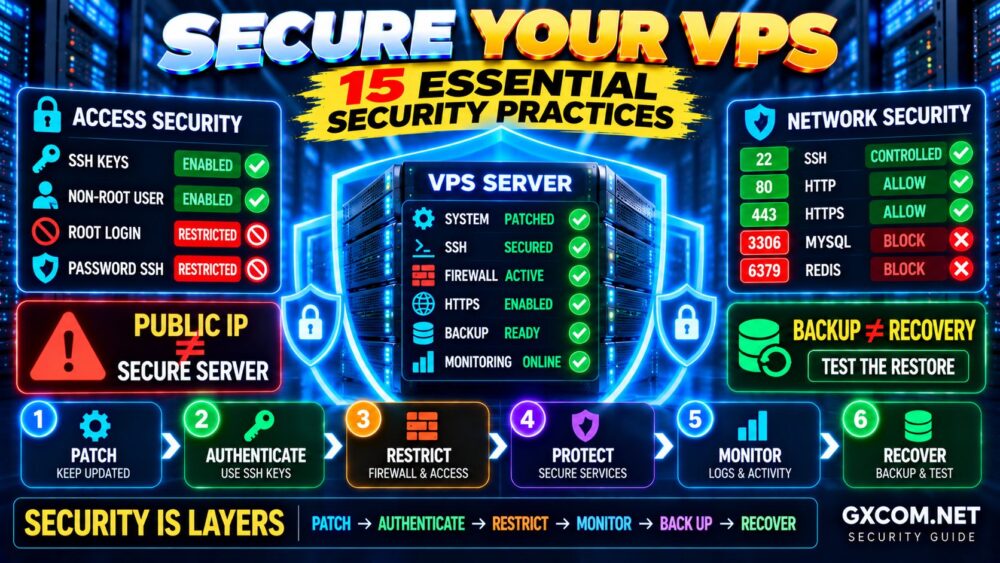
PATCH → AUTHENTICATE → RESTRICT → MONITOR → BACK UP → RECOVER
Why VPS Security Matters
With unmanaged VPS hosting, the provider generally maintains the underlying infrastructure while you are responsible for much of the operating system and application security.
Depending on your server, potential risks include:
- Brute-force SSH attacks
- Stolen passwords or SSH keys
- Unpatched software vulnerabilities
- Exposed databases and services
- Malicious website files
- Compromised applications
- Configuration mistakes
- Data loss
If you are configuring a new server from scratch, complete the basic steps in our Linux Server Setup Guide before applying more advanced security controls.
VPS Security Checklist
| Security Control | What It Protects | Priority |
|---|---|---|
| System Updates | Known vulnerabilities | Critical |
| Non-Root Admin | Privileged access | Critical |
| SSH Keys | Remote login | Critical |
| SSH Hardening | Administrative access | Critical |
| Firewall | Network exposure | Critical |
| Least Privilege | Users and applications | High |
| Backups | Data and recovery | Critical |
| Monitoring | Detection and response | High |
1. Update the Operating System Immediately
One of the most important VPS security practices is also one of the simplest: keep the operating system patched.
For Ubuntu and Debian systems:
sudo apt update
sudo apt upgrade -y
Other Linux distributions use different package managers, such as dnf.
Updates can fix vulnerabilities in the kernel, OpenSSH, web servers, system libraries and other packages.
Do not assume a newly created VPS image is completely current.
New Server ≠ Fully Patched Server.
2. Create a Non-Root Administrative User
Avoid using the root account for routine administration.
On Ubuntu/Debian, create a new user:
sudo adduser adminuser
Then grant appropriate sudo privileges:
sudo usermod -aG sudo adminuser
Test the account before changing root SSH access:
ssh adminuser@SERVER_IP
Then verify administrative access:
sudo whoami
Using a separate administrative account improves accountability and reduces unnecessary direct root usage.
3. Use SSH Key Authentication
Password-only SSH access is frequently targeted by automated login attempts.
SSH keys provide a stronger authentication option when configured and protected correctly.
Generate a modern Ed25519 key on your local system:
ssh-keygen -t ed25519
Copy the public key to the server using an appropriate method, such as:
ssh-copy-id adminuser@SERVER_IP
Then test the key in a second terminal.
Never share your private SSH key.
Protect private keys with appropriate file permissions and, where practical, a strong passphrase.
4. Restrict Direct Root SSH Login
After confirming that your non-root administrative account and SSH key work correctly, review whether direct root SSH login is necessary.
OpenSSH configuration is commonly located in:
/etc/ssh/sshd_config
or configuration files under:
/etc/ssh/sshd_config.d/
A common hardening setting is:
PermitRootLogin no
Before applying the change, make sure you have:
- A working administrative account
- Working SSH key authentication
- Sudo privileges
- Provider console or recovery access
Test Access Before Removing Access.
5. Disable SSH Password Authentication When Appropriate
Once SSH key authentication has been thoroughly tested, you can consider disabling password-based SSH authentication.
A typical setting is:
PasswordAuthentication no
Validate the SSH configuration before reloading the service:
sudo sshd -t
Do not disable password authentication if you are uncertain whether your SSH keys and recovery access work.
Also remember that changing SSH from port 22 to another port may reduce automated scan noise, but it is not a replacement for strong authentication.
6. Configure a Firewall
Your VPS should expose only the network services it actually needs.
On Ubuntu, UFW provides a straightforward firewall interface.
Before enabling it, allow SSH:
sudo ufw allow OpenSSH
For a public web server:
sudo ufw allow 80/tcp
sudo ufw allow 443/tcp
Then:
sudo ufw enable
sudo ufw status verbose
A typical web server may publicly expose ports 80 and 443 while keeping databases and internal services private.
Allow What You Need. Block What You Don't.
7. Do Not Expose Databases Unnecessarily
Services such as MySQL, MariaDB, PostgreSQL and Redis generally should not be exposed directly to the public internet unless the architecture specifically requires remote access.
For many single-server websites:
Web Application → Local Database
is preferable to:
Internet → Public Database Port
Common backend ports include:
- 3306 — MySQL/MariaDB
- 5432 — PostgreSQL
- 6379 — Redis
Use firewall rules, bind addresses and application-specific access controls to restrict exposure.
8. Apply the Principle of Least Privilege
Every user and service should receive only the permissions required to perform its job.
For example:
- Not every user needs sudo
- Applications should not normally run as root
- Database users should access only required databases
- Services should listen only on necessary interfaces
- Files should have appropriate ownership and permissions
Least privilege limits the potential damage if one account or application becomes compromised.
9. Enable Automatic Security Updates
Security updates should be installed promptly.
On Ubuntu/Debian, unattended upgrades can automate eligible security updates:
sudo apt install unattended-upgrades -y
However, automation still requires monitoring.
Check whether:
- Updates are succeeding
- Services need restarting
- A reboot is required
- Updates affect application compatibility
Automatic Updates ≠ Automatic Server Management.
10. Protect SSH Against Repeated Login Attempts
A public VPS may receive automated SSH login attempts simply because its IP address is reachable.
Fail2ban is one tool that can monitor authentication logs and temporarily block addresses that repeatedly trigger configured failure rules.
On Ubuntu/Debian:
sudo apt install fail2ban -y
Check the service:
sudo systemctl status fail2ban
Fail2ban is an additional layer—not a substitute for SSH keys, firewall rules or secure account configuration.
SSH Keys + Firewall + Monitoring + Rate Controls provide a stronger security model than relying on one tool.
11. Remove or Disable Unnecessary Services
Every running network service increases the attack surface you need to maintain.
Check listening services with:
sudo ss -tulpn
Review the results and ask:
- Do I recognize this service?
- Does the server actually need it?
- Should it be listening publicly?
- Is it updated?
If a service is unnecessary, disable or remove it using the appropriate procedure for your Linux distribution.
Fewer Services → Smaller Attack Surface.
12. Secure Your Web Server and Applications
Securing Linux and SSH is not enough if the application itself is vulnerable.
If the VPS hosts WordPress or another web application:
- Keep the CMS updated
- Update plugins and themes
- Remove abandoned software
- Use strong administrator authentication
- Restrict file permissions
- Protect configuration files
- Use supported PHP/runtime versions
A fully patched Linux server can still be compromised through a vulnerable web application.
Server Security + Application Security = Complete Defense.
13. Enable HTTPS
Public websites should use HTTPS to protect data in transit and authenticate the website to visitors.
A properly configured TLS certificate protects traffic between the browser and web server from passive interception and tampering.
If you have not configured HTTPS yet, follow our SSL Certificate Installation Guide.
After installation, verify:
- Certificate validity
- Correct hostname coverage
- HTTP-to-HTTPS redirects
- Automatic certificate renewal
HTTPS is important, but remember that it does not protect a server from every type of attack.
14. Monitor Logs and Server Activity
Security controls are much less useful if you never notice when something unusual happens.
Linux logs may be available through:
/var/log/
and the system journal:
journalctl
Monitor events such as:
- Repeated failed logins
- Unexpected sudo activity
- New users
- Service failures
- Unexpected listening ports
- Sudden CPU or network usage
- Unexpected file changes
Resource monitoring is also useful because abnormal CPU, RAM, disk or network activity can sometimes be an early sign of compromise.
Our Slow Server Troubleshooting Guide explains how to investigate these resource bottlenecks.
15. Maintain Off-Server Backups and Test Recovery
Backups are a security control as well as an availability measure.
They can help recover from:
- Compromised websites
- Accidental deletion
- Failed updates
- Database corruption
- Server failure
- Ransomware or destructive attacks
A useful backup strategy may include:
- Website files
- Databases
- Important configuration
- Multiple restore points
- Off-server storage
Do not keep your only backup on the VPS itself.
If the entire server or account is compromised, the attacker may also destroy locally stored backups.
Most importantly, test restoration.
BACKUP ≠ RECOVERY
Can You Restore It?
Bonus: Use Provider-Level Security Controls
Your VPS provider may offer security controls outside the operating system, such as:
- Cloud firewalls
- DDoS protection
- Snapshots
- Private networking
- Recovery consoles
- Account multi-factor authentication
These can complement your Linux firewall and server configuration.
A useful layered architecture looks like:
Internet → Provider Protection → Firewall → Operating System → Application → Data
No single layer should be expected to stop every threat.
VPS Security vs Provider Security
It is important to understand the shared responsibility involved in VPS hosting.
| Area | Provider | VPS Administrator |
|---|---|---|
| Physical Data Center | Usually Provider | No |
| Host Infrastructure | Usually Provider | No |
| Guest Operating System | Depends on service | Usually Yes |
| SSH Configuration | Usually No | Yes |
| Applications | Usually No | Yes |
| Application Updates | Usually No | Yes |
| Data Backups | Depends on plan | Ultimately Your Responsibility |
This distinction is especially important with unmanaged hosting.
If you prefer the provider to handle more server administration, compare the differences in our Managed vs Unmanaged VPS guide.
Common VPS Security Mistakes
Assuming a New VPS Is Secure by Default
A default installation still needs updates, access controls and workload-specific configuration.
Disabling SSH Access Before Testing the Replacement
Always test the new administrative user and SSH key first.
Opening Too Many Firewall Ports
Do not expose services simply because they are installed.
Running Applications as Root
Use dedicated service accounts and least privilege where appropriate.
Ignoring Application Security
Linux hardening cannot compensate for an outdated or vulnerable application.
Keeping the Only Backup on the VPS
This creates a single failure domain.
Thinking a Different SSH Port Makes the Server Secure
It can reduce scanning noise but does not replace strong authentication.
Installing Security Tools Without Monitoring Them
A security tool that fails silently may provide false confidence.
How Often Should You Review VPS Security?
VPS security is not a one-time setup task.
Review security regularly and whenever there is a significant change, such as:
- Installing a new application
- Opening a new port
- Adding a user
- Changing SSH configuration
- Migrating websites
- Updating major software versions
- Responding to suspicious activity
The goal is not to create a server that is “secure forever.”
The goal is to continuously reduce unnecessary risk.
VPS Security FAQ
Is a VPS secure?
A VPS can be securely operated, but security depends on the provider, operating system, configuration, applications, access controls, updates and ongoing monitoring. An unmanaged VPS requires the administrator to handle many of these responsibilities.
What is the most important VPS security step?
There is no single control that solves everything. Prioritize timely updates, secure administrative authentication, restricted network exposure, application security and recoverable backups.
Should I disable root login on my VPS?
Restricting direct root SSH access is a common security practice. First confirm that another administrative account has working SSH key authentication, sudo privileges and recovery access.
Are SSH keys safer than passwords?
Properly generated and protected SSH keys provide strong authentication and avoid many password-guessing attacks. Private keys must still be protected from theft.
Do I need a firewall on a VPS?
Yes. A host firewall helps restrict network access to required services. Provider-level cloud firewalls can provide an additional layer.
Do I need Fail2ban?
Fail2ban can be useful against repeated authentication failures, but it should supplement rather than replace SSH keys, firewall rules and monitoring.
Does HTTPS make my VPS secure?
No. HTTPS protects data in transit between clients and the web server. It does not replace operating system updates, secure SSH access, firewall rules or application security.
15-Point VPS Security Checklist
- ✓ Update the operating system
- ✓ Create a non-root administrator
- ✓ Configure SSH keys
- ✓ Restrict direct root SSH access
- ✓ Review password authentication
- ✓ Configure the firewall
- ✓ Restrict databases and internal services
- ✓ Apply least privilege
- ✓ Enable security updates
- ✓ Protect against repeated login attempts
- ✓ Remove unnecessary services
- ✓ Secure applications and web software
- ✓ Enable HTTPS
- ✓ Monitor logs and activity
- ✓ Maintain and test off-server backups
Final Recommendation
Learning how to secure a VPS is less about installing one security product and more about building multiple defensive layers.
Start with the fundamentals:
PATCH
Keep the operating system and applications updated.
↓
AUTHENTICATE
Protect administrative access with secure SSH authentication.
↓
RESTRICT
Expose only the ports, users and services that are actually required.
↓
MONITOR
Watch logs, resources and important services for unexpected changes.
↓
BACK UP
Maintain copies outside the VPS.
↓
RECOVER
Test whether those backups can actually restore your workload.
The strongest VPS security strategy is not one tool or one configuration setting.
SECURITY IS LAYERS.
PATCH → AUTHENTICATE → RESTRICT → MONITOR → BACK UP → RECOVER