A strong password is important, but it may not be enough to protect your WordPress administrator account. Phishing, credential reuse, and stolen passwords can allow attackers to access websites even when the password itself appears complex.
WordPress two-factor authentication (2FA) adds another verification step to the login process, making stolen passwords less useful to attackers.
This guide explains how to enable WordPress 2FA, compare authentication methods, protect administrator accounts, and recover access if your authentication device becomes unavailable.
What Is WordPress Two-Factor Authentication?
Two-factor authentication requires two independent authentication factors before access is granted.
For example, a WordPress administrator may enter a password and then provide a temporary code generated by an authenticator app.
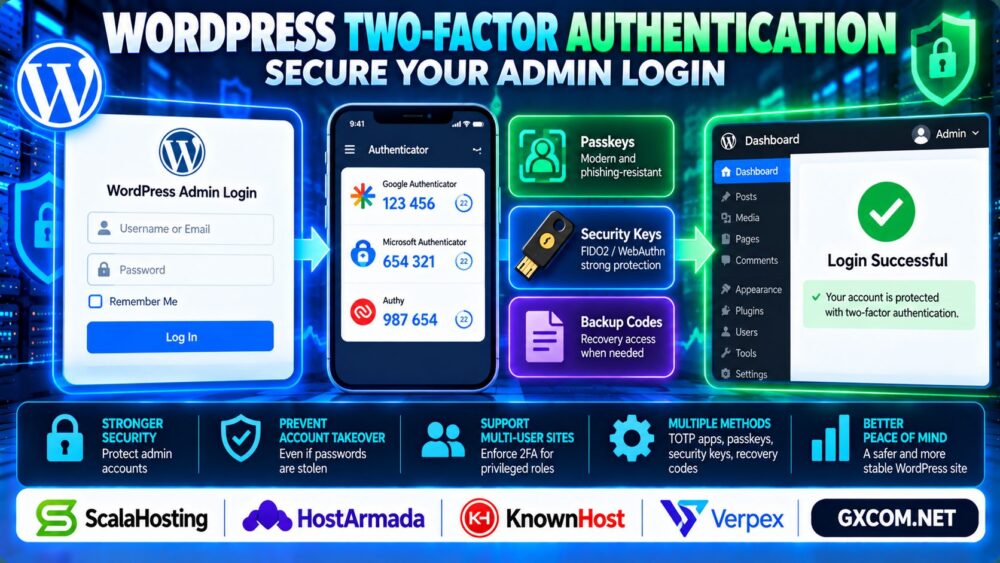
Common authentication methods include:
- TOTP authenticator apps: Generate time-based verification codes.
- Hardware security keys: Support stronger, phishing-resistant authentication when implemented through appropriate standards.
- Passkeys: Use public-key authentication and device-based verification.
- Email codes: Provide an additional verification step, although security depends on the email account.
Quick answer: For most WordPress administrators, a reputable TOTP-based 2FA solution is a practical starting point. Where supported, properly implemented passkeys or FIDO2 security keys offer stronger phishing resistance.
1. Why WordPress Admin Accounts Need 2FA
WordPress administrator accounts can install plugins, modify themes, create users, and change important website settings.
If attackers compromise an administrator account, they may inject malicious code, redirect visitors, or create additional privileged users.
Two-factor authentication reduces the risk of account takeover caused by password theft, although it cannot prevent every form of compromise.
For recovery procedures after an infection, read our WordPress Malware Removal Guide.
2. How to Enable Two-Factor Authentication in WordPress
WordPress core does not provide a universal built-in 2FA setup for standard installations. Most website owners use a compatible security or authentication plugin.
Follow these steps:
- Back up your website and confirm administrator recovery access.
- Choose a maintained WordPress 2FA plugin from a trusted source.
- Install and activate the plugin.
- Open its authentication settings.
- Enable TOTP or another supported authentication method.
- Scan the enrollment QR code with your authenticator app.
- Enter the generated verification code to confirm enrollment.
- Save recovery codes securely and test a new login session.
Plugin menus and enrollment procedures vary by product and version.

Keep your existing administrator session open until you have confirmed that the new authentication method works.
3. Google Authenticator vs Passkeys vs Security Keys
| Method | Advantages | Considerations |
|---|---|---|
| TOTP app | Widely supported and relatively simple | Codes can still be phished |
| Passkey | Phishing-resistant when correctly implemented | Requires compatible integration and recovery planning |
| FIDO2 security key | Strong cryptographic authentication | Requires supported plugin and hardware |
| Email code | Easy for many users to access | Depends on email account security |
Choose an authentication method based on your website's risk level, user requirements, plugin compatibility, and recovery options.
4. Require 2FA for WordPress Administrators
On multi-user WordPress websites, administrator and editor accounts often deserve stricter authentication policies than ordinary subscriber accounts.
Where supported, configure your security plugin to require 2FA for privileged roles.
Review administrator accounts regularly and remove access that is no longer necessary.
For businesses operating several WordPress installations, ScalaHosting and HostArmada are relevant hosting providers to compare when evaluating website management environments.
Hosting features vary by plan, so verify which account security and management tools are included.
5. How to Recover WordPress Access if 2FA Fails
Losing a phone or authentication device can prevent legitimate administrators from signing in.
Prepare recovery options before enforcing 2FA.
- Store recovery codes in a secure password manager or protected offline location.
- Register a second authentication method when supported.
- Document a verified administrator recovery procedure.
- Keep hosting control panel and recovery credentials protected.
If you become locked out, use the plugin's documented recovery process or contact an authorized administrator or hosting provider.
Do not permanently disable authentication protections merely to resolve a temporary login problem.
6. Common WordPress 2FA Configuration Mistakes
Authentication problems often result from incomplete enrollment, missing recovery codes, or conflicts between login customization plugins.
Other mistakes include requiring 2FA before testing recovery access, failing to protect email accounts, and leaving unused administrator accounts active.
For TOTP systems, incorrect device time can cause verification failures. Confirm that the authenticator device maintains accurate time synchronization.
Always test login changes using a separate browser session before logging out of the current administrator session.
7. Combine 2FA with Other WordPress Security Controls
Two-factor authentication works best as part of a broader security strategy.
Keep WordPress software updated, use unique passwords, limit administrator privileges, and monitor suspicious account activity.
Protect the hosting account and server administration interfaces as carefully as the WordPress login page.
For Linux server authentication threats, see our SSH Brute Force Protection Guide.
For HTTPS configuration, read our HTTP to HTTPS Redirect Guide.
8. Does Managed WordPress Hosting Improve Login Security?
Managed hosting can reduce some maintenance responsibilities, but it does not eliminate the need for strong administrator authentication.
KnownHost and Verpex are additional providers to compare when evaluating WordPress hosting and website administration requirements.
Review backup availability, software update responsibilities, support scope, and account access controls before choosing a hosting plan.
Our Managed vs Unmanaged Hosting Guide explains how operational responsibilities differ.

WordPress Admin Login Security Checklist
- Enable 2FA for administrator accounts.
- Use unique passwords stored securely.
- Save recovery codes before enforcing authentication.
- Remove unnecessary privileged accounts.
- Protect email and hosting control panel access.
- Keep authentication plugins updated.
- Test recovery procedures periodically.
Frequently Asked Questions
Does WordPress have built-in two-factor authentication?
Standard WordPress installations generally require a compatible plugin or external authentication integration to enable 2FA.
Is Google Authenticator compatible with WordPress?
Yes, when a compatible WordPress plugin supports standard TOTP authenticator apps.
Can attackers bypass WordPress 2FA?
Some attacks, including phishing, session theft, and vulnerable plugins, can undermine authentication protections. No single control guarantees security.
Are passkeys more secure than SMS codes?
Properly implemented passkeys generally provide stronger phishing resistance than SMS-based verification.
What happens if I lose my authenticator phone?
Use securely stored recovery codes, a registered backup method, or the plugin's documented account recovery process.
Should every WordPress user enable 2FA?
Privileged accounts should receive priority. Broader enforcement depends on website risk, user experience, and available recovery support.
Final Verdict
Effective WordPress two-factor authentication reduces the risk of unauthorized administrator access when passwords are stolen or reused.
Choose a reliable authentication method, enforce protection for privileged users, and maintain secure recovery options.
Strong Authentication → Limited Privileges → Recovery Planning → Ongoing Monitoring.