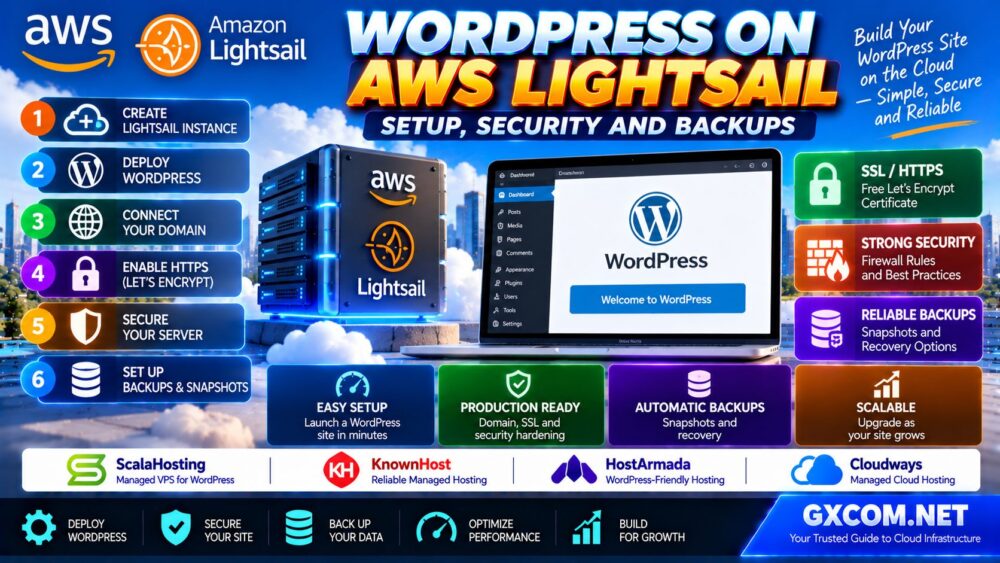
Hosting WordPress on AWS Lightsail is a practical way to run a website on cloud infrastructure without building a complex Amazon EC2 environment from scratch. Lightsail combines virtual servers, storage, networking, DNS management, and backup options in a more straightforward interface.
However, launching a WordPress instance is only the beginning. A production website also needs a domain name, HTTPS encryption, secure administrator access, regular updates, reliable backups, and a recovery plan.
In this guide, you will learn how to host a WordPress website on AWS Lightsail, configure its domain and SSL certificate, strengthen security, optimize performance, and protect your content with snapshots and application-level backups.
Is AWS Lightsail Good for WordPress Hosting?
Amazon Lightsail is suitable for many small and medium-sized WordPress websites, particularly when the owner wants a virtual server with a relatively simple deployment process.
It can be a good starting point for blogs, company websites, portfolio sites, and modest content-driven projects.
However, Lightsail is not automatically the best choice for every WordPress installation. High-traffic WooCommerce stores, complex multisite deployments, and applications requiring advanced infrastructure controls may need a more specialized architecture.
| Feature | AWS Lightsail WordPress |
|---|---|
| Hosting model | Virtual private server |
| WordPress deployment | Preconfigured WordPress blueprint |
| Operating system control | Linux server administration |
| Custom domain | Supported through DNS configuration |
| HTTPS | Supported through certificate configuration |
| Backups | Manual and automatic snapshot options |
| Scaling | Instance upgrades and additional infrastructure |
| Management responsibility | Customer manages WordPress and relevant server operations |
If you are still deciding between AWS hosting services, read our Amazon EC2 vs Lightsail Comparison before choosing an infrastructure model.
1. What You Need Before Installing WordPress
Before launching a Lightsail instance, prepare the following:
- An active AWS account
- A domain name you control
- Access to the domain's DNS settings
- An email address for website administration
- A basic understanding of WordPress
- A plan for backups and ongoing maintenance
It is also useful to estimate your website's storage requirements, expected traffic, plugin usage, and memory needs.
For example, a small informational blog may have different requirements from a WooCommerce store with frequent database updates.
2. Create a WordPress Instance on AWS Lightsail
Sign in to the AWS Management Console and open Amazon Lightsail.
Step 1: Create an Instance
Select the option to create a new instance.
Step 2: Choose a Region
Select an AWS Region reasonably close to your primary audience, while considering availability and data residency requirements.
Step 3: Select the WordPress Blueprint
Choose a supported WordPress blueprint from the available application options.
Follow the instructions for the specific blueprint you select. AWS Lightsail WordPress and older Bitnami-packaged WordPress installations may have different setup procedures.
Step 4: Select an Instance Plan
Choose CPU, memory, storage, and transfer allowances based on your expected workload.
Avoid selecting a plan solely because it has the lowest advertised price. WordPress performance depends on PHP execution, database queries, caching, plugin complexity, and concurrent traffic.
Step 5: Name and Launch the Instance
Give the instance a descriptive name and complete deployment.
Wait until the instance is running and the website is ready to access.
3. Retrieve Your WordPress Administrator Password
After deployment, open the Lightsail instance management page.
For supported current WordPress blueprints, use the WordPress panel's password retrieval workflow and follow the displayed instructions.
On older Bitnami-based instances, the default application password may be retrieved through the browser-based SSH terminal using:
cat $HOME/bitnami_application_passwordThis command is specific to compatible Bitnami installations and should not be assumed to work with every WordPress blueprint.
Open the WordPress administration interface using the access method provided for your instance.
After signing in, replace the initial administrator password with a strong, unique password.
Store administrator credentials in a reputable password manager and avoid sharing them through unsecured messages.
4. Assign a Static IP Address
A static IP helps keep your WordPress website reachable through the same public address when the instance is stopped and started.
In Lightsail:
- Open the Networking section for your instance.
- Create a static IP address.
- Attach it to the correct instance.
- Record the assigned IP address.
Without a static IP, a default public IP address may change after certain instance lifecycle operations.
Review current Lightsail pricing and attachment rules for static IP resources.
5. Connect Your Domain to AWS Lightsail
Once the static IP is attached, configure your domain's DNS records.
You can use a Lightsail DNS zone or continue managing DNS through your domain registrar or another DNS provider.
Configure the Root Domain
Create or update an A record for the root domain so that it points to your Lightsail static IP.
Configure the WWW Subdomain
Configure the appropriate DNS record for the www hostname according to your preferred domain structure.
Decide whether the primary website address will use www or the root domain, then configure consistent redirects.
DNS changes can take time to propagate. Verify the records before requesting a certificate.
6. Enable Free HTTPS With Let's Encrypt
HTTPS encrypts traffic between visitors and your website.
For supported Lightsail WordPress blueprints, AWS provides a guided website setup process that can configure domain assignments and a Let's Encrypt certificate.
Open the instance's Connect tab and look for the website setup workflow.
Follow the steps to:

- Specify the domain name.
- Confirm DNS configuration.
- Attach the static IP.
- Select the relevant domain names.
- Request and configure the certificate.
- Verify HTTPS access.
What About Bitnami WordPress?
Some older Bitnami WordPress blueprints use the Bitnami HTTPS configuration tool, commonly called bncert.
If your installation uses a compatible Bitnami image and the guided workflow is unavailable, consult the AWS documentation for the appropriate bncert procedure.
Do not run commands intended for another blueprint or assume that certificate paths and web server configuration files are identical.
Verify HTTPS
After setup, check that:
- The website loads over HTTPS.
- The certificate matches the domain.
- HTTP traffic redirects to the preferred HTTPS address.
- WordPress Address and Site Address are consistent.
- Pages do not contain mixed-content errors.
Certificate renewal should be monitored so that visitors are not unexpectedly presented with an expired certificate.
7. Secure Your Lightsail WordPress Server
A publicly accessible WordPress server requires multiple layers of security.
Change Default Credentials
Use strong, unique passwords for WordPress administrator accounts and other services.
Enable Two-Factor Authentication
Consider a reputable WordPress two-factor authentication solution for privileged users.
Restrict SSH Access
Review Lightsail firewall rules and limit SSH access to trusted IP addresses where practical.
Ports 80 and 443 are normally required for public HTTP and HTTPS traffic, while SSH should not be left unnecessarily exposed.
Update WordPress Components
Keep WordPress core, themes, and plugins updated.
Remove unused plugins and themes, especially those that are no longer maintained.
Maintain the Operating System
Apply security updates appropriate to your instance image and software stack.
Before major operating system or application upgrades, create a tested backup and plan for rollback.
Protect Configuration Files
Restrict access to sensitive configuration files and database credentials.
Do not expose application secrets through public directories or source repositories.
8. Configure Lightsail Firewall Rules
Lightsail provides instance firewall controls for inbound network traffic.
A typical WordPress deployment may require:
| Port | Protocol | Purpose |
|---|---|---|
| 80 | TCP | HTTP and certificate-related workflows |
| 443 | TCP | HTTPS website traffic |
| 22 | TCP | SSH administration |
Limit SSH source addresses whenever feasible. Avoid opening database ports publicly unless there is a specific, secured requirement.
Also review the operating system's firewall and service configuration when applicable.
9. Back Up WordPress With Lightsail Snapshots
Backups are essential for protecting a WordPress website against server failure, configuration mistakes, malware, and accidental deletion.
Amazon Lightsail supports manual snapshots and automatic snapshot options for eligible resources.
Create a Manual Snapshot
Open the Lightsail instance management page and locate the Snapshots section.
Create a snapshot before major WordPress upgrades, theme changes, plugin migrations, or infrastructure modifications.
Enable Automatic Snapshots
For supported instances, enable automatic snapshots to create recurring recovery points.
Review snapshot retention, billing, and recovery behavior.
Understand Snapshot Limitations
A snapshot is valuable for recovering infrastructure, but it is not a complete replacement for an application-aware backup strategy.
Busy WordPress websites may have database writes occurring during backup operations.
For critical applications, evaluate database consistency and recovery requirements carefully.
10. Add WordPress-Level Backups
In addition to infrastructure snapshots, maintain backups of the WordPress database and application files.
A useful WordPress backup should include:
- The database
- Uploaded media files
- WordPress configuration
- Custom themes
- Custom plugins
- Other site-specific application data
Store backup copies outside the original instance whenever possible.
Define recovery point objectives and recovery time objectives according to the importance of the website.
For example, an actively updated online store may require more frequent database backups than a static company website.
Important: Test restoration procedures periodically. A backup is only useful if the website can actually be recovered from it.
11. How to Restore a WordPress Website From a Snapshot
If the original instance fails, a Lightsail snapshot can be used to create a replacement instance.
A typical recovery process includes:
- Identify a suitable recovery snapshot.
- Create a replacement instance from the snapshot.
- Review its network and firewall configuration.
- Attach or reassign the appropriate static IP.
- Verify domain and HTTPS configuration.
- Check WordPress files and database connectivity.
- Test website functionality.
Recovery steps may differ depending on the snapshot type, blueprint, and changes made since the backup.
Test login, forms, media files, scheduled tasks, and any e-commerce functionality before considering the restoration complete.
12. Optimize WordPress Performance on Lightsail
Good WordPress performance depends on more than the server's CPU and memory specifications.
Important factors include:
- PHP execution time
- Database query efficiency
- Page caching
- Object caching where appropriate
- Image optimization
- Theme complexity
- Plugin quality
- Network latency
Enable Suitable Caching
Use a caching approach compatible with your WordPress installation and web server stack.
Avoid enabling multiple overlapping caching layers without understanding how they interact.
Optimize Images
Compress large images, use modern formats when appropriate, and serve responsive image sizes.
Review Plugins
Remove unnecessary plugins and investigate plugins that generate excessive database queries or background processing.
Monitor Server Resources
Review CPU utilization, available memory, storage capacity, and application response times.
If the site remains slow after application optimization, evaluate whether the instance needs more resources.
13. Understand AWS Lightsail WordPress Costs
Lightsail uses simplified instance bundles, but total website cost can still include additional services.
Potential expenses include:
- Instance plan
- Additional storage
- Snapshots
- Extra data transfer
- Static IP charges under applicable conditions
- Managed database services
- Load balancing or distribution services
- Third-party WordPress plugins and services
For small websites, the bundled model can make budgeting easier than a more customized EC2 architecture.
However, a larger or more complex WordPress deployment should be evaluated using its full monthly operating cost.
Our AWS EC2 Cost Optimization Guide explains additional techniques for managing compute, storage, networking, and long-term cloud spending.
14. AWS Lightsail vs Managed WordPress Hosting
Lightsail gives website owners control over a virtual server, but that also introduces operational responsibilities.
You may need to manage WordPress updates, server security, backups, monitoring, and troubleshooting.
For business owners who prefer to focus on content and website operations rather than server administration, managed WordPress hosting can be worth considering.
ScalaHosting and KnownHost are two providers worth evaluating when comparing managed hosting support and WordPress server administration.
Compare the exact plans, supported management features, backup policies, migration assistance, and resource limits.
Managed hosting is not automatically faster or cheaper, but it may reduce the amount of technical work required from the website owner.
For a broader discussion, read our Managed vs Unmanaged Hosting Guide.
15. WordPress Hosting Alternatives to AWS Lightsail
AWS Lightsail is not the only practical option for running WordPress.
Different hosting providers offer different levels of infrastructure control, managed support, and application convenience.
ScalaHosting
ScalaHosting is relevant for users comparing managed VPS hosting and WordPress-friendly infrastructure.
Evaluate management services, security features, backup options, and supported resource configurations.
KnownHost
KnownHost is another option for businesses seeking hosting support and managed server solutions.
Compare WordPress compatibility, support scope, and available plans before choosing.
HostArmada
HostArmada may be worth considering for smaller WordPress websites that prefer a more traditional hosting experience.
Review resource limitations, backup policies, caching features, and support conditions.
Cloudways
Cloudways is relevant for users who want a managed cloud hosting workflow rather than administering a Lightsail server directly.
Compare the available cloud infrastructure options, application management tools, and total service cost.
| Platform | Primary Evaluation Angle |
|---|---|
| AWS Lightsail | Self-managed WordPress VPS with AWS integration |
| ScalaHosting | Managed VPS and WordPress infrastructure |
| KnownHost | Managed hosting and support |
| HostArmada | WordPress-friendly hosting services |
| Cloudways | Managed cloud application hosting |
For a wider hosting comparison, explore our Best Cloud Hosting Solutions Guide.

16. Common AWS Lightsail WordPress Problems
WordPress Website Does Not Load
Check instance status, DNS records, static IP attachment, firewall rules, and web server health.
HTTPS Certificate Is Not Working
Confirm that DNS points to the correct instance, the certificate covers the requested hostname, and HTTPS configuration matches the selected blueprint.
WordPress Admin Password Is Missing
Use the password retrieval workflow supported by your Lightsail WordPress blueprint. For compatible Bitnami instances, consult the documented application password procedure.
Website Is Slow
Check CPU, memory, database activity, caching, image sizes, and plugin performance before upgrading the instance.
WordPress Updates Fail
Review file permissions, available disk space, PHP compatibility, and application logs.
Backups Are Not Restoring Correctly
Verify the snapshot or application backup integrity, database state, domain settings, and compatibility with the replacement environment.
Frequently Asked Questions
Can I host WordPress on AWS Lightsail?
Yes. Amazon Lightsail offers WordPress blueprints and supporting infrastructure for deploying and managing a WordPress website.
Is AWS Lightsail cheaper than EC2 for WordPress?
Lightsail can simplify budgeting through bundled instance plans, but the total cost depends on resources, traffic, storage, backups, and the overall architecture. EC2 may offer greater configuration flexibility.
Does AWS Lightsail include SSL?
Lightsail supports HTTPS certificate configuration, including Let's Encrypt workflows for supported WordPress blueprints. The exact setup method depends on the instance image.
Do I need a static IP for WordPress on Lightsail?
A static IP is recommended when pointing a domain directly to an instance because the default public IP may change after stop-and-start operations.
Does Lightsail automatically back up WordPress?
Lightsail offers automatic snapshot options for supported resources, but they must be configured appropriately. Application-aware and off-instance backups are also recommended.
Can I restore a Lightsail WordPress instance?
Yes. A suitable instance snapshot can be used to create a replacement instance. Recovery may require additional DNS, networking, certificate, and application checks.
Is Lightsail good for WooCommerce?
It can support suitable WooCommerce workloads, but stores with frequent transactions, complex plugins, or high traffic require careful capacity planning, backups, and performance monitoring.
Can I migrate an existing WordPress site to Lightsail?
Yes. WordPress migration tools or manual file and database migration procedures can be used, subject to application compatibility and a tested backup plan.
Is managed WordPress hosting better than Lightsail?
Managed hosting may be more convenient for users who do not want to maintain a server. Lightsail may be preferable when direct infrastructure control and AWS integration are priorities.
Final Verdict: AWS Lightsail Is a Practical WordPress Starting Point
AWS Lightsail provides a straightforward way to launch a WordPress website on cloud infrastructure.
For a reliable production deployment, focus on more than initial installation. Configure a static IP, connect your domain, enable HTTPS, secure administrator access, maintain updates, and establish tested backups.
Monitor performance and total operating cost as your website grows.
For users who prefer managed hosting rather than direct server administration, ScalaHosting, KnownHost, HostArmada, and Cloudways are additional options worth evaluating.
DEPLOY → SECURE → BACK UP → MONITOR → OPTIMIZE.
The best WordPress hosting setup is the one that keeps your website secure, recoverable, responsive, and manageable over time.