SSH is one of the most important administrative interfaces on a Linux server—and one of the first services attackers may probe when a server receives a public IP address.
A weak password, exposed root account, stolen private key or poorly configured SSH service can give an attacker a direct path into your VPS or dedicated server.
The good news is that SSH can be hardened significantly without making everyday server administration unnecessarily complicated.
This guide covers the most important SSH security best practices for protecting a Linux server, including SSH keys, root access, passwords, firewalls, authentication controls and monitoring.
KEYS → RESTRICT → LIMIT → MONITOR → RECOVER
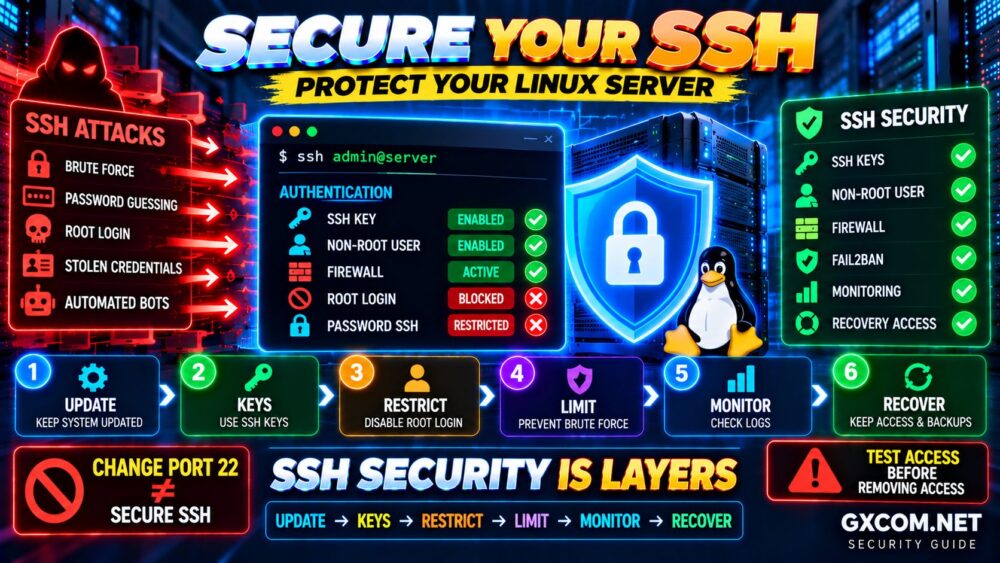
Why SSH Security Matters
Secure Shell, or SSH, provides encrypted remote access to Linux systems.
Administrators commonly use it to:
- Manage VPS servers
- 安装软件
- Edit configuration files
- Transfer files
- Restart services
- Manage databases and applications
- Perform system maintenance
Because SSH can provide powerful administrative access, compromising an SSH account can have serious consequences.
A secure Linux server therefore needs more than encryption alone.
Encrypted Connection ≠ Secure Authentication.
If you are hardening a new VPS, start with our VPS Security Guide for the broader server-security checklist.
SSH Security Checklist
| 安全控制 | 目的 | 优先级 |
|---|---|---|
| SSH 密钥 | 强认证 | 关键 |
| Non-Root User | Reduce direct privileged access | 关键 |
| Restrict Root Login | Protect root account | 关键 |
| Restrict Password Login | Reduce password attacks | 高 |
| 防火墙 | Restrict network exposure | 关键 |
| Fail2ban / Rate Controls | Reduce repeated login attempts | 高 |
| 监测 | Detect suspicious access | 高 |
| Recovery Access | Prevent permanent lockout | 关键 |
1. Keep OpenSSH and Linux Updated
SSH hardening starts with current software.
在 Ubuntu 或 Debian 上:
sudo apt update
sudo apt upgrade -y
Updates may contain security fixes for OpenSSH, system libraries, the kernel and other components.
Do not spend hours tuning authentication while leaving known vulnerabilities unpatched.
Hardening + No Updates = Incomplete Security.
2. Create a Non-Root Administrative User
Avoid using root as your normal SSH account.
On Ubuntu/Debian, create a user:
sudo adduser adminuser
Then grant sudo privileges when appropriate:
sudo usermod -aG sudo adminuser
Test the account:
ssh adminuser@SERVER_IP
And verify sudo access:
sudo whoami
You should see:
root
This provides administrative capability without requiring routine direct root login.
3. Use SSH Key Authentication
SSH keys are one of the most important improvements you can make to remote server authentication.
Generate an Ed25519 key on your local computer:
ssh-keygen -t ed25519
You can protect the private key with a strong passphrase for an additional layer of security.
Copy the public key to the server using an appropriate method, such as:
ssh-copy-id adminuser@SERVER_IP
Then test the connection in a new terminal before changing any existing authentication method.
Public Key → Server
Private Key → Keep Private
Never upload, email or publicly share your private key.
4. Protect Your Private SSH Keys
SSH key authentication is only as secure as the private key.
良好做法包括:
- Keep private keys only on trusted devices
- Use appropriate local file permissions
- Protect important keys with passphrases
- Do not reuse one administrative key everywhere without considering the risk
- Remove keys that are no longer required
- Replace keys if compromise is suspected
For teams, avoid casually sharing one private key between multiple administrators.
Individual credentials improve accountability and make access easier to revoke when someone no longer needs it.
5. Restrict Direct Root SSH Login
Once a non-root administrative account is working correctly, consider disabling direct root login over SSH.
OpenSSH server configuration is commonly found in:
/etc/ssh/sshd_config
and may also use files under:
/etc/ssh/sshd_config.d/
A common setting is:
PermitRootLogin no
Before applying it, confirm that:
- Your administrative user works
- SSH key authentication works
- Sudo works
- You have provider console or recovery access
Never Remove Your Current Access Before Testing the Replacement.
6. Disable SSH Password Authentication When Appropriate
Once key-based authentication has been fully tested, administrators may choose to disable SSH password authentication.
A typical configuration is:
PasswordAuthentication no
Before reloading SSH, validate the configuration:
sudo sshd -t
If the command reports a configuration error, fix it before reloading the service.
Keep your existing SSH session open while testing a second connection.
This simple workflow can prevent an accidental server lockout.
7. Configure a Firewall for SSH
Do not expose services that do not need public access.
On an Ubuntu system using UFW, you can inspect current rules with:
sudo ufw status verbose
If SSH must remain publicly reachable, make sure the required SSH rule exists before enabling or tightening the firewall.
Where practical, administrative SSH access can be restricted to trusted source networks or addresses.
However, static IP restrictions are not suitable for everyone, especially administrators who regularly connect from changing networks.
The firewall strategy should match your actual access pattern.
8. Should You Change the Default SSH Port?
Changing SSH from port 22 to another port is frequently recommended as a security measure.
It can reduce noise from automated scans that target the default port, but it should not be treated as a primary security control.
An attacker can still discover an SSH service running on another port.
Think of a non-standard port as:
Less Noise ≠ Strong Authentication.
SSH keys, account restrictions, firewalls and monitoring matter much more.
9. Limit Which Users Can Access SSH
If only specific accounts require remote SSH access, restrict access accordingly.
OpenSSH supports directives such as:
AllowUsers adminuser
or group-based controls such as:
AllowGroups sshusers
These controls reduce the number of accounts that can attempt remote authentication.
Before applying them, verify that the required administrative account is included.
10. Protect Against Repeated Login Attempts
Internet-facing SSH servers commonly receive automated login attempts.
Fail2ban can monitor authentication logs and temporarily block sources that repeatedly trigger configured failure rules.
On Ubuntu/Debian:
sudo apt install fail2ban -y
Check the service:
sudo systemctl status fail2ban
Fail2ban should be treated as an additional defensive layer.
It does not replace:
- SSH密钥
- Secure user accounts
- 防火墙控制
- 软件更新
- 监测
One Security Tool ≠ Complete SSH Security.
11. Review SSH Authentication Settings
Do not copy a large “ultimate sshd_config” from the internet without understanding what every setting does.
Instead, review the settings that directly affect your authentication model.
Depending on your environment, these may include:
PermitRootLogin no
PasswordAuthentication no
PubkeyAuthentication yes
The correct configuration depends on your Linux distribution, OpenSSH version and authentication requirements.
Also remember that configuration snippets may override settings from the main sshd_config file.
Always validate the effective configuration before assuming a change is active.
12. Reduce Idle and Abandoned SSH Sessions
Long-lived unattended administrative sessions increase unnecessary exposure.
OpenSSH provides controls that can help detect inactive or disconnected clients.
The exact values should reflect how you administer the server. Extremely aggressive timeouts can interrupt legitimate maintenance tasks.
The objective is not to disconnect administrators constantly—it is to avoid leaving forgotten privileged sessions open indefinitely.
13. Monitor SSH Login Activity
SSH security does not end after configuration.
Monitor successful and failed authentication activity.
Useful tools and logs vary by Linux distribution, but may include:
journalctl -u ssh
or authentication logs under:
/var/log/
You can also review recent login history with:
last
请查找:
- Unexpected successful logins
- Repeated authentication failures
- Unknown usernames
- Unexpected login times
- Unexpected source addresses
- New administrative accounts
Secure Access + No Monitoring = Blind Spot.
14. Remove Old SSH Keys and Accounts
Access tends to accumulate over time.
A developer, contractor or old laptop may no longer need access while its credentials remain authorized indefinitely.
Periodically review:
- User accounts
- Sudo privileges
- Authorized SSH keys
- Service accounts
- Automation credentials
Remove access that is no longer required.
Old Access Is Still Access.
15. Maintain Emergency Console and Recovery Access
One of the biggest risks when hardening SSH is locking yourself out of the server.
Before making major authentication or firewall changes, understand the recovery tools available from your VPS provider.
根据服务提供商的不同,这些可能包括:
- Web控制台
- VNC console
- Serial console
- 救援环境
- Recovery mode
- 快照
This is especially important before disabling root or password authentication.
A strong security configuration that prevents the legitimate administrator from accessing the server is still an operational failure.
Recommended SSH Hardening Workflow
The order of changes matters.
A safer workflow is:
1. UPDATE SERVER
Install current security updates.
↓
2. CREATE ADMIN USER
Configure appropriate sudo access.
↓
3. ADD SSH KEY
Test key authentication.
↓
4. OPEN SECOND SESSION
Confirm the new login works.
↓
5. CONFIGURE FIREWALL
Make sure SSH remains reachable.
↓
6. RESTRICT ROOT / PASSWORD LOGIN
Only after the replacement method works.
↓
7. VALIDATE SSH CONFIG
Use sshd -t.
↓
8. MONITOR
Watch authentication activity.
TEST FIRST → RESTRICT SECOND.
SSH Keys vs Passwords
| 功能 | SSH 密钥 | Passwords |
|---|---|---|
| Resistance to Guessing | Very Strong | Depends on password |
| 自动化 | 非常棒 | 不太合适 |
| Credential Theft Risk | Private key must be protected | Password must be protected |
| Revocation | Remove authorized key | Change/disable account password |
| Recommended for Server Admin | Generally Yes | Use according to security model |
SSH keys are not magic. If an unprotected private key is stolen, an attacker may be able to use it.
This is why endpoint security and private-key protection remain important.
SSH Security and DDoS Protection Are Different
SSH hardening protects administrative access.
DDoS protection focuses primarily on service availability and malicious traffic.
A server can have excellent SSH security and still be vulnerable to a large network attack.
Likewise, a VPS behind strong DDoS mitigation can still be compromised if its administrative credentials are weak.
For network-layer protection, read our DDoS Protection Guide.
The two strategies complement each other:
DDoS Protection → Protect Availability
SSH Security → Protect Administrative Access
Common SSH Security Mistakes
凡事都使用Root权限
Use a dedicated administrative account and sudo where appropriate.
在测试 SSH 密钥之前禁用密码登录
This is one of the easiest ways to lock yourself out.
Assuming a Different Port Makes SSH Secure
Changing ports may reduce automated noise but does not replace secure authentication.
Sharing One Private Key With Everyone
Individual credentials provide better accountability and easier revocation.
Leaving Old Keys Authorized Forever
Review and remove credentials that are no longer needed.
Opening SSH to the Internet Without Monitoring
Public administrative services should be monitored for suspicious authentication activity.
Making Multiple SSH Changes at Once
Change one security layer at a time and test access after each major step.
What If SSH Suddenly Becomes Slow?
Slow SSH does not necessarily indicate an attack.
可能的原因包括:
- High CPU load
- Memory pressure
- Disk I/O bottlenecks
- 网络延迟
- 数据包丢失
- DNS or authentication delays
If the entire server feels slow, use our 服务器运行缓慢故障排除指南 to check CPU, RAM, disk and network bottlenecks.
SSH Security FAQ
Is SSH secure by default?
SSH provides encrypted communication, but overall security depends on authentication, user accounts, software updates, firewall configuration, private-key protection and monitoring.
我应该禁用 root 的 SSH 登录吗?
Restricting direct root SSH login is a common hardening practice. First create and test another administrative account with working sudo and recovery access.
Should I disable SSH passwords?
If SSH key authentication is correctly configured and tested, disabling password authentication can reduce password-guessing attacks. Make sure you have reliable key and recovery access first.
Should I change SSH port 22?
Changing the port can reduce automated scanning noise but should not be considered a primary security measure. Strong authentication and access controls are more important.
Are SSH keys completely secure?
No authentication method is risk-free. SSH keys provide strong authentication, but private keys must be protected from theft and removed when no longer authorized.
Does Fail2ban secure SSH?
Fail2ban can help reduce repeated authentication attempts, but it is only one layer. Use it alongside SSH keys, firewall rules, updates and monitoring.
Can I restrict SSH to one IP address?
Yes, when your firewall and network configuration support it. This can significantly reduce exposure if you have a reliable trusted source IP, but it may be inconvenient for administrators using changing networks.
SSH Security Best Practices Checklist
- ✓ Keep Linux and OpenSSH updated
- ✓ Create a non-root administrative user
- ✓ Use SSH key authentication
- ✓ Protect private SSH keys
- ✓ Restrict direct root SSH access
- ✓ Review password authentication
- ✓ Configure firewall rules
- ✓ Do not rely on changing the SSH port alone
- ✓ Limit authorized SSH users
- ✓ Protect against repeated login attempts
- ✓ Review authentication settings
- ✓ Manage idle sessions appropriately
- ✓ Monitor login activity
- ✓ Remove old accounts and keys
- ✓ Maintain emergency recovery access
最终建议
The most effective SSH security best practices are not obscure configuration tricks.
Start with a simple layered strategy:
UPDATE
Keep Linux and OpenSSH patched.
↓
KEYS
Use strong SSH key authentication.
↓
RESTRICT
Reduce root, user and network exposure.
↓
LIMIT
Control repeated authentication attempts.
↓
MONITOR
Watch who is attempting to access the server.
↓
RECOVER
Maintain console or rescue access before tightening SSH.
Most importantly:
TEST ACCESS BEFORE YOU REMOVE ACCESS.
SSH SECURITY IS LAYERS.