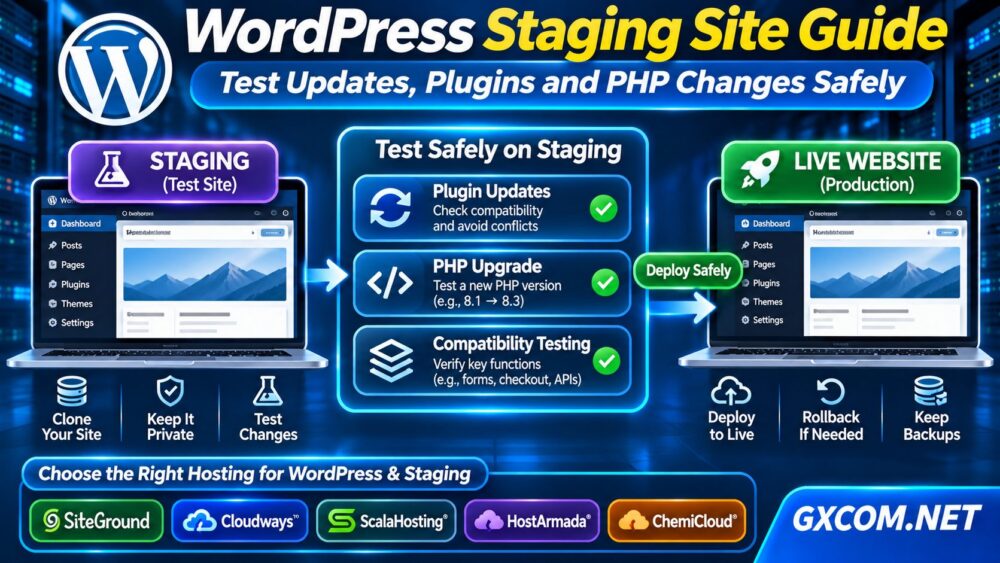
A WordPress staging site lets you test updates, plugins, themes, and PHP changes without immediately affecting your live website. Instead of discovering compatibility problems after visitors encounter broken pages, you can identify issues in a separate environment before deployment.
Staging is particularly valuable for WooCommerce stores, membership websites, and business sites where downtime can interrupt sales or customer activity. However, creating a copy is only the beginning. Safe staging also requires database protection, access controls, realistic testing, and a reliable deployment process.
What Is a WordPress Staging Site?
A WordPress staging site is a separate copy of a production website used to evaluate changes before they go live. It typically contains the same WordPress version, theme, plugins, and relevant configuration.
Staging environments may run on a subdomain, private URL, or isolated server. Ideally, their PHP version, database configuration, and caching behavior closely match production.
Unlike a local development installation, hosting-based staging can provide a more representative environment for testing server-dependent features.
Why Should You Use WordPress Staging?
Updating directly on production introduces unnecessary risk, especially when several plugins interact with checkout, authentication, or external integrations.
A staging environment helps you:
- Identify plugin and theme conflicts before deployment.
- Test PHP upgrades against existing application code.
- Check checkout, forms, and account functionality.
- Review design changes across devices.
- Validate changes without exposing visitors to unfinished work.
Staging reduces deployment risk but does not replace backups, monitoring, or a rollback plan.
How to Create a WordPress Staging Site
Method 1: Use Your Hosting Provider’s Staging Tool
Some managed WordPress and cloud hosting plans include staging functionality. Depending on the provider, you may be able to create a copy, test changes, and deploy selected updates through a control panel.
Before relying on this feature, confirm whether your particular plan supports staging, how databases are synchronized, and whether pushing changes overwrites production content.
Method 2: Create a Manual Staging Environment
For self-managed hosting, create a separate website directory or virtual host and a dedicated database.
- Back up production files and the database.
- Create a private staging hostname or directory.
- Copy WordPress files into the new environment.
- Import the database into a separate database.
- Update the staging database connection and site URLs.
- Restrict access and disable live integrations.
- Verify that staging does not modify production resources.
Use a reliable migration process that handles serialized WordPress data when replacing URLs. Simple database-wide text replacement can corrupt serialized values.

Method 3: Use a Staging or Migration Plugin
WordPress plugins can simplify site cloning, but capabilities vary. Check database handling, file exclusions, compatibility, and whether deployment features require a paid version.
If your current hosting makes staging difficult, our WordPress vs Web Hosting guide explains important differences between general hosting and WordPress-oriented environments.
How to Test WordPress Updates Safely
Start with a documented baseline. Record the active WordPress version, theme, plugins, PHP version, and critical business functions.
Apply updates individually or in controlled groups. After each change, inspect error logs and test important user journeys rather than checking only the homepage.
A practical checklist includes:
- Homepage, navigation, and mobile layouts.
- Contact forms and email delivery.
- Login, password reset, and account pages.
- WooCommerce cart, checkout, and payment sandbox.
- Scheduled tasks, caching, and API integrations.
Use test accounts and payment sandbox credentials. Avoid sending real customer notifications or submitting live transactions from staging.
Testing PHP Version Changes on Staging
PHP upgrades may improve security and compatibility with supported software, but outdated plugins or custom code can produce warnings, fatal errors, or unexpected behavior.
First confirm the target PHP version is supported by WordPress, your theme, and essential plugins. Change the staging environment to the intended version, then review server logs and execute critical workflows.
Pay particular attention to deprecated functions, custom integrations, scheduled tasks, and database extensions.
Do not upgrade production simply because staging loads successfully. Verify representative features and prepare a tested rollback procedure.
WooCommerce Staging: Avoid Database Overwrites
WooCommerce stores require additional care because production data changes continuously. New orders, customer accounts, inventory updates, and payment events may appear while staging is being tested.
Pushing an old staging database over production can overwrite newer business records. Prefer selective file or code deployment when possible, and understand exactly which database tables a staging tool modifies.
Disable outgoing emails, live payment processing, and production webhooks in the test environment. Protect customer information and use anonymized data when appropriate.
Keep Staging Private and Out of Google
A public staging copy can expose unfinished pages, duplicate content, customer information, or administrative interfaces.
Protect staging with authentication, restrict unnecessary access, and prevent search engines from indexing the environment.
A noindex directive can help prevent indexing when crawlers can access the page, but it is not a security control. Password protection is preferable for private environments.
Also check that analytics, email services, and external integrations cannot accidentally treat staging activity as production activity.
Staging vs Backups: Why You Need Both
Staging helps detect problems before deployment. Backups provide recovery options when something goes wrong.
Maintain independent, restorable backups of production before pushing changes. A hosting snapshot alone may not satisfy every recovery requirement.
我们的 VPS Snapshot and Backup Recovery guide explains the differences between snapshots, backups, and restoration planning.
When Does Staging Reveal a Hosting Bottleneck?
Staging sometimes exposes infrastructure limitations rather than software incompatibility. A copied website may run slowly because the test environment has less memory, limited CPU resources, insufficient storage, or different caching settings.
Compare PHP execution time, database performance, memory usage, and error logs before blaming a plugin.
If your plan lacks adequate resources or staging controls, consider whether managed WordPress hosting, cloud hosting, or a managed VPS better fits your workflow.
Which Hosting Providers Should You Compare?
托管型 WordPress 主机
SiteGround, HostArmada, ,以及 ChemiCloud are relevant options for website owners comparing WordPress-oriented hosting and technical support. Verify staging availability, backup policies, and deployment features for each specific plan.

请阅读我们的 Managed WordPress vs Shared Hosting comparison to understand the operational differences.
托管式云主机
Cloudways is worth evaluating when growing websites require more flexible cloud resources and managed server operations. Compare staging workflows, resource sizing, and deployment controls.
探索我们的 托管云主机对比 for broader purchasing guidance.
托管型VPS主机
ScalaHosting provides managed VPS options for organizations seeking greater server configuration control. Confirm whether your preferred plan supports isolated staging, backups, and the PHP configurations your application needs.
我们的 Managed vs Unmanaged VPS guide helps explain the responsibilities involved.
常见问题解答
Does a Staging Site Affect My Live Website?
A properly isolated staging site should not directly modify production. Shared databases, integrations, or careless deployment settings can still create risks.
Should I Delete Staging After Deployment?
You can retain a secured staging environment for future testing, provided it is maintained, access-controlled, and regularly synchronized when appropriate.
Is Staging Necessary for Small WordPress Sites?
Even small sites benefit from testing important changes. The appropriate setup depends on website complexity, downtime tolerance, and available resources.
最终裁决
A WordPress staging site is an essential safeguard for testing updates, plugins, and PHP changes. Prioritize isolation, realistic testing, database protection, and verified backups.
When staging exposes hosting limitations, compare managed WordPress, cloud, and VPS solutions based on actual workflow requirements rather than assuming every hosting plan includes the same features.