WordPress cron jobs not running can cause scheduled posts to miss publication times, backups to start late, and plugin maintenance tasks to stop working. The problem often appears as a “Missed Schedule” warning, but the underlying cause may involve website traffic, WP-Cron configuration, PHP errors, or server restrictions.
This guide explains how WordPress scheduling works, how to diagnose failed tasks, and when replacing traffic-triggered WP-Cron with a system cron job makes sense.
How Does WordPress WP-Cron Work?
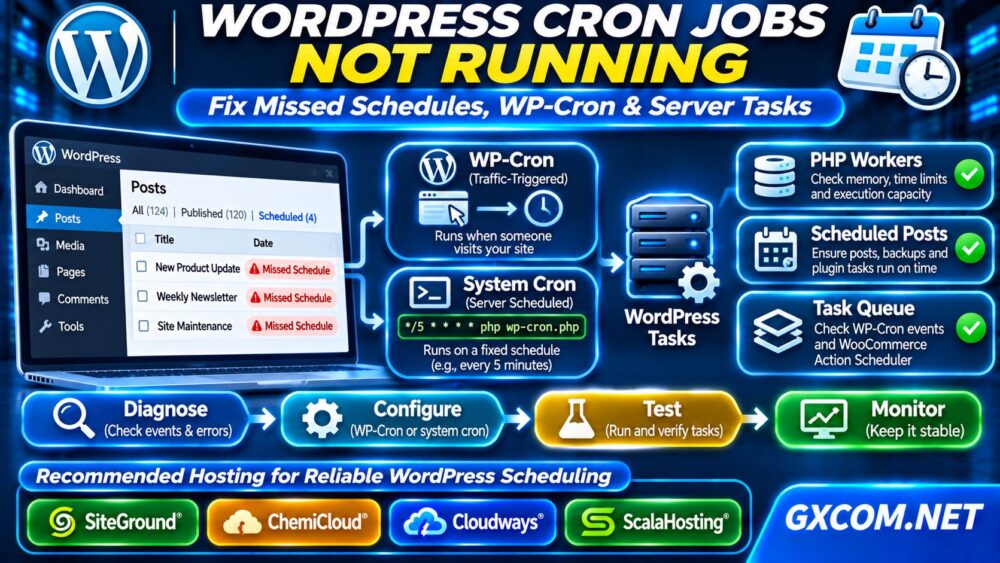
WordPress uses WP-Cron, a scheduling system that checks for due tasks when the website receives requests. Unlike a traditional Linux cron daemon, it does not continuously run on a fixed operating-system schedule.
Consequently, low-traffic websites may execute scheduled tasks later than expected. High-traffic websites can experience different problems when requests, PHP processes, or plugins compete for resources.
Typical scheduled activities include publishing articles, checking updates, processing plugin queues, and initiating certain backup operations. Individual plugins may use their own scheduling mechanisms.
Step 1: Check Scheduled Posts and Site Health
Open your WordPress dashboard and examine posts marked “Missed Schedule.” Confirm that the publication date, time zone, and post status are correct.
Next, navigate to Tools → Site Health and review critical issues or scheduled-event warnings.
One delayed article does not prove that every scheduled task is broken. Compare several events and determine whether the problem affects publishing, plugins, or the entire scheduling system.
Step 2: Inspect WP-Cron Events
A trusted cron-management plugin, such as WP Crontrol, can display scheduled events, their next execution times, and relevant errors.
Administrators with WP-CLI access can inspect events using:
wp cron event listRun WP-CLI from the correct WordPress installation directory with appropriate permissions. Review overdue events and identify the associated plugin or callback.
For a controlled test, you can execute due events:
wp cron event run --due-nowBe careful on production websites because this command may trigger emails, scheduled publishing, or other business operations.
Step 3: Check Whether WP-Cron Is Disabled
打开 wp-config.php and look for the following setting:
define('DISABLE_WP_CRON', true);When enabled, WordPress does not automatically spawn WP-Cron through its normal request-triggered mechanism. This setting is appropriate when a separate scheduler reliably triggers WordPress tasks.

However, disabling automatic spawning without configuring a replacement can leave scheduled events overdue indefinitely.
Check whether your hosting panel, system crontab, or automation platform already provides that replacement before changing the configuration.
Step 4: Configure a Real Server Cron Job
For websites needing predictable scheduling, a server cron job can trigger WordPress at regular intervals independently of visitor traffic.
On a Linux server, a common approach is:
*/5 * * * * /usr/bin/php /var/www/html/wp-cron.php >/dev/null 2>&1This example runs every five minutes. Replace the PHP executable and WordPress path with values appropriate to your installation.
Test the command manually before scheduling it. Use the correct operating-system account and avoid running website tasks with unnecessary root privileges.
After confirming successful execution, set DISABLE_WP_CRON 到 true to prevent duplicate traffic-triggered spawning.
On hosting platforms that support WP-CLI, a scheduled wp cron event run --due-now command may be another option. Confirm the working directory and execution permissions.
Step 5: Investigate PHP and Plugin Failures
If scheduled events remain overdue, inspect PHP error logs, WordPress debugging information, and plugin-specific task reports.
Common causes include fatal PHP errors, exhausted memory limits, blocked loopback requests, and slow callbacks that exceed execution limits.
Enable debugging carefully on production systems and avoid publicly displaying sensitive error information.
我们的 WordPress PHP 工作进程限制指南 explains how application concurrency and worker queues can affect website operations.
Before changing plugins or PHP versions, test modifications in an isolated staging environment. Maintain a recent backup and a rollback procedure.
Step 6: Check WooCommerce Scheduled Actions
WooCommerce and many extensions use Action Scheduler for background processing. These tasks may include notifications, subscription events, and asynchronous application operations.
Open the scheduled-actions interface available in your WooCommerce installation and review pending, failed, and completed actions.
Repeated failures may indicate plugin errors, database contention, or insufficient execution capacity. A healthy system cron does not automatically repair a failing application callback.
Investigate the specific action and its logs before increasing execution frequency or restarting background processing.
Step 7: Test Cron Reliability After Changes
Create a harmless scheduled test event or use a controlled staging environment to confirm that events execute within the expected interval.
Monitor task completion, PHP errors, and server resource usage across several cycles. Verify scheduled publishing separately from backup or commerce workflows.
For broader application security and maintenance planning, consult our 非托管服务器安全检查清单.
When Is Hosting the Real Bottleneck?
Switching to system cron fixes dependence on visitor traffic, but it cannot eliminate slow application code, restricted execution environments, or insufficient server resources.
Check CPU usage, available memory, PHP worker saturation, database latency, and task execution time during failures.
我们的 VPS 与共享主机对比 explains when greater resource control may benefit demanding WordPress installations.
Compare WordPress Hosting and Managed Servers
SiteGround 以及 ChemiCloud are relevant for WordPress owners comparing hosting management, support, and scheduling capabilities.

Cloudways offers managed cloud environments for growing applications, while ScalaHosting provides managed VPS options for administrators seeking more server configuration control.
Before purchasing, confirm cron availability, minimum scheduling intervals, PHP execution restrictions, backup options, and technical support responsibilities. These features can vary between plans.
探索我们的 托管云主机对比 when cloud infrastructure better matches your workload.
For VPS purchasing decisions, review our 托管型与非托管型VPS指南.
常见问题解答
Why Does WordPress Show Missed Schedule?
The scheduled event was not completed on time. Low traffic, disabled WP-Cron spawning, application errors, or server restrictions may contribute.
Should I Disable WP-Cron?
Only after configuring and testing a reliable alternative scheduler. Otherwise, automatic WordPress tasks may stop running.
How Often Should Server Cron Run?
Five minutes is a common starting interval, but time-sensitive workflows may require different scheduling. Check hosting restrictions and application requirements.
最终裁决
Fixing WordPress cron jobs not running requires checking scheduled events, WP-Cron configuration, PHP failures, and background task queues.
A properly configured system cron can improve scheduling reliability. If resource monitoring reveals persistent infrastructure limitations, compare managed WordPress hosting, VPS, and cloud solutions based on actual operational needs.