A Linux server disk full error can interrupt websites, databases, backups, and application deployments. The message “No space left on device” often appears when a filesystem reaches capacity, but it can also indicate exhausted inodes rather than insufficient storage bytes.
Before deleting anything, identify the affected filesystem and understand what consumes its resources. This guide explains safe diagnostic commands, log cleanup, deleted-file recovery, and when upgrading VPS or cloud storage makes sense.
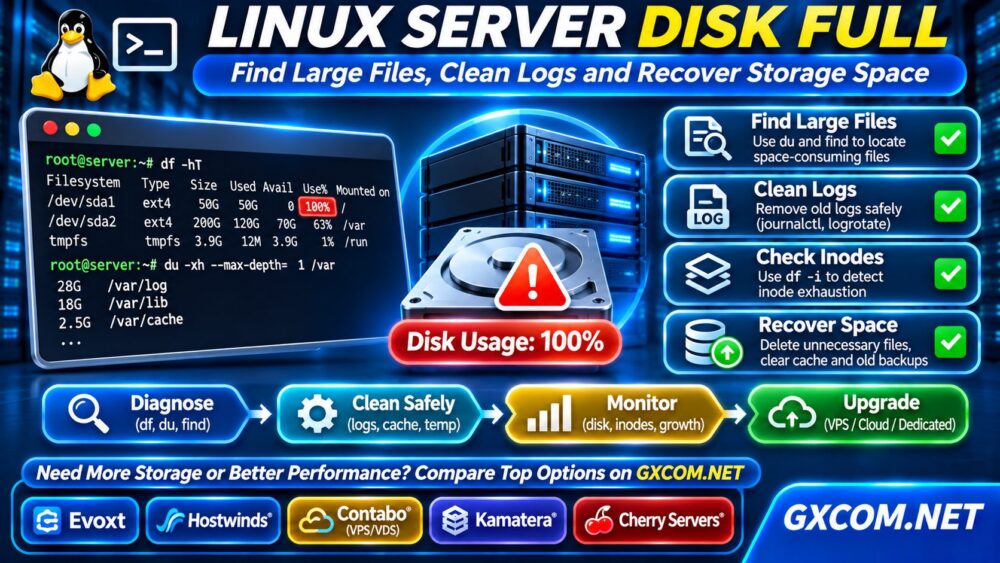
1. Check Linux Disk Usage with df
Start by checking mounted filesystem capacity:
df -hTThe output shows filesystem type, total capacity, available space, utilization, and mount points. Focus on the filesystem reporting 100% usage rather than assuming the root partition is responsible.
Next, check inode availability:
df -iInodes track filesystem objects. Millions of small files can exhaust available inodes even when storage capacity remains. If inode usage is full, deleting a few large files may not resolve the problem.
Record the affected mount point before continuing.
2. Find Large Directories with du
该 du command helps locate directories consuming storage. For the root filesystem, run:
sudo du -xhd1 / 2>/dev/null | sort -h该 -x option prevents traversal into other mounted filesystems. Inspect unusually large directories individually, such as /var, /home, or application storage paths.
例如:
sudo du -xhd1 /var 2>/dev/null | sort -hDo not assume a large directory is disposable. Database files, virtual machine images, and application uploads may contain essential production data.
3. Find Large Files Safely
To locate files larger than 500 MB on the root filesystem, use:
sudo find / -xdev -type f -size +500M \
-printf '%s %p\n' 2>/dev/null | sort -nr | head -20
The first column reports file size in bytes. Review the resulting paths before making changes.
Common storage consumers include archived logs, abandoned backups, container images, database exports, and temporary application files.
Never automatically delete files returned by a size-based search. A large file may be necessary for a running service.
4. Clean Linux Logs Without Breaking Services
System logs can grow rapidly when applications repeatedly report errors. Inspect journal usage:
sudo journalctl --disk-usageIf the journal is unusually large, consider a controlled cleanup:

sudo journalctl --rotate
sudo journalctl --vacuum-size=500M
The first command rotates active journal files. The second removes eligible archived journal files according to the specified size target. It does not guarantee that total journal usage immediately falls below 500 MB.
For traditional logs, inspect /var/log and confirm whether logrotate is configured correctly.
Avoid deleting active log files blindly. Fix the underlying error generating excessive logs, or the disk may fill again.
5. Fix Deleted Files Still Using Disk Space
有时 df reports a full filesystem while du cannot account for the usage. One possible cause is a deleted file still held open by a running process.
Check with:
sudo lsof +L1This lists open files with a link count below one, including deleted files still occupying storage.
Identify the responsible service before taking action. A controlled service restart may release the file descriptor, but restarting databases or production applications can interrupt users.
Investigate other explanations for df 以及 du differences, including filesystem metadata, reserved blocks, and inaccessible directories.
6. Investigate Docker and Application Storage
Container images, build caches, volumes, and logs can consume substantial disk space.
For Docker installations, inspect usage:
docker system dfReview unused resources before removing them. Avoid indiscriminate pruning, especially commands that remove volumes, because persistent application data may be lost.
Also inspect application uploads, package caches, database exports, and scheduled backup directories.
If backups are contributing to capacity problems, our VPS 快照与备份恢复指南 explains how to plan recovery storage without relying on a single local copy.
7. Recover Space and Verify Services
After identifying genuinely unnecessary files, remove or archive them through the appropriate application or system maintenance procedure.
Then rerun:
df -hT
df -i
Confirm that free capacity and inode availability have improved. Check web server, database, and application logs for continued errors.
When a full disk causes service failures, restoring free space alone may not repair corrupted transactions or interrupted background tasks. Validate application health and backups before declaring recovery complete.
8. Prevent Future Disk Full Incidents
Set storage alerts before utilization reaches critical levels. Monitor capacity growth, inode consumption, log retention, and backup schedules.
Review recurring growth patterns and establish realistic headroom for database writes, temporary files, package updates, and application deployments.
Storage performance matters as well as capacity. Our NVMe VPS 与 SSD 性能对比指南 explains why disk technology, latency, and workload characteristics deserve separate evaluation.
9. When Should You Upgrade VPS Storage?
Consider upgrading when legitimate application data continues growing despite sensible retention policies, or when available storage no longer supports safe operations.
Check whether your hosting plan supports disk expansion, whether filesystem resizing is required, and whether the change involves downtime.
For general purchasing decisions, read our 最佳VPS服务商对比.
Evoxt and Hostwinds are relevant for Linux VPS buyers comparing configurations and management options. Contabo VPS/VDS may interest users evaluating storage capacity against overall resource requirements.
探索 Evoxt VPS plans and verify current disk capacity, pricing, and expansion policies before purchasing.
10. Cloud Servers vs Dedicated Storage
卡马特拉 offers configurable cloud server resources for organizations that need to evaluate capacity and infrastructure flexibility.

Cherry 服务器 provides bare-metal options for workloads requiring greater physical hardware control, such as large databases or storage-intensive applications.
Dedicated hardware does not automatically eliminate capacity planning, filesystem limits, or backup requirements.
我们的 专用服务器与云服务器的对比 explains the operational tradeoffs between these deployment models.
常见问题解答
Why Is Linux Disk Full After Deleting Files?
Deleted files may remain open in running processes. Check lsof +L1 and investigate filesystem accounting before restarting services.
Can Linux Run Out of Inodes?
Yes. Large numbers of small files can exhaust inodes even when disk capacity remains available. Check using df -i.
Should I Delete Everything in /var/log?
No. Logs are important for troubleshooting and security. Use controlled rotation and retention policies instead of indiscriminate deletion.
最终裁决
When a Linux server disk is full, start with df, locate large directories with du, investigate files with 查找, and check logs and open deleted files.
Recover space carefully, verify application health, and establish monitoring. If legitimate storage demand exceeds your plan, compare VPS, cloud, and dedicated infrastructure based on actual capacity, performance, and recovery requirements.
For broader infrastructure selection, consult our 裸机服务器对比 在决定采用实体硬件之前。.