GXCOM SSL 如何在 WordPress 网站上安装 SSL 证书

如何在 WordPress 网站上安装 SSL 证书

HTTPS has become a standard requirement for modern websites. Installing an SSL certificate on a WordPress website helps protect visitor data, improve trust and create a secure connection between browsers and servers.

Although many hosting providers now offer free SSL certificates, WordPress website owners still need to configure HTTPS correctly to avoid security warnings and mixed content issues.

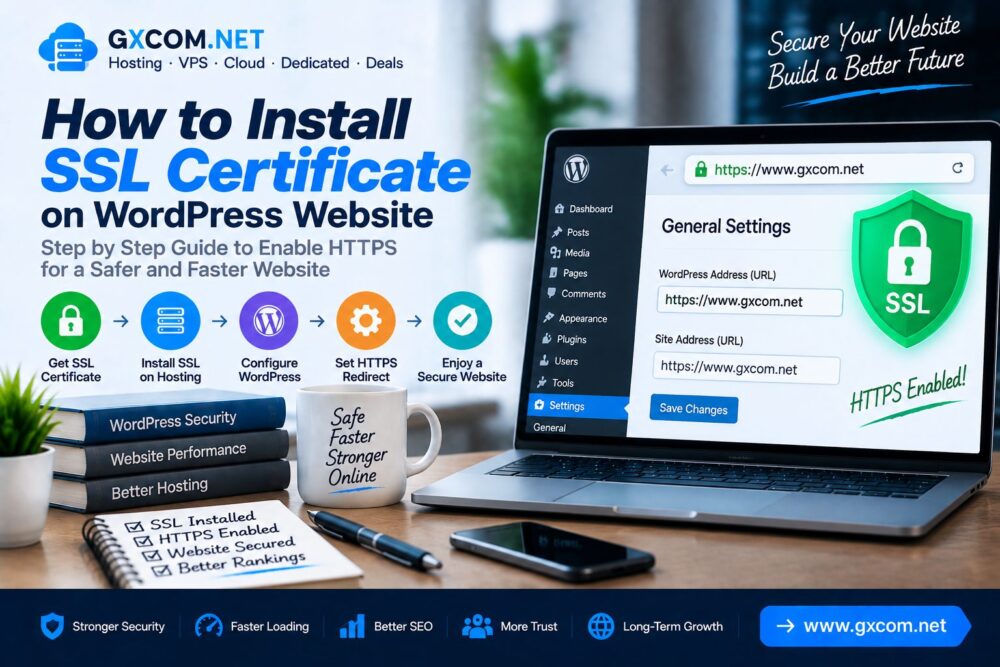
This guide explains how to install SSL certificate on WordPress website, configure HTTPS settings and ensure your website works correctly after migration from HTTP to HTTPS.

如何在 WordPress 网站上安装 SSL 证书

Why Install SSL Certificate on WordPress?

An SSL certificate encrypts communication between visitors and your website server.

Installing SSL provides several benefits:

  • Protects user information
  • Enables HTTPS connection
  • Improves visitor trust
  • Supports website security
  • Creates a better technical SEO foundation

Before Installing SSL Certificate

Before enabling HTTPS, check the following requirements:

要求 Status
Active domain name 必填
Working WordPress website 必填
Hosting control panel access 必填
SSL certificate available 必填
Website backup Recommended

Step 1: Get an SSL Certificate From Your Hosting Provider

Many hosting providers include free SSL certificates through automated certificate authorities.

Common SSL options include:

  • 免费 SSL 证书
  • Premium SSL certificates
  • Wildcard SSL certificates
  • Business validation certificates

When selecting hosting, check whether SSL installation and renewal are included.

You can compare hosting options through our 最佳网站托管服务 指南。.

Step 2: Install SSL Through Hosting Control Panel

Most hosting providers provide SSL management tools through their control panels.

The general installation process includes:

  1. Open your hosting control panel.
  2. Find SSL or Security settings.
  3. Select your domain name.
  4. Install or activate the SSL certificate.
  5. Wait for certificate verification.

Step 3: Change WordPress Website URL to HTTPS

After installing SSL, WordPress needs to use HTTPS instead of HTTP.

Go to:

WordPress Dashboard
→ Settings
→ General

Change:

http://example.com

to:

https://example.com

Update both:

  • WordPress Address (URL)
  • Site Address (URL)

Step 4: Force HTTP Redirect to HTTPS

After enabling SSL, all visitors should automatically access the secure HTTPS version.

HTTP to HTTPS redirect prevents:

  • Duplicate URLs
  • Security warnings
  • SEO confusion
  • Incorrect indexing

Many hosting providers offer automatic HTTPS redirect options.

Step 5: Fix WordPress Mixed Content Issues

Mixed content happens when an HTTPS website still loads some resources through HTTP.

Common causes include:

  • Old image URLs
  • HTTP scripts
  • Theme resources
  • Plugin files

Solutions include:

  • Update HTTP links to HTTPS
  • Replace old media URLs
  • Check theme settings
  • Review plugin resources

Step 6: Update WordPress Database URLs

Some old HTTP URLs may remain inside the WordPress database.

Database updates may be required for:

  • Posts
  • Images
  • Internal links
  • Plugin settings

Step 7: Update Google Search Console

After switching WordPress to HTTPS, website owners should update search engine tools.

Recommended actions:

  • Add HTTPS property
  • Submit updated sitemap
  • Monitor indexing status
  • Check security issues

Step 8: Update Internal Links

Internal links should use HTTPS URLs after SSL installation.

请检查:

  • Navigation menus
  • Blog articles
  • Footer links
  • Images

Step 9: Verify SSL Installation

After completing setup, confirm that SSL works correctly.

请检查:

  • Browser lock icon
  • HTTPS URL
  • No security warnings
  • Valid certificate information

WordPress SSL Installation Checklist

Task Status
Install SSL Certificate 必填
Enable HTTPS 必填
Redirect HTTP Traffic 必填
Fix Mixed Content 必填
Update Sitemap Recommended

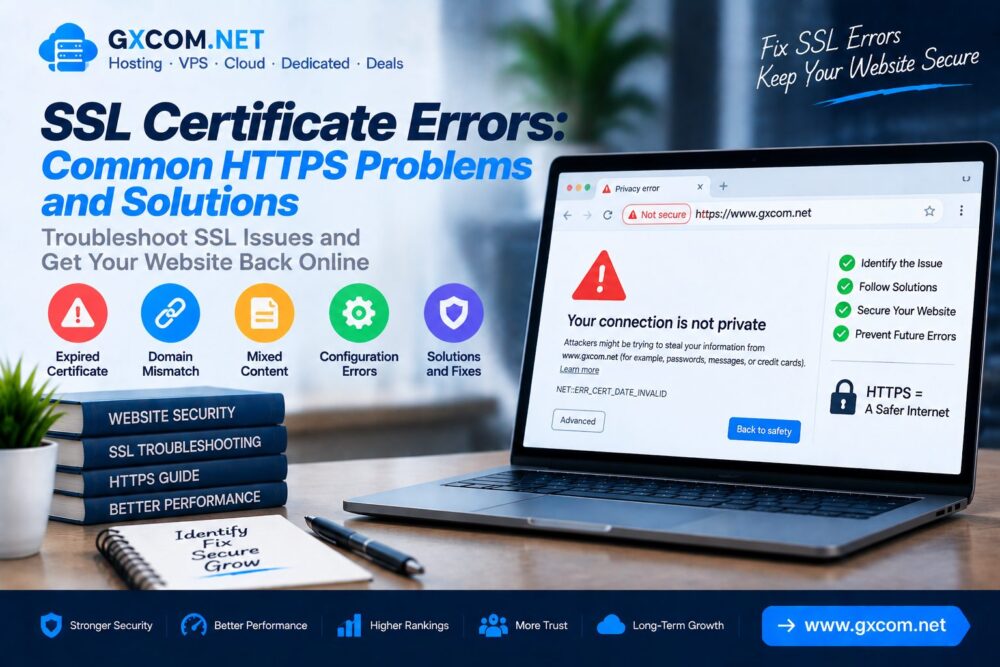
Common WordPress SSL Installation Problems

Problem 解决方案
HTTPS Not Working Check SSL configuration
Mixed Content Warning Replace HTTP resources
Redirect Loop Review HTTPS settings
Certificate Error Verify domain and renewal

WordPress SSL Plugin vs Manual Configuration

Method Suitable For
SSL Plugin Beginners needing simple setup
Manual Configuration 高级用户
Hosting SSL Tools 大多数网站

How Hosting Affects SSL Performance

SSL configuration depends on the quality of hosting infrastructure.

A reliable hosting environment should provide:

  • Automatic SSL renewal
  • Modern encryption support
  • Secure server configuration
  • HTTPS compatibility

Websites requiring more server control can explore our 最佳VPS评测.

常见问题解答

How do I install SSL certificate on WordPress?

You can install SSL through your hosting provider, activate HTTPS in WordPress settings and redirect HTTP traffic to HTTPS.

Is free SSL enough for WordPress?

Free SSL certificates provide encryption and HTTPS protection for most websites.

Why does my WordPress site show mixed content?

Mixed content occurs when some website resources still load through HTTP after SSL activation.

Does SSL improve WordPress SEO?

SSL creates a secure website foundation and works together with speed, content and technical SEO optimization.

结语

Installing an SSL certificate on WordPress is an essential step for website security and modern web standards.

A correct HTTPS setup requires more than activating a certificate. Website owners should also configure redirects, fix mixed content and update website settings.

With proper SSL configuration and secure hosting infrastructure, WordPress websites can provide safer experiences for visitors and stronger technical foundations for future growth.

© GXCOM.NET。本网站上的所有内容均代表我们团队的独立研究、编辑分析及原创见解。任何转载、引用或再发布均须注明原始来源,并附上原文链接。.https://www.gxcom.net/zh/install-ssl-certificate-wordpress/

发表评论

您的电子邮件地址不会被公开。必填项已用 * 标记

返回顶部