Running a multiplayer game server on a VPS gives you control over the operating system, server files, plugins, and gameplay settings. Instead of relying entirely on a managed hosting dashboard, you can build an environment around the game your community wants to play.
However, learning how to set up a game server on a VPS involves more than installing a game executable. You need sufficient CPU and RAM, the correct runtime, secure remote access, properly configured firewall rules, and a reliable backup plan.
This Linux and Windows guide uses Minecraft Java Edition as a practical example, then explains how the process differs for games such as Rust and ARK.
Choose the Right VPS for Game Server Hosting
Before installing software, choose a VPS that matches your expected player count and game workload. Game servers can be sensitive to single-core CPU performance, memory pressure, and network latency.
For a small Minecraft Java server, a modern VPS with approximately 4 GB of RAM may provide a starting point for lightweight use. Larger communities, modpacks, and demanding games often require considerably more memory and stronger CPU resources.
NVMe storage helps with world files, updates, and backups. A nearby data center can reduce latency for your players, while stable network connectivity matters more than an impressive advertised port speed.
Also check whether the VPS provider permits game servers and offers suitable DDoS protection. Some games are more demanding than a typical website, particularly when many players are active simultaneously.
我们的 最佳游戏VPS主机 comparison explains what to look for when selecting infrastructure.
Step 1: Prepare Your Linux or Windows VPS
Linux is popular for self-managed game servers because it can run efficiently without a graphical desktop. Ubuntu Server is a common starting point, although the best distribution depends on the game and its supported software.
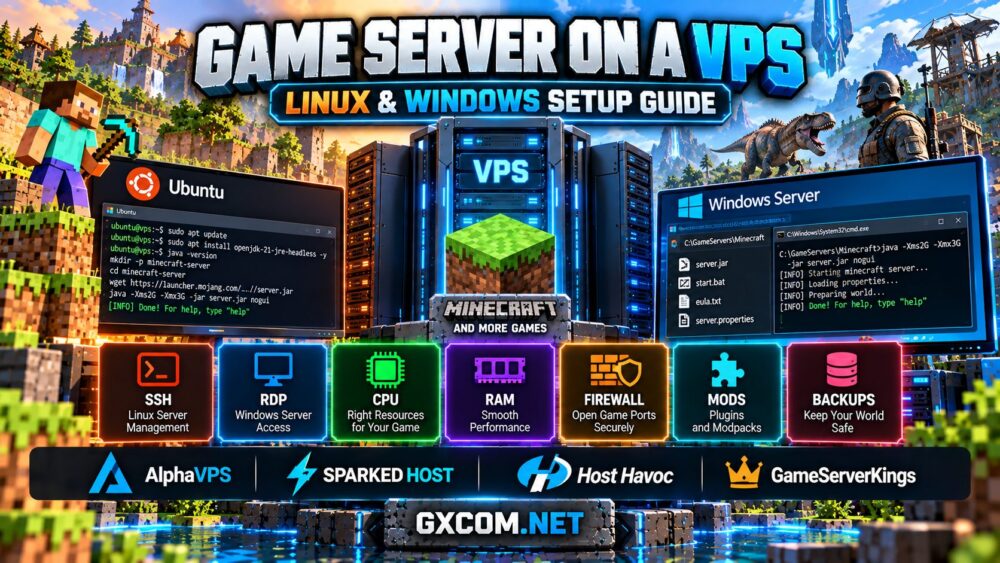
Connect to a Linux VPS using SSH:
ssh youruser@YOUR_SERVER_IPUpdate the operating system before installing game software:
sudo apt update
sudo apt upgrade -y
Use a regular administrative account with sudo privileges rather than running the game process as root. Configure SSH key authentication, restrict administrative access, and keep the system updated.
On Windows Server, connect through Remote Desktop using the provider's supplied credentials. Install pending updates, configure Windows Defender Firewall, and create a dedicated folder for game server files.
RDP should not be exposed unnecessarily to the entire internet. Restrict remote access to trusted addresses or use an appropriately secured VPN or management gateway.
Step 2: Install a Minecraft Server on Linux
Minecraft Java Edition is a useful example because it demonstrates the same core steps used by many game servers: installing dependencies, downloading server files, configuring startup options, and opening the correct network port.
Install a Java runtime supported by your selected Minecraft server version. For a version that requires Java 21, an Ubuntu system with that package available can use:
sudo apt install openjdk-21-jre-headless -y
java -version
Create a dedicated directory and enter it:
mkdir -p ~/minecraft-server
cd ~/minecraft-server
Download the official Minecraft Java server JAR from Minecraft's server download page. Rename the downloaded file to server.jar for convenience, then start it with an appropriate memory limit:

java -Xms2G -Xmx3G -jar server.jar noguiThe first launch creates configuration files and stops until you accept the Minecraft EULA. Read the EULA, then change eula=false to eula=true only if you agree to its terms.
Restart the server and edit server.properties to configure the server name, difficulty, maximum players, and other supported settings.
For a production deployment, use a systemd service or another suitable process manager so the game can restart automatically and run independently of your SSH session.
Step 3: Install a Minecraft Server on Windows VPS
Windows Server provides a familiar graphical interface, which may be convenient for administrators who prefer file management through Remote Desktop.
Install the Java runtime required by your Minecraft version, download the official server JAR, and place it in a dedicated directory such as C:\GameServers\Minecraft.
Create a batch file named start.bat in the same directory:
@echo off
cd /d C:\GameServers\Minecraft
java -Xms2G -Xmx3G -jar server.jar nogui
pause
Run the batch file, review the generated EULA, and accept it only after reading the terms. Then restart the server and configure server.properties.
For unattended operation, use a suitable Windows service wrapper or task management solution rather than relying on an interactive Remote Desktop session.
Windows VPS plans may have additional operating system licensing costs and greater background resource usage. Compare the total hosting cost before choosing an operating system.
Step 4: Configure Firewall Ports and Player Connections
Players need a reachable network endpoint to join your game server. Minecraft Java Edition commonly uses TCP port 25565, although other games use different protocols and ports.
On an Ubuntu VPS using UFW, allow the Minecraft port:
sudo ufw allow 25565/tcp
sudo ufw status
Before enabling UFW on a remote server, confirm that your SSH management port is permitted. Otherwise, you could lock yourself out.
On Windows Server, create an inbound Windows Defender Firewall rule allowing TCP port 25565 for the Minecraft server. If your VPS provider uses an additional cloud firewall, configure that rule as well.
Players can connect using the VPS public IP address or a domain name pointing to it. If you use a custom port, include it in the connection address where required.
Only open ports needed by the game. Avoid disabling the entire firewall to troubleshoot a connection problem.
Step 5: Install Mods, Plugins, and Game Management Tools
Vanilla Minecraft works without additional server software, but many communities want plugins, modpacks, or advanced administrative tools.
Paper is commonly used for plugin-based Minecraft Java servers, while Fabric, Forge, and NeoForge support different modding ecosystems. Choose software that matches your Minecraft version and the modifications you intend to run.
Do not assume a plugin designed for Paper will work on a Forge server. Likewise, client-side mods do not always belong in a dedicated server installation.
For larger modpacks, review our modded Minecraft server hosting guide, which covers CPU, RAM, and modpack requirements.
You can also install a compatible game server control panel to simplify file management, scheduled restarts, backups, and player permissions. However, self-hosted panels introduce additional software that must be secured and maintained.
我们的 game hosting control panels comparison examines Pterodactyl, TCAdmin, AMP, and Multicraft.
Step 6: Run Rust, ARK, and Other Games on a VPS
The general VPS setup process is similar across games, but installation commands, operating system support, and hardware requirements vary substantially.
Rust dedicated servers commonly use SteamCMD for installation and require their own startup parameters, network ports, and administrative configuration. Rust can be considerably more demanding than a small vanilla Minecraft world.
ARK dedicated servers also use SteamCMD, but ARK: Survival Ascended and ARK: Survival Evolved require different server applications and mod systems. ASA's standard server distribution is Windows-based, while ASE has native Linux server support.
Do not assume every game will run efficiently on a small shared-CPU VPS. Check official server requirements, operating system compatibility, and the provider's acceptable-use policies before deployment.
For more detailed instructions, see our Rust dedicated server setup 指南。.
Choosing Between Self-Managed VPS and Managed Game Hosting
A self-managed VPS gives you operating system access and flexibility, but you are responsible for installation, security updates, backups, and troubleshooting.
AlphaVPS is relevant for administrators comparing self-managed VPS infrastructure. Its available configurations should be evaluated for CPU performance, RAM, storage, network location, and the operating system required by the game.
Sparked 主持人 offers managed game hosting options that may be more convenient for Minecraft communities wanting a ready-to-use management environment rather than full VPS administration.

主持人哈沃克 is another managed game hosting alternative, particularly for administrators who value game-specific support and control panel tools.
GameServerKings is worth comparing for supported multiplayer game hosting products and communities considering more specialized gaming infrastructure.
These services should not be treated as interchangeable. AlphaVPS is discussed as an infrastructure option, while the other providers are relevant primarily as managed game hosting alternatives. Verify the exact products and included features before ordering.
Game Server VPS Maintenance and Security Checklist
After your server is running, establish a routine for updates, monitoring, and recovery. A game world is only as reliable as the infrastructure and maintenance practices supporting it.
- Keep the operating system and game server software updated.
- Use SSH keys or other secure remote administration methods.
- Restrict firewall rules to necessary services and ports.
- Monitor CPU, RAM, storage usage, and network stability.
- Schedule backups and test that saved worlds can be restored.
- Review logs after crashes, plugin changes, and game updates.
- Use strong administrator credentials and limit user permissions.
- Upgrade hardware when monitoring identifies a genuine resource bottleneck.
If your community grows beyond the practical limits of shared virtual resources, a dedicated server may provide greater performance consistency. Our 游戏VPS与独立服务器对比 guide explains the trade-offs.
Final Verdict: Linux or Windows for Game Server VPS Hosting?
Linux is often the more resource-efficient choice for supported game servers, especially when administrators are comfortable with SSH and command-line management. Windows may be more convenient for software requiring a graphical environment or a Windows-specific dedicated server application.
Neither operating system guarantees better gameplay on its own. CPU performance, available memory, network quality, storage, and the game's optimization are more important than the operating system label.
Start with a supported game, configure secure remote access, test connectivity, and establish backups before inviting players. Whether you choose a self-managed VPS or managed game hosting, reliable operations matter more than an impressive specification sheet.